
Privacy in practice
Change your photo vault’s app icon on iPhone
Change Vault Max’s Home Screen icon, check what iOS still shows, and choose a different locked cover. See the actual icon change on an iPhone simulator.
Vault Max 1.1 is available. Get the update on the App Store, then follow the walkthrough below.
Watch the icon change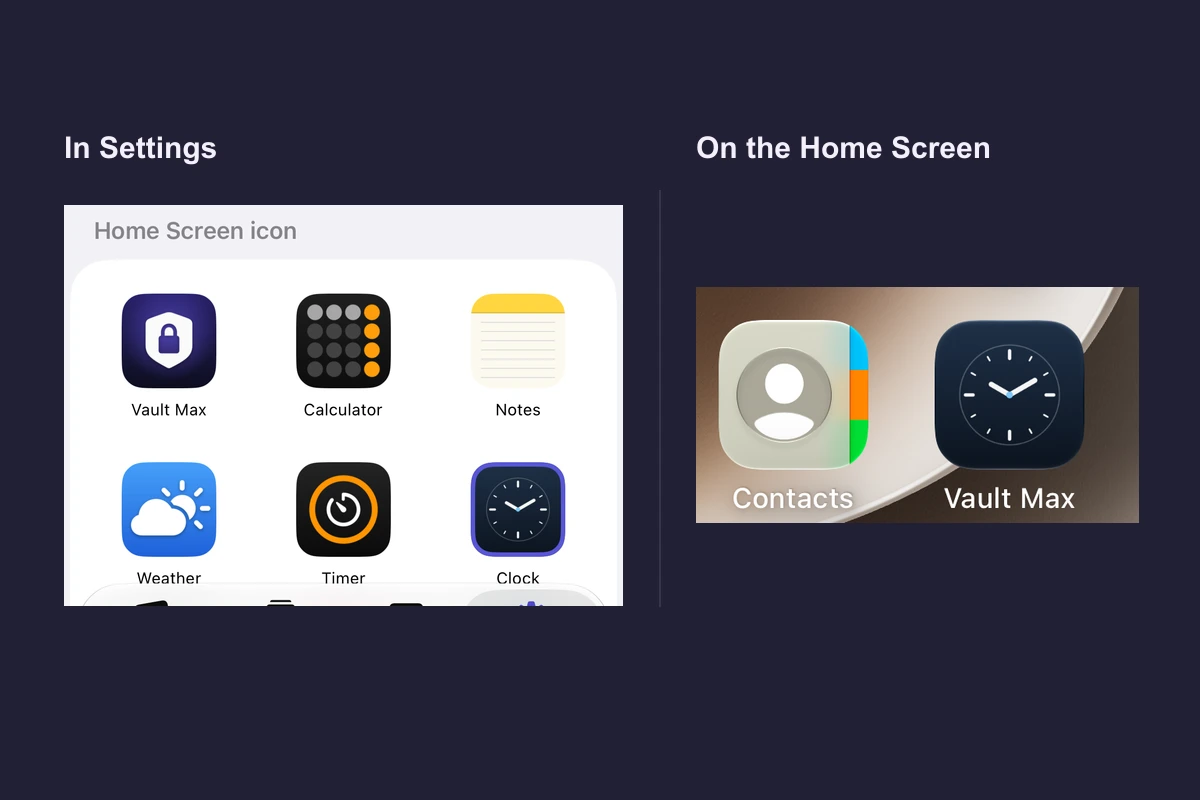
In Vault Max 1.1, go to Settings → Disguise & app icon → Home Screen icon and choose the artwork you want. The icon is the picture you tap on your Home Screen. The cover is the screen you see after opening Vault Max while it’s locked. You can choose each one separately.
Watch the icon change
Native recording · iPhone 18 Pro
Choose Clock artwork and check the Home Screen
The iPhone simulator starts in Vault Max’s icon picker. It changes the icon while the existing cover stays selected.
- Choose the Clock icon
The new artwork is selected under Home Screen icon.
- Check the system message
iOS may show a confirmation after the artwork changes.
- Go to the Home Screen
The picture changes, and its label still reads Vault Max.
Set an icon and check your cover
- Unlock Vault Max. Open Settings → Disguise & app icon and look at Current cover.
- Scroll past Choose a cover to Home Screen icon. Tap the picture you want, such as Clock. Check the selection and dismiss the iOS message if one appears.
- Go to the Home Screen and find Vault Max. Check that the artwork changed. If you keep the app in App Library, search for Vault Max there.
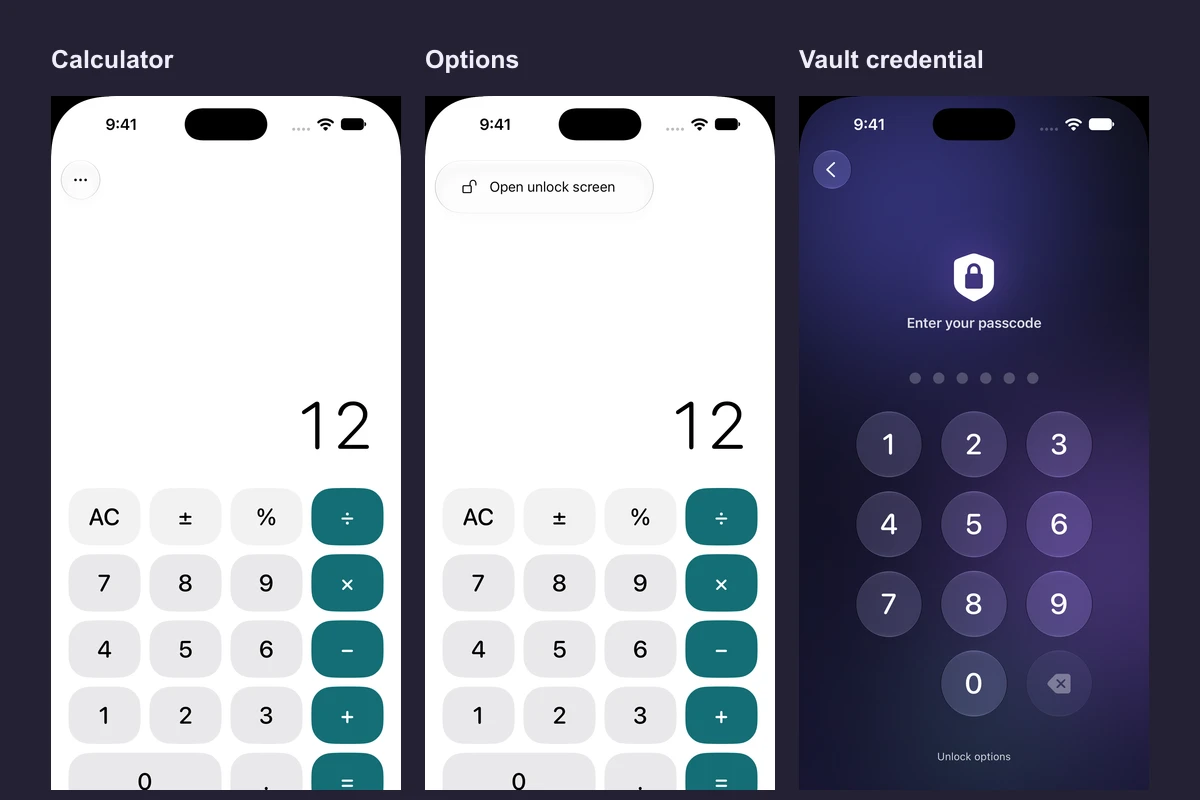
- In the app, use Lock and reopen it. Confirm that the same cover appears. Tap the three dots → Open unlock screen and use the credential you already set.
Change the icon and check what stayed the same
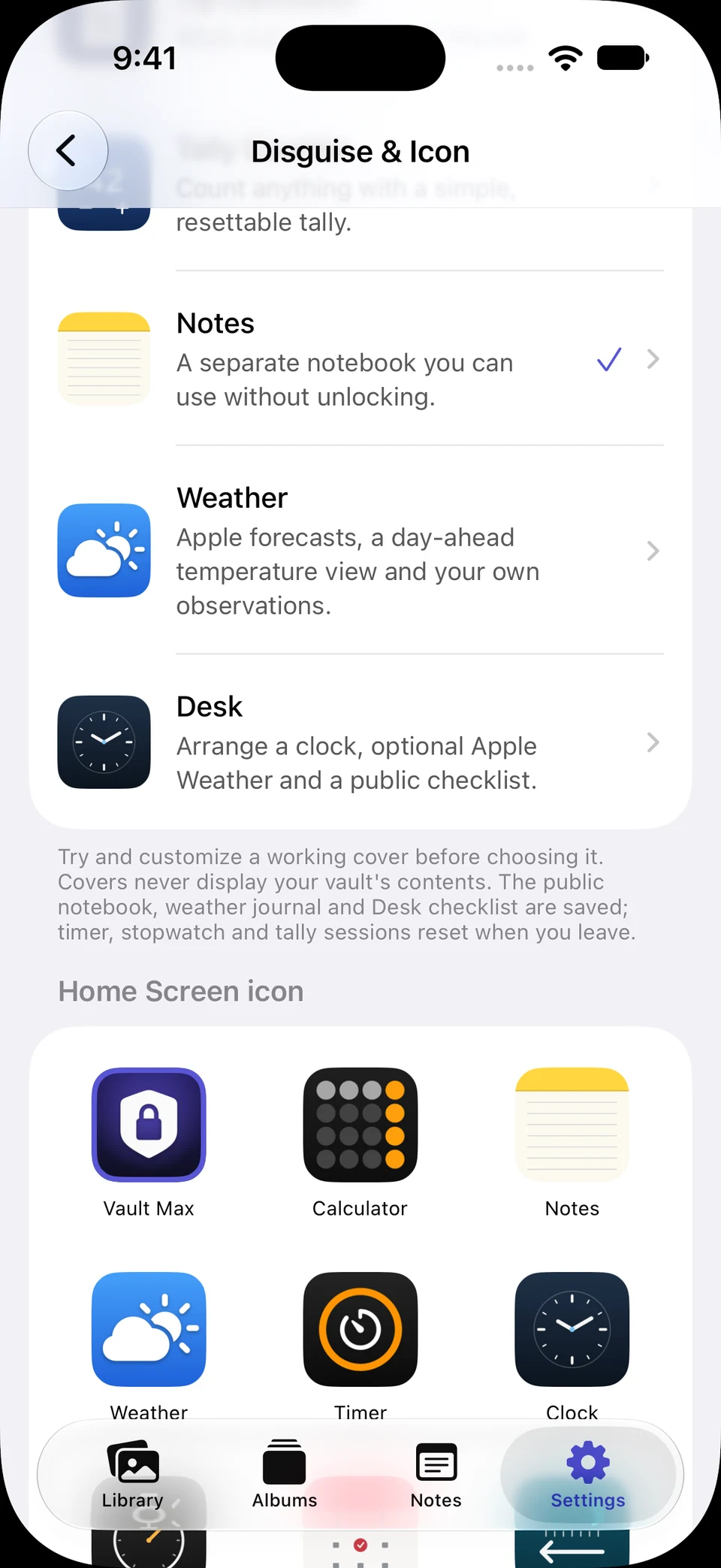
Screen 01 / 04
Choose the Clock artwork
Scroll past the cover list to find the separate Home Screen icon picker.
The icon and cover are separate settings. These are captured screens from a sample phone.
Actual iPhone 18 Pro simulator dialog. Select a screen for a closer look.
The cover details also offer Use matching Home Screen icon. That changes the artwork to match that cover. Use the separate Use button on the detail screen when you want to apply the cover itself.
Decide which setting matches what you want
You want a different picture on your Home Screen. Change the icon. For example, you can use Clock artwork and keep the Notes cover. Look at the Current cover row if you want to check which screen opens.
You want Vault Max to open as a working utility while locked. Choose a cover, try it, then apply it. Compare the working covers if you want a clock, a calculator or a small dashboard.
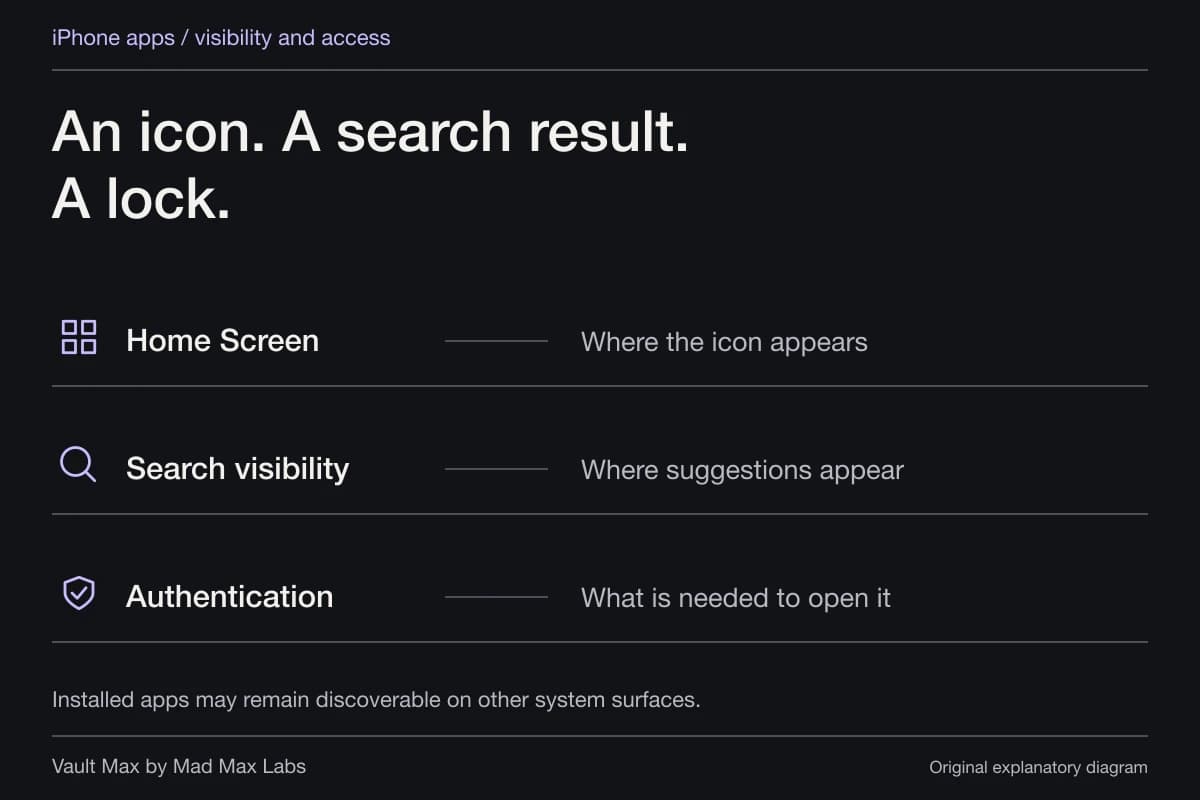
You want iOS to require authentication before opening an app or to move an eligible app to the Hidden folder. Use Apple’s app lock or hide controls from the icon’s quick actions. Apple explains which apps are eligible and where hidden apps can still be listed. Apple’s guide to locking and hiding an iPhone app
Know where Vault Max can still appear
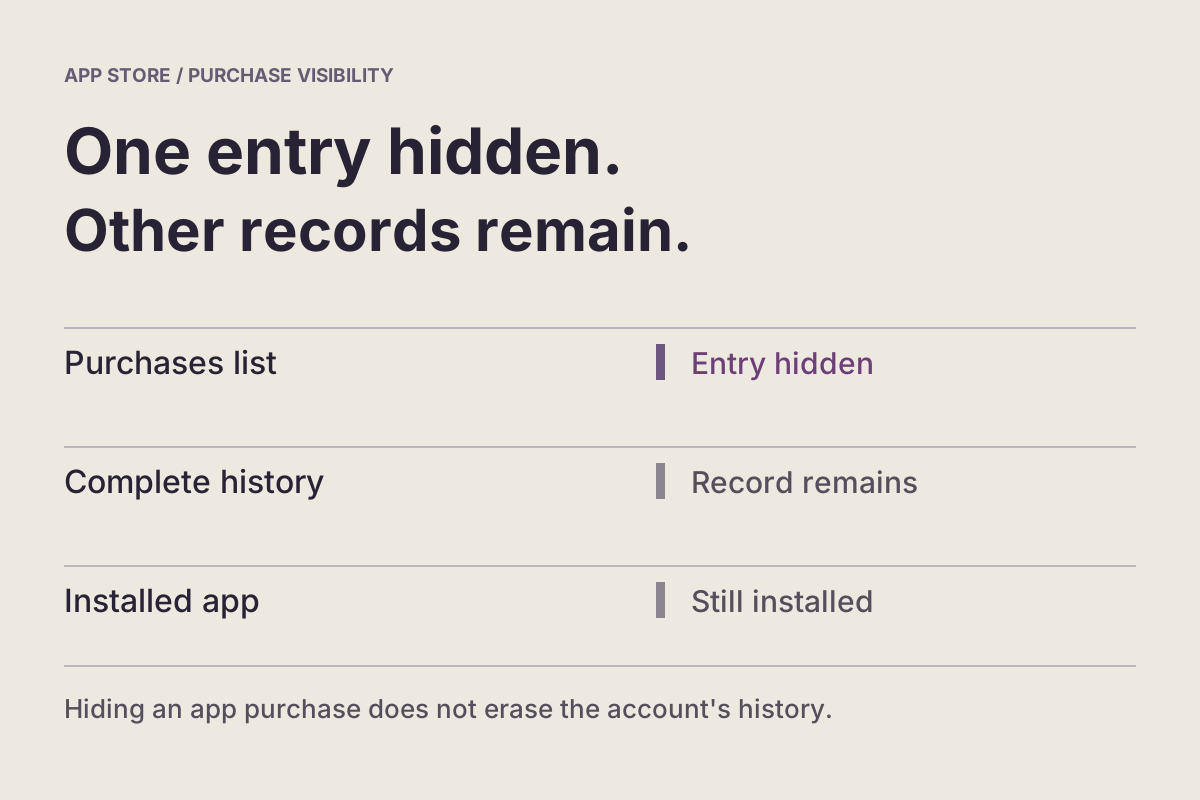
The name Vault Max stays on the Home Screen label after an artwork change. The app can still appear by name in App Library, Settings, purchases and the share sheet. If your goal is to change the share sheet, open one, tap More → Edit in the row of apps, then switch off Vault Max if it’s available there. Choose the control for the place you’re trying to tidy up.
Your vault still uses the same credential. Lock the app and check the route back in before handing the phone to someone else. An icon changes the first thing they see. The vault credential still controls access to private files.
Switch back to the original icon
Open Settings → Disguise & app icon → Home Screen icon and select Vault Max. If you also want the regular credential screen when you open the locked app, choose Vault Max lock screen in the cover list. Check the Home Screen and the locked app separately so you know both settings are where you want them.
Common questions
Does changing the icon rename Vault Max?
The Home Screen label remains Vault Max. You can change the artwork independently of the app’s locked cover.
Can I use a Clock icon and keep the Notes cover?
Yes. Choose Clock under Home Screen icon and keep Notes selected under Current cover. When you open the app while locked, the Notes cover still appears.
Continue reading
More guides
Practical tips for your private library. Swipe or scroll to choose your next guide.
4 guides to explore