
Privacy in practice
Hide a photo vault from App Store purchases and keep your way back in
Hide a photo vault from the App Store purchases list, review the history that remains, check Family Sharing effects and learn how to find the app again.
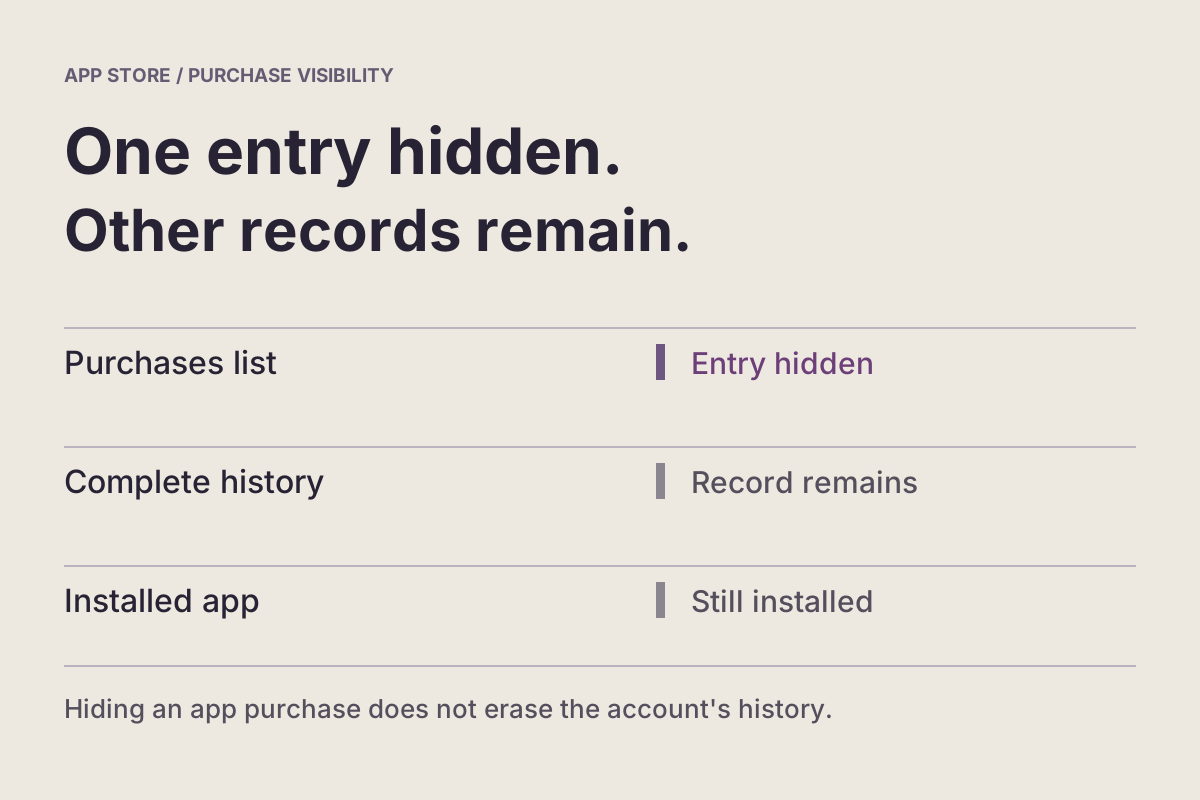
You can hide a photo vault from the App Store purchases list, but its complete purchase history remains in Settings. The task is to change one list's visibility while keeping access to your private collection and knowing how to find the app again.
Start by naming the concern. Someone browsing a shared-purchases list, someone using your unlocked iPhone and someone who knows your vault credential have different kinds of access. A change in one place does not establish what the other person can do elsewhere.
We make Vault Max. This guide uses Apple's account instructions and existing Vault Max screens to separate those decisions. You can follow the purchase-list steps for another app without changing its private files.
Before changing anything, identify the app and account
Write down the app's real name and confirm the Apple Account shown in the App Store. A calculator icon or a name you gave a Home Screen shortcut can make an app harder to recognize later. Use its actual product identity for account and support tasks.
Keep the installed vault in place. If it contains your only working collection, take a moment to confirm you can open it and reach its recovery instructions. You do not need to remove private photographs, reset a passcode or reinstall the app to reorganize a purchase list.
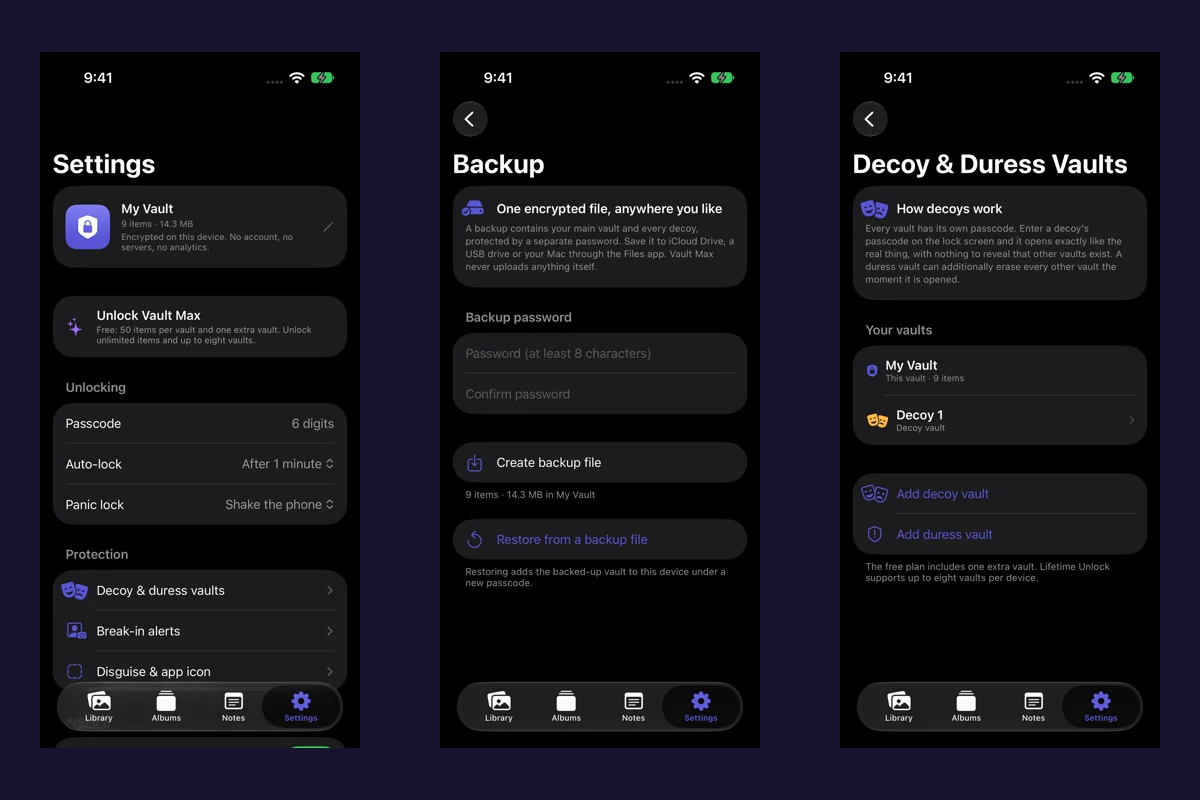
For Vault Max, a purchase entitlement and a collection are separate things. Restoring a purchase does not retrieve files from a Mad Max Labs photo server. Preserve the working installation and a current password-protected archive before any later decision to remove it. The backup preparation guide explains that separate job.
Hide the purchase, then check the intended list
Apple's current hide and unhide instructions give this iPhone route:
- Open the App Store and tap your photo or initials.
- Choose Apps & Purchase History → Your Apps.
- Find the intended app, swipe left and tap Hide.
Return to the list you meant to change and check the result. Record which account and list you inspected, rather than writing only “app hidden.” That brief note helps if you later confuse this action with iOS hiding or a missing Home Screen icon.
Stay within the task while checking. Opening your private library in front of someone to demonstrate that its purchase disappeared would disclose something the account change was meant to help you manage. Inspect account visibility separately from private contents.
If the labels on your system differ, compare the current Apple instructions linked above with the installed system version. Do not substitute an unfamiliar Delete or Remove command just because it appears near the app's name.
If the app still appears, identify the screen before repeating the action. Are you looking at Your Apps, a transaction record, the app's public product page or an installed icon? Describe that location precisely. A useful support question names the list and what happened after Hide; “the app is still there” leaves several unrelated tasks unresolved.
Understand the history that remains
The full account record is another view. Apple's purchase-history guide describes App Store → your account → Apps & Purchase History → Purchase History, including a date filter for older transactions. The hiding documentation also expressly preserves the app and its in-app purchases in complete Settings history.
Decide whether changing the ordinary list actually answers your concern. If the concern is another person's access to account records, inspect how that person accesses the account. A cleaner list does not establish that your account credentials, receipts or unlocked account screens are private.
Avoid repeated hiding and unhiding in search of a different outcome. Once you know which record you are viewing, choose the control for that record. The useful completion note is specific: “I changed the purchases list and understand the remaining account history.”
| The question you want to answer | What to inspect next |
|---|---|
| Did I change the ordinary app list? | Reopen the intended purchases list on the intended account |
| Can this phone still open the vault? | Check the installed app's lock and credential route |
| Will another charge renew? | Check the subscription's renewal or expiry state |
| Could I recover my private files? | Check the recovery archive, its destination and its separate password |
| Did I remove content I already shared? | Inspect the actual Photos, Files or message destination |
Check Family Sharing without assuming that libraries are shared
Apple says hiding prevents family members from redownloading that app through your shared purchases and stops sharing its Apple in-app purchases. It does not remove an already installed app from anyone's device. Those effects concern purchase access.
Apple's Family Sharing overview describes separate Apple Accounts and sharing of eligible purchases and subscriptions. Eligibility matters: this guide does not establish that a particular Vault Max purchase or plan supports Family Sharing.
Before changing something another person relies on, separate what they need. Do they need to install an app, use a shared entitlement or obtain a particular photograph? These requests lead to different decisions. Sending someone a vault credential or an entire recovery archive is a much broader disclosure than making an app available to download.
For photo-library questions, follow the shared-device and iCloud guide. An app appearing in a family purchase list does not by itself show whose pictures are inside a separate private collection. Likewise, its disappearance from that list does not inspect existing copies on another device.
Find the app again when you need it
For unhiding, Apple directs you to App Store → your account → your name → Hidden Purchases, then Unhide beside the app. If it was deleted, download it afterward; unhiding does not reinstall it automatically.
Before any download, distinguish the app from its former contents. Reaching the product page answers which software you found. It does not tell you whether a local library survived an earlier deletion or whether a recovery archive is usable. Follow the app's documented recovery path while retaining every remaining copy.
If a purchase seems missing, check the account identity and Hidden Purchases before deciding it was lost. For transaction questions, also inspect the date range in purchase history. Keep the questions separate in a support request: the app identity, account or purchase issue, and whether the old installation still opens. Do not attach private media or disclose a vault passcode.
If an old vault no longer opens, preserve the evidence you already have: its installed state, any readable archive, the saved destination and the approximate last successful access. Stop treating that problem as a purchases-list adjustment. File recovery needs the app's own recovery instructions, and removing the remaining installation can make the investigation harder.
Keep billing and installed-app hiding as separate tasks
To stop renewal, use Apple's subscription-management instructions. Check the actual subscription entry for its status and dates. Changing the app's purchase-list visibility is not the completion evidence for a billing task.
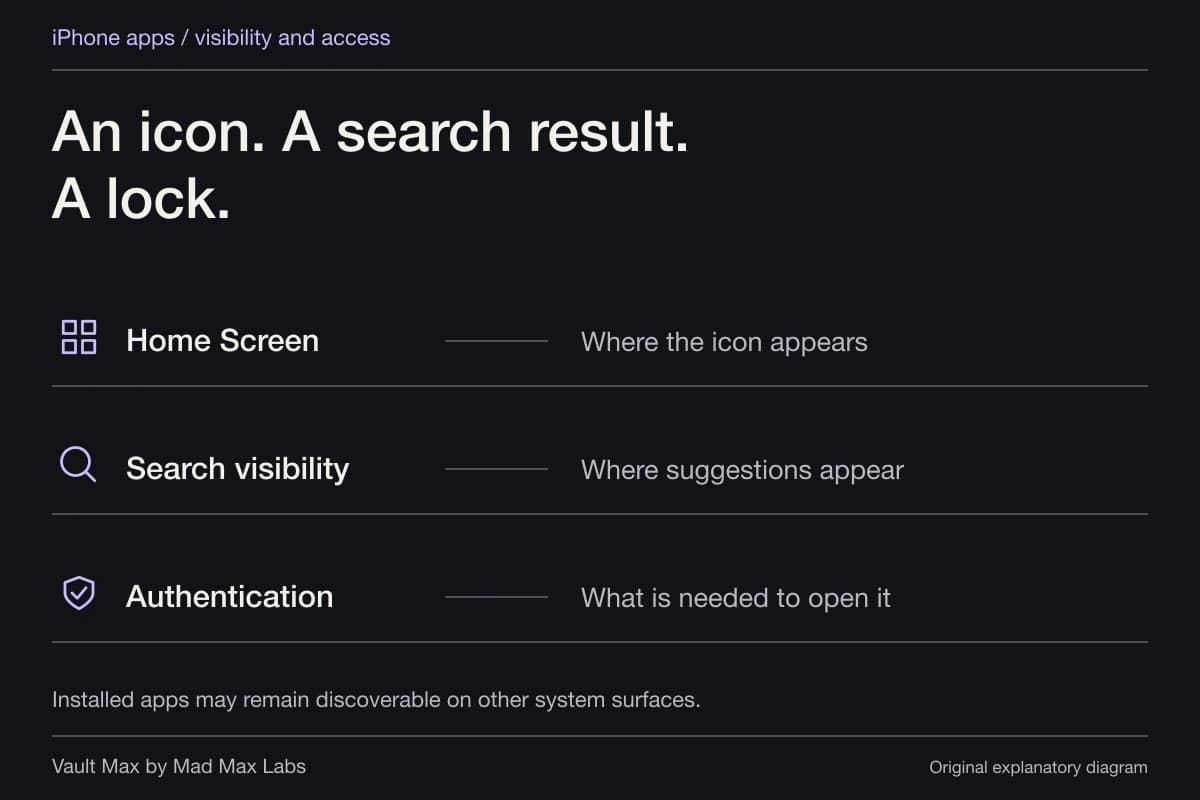
For the installed app, Apple's lock-or-hide controls address access and visibility on the iPhone. Apple also documents family-management limits for younger users. Use the installed-app guide when the concern is someone finding or opening software on the phone.
Keep the credential route understandable after making either change. If you switch a presentation setting and a system visibility setting together, test one at a time with harmless content. That makes a missing icon or unexpected entrance easier to resolve.
Where Vault Max's calculator entrance fits
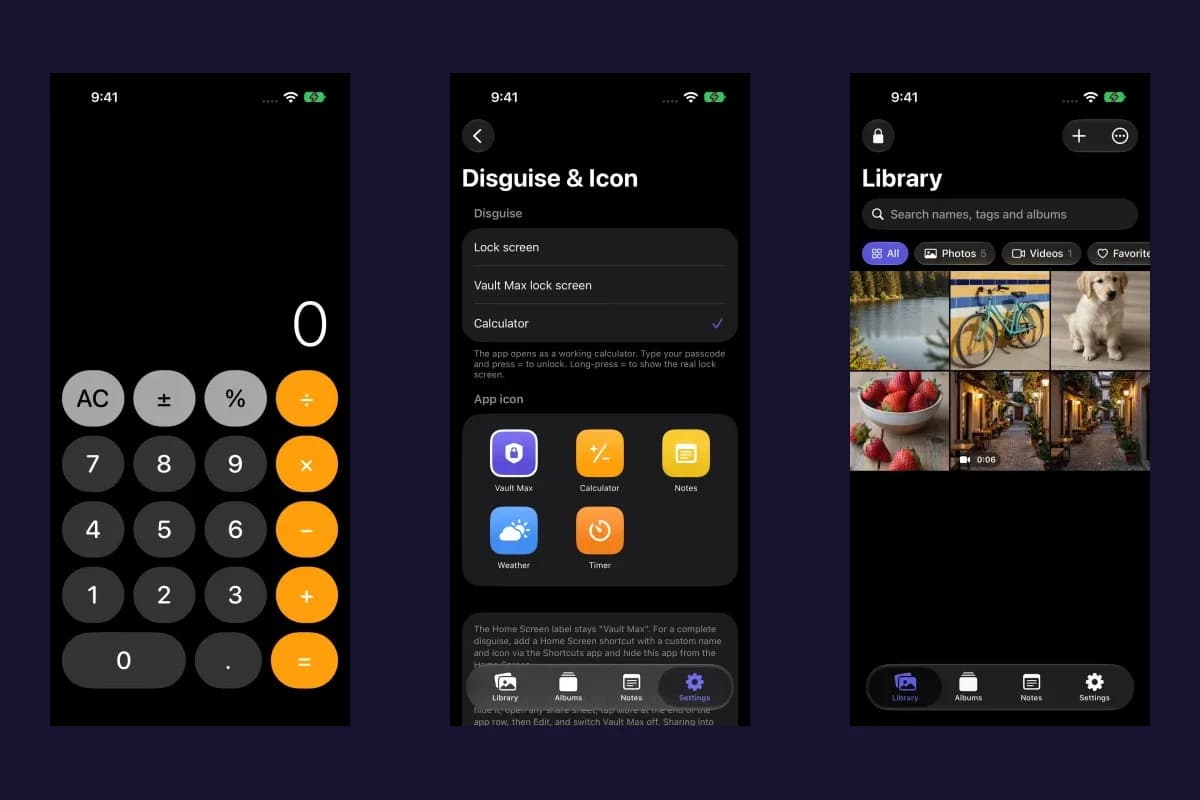
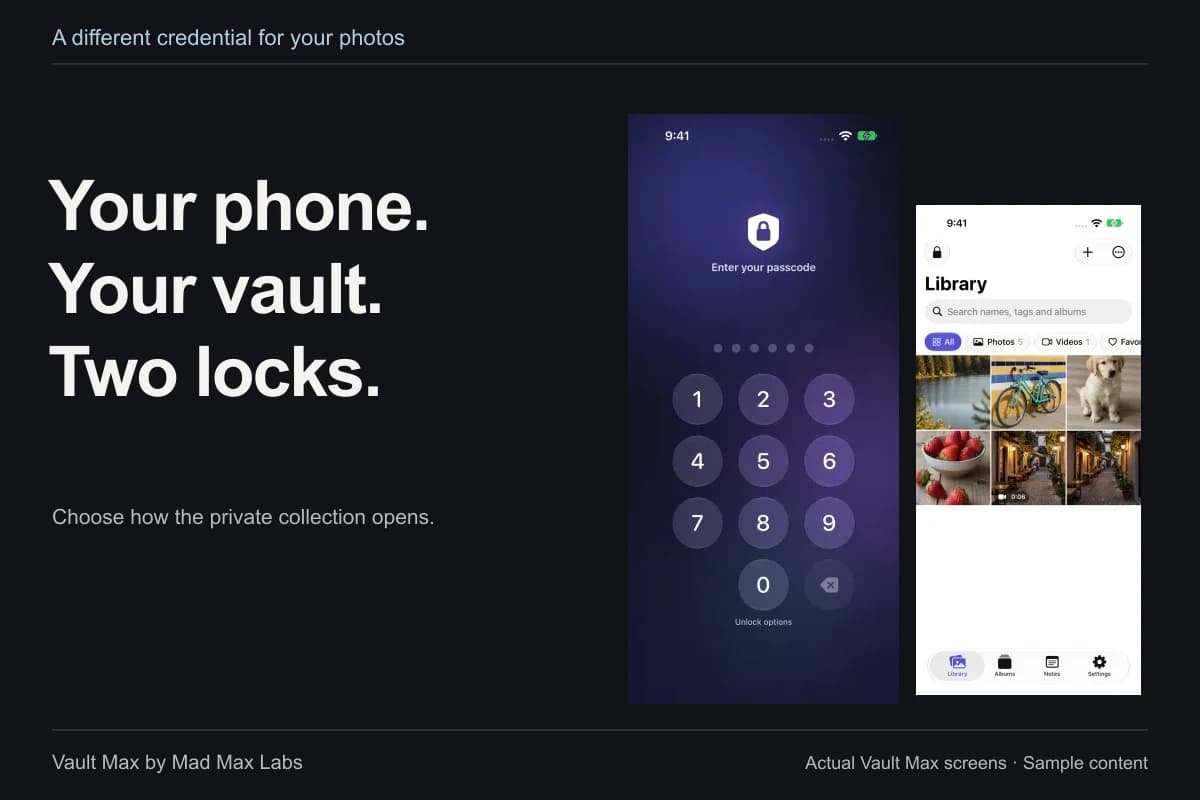
Vault Max can present a working calculator before its private collection opens. Its icon choices and entry presentation are local app features. They do not manage the App Store account.
Sample Vault Max library. Select a screen for a closer look.
If discretion at entry is useful, learn the calculator walkthrough with a sample first. If a separate secret is the priority, review the vault-credential guide. Choose the collection's access and recovery arrangements on their own merits.
Practice matching the concern to a control
The fictional situations below ask you to choose a useful next step. They do not inspect your account or change an Apple setting.
Fictional decision exercise
Hide a listing, then deal with a separate renewal
A fictional app appears in your purchased-apps list and is installed on your phone. Its subscription still shows a future renewal. You want to hide the listing and stop the next renewal; these are two separate jobs.
Read every decision and explanation
Decision 1 of 2
Which action matches that job?
First, address the app's visibility in the purchased-apps list.
- Delete the installed app
Removing an installed app addresses the installation. It does not perform the purchased-list hiding action or cancel its subscription.
Next step. Keep needed local files in mind before removal. For this job, use the account's purchase-hiding control.
- Hide the app in the account's purchased-apps list
That is the action matching purchased-list visibility. The installed app and the separate subscription still need their own decisions.
Next step. Check that the app no longer appears in that list. Hiding is not erasure of all account history.
- Cancel its subscription
Cancellation addresses a renewal. It is not the purchased-list hiding action.
Next step. Use the purchase-hiding control for list visibility, then handle the subscription separately.
Decision 2 of 2
What addresses the remaining renewal?
The exercise now assumes the listing is hidden. The subscription still shows a future renewal.
- Cancel through the billing account, then check the displayed status and date
This addresses the subscription rather than treating a hidden listing as cancellation.
Next step. Use the subscription's billing route. Check the shown cancellation/expiry information and retrieve needed files while access is available.
- Hide the purchased listing again
Repeating the list action does not address the separate subscription shown in this scenario.
Next step. Open the subscription's billing controls and check what they say about renewal and access.
- Uninstall the app and assume renewal has stopped
An uninstall is not confirmation that billing stopped. It can also remove a useful route to local files.
Next step. Handle cancellation through the billing account and verify the displayed result before relying on it.
Your plan now separates purchased-list visibility from subscription renewal. Neither step proves that every purchase record, installed copy or previously exported file is gone.
This exercise changes no Apple account, subscription or app. Hiding a purchased app is not a way to erase all purchase history. No account details or personal files are requested; choices stay in this page and reset when it is reloaded.
Finish by checking three things: the intended list changed, you can still reach your working collection, and you know where Hidden Purchases lives. Keep any billing or file-recovery task on its own checklist until its own result is confirmed.
Common questions
Does hiding a purchase back up my private collection?
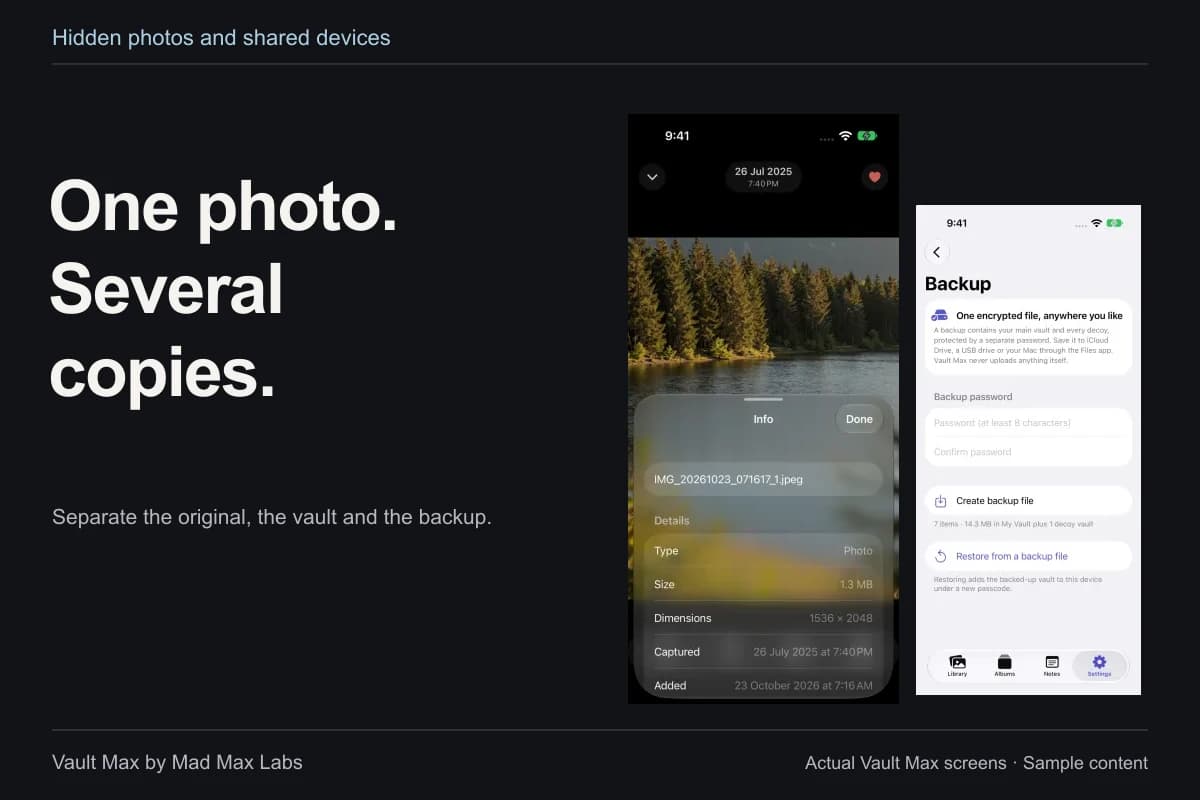
Keep recovery as a separate task. For Vault Max, prepare a current encrypted archive, check its destination and keep the archive password independently available. Account visibility is not evidence of a usable file backup.
Should I delete the vault app to hide its purchase?
Use the purchase-list control for that task. Removing a local vault installation can put its files at risk. Keep the working collection and a usable recovery copy while you make account-visibility changes.
Does hiding a purchase cancel its subscription?
Manage renewal through Apple's subscription controls. A hidden purchase, a canceled renewal and a deleted installation are different states; check the one that matches your goal.
Continue reading
More guides
Practical tips for your private library. Swipe or scroll to choose your next guide.
5 guides to explore