
Privacy in practice
When to use the Notes cover or private Notes in Vault Max
See the difference between the public Notes cover and encrypted notes inside Vault Max. Learn where to put a quick reminder or a note you want to keep private.
Vault Max 1.1 is available. Get the update on the App Store, then follow the walkthrough below.
Watch the two Notes editors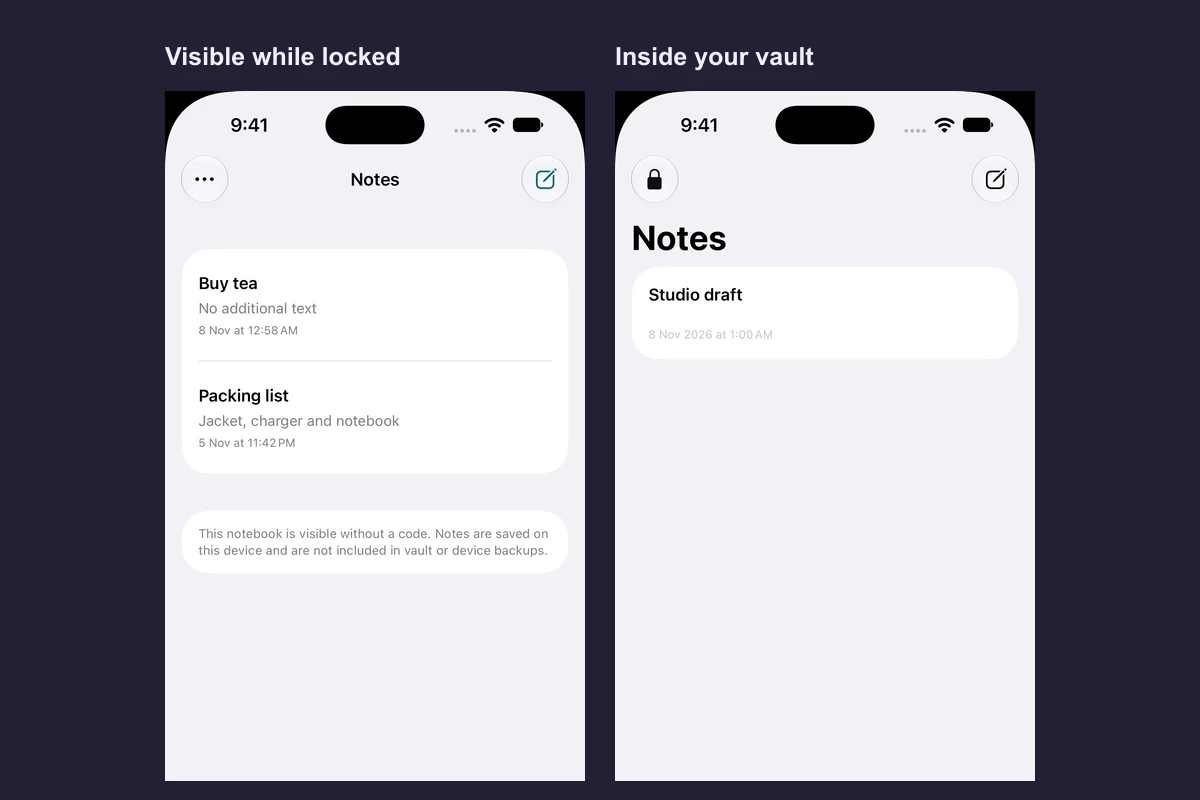
Use the Notes cover for something you’re happy to leave visible, such as “Buy tea.” Use the Notes tab inside your unlocked vault for writing you want to keep private. They’re two separate notebooks in Vault Max 1.1.
Watch a cover note and a private note get saved
Native recording · iPhone 18 Pro
Save Buy tea on the cover, then open private Notes
Follow two samples through two editors. After locking, Buy tea is visible on the cover and Studio draft stays inside.
- Save Buy tea on the Notes cover
The reminder is readable while the vault stays locked.
- Open the vault and use the Notes tab
Save Studio draft inside the private collection.
- Lock again
You can still see Buy tea on the cover. Studio draft stays inside the vault.
Put a quick reminder on the cover
- Unlock Vault Max and open Settings → Disguise & app icon → Notes.
- Tap Use Notes and lock the vault. Try this cover opens a temporary preview for experimenting.
- On the active Notes cover, tap New note, add a title or text, and tap Save.
- Check that the reminder is visible without entering your vault code. Keep the title as ordinary as the text.
The cover notebook is saved locally, so it is useful for reminders you want to reach the next time you open the app. Anyone who reaches the cover can read the entries. The cover’s local data is separate from your private vault and is excluded from vault and device backups.
Save sensitive writing in private Notes
- On the cover, tap the three dots → Open unlock screen and unlock as usual.
- Open Notes from the vault tabs. Add a note, give it a title and tap Save.
- Reopen the note to confirm it saved. Lock and reopen the app. The private note stays behind the unlock screen.
See what is visible before and after unlock
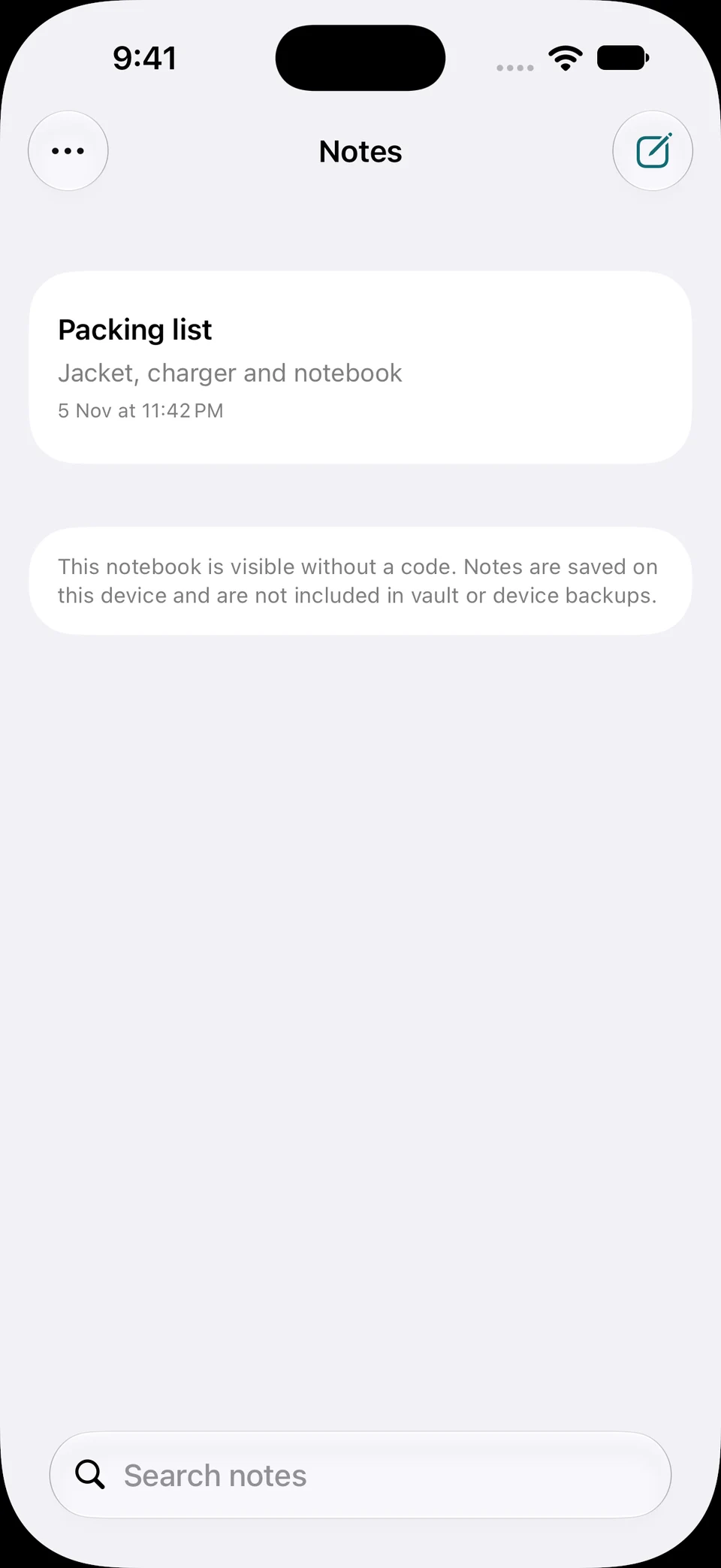
Screen 01 / 05
The cover notebook is open
The vault is still locked. Add an ordinary reminder here.
The example uses harmless sample notes. Use private Notes for writing you want behind the vault credential.
Notes cover · Vault locked
Private Notes · Vault unlocked
The cover has Options at the top and opens while locked. The private notebook sits in the vault next to Library, Albums and Settings.
Select a screen to inspect it.Use the encrypted Notes guide for editing, deleting and backing up those private notes. To keep a recoverable copy, back up the vault that contains the note and keep the backup password separately accessible.
Choose a place for the note before you write
For a short prompt such as “Buy tea” or “Take the blue folder,” the cover keeps it close at hand. When the note contains names, addresses, client details or writing you want protected, unlock first and use the private Notes tab.
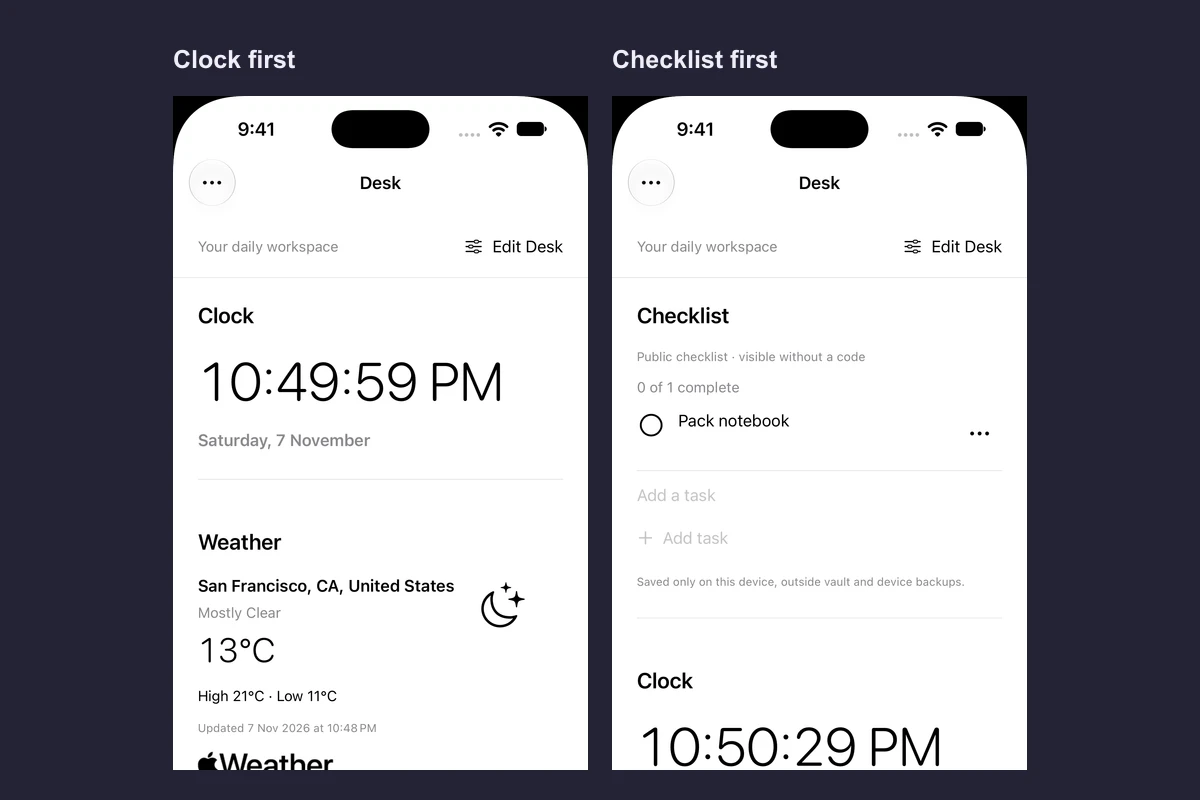
If your list is mostly tasks you want to check off, try Desk instead. Its checklist is also visible while the vault is locked. Pick Notes when you want free-form text, or Desk when a row of checkboxes is easier to use.
If you saved the note in the wrong place
If a private note landed on the cover, unlock the vault, create a private copy and verify it saved. Then remove the cover copy. If someone already saw the cover, moving or deleting the note cannot take back what they saw.
If you wrote a note while using Try this cover, close the preview and check the active cover. The preview gives you a place to experiment, and its changes stay in that preview. Open the actual cover to save a reminder you expect to see next time.
Common questions
Can someone read the Notes cover while Vault Max is locked?
Yes. Anyone who can open the cover can read its notebook. Open the vault and use the private Notes tab for writing you want behind your vault credential.
Are cover notes included in a Vault Max backup?
Cover notes stay on this device outside vault and device backups. Private vault notes are included when you back up the vault that holds them.
Continue reading
More guides
Practical tips for your private library. Swipe or scroll to choose your next guide.
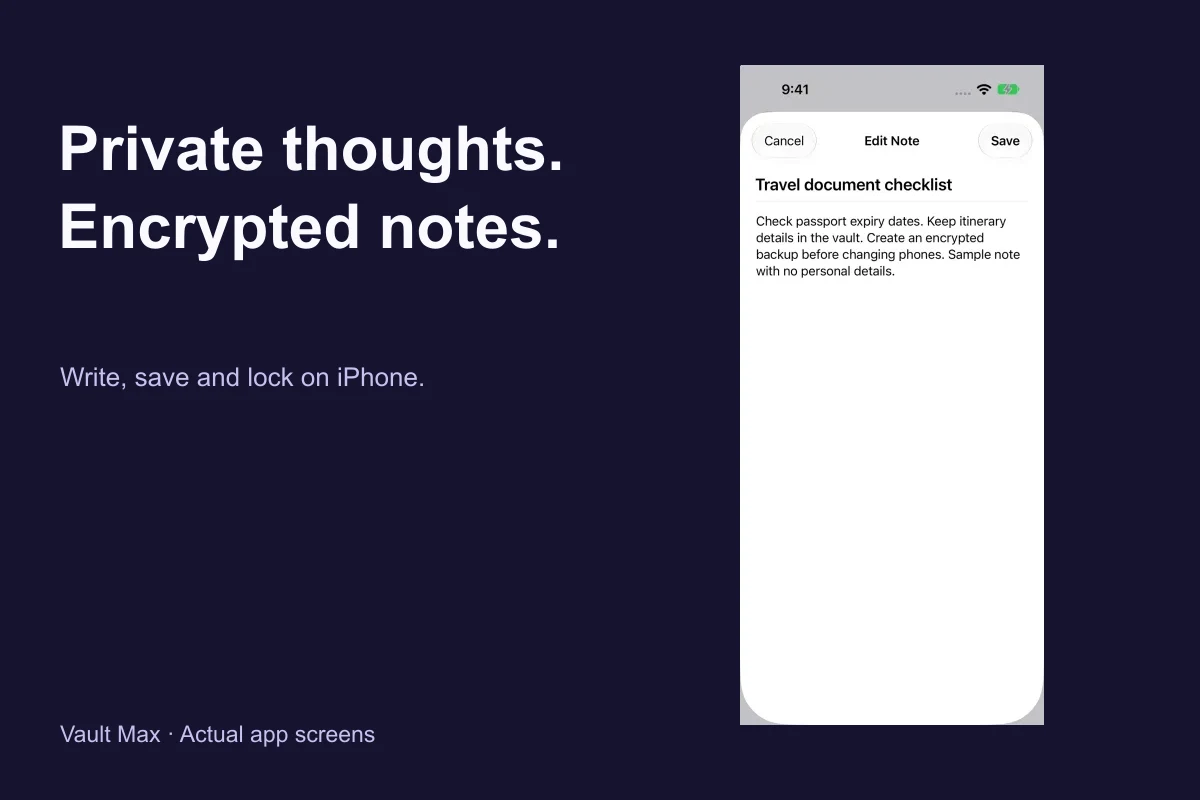
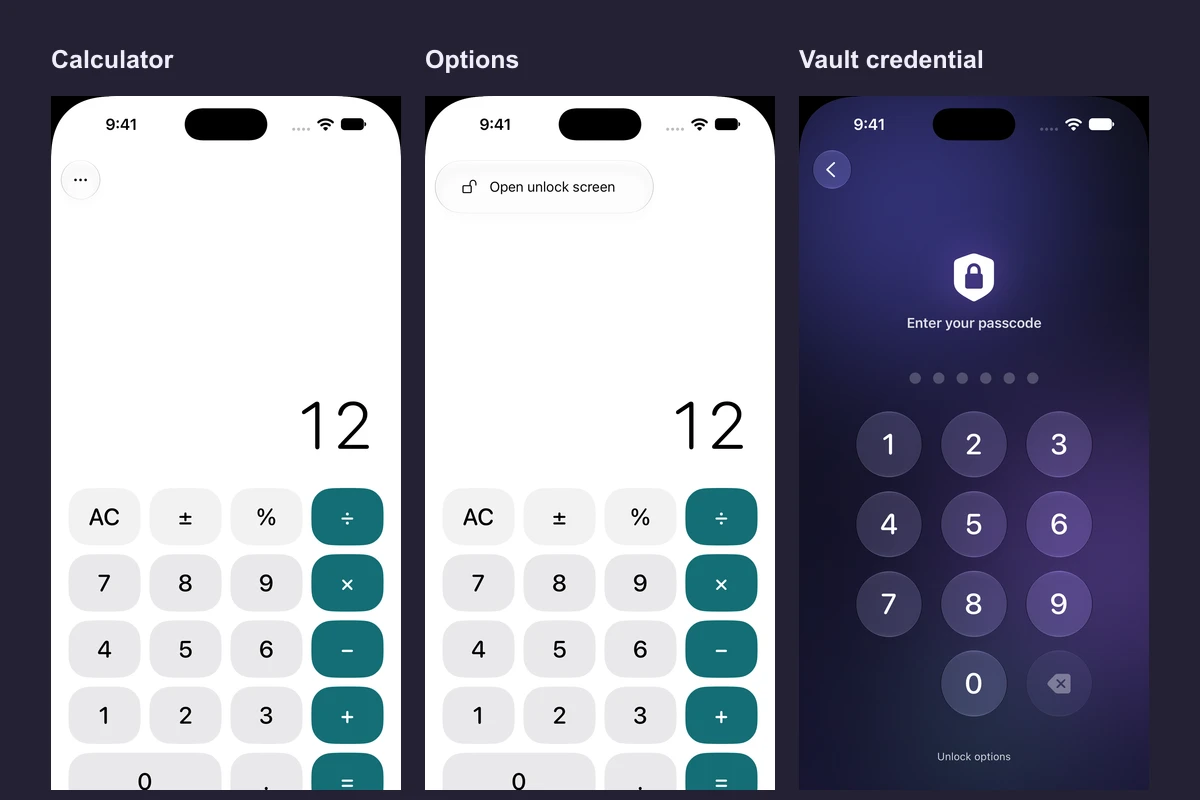
4 guides to explore