
Privacy in practice
Set a pattern lock for Vault Max on iPhone
Change Vault Max from a PIN or password to a pattern. See how to confirm it, test it on your existing vault and reach it from a working cover.
Vault Max 1.1 is available. Get the update on the App Store, then follow the walkthrough below.
Watch the switch to Pattern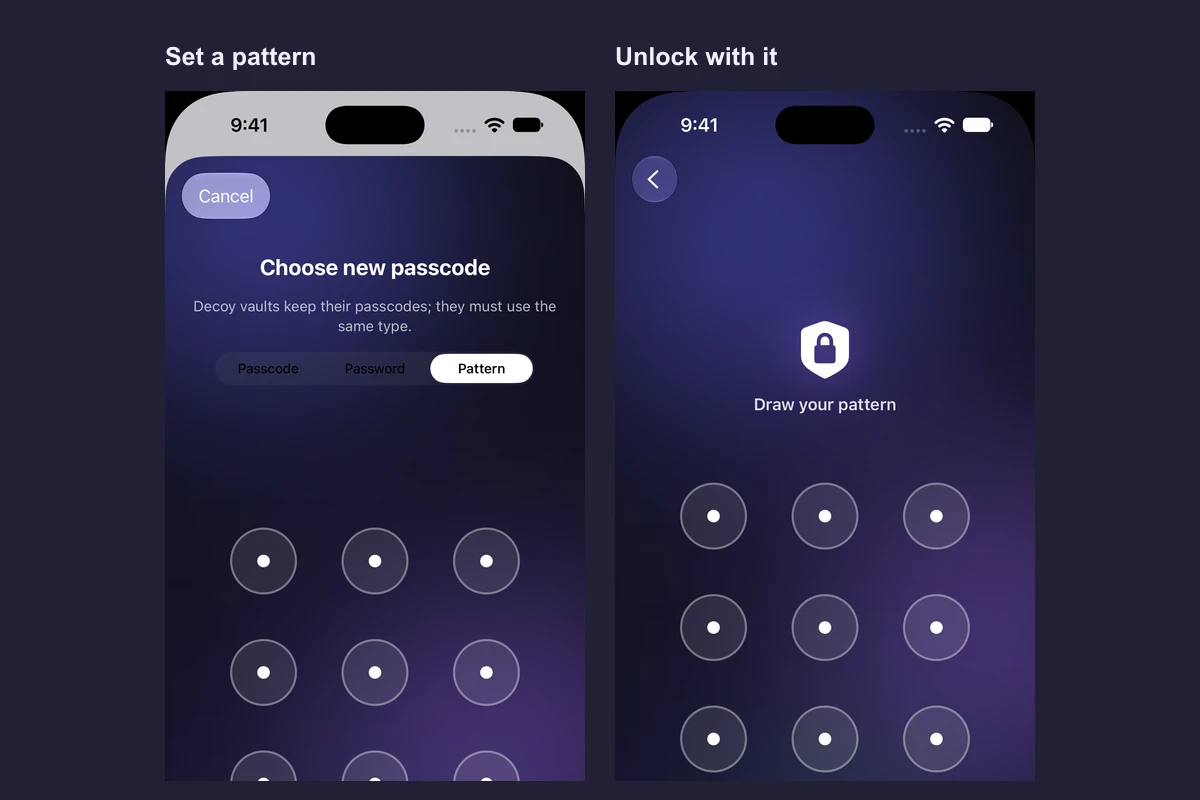
In Vault Max, a pattern is a way to unlock your private library by drawing across dots. To switch from a PIN or password, open Settings → Passcode, verify your current credential, choose Pattern and draw it twice. Test it once after locking.
Watch the change and test the new pattern
Native recording · iPhone 18 Pro
Choose Pattern, confirm it and unlock the vault
This recording uses a disposable sample pattern on the iPhone simulator. Choose your own pattern on your phone.
- Open Settings → Passcode
The app asks you to verify your existing credential.
- Choose Pattern
Draw across at least four dots, then repeat the same path.
- Lock and open again
Draw the pattern on the regular unlock screen to reach the sample collection.
Change the credential on an existing vault
- Start with an unlocked vault and confirm you know its current credential. If the files are important, verify you have a usable encrypted backup and its password.
- Open Settings → Passcode and enter the current PIN, password or pattern when asked.
- Tap Pattern in the method picker. Draw a continuous path that connects at least four dots, then lift your finger. Draw the same path again to confirm.
- Wait for the update to finish. Lock Vault Max, open it again and draw your new pattern. Open one familiar item to confirm you reached the intended vault.
The method picker also offers Passcode and Password. Pick a method you can enter reliably. Avoid using the demonstration pattern from the recording. When you draw in front of someone, the path can be visible.
Follow the change from PIN to pattern
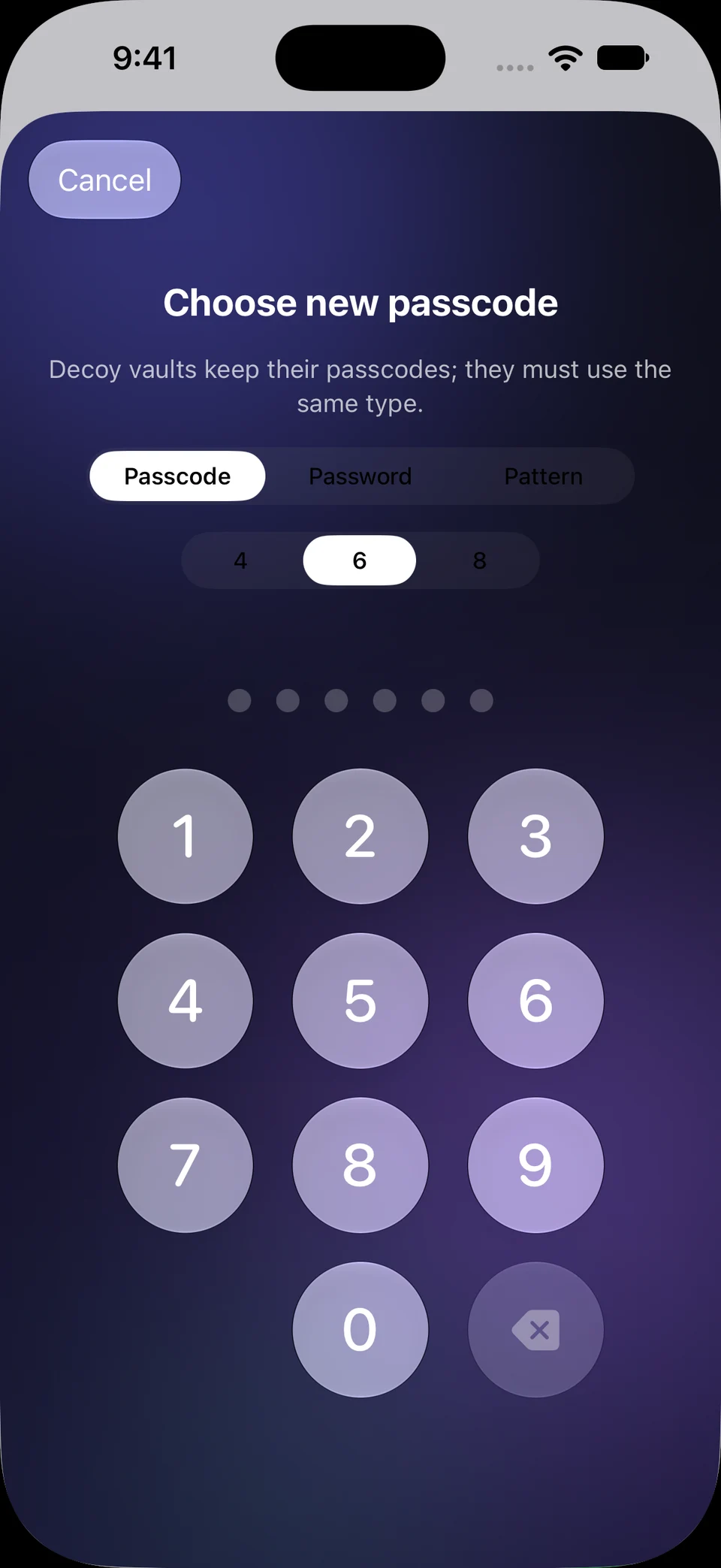
Screen 01 / 05
Choose the new method
The app has verified your current credential. Choose Pattern from the method picker.
This walkthrough steps through screenshots. It accepts no credential or real pattern.
The pattern grid also offers VoiceOver actions to connect individual dots, clear the pattern and submit it. You can switch back to a PIN or password from Settings → Passcode once you can unlock the vault.
Use a pattern when a cover is active
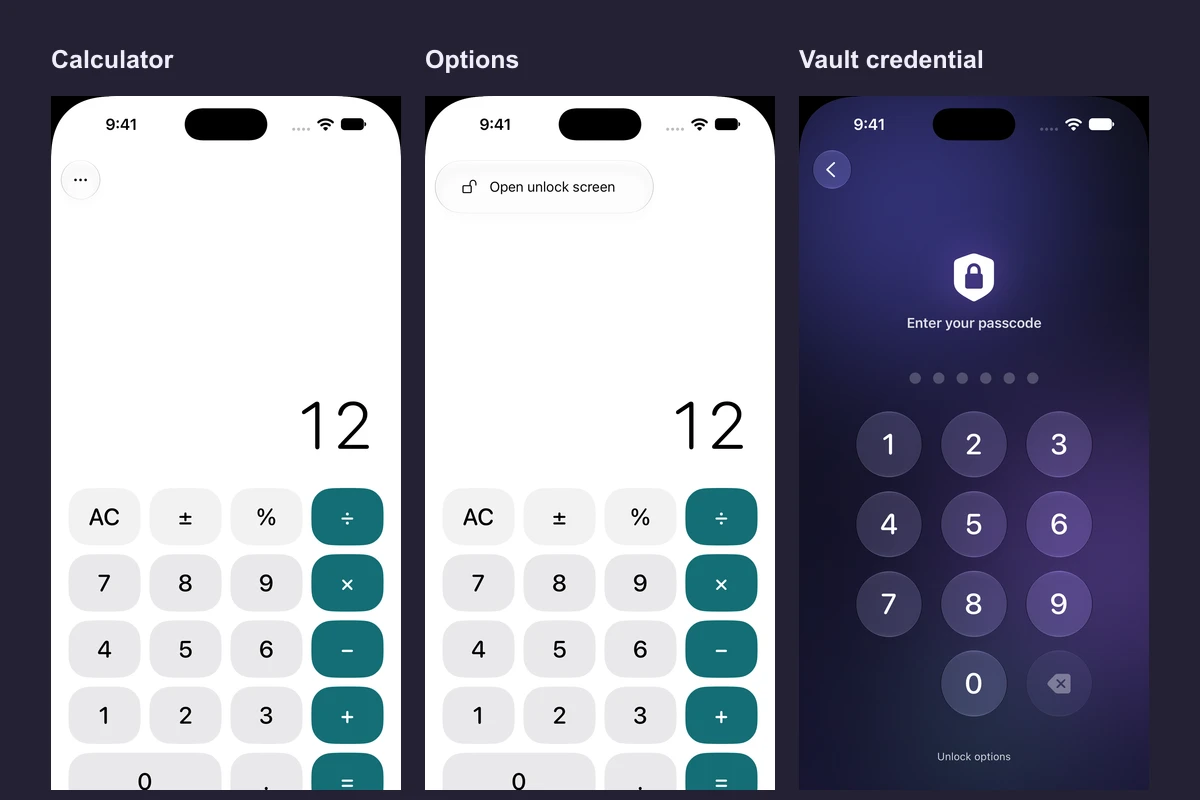
On Clock, Weather, Notes, Desk or any other working cover in Vault Max 1.1, tap the three dots → Open unlock screen. Draw your pattern on the regular screen. On Calculator, you can also touch and hold equals to reach that screen. The number keypad shortcut is for a vault that uses a PIN.
If you see a different collection after unlock, confirm which credential you entered. In a setup with additional vaults, the credential determines which collection opens. When changing methods, read the app’s prompt about other vaults and check their entry before relying on the new setup.
Check the change with one familiar item
After the first successful unlock, open one photo you can recognize and return to the Library. If you were using a cover, repeat the two steps you will need later: open its Options menu, then draw the pattern on the regular screen. The recording follows this route from Weather and opens the same five sample photos.
If you use an additional vault, check how you reach each collection before using a new unlock method day to day. The code-change screen explains that other vaults keep their existing codes and need the same credential type. Confirm you still have usable backups for the vaults that matter.
Keep a route back if something goes wrong
If your second drawing differs during setup, draw the same path again or tap Cancel and restart the change. After setup, if the app shows a retry delay, wait it out before another attempt. Check the starting dot and the order you connect the dots.
If you forgot the pattern but an already-enabled biometric method still opens the right vault, make an encrypted backup while you have access. A readable backup and its password let you restore with a new credential. Keep the app and its data in place while you work through the forgotten credential guide.
Common questions
Can I use a pattern with a working cover?
Yes. Use Options → Open unlock screen on the cover, then draw your pattern on the regular screen.
How many dots do I need to connect?
Vault Max asks you to connect at least four dots in one continuous gesture when choosing a pattern. Then draw the same pattern again to confirm.
Continue reading
More guides
Practical tips for your private library. Swipe or scroll to choose your next guide.
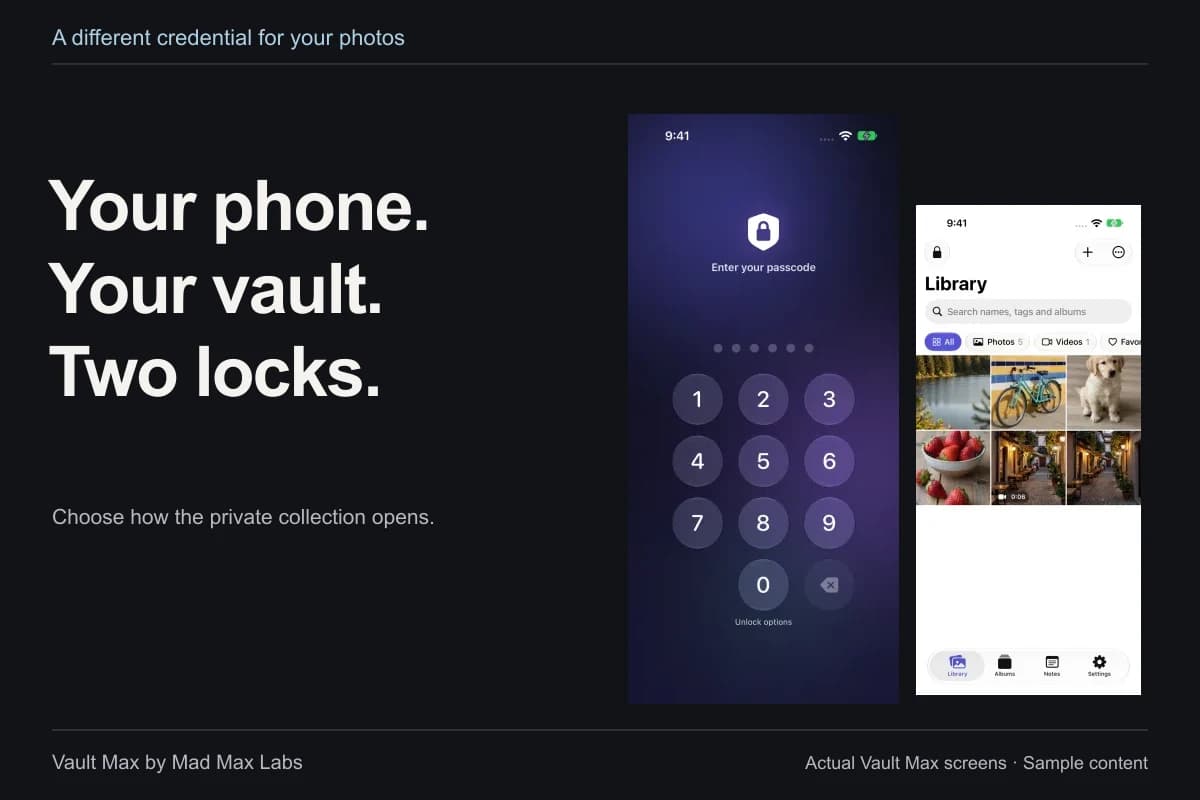
4 guides to explore