
Privacy in practice
Convert HEIC to JPEG on iPhone and check the saved copy
Export a real JPEG from HEIC in Preview on iPhone. Compare JPEG and PNG, avoid suffix-only renaming and inspect the saved copy before sharing or uploading.
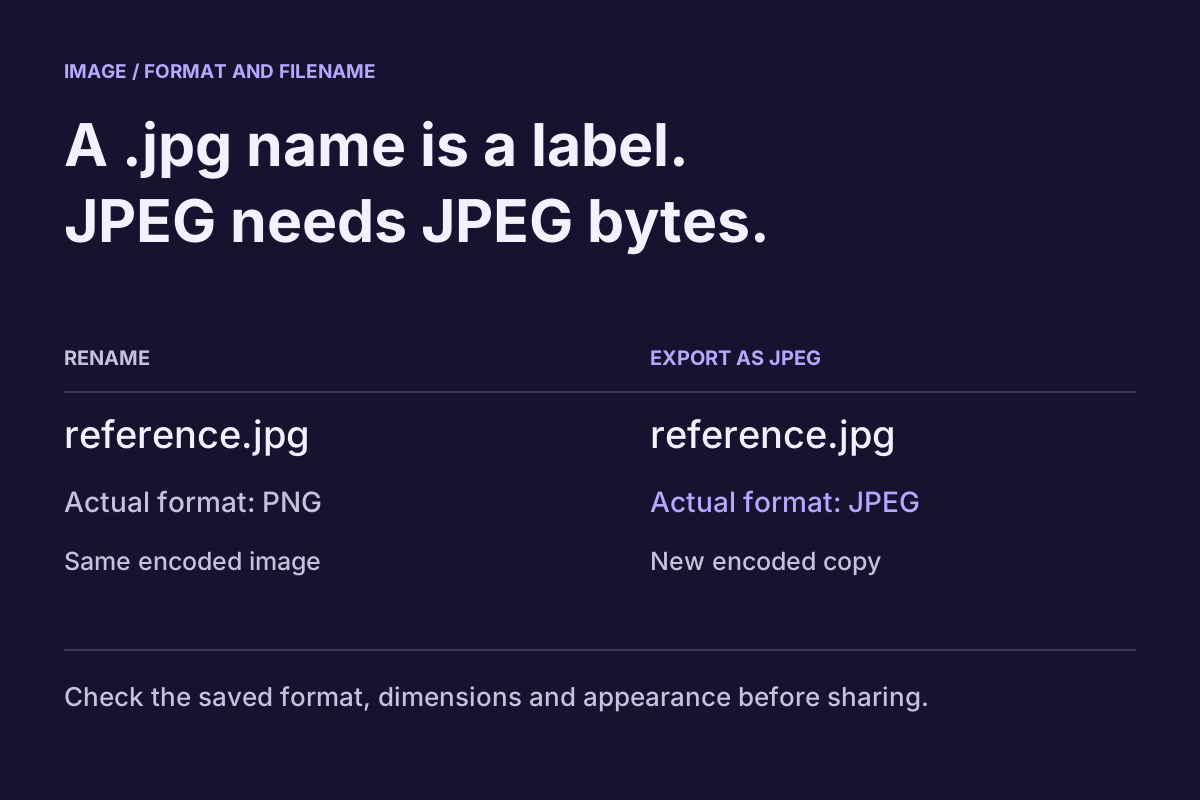
To make a JPEG from an HEIC photo, export it as JPEG and inspect the new saved file. Changing the extension to .jpg only changes its name. A real conversion is useful when an upload form, recipient or older app cannot use the original format.
Keep the HEIC source while you prepare that compatibility copy. Your goal may be a single accepted attachment, not a replacement for every original in your library. Choose the output for that particular destination, save it somewhere recognizable and check the result before sending.
Start with what the destination actually accepts
Read the upload instructions before converting. “Image required” leaves questions unanswered: which formats, what maximum size and whether a minimum resolution is specified? A JPEG can meet the format requirement and still fail the size limit or be too small to read.
Write the requirements together, such as JPEG, under the stated upload limit, with the small text readable. That makes the task measurable. Repeatedly exporting at lower quality without checking the actual requirement can produce a poor picture without solving the problem.
If the recipient accepts HEIC and can open the existing file, you may already have the format you need. Apple's HEIF compatibility guide describes HEIF as the photo format and explains its storage efficiency compared with JPEG. HEVC is the related video format; an instruction about converting a movie is a different workflow.
A filename and an image format are separate things
Consider Workshop.HEIC. Giving the file a name ending in .jpg does not instruct an image encoder to create JPEG data. Some apps may still recognize the original contents; others may reject the mismatch. Neither result establishes a successful conversion.
By contrast, an export operation reads the image and writes an output in the selected format. Give that output a clear name such as Workshop — upload.jpg. Both .jpg and .jpeg are familiar filename extensions for JPEG; follow the destination's stated requirement if it specifies one.
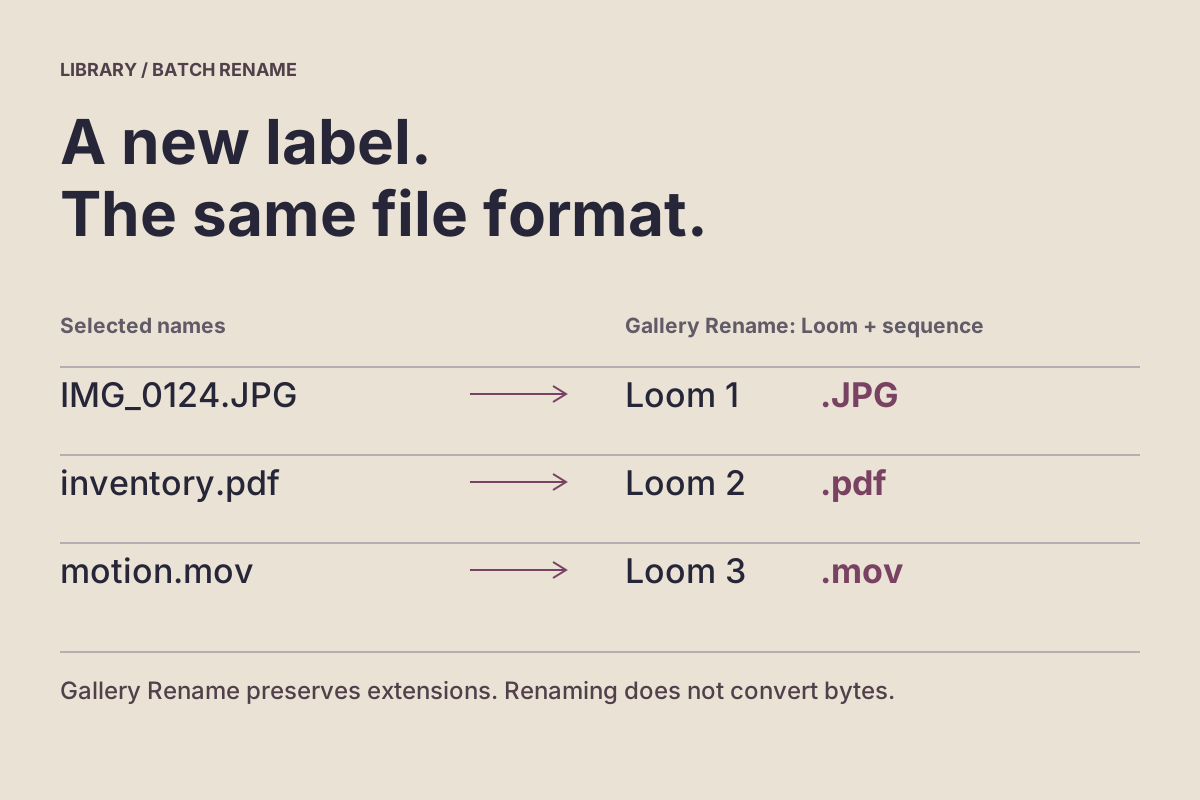
The distinction also applies inside a private collection. Our Vault Max rename guide covers labels and numbering. Rename is useful for organization, but it does not become a format converter when you type a different suffix.
Try renaming and encoding with a synthetic image
The workbench uses a generated practice image to make the difference visible. Try its suffix-only rename, then create a real JPEG or PNG and download the outputs. Compare the stated encoding and saved filenames rather than judging the image only by appearance.
Filename versus encoded file
Try a rename, then a real image conversion
Start with a synthetic PNG drawn here. Renaming its extension leaves its bytes alone. Encoding asks this browser to create an image in the chosen format. Compare the actual result before downloading it.
Preparing a PNG from the fixed sample drawing.
Read the rename and conversion comparison
- Source
- A fixed 640 × 400 drawing with a rectangle, a circle and sample-only labels is encoded as PNG in this browser.
- Rename PNG to .jpg
- Only the download filename changes. The original PNG bytes, image/png MIME type, decoded dimensions and byte count stay the same. Some software may inspect the bytes; other software may reject the mismatch.
- Encode as JPEG
- The browser encodes new image/jpeg bytes from the drawing. The exercise checks their signature and decodes them to measure dimensions. JPEG can lose image detail; this drawing and one browser encoder cannot establish the quality of a different conversion.
- Encode as PNG
- The browser encodes image/png bytes. The exercise measures the output rather than predicting a file size. Pixel dimensions, encoded format and byte count are separate properties.
The download is the measured sample Blob. Open the saved result in its intended destination to check acceptance. The exercise does not read HEIC, preserve or inspect source metadata, or establish quality for your photos.
All image work happens on this page’s synthetic drawing. There is no upload field, external image request, HEIC decoder, or metadata-removal promise.
This browser exercise accepts no uploads and does not decode HEIC. It demonstrates an unchanged PNG with a new suffix versus actual JPEG or PNG encoding of a synthetic sample. Use the Apple workflow below for a real HEIC image on iPhone.
Two outputs may look almost identical at normal size while having different encodings and file sizes. That is why opening a picture successfully is one useful check, while checking the requested output format is another.
Export the HEIC image as JPEG in Preview
Apple's current Preview export instructions document this route on iPhone:
- Open the intended image in Preview.
- Use the action menu beside its filename and choose Export.
- Select JPEG. Adjust the size or quality slider if needed.
- Continue with Done, choose the destination and enter a recognizable output name in Save As.
- Choose Save and open the new file from that location.
These steps follow Apple's iOS 27 documentation, rather than a new device capture. If your version presents different controls, use its available image-export route. Confirm that the image app offers a genuine output format choice before treating an operation as conversion.
Choose JPEG or PNG for the job
For a destination requesting a photograph as JPG, select JPEG. Review fine detail after changing the quality setting: the important detail may be a small serial number, a textured edge or text on an object rather than the largest subject.
PNG is a different useful output when the destination accepts it, particularly for graphics where crisp edges or transparency matter. A larger PNG is not automatically a better upload for a form requesting JPEG. Likewise, a small JPEG is not automatically suitable when the destination requires a transparent graphic.
Treat the output size as something to inspect. The same setting can yield different sizes for different pictures. Start with one representative image, check its saved result, then decide whether the remaining batch needs the same treatment.
Check the saved copy against the requirement
Return to the destination folder and identify the new output. Open it, zoom into an important detail and compare it with the source. Check the dimensions, reported file type and file size where your file viewer exposes them. The output name alone cannot establish the encoding.
If an upload still refuses the file, read the error before exporting again. A format error, a size error and a dimension error call for different changes. Use a harmless sample to learn a new service; a successful test upload does not require sending a private photograph.
Conversion also does not establish privacy cleanup. Review the picture's visible contents and any relevant information retained by the chosen workflow separately. A JPEG containing a readable address still contains that address.
Future camera settings do not convert old photos
Apple documents Settings → Camera → Formats → Most Compatible for capturing new photos as JPEG on supported devices. It changes future capture behavior; it is not a batch conversion of the HEIC images already saved. Apple also notes that some sharing routes may automatically choose a compatible format. Check what the actual destination receives instead of assuming every share follows that behavior. Apple's compatibility guidance explains these distinctions.
Keep conversion separate from vault storage
When the checked output belongs in Vault Max, use an appropriate supported import route and inspect the retained item. Keep the source available during that check. This guide does not claim that Vault Max converts HEIC to JPEG or that importing changes the image into a recipient-ready format.
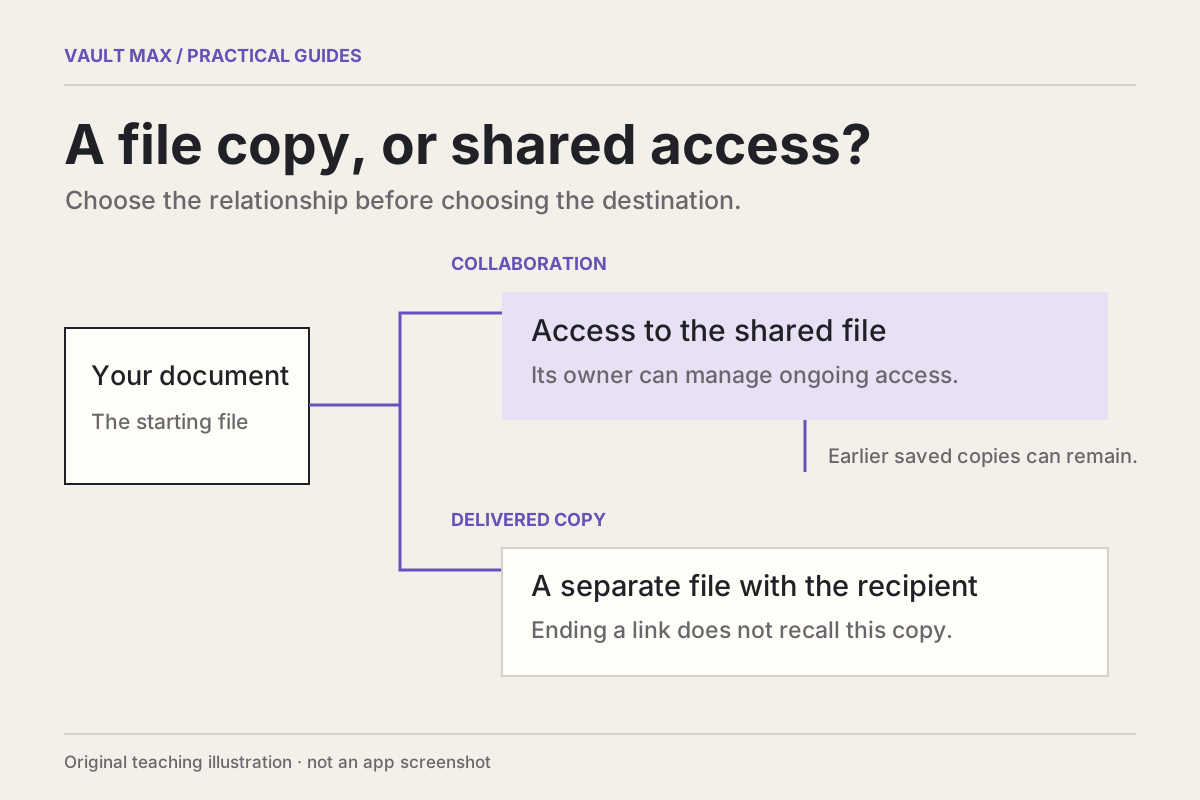
For an outgoing copy, review its destination and name again. The sharing guide explains the separate lifetime of an attachment. Finish when the saved image meets the format, readability and size requirements you started with.
Common questions
Can I convert HEIC to JPG on iPhone?
Apple's current Preview guide documents exporting an opened image as JPEG. Use Export beside the filename, choose JPEG, adjust its size or quality if needed, then save the new file to a known location and open that result.
Will changing .heic to .jpg convert the image?
No. Renaming changes the label while the image data remains in its existing format. Use a real image export or conversion operation. JPEG files commonly use either .jpg or .jpeg as their extension.
Does converting a photo to JPEG remove all its private information?
A format choice is not a promise that identifying information was removed. Check the saved image and the export workflow separately. Faces, readable text and other private details visible in the picture remain content to review.
Continue reading
More guides
Practical tips for your private library. Swipe or scroll to choose your next guide.
5 guides to explore