
Backup & recovery
Find a saved Vault Max backup on iPhone
Look for an existing .vaultmax archive in Files, check its location and availability, and choose the next recovery step without deleting your working vault.
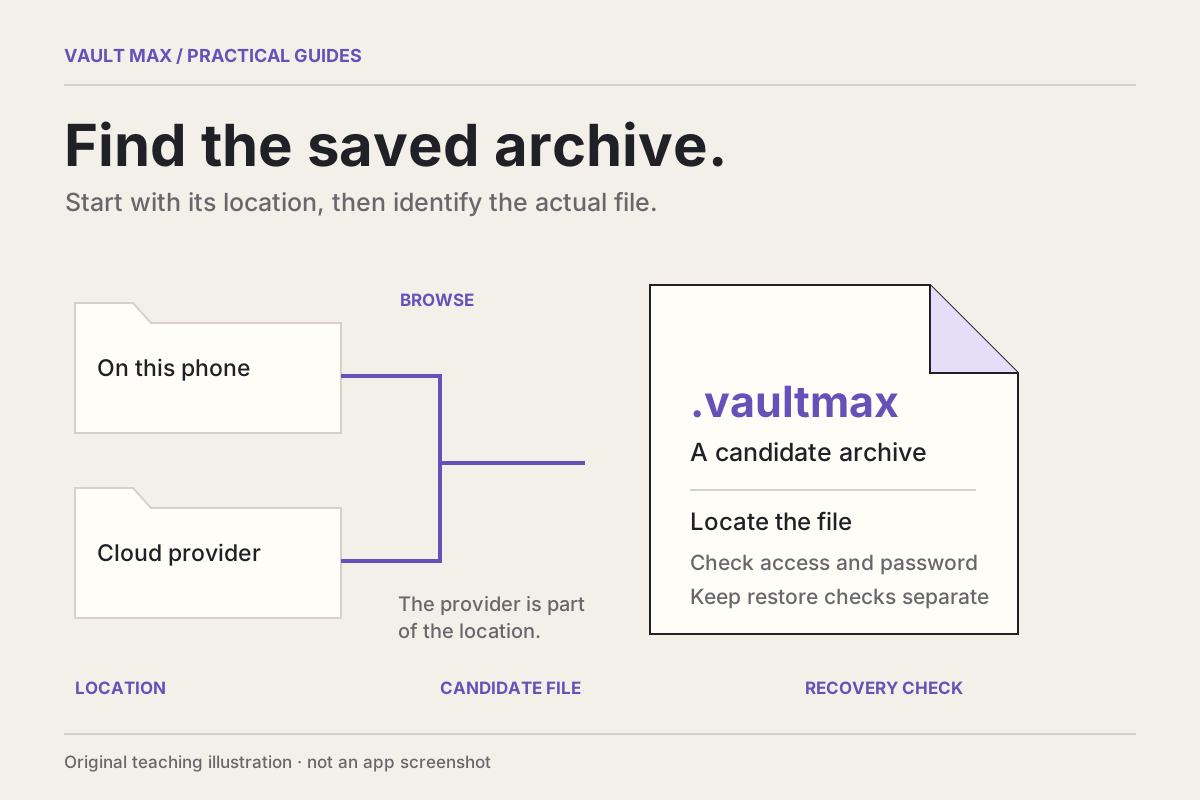
Look for the exported .vaultmax file in the location you chose when saving it. Keep your working Vault Max installation while you search. Finding that archive is a useful first result; the next questions are whether its bytes are available, whether you have its backup password and whether its restored contents are usable.
Start with a small reconstruction of the saving step. Did you choose a folder on this iPhone, iCloud Drive, another provider or a connected drive? Were you making an encrypted recovery archive, or sharing an ordinary PDF? The object and destination determine where to look. Installing the app again or restoring an Apple purchase does not locate an exported private collection.
Follow the saving decision you remember
Try the search trail below with fictional choices. It explains a sensible next check; it cannot search your phone, sign in to a provider or test an archive. Keep real passwords and personal filenames out of the example.
Trace the saved output
Where did the archive actually go?
A backup form, a recent filename and an available archive are different clues. Choose what you can currently see; follow its storage location before checking recovery.
- 1 / LocateFollow the clue to a real file
- 2 / RetrieveCheck access to its bytes and password
- 3 / Check recoveryCheck the destination and restored samples
I do not know the save location. In Files, inspect Browse → Locations, then search the locations and provider apps you actually use. Also check any computer or drive used during export.
Search the places that could hold the output
No archive has been located yet. A search result of zero is not proof that no copy exists anywhere.
- Try the remembered filename and .vaultmax in Files; inspect the actual enabled locations and the provider’s own app.
- Check computers, drives and accounts used during the export, plus eligible deleted-items areas.
- If the original vault still opens and no usable archive is found, save a fresh archive while keeping existing data.
The page cannot search your device or accounts. If neither the vault nor a usable archive and password are accessible, recovery may not be possible.
Separate archive access from vault accessSearch the places that could hold the output
Read every location and clue route
Start with the real storage location
- I do not know the save location. In Files, inspect Browse → Locations, then search the locations and provider apps you actually use. Also check any computer or drive used during export.
- iCloud Drive. In Files → Browse → iCloud Drive, search the saved name or .vaultmax. Check the Apple Account and the folder used when saving; a different account has a different file collection.
- On My iPhone. In Files → Browse → On My iPhone, inspect the selected save folder. A file stored only here still depends on this phone.
- Another Files provider. Open that provider under Files → Browse → Locations, or its own app. Confirm access to the right account and whether the file has finished downloading.
- A computer or external drive. Check the actual computer folder or connected drive, including its download/export folders. Search by the saved name or .vaultmax; verify the file at that destination.
If the only candidate is under On My iPhone and that phone is unavailable, use the first route below even if a filename is remembered. Otherwise match the actual clue.
A file only on the missing phone is not a reachable copy
On My iPhone names local storage on that device. A remembered local archive is not automatically stored elsewhere.
- Keep any remaining device, installation and copies unchanged.
- Search iCloud Drive, other provider accounts, computers and drives for a separately saved archive.
- If another archive is found, check its actual accessibility and password before relying on it.
This route cannot retrieve storage from an unavailable phone or promise recovery.
Separate archive access from vault accessLocate the saved output, not the export form
Starting an export or remembering a success message does not identify the archive’s present location.
- If the original vault still opens, inspect its backup workflow and the destination you selected.
- In Files or the destination provider, find the completed .vaultmax file itself.
- Keep earlier copies and the working source while checking or making a fresh archive.
If the vault no longer opens, preserve it and search existing destinations; do not reinstall to test a guess.
Follow the archive save and backup checksFollow the reference to its real location
Recents combines files from different locations. The list is not a separate backup destination.
- Inspect the item’s file information or location and identify the folder and provider.
- Open that real location, with the right account or drive available.
- Distinguish an available file from a cloud placeholder, then preserve the archive.
A recent filename alone does not establish that the bytes are still available or that the archive can restore.
Follow the archive save and backup checksMake the provider’s file available before relying on it
A cloud listing can identify a file whose contents are not yet available on this device.
- Keep the candidate; check provider sign-in, connection and the file’s download status.
- Use that provider’s supported download or availability action and let it finish.
- Check access at the intended destination while retaining the original archive and source.
A completed download still does not check the archive password, contents or restore result.
Follow the archive save and backup checksKeep the archive; check the next boundary
You report a saved .vaultmax file at a known location. That is a useful starting point, not a completed recovery.
- Record the real location and preserve this candidate while comparing any other dated archives.
- Locate its archive password independently of the inaccessible vault or old phone. Do not enter it here.
- Use the backup/transfer guidance to check the destination and restored samples while keeping the source and archive.
A filename, file size or Files information screen does not prove archive integrity, a correct password or a successful restore.
Check the archive and destination before a transferUse the storage provider’s recovery path
A candidate in a deleted-items area may still be recoverable under that provider’s rules.
- Do not empty Recently Deleted or permanently remove the candidate while investigating.
- For Apple Files, use Browse → Locations → Recently Deleted and Recover when available; other providers have their own rules.
- After recovery, locate the actual file and check accessibility, password and destination separately.
Apple’s Recently Deleted window is limited to 30 days. Eligibility and other providers’ retention differ; a listed candidate is not a recovery guarantee.
Apple: find missing files in iCloud DriveSearch the places that could hold the output
No archive has been located yet. A search result of zero is not proof that no copy exists anywhere.
- Try the remembered filename and .vaultmax in Files; inspect the actual enabled locations and the provider’s own app.
- Check computers, drives and accounts used during the export, plus eligible deleted-items areas.
- If the original vault still opens and no usable archive is found, save a fresh archive while keeping existing data.
The page cannot search your device or accounts. If neither the vault nor a usable archive and password are accessible, recovery may not be possible.
Separate archive access from vault accessThis page cannot inspect Files, a provider account or an archive. Keep the source installation and existing copies. No file, password or account details are requested or saved.
The useful outcome is a location you can return to: the provider, folder and particular archive. “Somewhere in Files” leaves too much unresolved when you need the copy again.
First identify the kind of backup
A Vault Max recovery export ends in .vaultmax and has its own backup password. An ordinary shared photograph or PDF is an individual outgoing item. Apple's device backups are another system with their own locations and recovery procedure; Apple's backup-location guide covers those computer and iCloud arrangements.
If your memory is of choosing Create backup file, look for the archive. If you remember opening a document and choosing Share, look for that document instead. A file called Cedar studio inventory.pdf may be a useful retained record, but it does not contain the whole vault merely because it came from Vault Max.
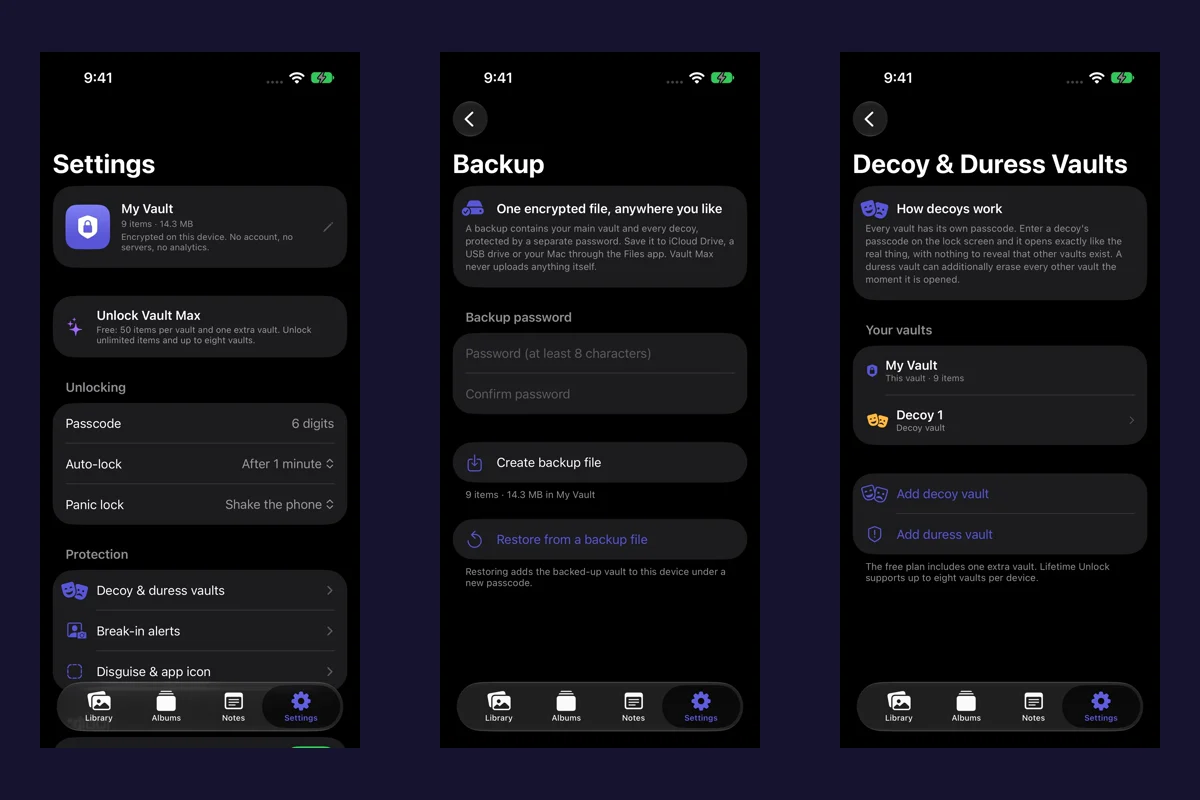
The backup walkthrough explains creating and restoring an archive. This search starts after you believe you saved one. A canceled destination picker can leave you with no exported file at that destination, so distinguish seeing the form from completing the save.
Search Files by a recognizable part of the name
Open Files and use its search field for a name or a fragment you remember. Try the product name or a date you actually used. Apple's file-finding instructions distinguish searching by filename from browsing specific locations.
Read the location associated with a result. Two folders can contain similarly named archives, and two exports made on different dates can represent different snapshots. Keep both candidates while identifying them rather than immediately replacing one with the other.
If search returns nothing, browse the likely locations directly. A missing result is a reason to continue the trail; it does not establish that every provider, account or disconnected drive has been exhaustively searched.
Files · Actual iPhone screens, sample archives. Select a screen for a closer look.
Use Restore from a backup file inside Vault Max to select an archive through its supported restore workflow. The Files Info/Open presentation above identifies a file; it does not demonstrate that workflow or validate the archive.
Browse the actual storage locations
In Browse, check On My iPhone, iCloud Drive and any relevant third-party location. On a tablet, the local label is On My iPad. An attached storage device appears under its own name when available. These labels identify different homes for a file, even though Files presents them together.
For a browser download, check the chosen download location; Apple's general finding guide points readers to iCloud Drive → Downloads. A backup you deliberately saved into another folder may never have been in Downloads. Follow the destination you selected rather than assuming every export uses a browser's download folder.
For another cloud service, inspect that provider's app or Files location and the account actually holding the material. Apple's missing-iCloud-files guide also directs readers to other services and devices. Do not change accounts or reset the working vault simply to make the search look different.
If an expected provider is missing from Browse, Apple's Files integration instructions describe Browse → More → Edit after setting up its app. Enable the relevant location or ask that provider for help. Showing its location still does not establish that a particular archive was saved there.
Turn a candidate into an available file
A listed cloud item may still need its contents downloaded. Confirm that the provider can supply the file before relying on a later restore. If the destination is unavailable, keep the original installation and investigate the provider or connection first.
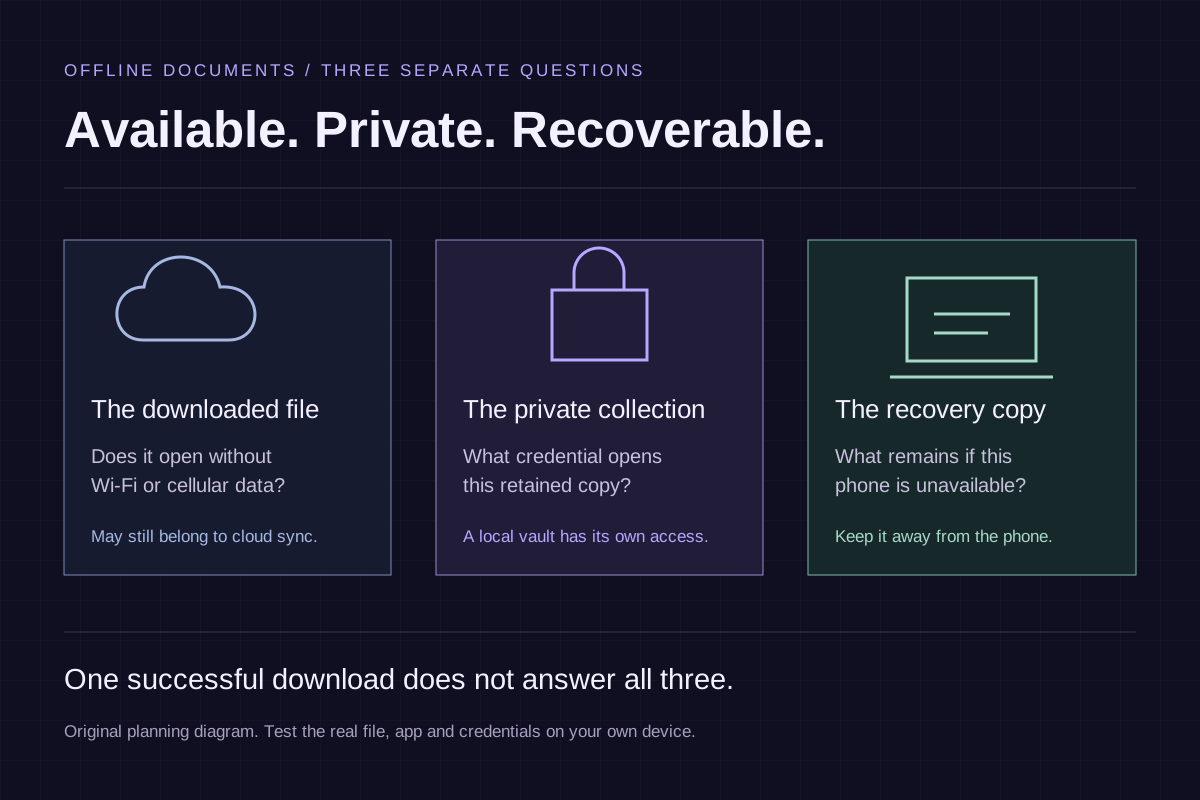
Our offline-document guide explains the separate availability check. An offline working copy, a cloud listing and an independently reachable recovery copy have different jobs. An archive stored only on the lost phone cannot be retrieved from another device just because you remember its filename.
| What you have found | What it establishes | Next useful check |
|---|---|---|
| A matching filename | A candidate in that location | Identify its date, size and provider |
| The available archive file | Bytes you can select for the supported restore route | Locate the separate backup password |
| An archive and its password | The inputs needed to try restoration | Follow restore and inspect important recovered items |
| A readable restored collection | The particular result you have inspected | Retain the source while checking the remaining content |
Check Recently Deleted if you removed the archive
In Files, open Browse → Recently Deleted and inspect the candidates before choosing one to recover. Apple documents 30 days for deleted iCloud Drive and On My device files. Recovering a file returns it to its original location. Files removed from Recently Deleted are deleted immediately and cannot be recovered through that route. Apple's deletion and recovery instructions.
For missing iCloud material, Apple's missing-files page also describes checking Recently Deleted and Data Recovery on iCloud.com. Follow the instructions for the actual service. A different provider's retention policy may differ, and an absent archive cannot be reconstructed from its old name.
Identify versions before trying a restore
Keep a short private record of each plausible candidate: location, filename, file size and the date you believe it was made. Those observations help distinguish versions. They do not prove the snapshot contains a particular photograph, note or child vault.
Keep the .vaultmax extension intact and use Vault Max's documented restore route. Renaming a PDF or ZIP to that extension does not create a recovery archive. If a candidate reports an error, preserve it and the working installation while checking the selected file and credentials.
The archive's password is separate from your current vault credential. If the old archive password is unavailable but the working vault still opens, you can create a fresh archive with a new password. That creates a new recovery option; it does not unlock the older file. The forgotten-code guide separates those access paths.
Finish with a trail you can use again
Once you locate a usable candidate, continue with the supported restore steps and inspect the recovered material before erasing anything. A filename, successful download or accepted password alone is not an inspection of the restored collection.
Record the destination somewhere available without the vault it must rescue, while keeping the actual password appropriately protected. Refresh the snapshot after meaningful additions. A private collection becomes easier to recover when its archive has a known home and a clear date, rather than a hopeful memory of a completed form.
Common questions
Where does Vault Max save its backup file?
You choose the destination in the Files saving step. Look in that location for the exported .vaultmax archive. A local folder, iCloud Drive and another Files provider have different availability and recovery arrangements.
Does finding a .vaultmax filename prove that the backup works?
It identifies a candidate. You still need access to the actual file, its separate backup password and a successful restore followed by inspection of the important recovered items. A recent name or thumbnail does not establish those results.
Can I recover a backup that I deleted from Files?
Check Recently Deleted for the relevant location. Apple documents a 30-day recovery period for deleted iCloud Drive and On My device files; items removed from Recently Deleted are deleted immediately. Other providers have their own rules, and no recovery is promised if a copy is absent.
Continue reading
More guides
Practical tips for your private library. Swipe or scroll to choose your next guide.
5 guides to explore