
Privacy in practice
Which privacy app do you need on iPhone?
Choose the right iPhone privacy tool for photos and files. Compare Apple Photos Hidden, app locking, permission controls and a separate on-device vault.
Vault Max 1.1 is available. Get the update on the App Store, then follow the walkthrough below.
Choose a privacy tool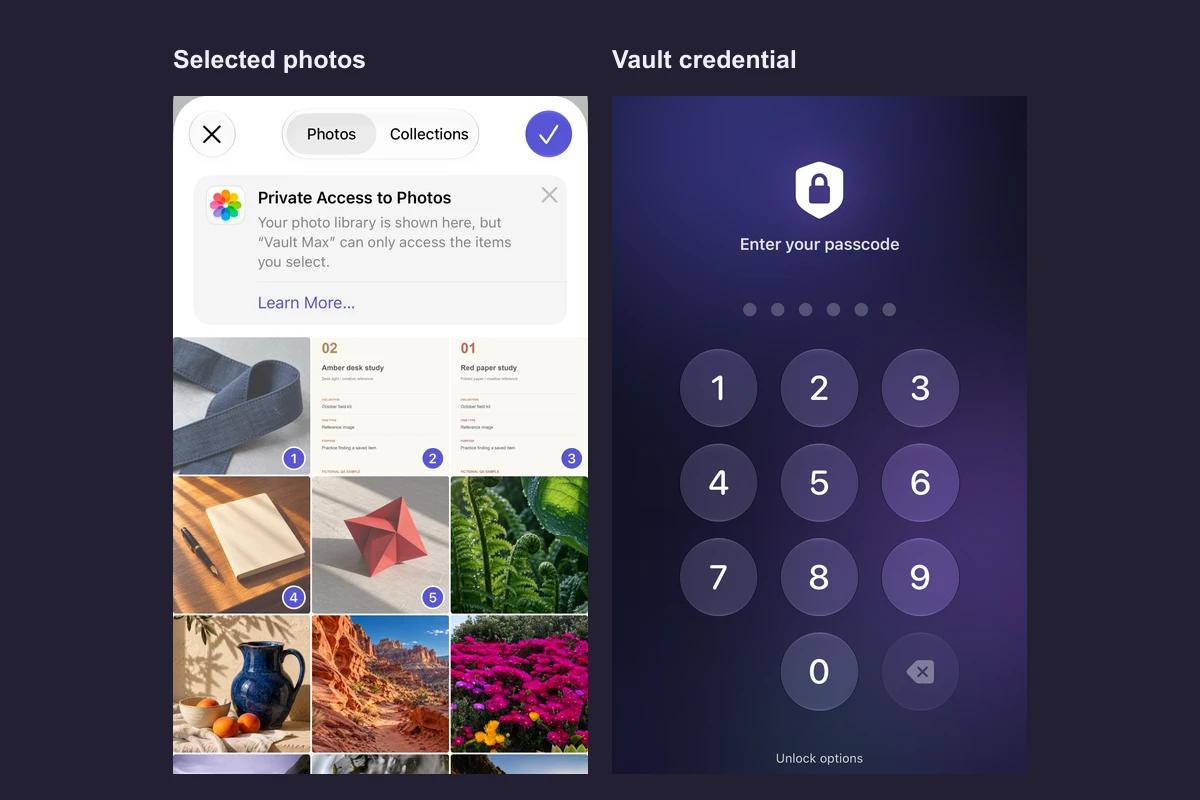
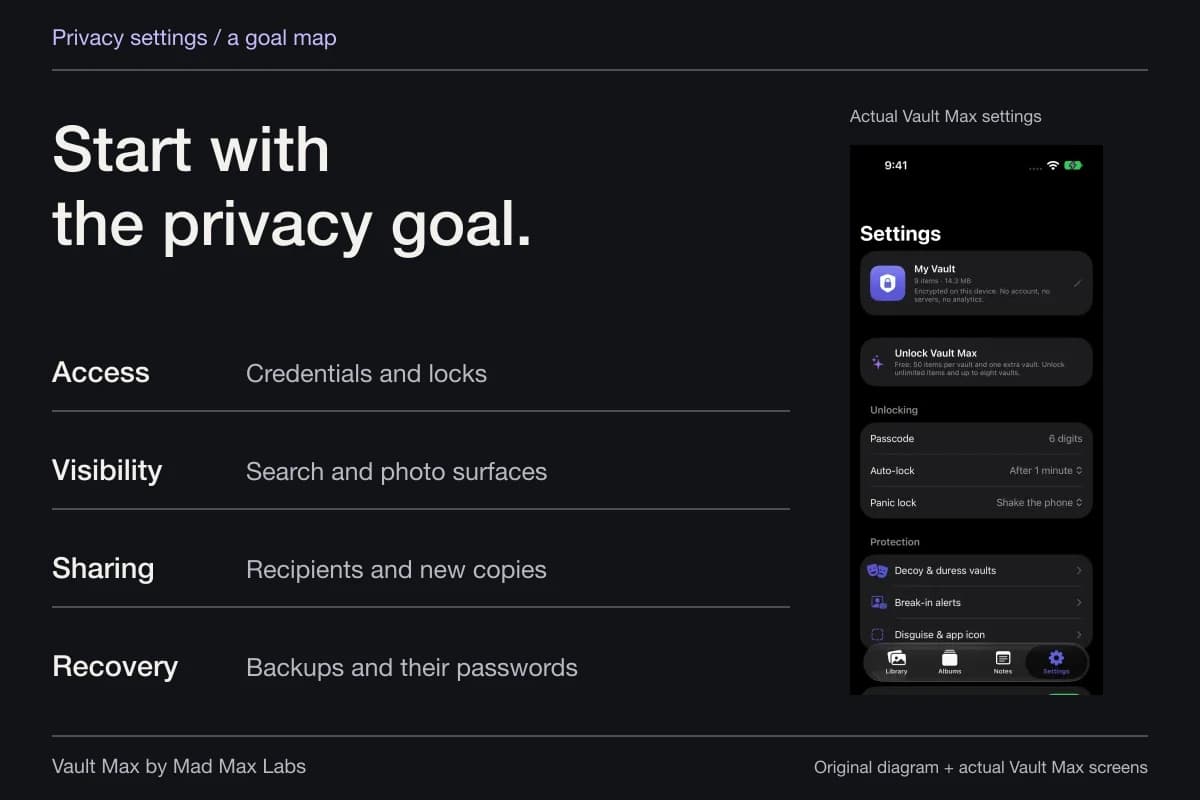
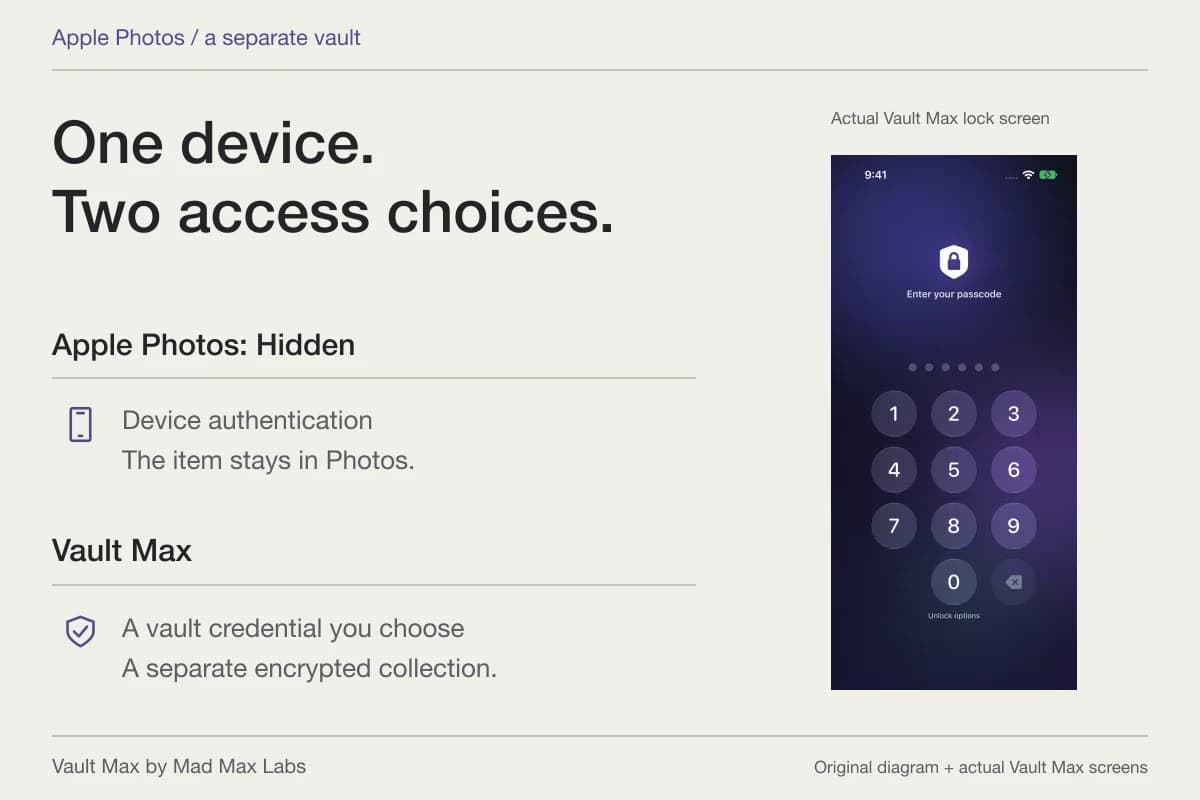
If you want more privacy for photos and files on your iPhone, start with the specific job. Use Hidden to keep items out of normal browsing in Photos. Use Require Face ID or the equivalent system option to restrict opening an app. Use Privacy & Security to limit app permissions. Consider a separate vault when you need to keep selected files behind a credential of their own.
Start with what you want to keep private
Say you hand over an unlocked iPhone to show a friend one picture. You want a few other photos out of the usual grid, so you start with Hidden. Now change the problem. You want selected photos and a PDF behind a different credential because another person already knows the phone’s passcode. That calls for a separate library, a credential that person does not know, and a decision about the original copies. If your concern is a social app reading the library, the place to start is that app’s Photos permission.
You can check all three cases with one replaceable sample. Pick a photo you can afford to leave in Photos and identify which person or app you are trying to limit. The tool below shows where the sample stays, what controls access, and what to try afterward.
Match the tool to the problem
Which boundary do you need?
A separate library
Separate photo vault
- Where the file lives
- Imported copy in the vault
- What controls access
- Vault credential
Import one replaceable file. Lock, unlock, open the file and check whether the source copy is still in Photos or Files.
These options can work together. For example, you could limit a social app's access to Photos, keep a few everyday pictures in Hidden, and store copies of sensitive PDFs in a separate vault. Check where each original still lives before changing what you keep.
Keep a photo out of normal browsing
Touch and hold a photo or video in Apple Photos, choose Hide, then confirm. To check it later, look for Hidden under Collections → Utilities. Hidden requires authentication by default on current iOS. When you use iCloud Photos, the hidden state carries to your other devices using that library. Check the devices you already share access to. Apple’s Hidden album guide
Make an app harder to open from your Home Screen
Touch and hold the app and look for Require Face ID, Touch ID or passcode. Eligible downloaded apps can also be hidden. Apple's system lock is device-specific. A hidden app can still be listed in places such as Screen Time, battery usage and purchase history. Check Apple's eligibility and authentication rules for your iPhone. Apple’s app lock and hide guide
Limit what an app can access
Open Settings → Privacy & Security and review categories such as Photos, Camera and Location Services. Change the permission that corresponds to the access you want to limit. If you are checking past behavior, App Privacy Report shows recent permission use and network activity after you enable it and use the app. Apple’s permissions guide · Apple’s App Privacy Report guide
Keep selected files behind a separate credential
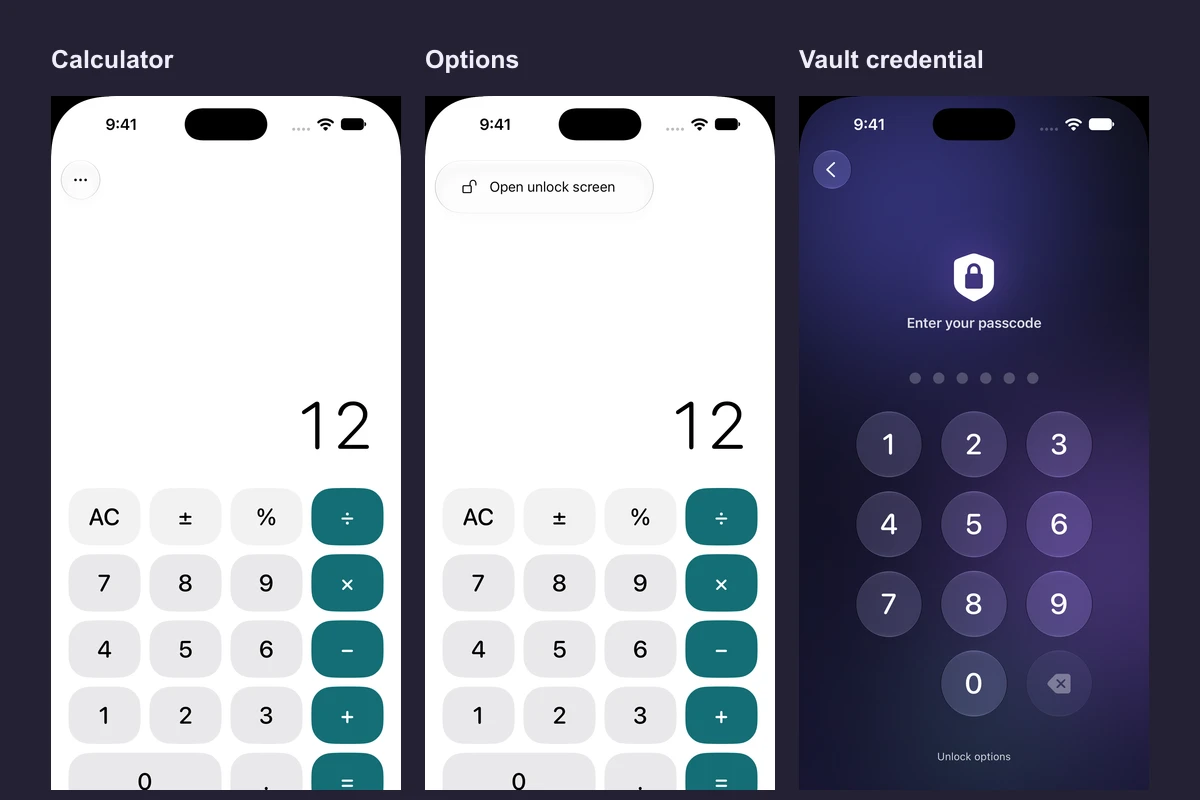
A separate vault is useful when you want to protect a mix of photos, videos, documents and notes with its own unlock method. Vault Max stores imported items encrypted on the device. It needs iOS 26 or later. Test a photo and a file you can replace. Lock the vault, unlock it with the method you set up, and open each sample.
Native recording · iPhone 18 Pro
Watch a separate vault lock and reopen
A sample collection is open on the simulator. Watch the Library disappear when Lock is tapped and return after the demonstration credential.
- Lock the vault
The library gives way to Vault Max’s own PIN screen while the iPhone remains unlocked.
- Enter the sample PIN
The same collection comes back. The contents and the credential are separate from Apple Photos.
See where the private library ends
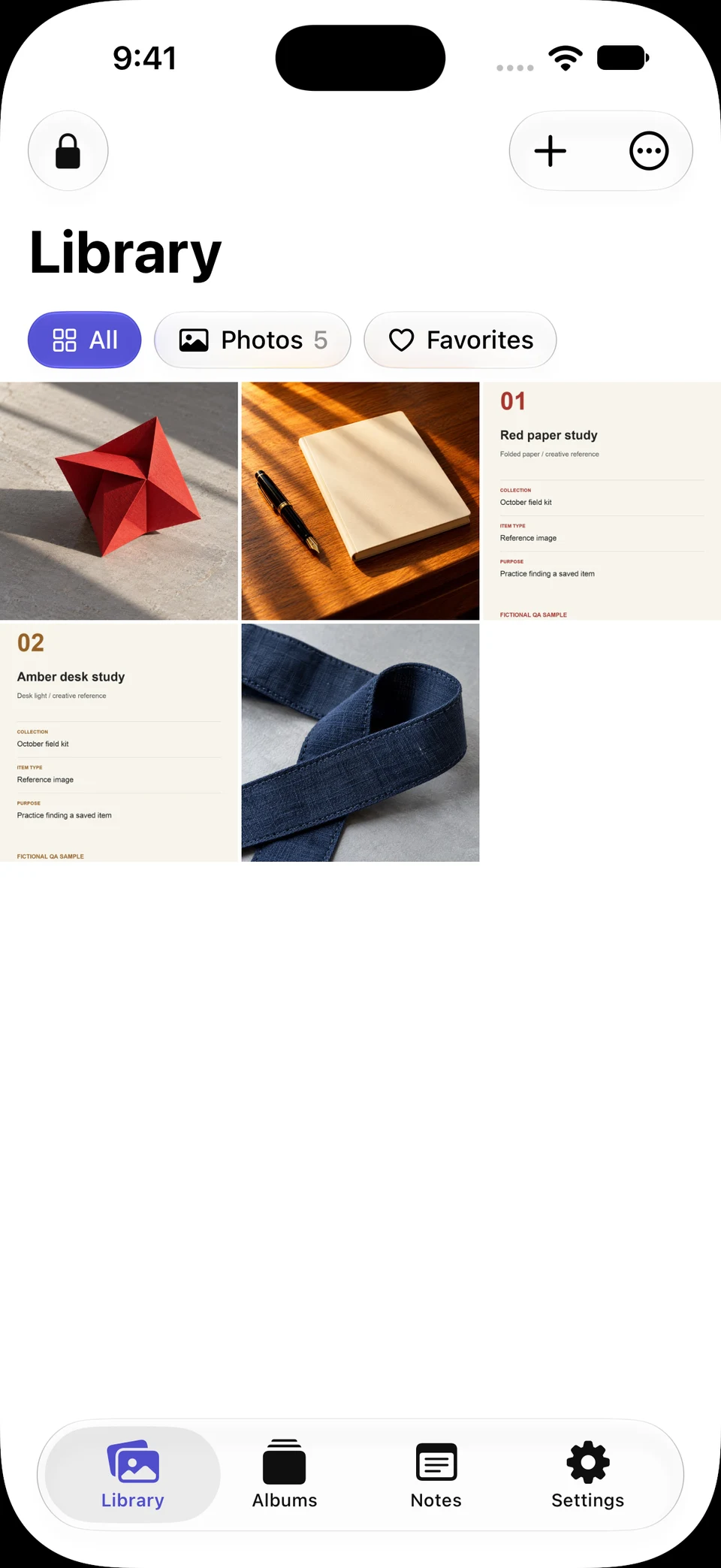
Screen 01 / 02
A separate library is open
These five sample copies are inside Vault Max. Use Lock at the top left before handing the phone to someone else.
This web walkthrough uses sample captures. It never asks for your PIN.
Try it with an original you can account for
If you want to test the copy boundary, choose one familiar image in Library → + → From Photos. Select only that image in Apple’s picker. Back in Vault Max, open it full size. Lock the vault and return to Apple Photos. The original is still there if you chose to keep it. That is the behavior to verify before you transfer a larger collection.
Native recording · iPhone 18 Pro
Select photos and choose what happens to the originals
This recording starts in Apple’s picker. The sample import keeps the source photos in place.
- Select five sample images
The selection marks show the specific files Vault Max receives.
- Confirm the import
The chosen copies appear inside the private library.
- Choose Keep them
The prompt offers a separate decision about the originals in Photos.
If your reason for choosing a vault is a separate credential, avoid using the device code as the vault PIN. Check your biometric settings against your own situation. If you plan to share the phone, lock the vault before handing it over and check the auto-lock delay you chose. Keep the vault code and backup password separate and record where you can find both.
Then check three things before you rely on the setup:
- Originals. Confirm which copies remain in Photos, Files or a synced folder. Importing adds an encrypted copy. Removing an original is a separate decision.
- Recovery. Create an encrypted backup you can reach without this iPhone. Keep its backup password where you can retrieve it separately. The app has no account reset for a forgotten vault credential.
- Visibility. A cover changes what the locked Vault Max app shows. An alternate icon changes its artwork. Use the working cover guide to see what each changes, and use Apple's system controls if your goal is to restrict opening an app.
Compare apps with a small trial
For pictures only, compare how quickly you can protect one item and find it again. For documents and notes, test one PDF and one note as well. For anything irreplaceable, check how you would recover a readable copy with the old phone turned off. A useful trial ends with a sample you can open and a recovery method you can explain.
Read each app’s privacy label and policy alongside the actual settings. Check where backups go and whether a sign-in or subscription changes export or restore. If you keep more than one copy, make a simple inventory before deleting anything. Start with Photos, Recently Deleted, Files, and the services or people you have already shared with.
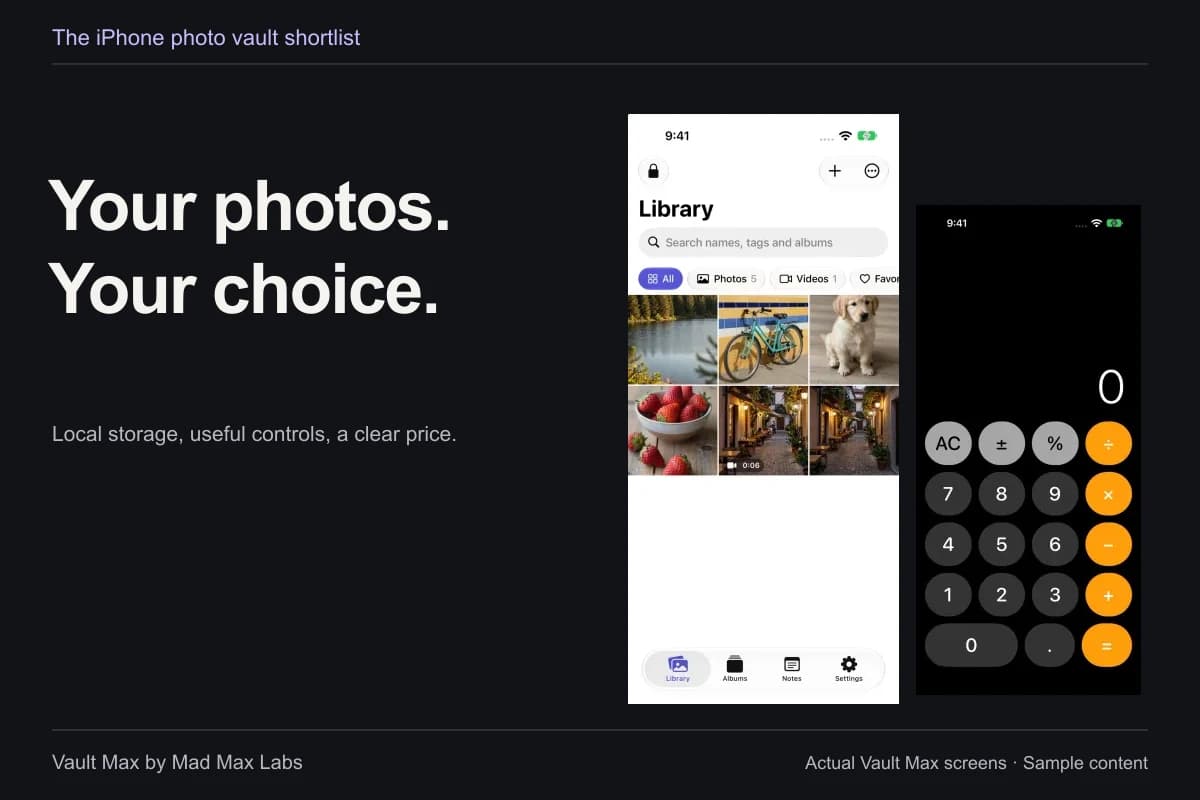
If you are shopping for a vault, run that small test on your shortlist and check whether backups, export and the unlock method fit how you use your phone. For a wider comparison, see the iPhone photo vault guide.
Common questions
Do I need a privacy app to hide photos on iPhone?
For keeping pictures out of ordinary browsing in Photos, start with Apple's authenticated Hidden album. Consider a separate vault when you need an independent credential, your own backup routine or a collection that includes files and notes.
Will a photo vault remove the originals from Photos?
An import can leave the original in Photos or Files. Open the imported copy and verify a separate backup before deciding what to remove. Check Recently Deleted, synced libraries and any copies already sent.
Continue reading
More guides
Practical tips for your private library. Swipe or scroll to choose your next guide.
4 guides to explore