
Privacy in practice
Before opening private photos, stop the iPhone screen share or recording
Keep private photos out of an iPhone screen share, recording or mirrored display. Stop that route, check its result and distinguish vault lock settings.
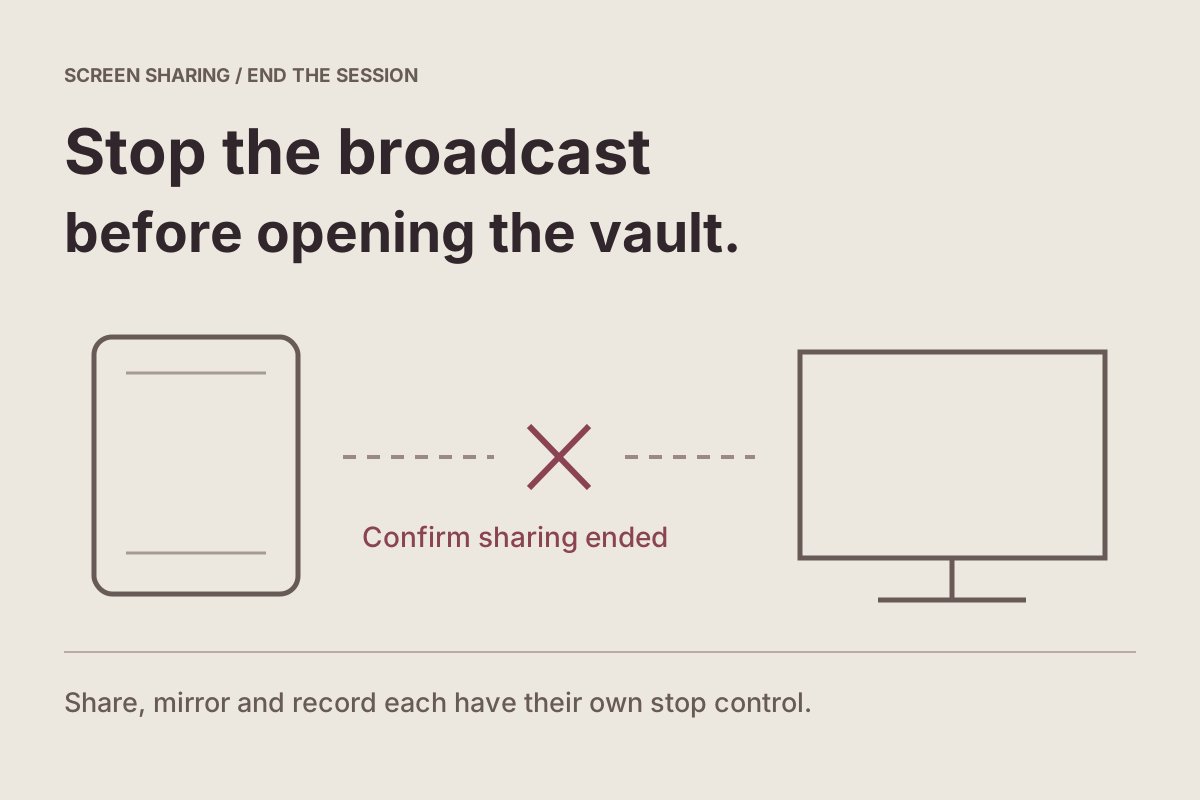
Stop an active screen share, recording or mirrored display before unlocking private photos. A vault's inactive app-switcher cover and its lock serve different moments; neither should be your evidence that a live sharing session has ended.
This matters during an ordinary task. You may be showing someone a website on FaceTime, recording a tutorial or presenting your phone on a TV. Opening a private collection to fetch “just one picture” changes what is on the screen while that other activity may still be running.
We make Vault Max. The Apple steps below concern the system sharing routes; the existing app footage demonstrates manual vault locking with sample content. It is not a new screen-capture or remote-viewing test.
Decide what the other person actually needs
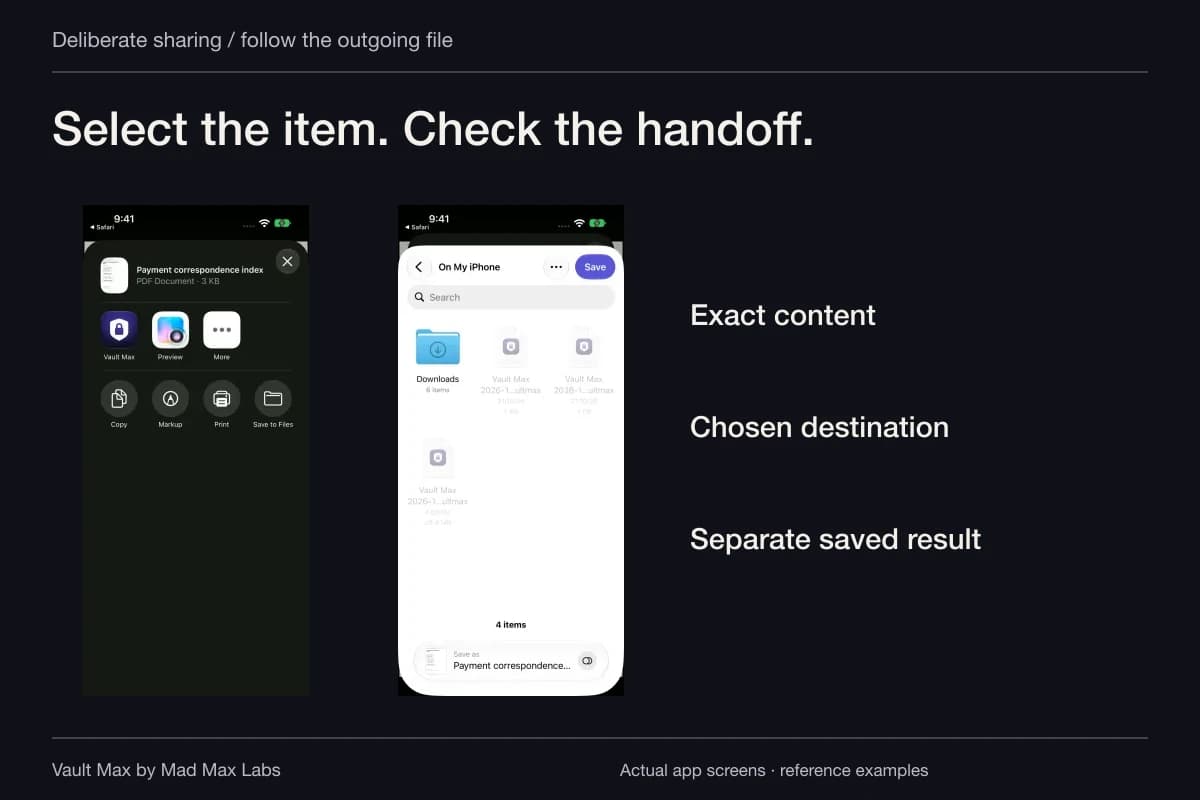
If someone needs one photograph, prepare that photograph and its recipient before the call. A deliberate file handoff may be easier to inspect than navigating a whole library on a live shared screen. Our private-photo sharing guide covers checking that outgoing copy.
For a demonstration, assemble harmless sample material first. Close private documents and finish any vault session before starting. Include the navigation you will need in the rehearsal: reaching for a picture midway through a presentation can expose filenames, neighboring thumbnails or another recent item before you even open it.
Make a short plan for interruptions. If you need private information during the call, stop sharing, find it privately, close the collection and then decide what to resume sharing. Tell the other person you are pausing; there is no benefit in racing through a private screen while hoping they missed it.
Identify the route before choosing Stop
An iPhone can send content outward or create a local recording in several ways. Start with the tool you deliberately used. Returning to the Home Screen, minimizing a call or switching apps does not give you the same completion evidence as the route's stop command.
| Activity | What you need to establish |
|---|---|
| FaceTime screen sharing | Whether the other participant is still viewing your screen |
| AirPlay Screen Mirroring | Whether the receiving display is still following the phone |
| AirPlay media playback | Which device is receiving that particular photo or video |
| Local screen recording | Whether capture stopped and where its saved video went |
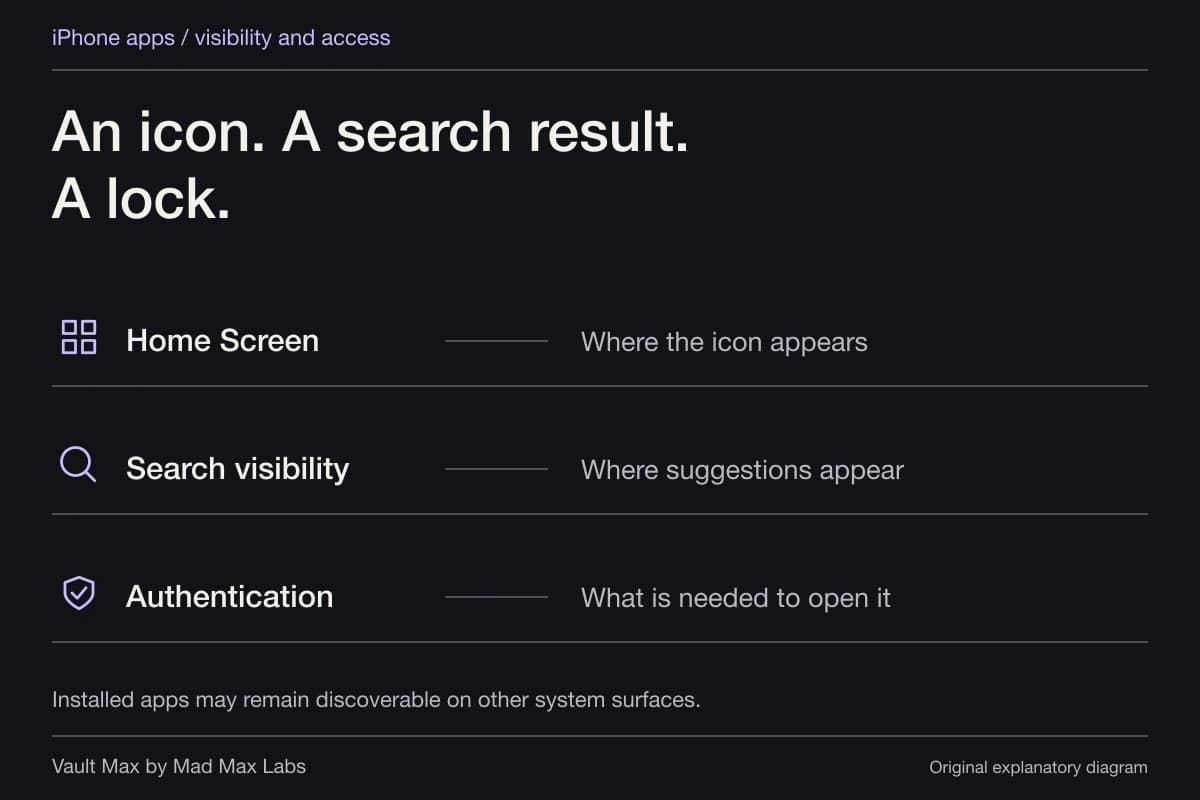
| Inactive app-switcher preview | Whether a snapshot is covered, separately from an actual vault lock |
Several familiar icons can make a rushed check confusing. Read the current control or destination label instead of interpreting a color alone. If you are unsure which service is sending the screen, keep the private collection closed while you investigate.
If the expected stop control is missing, retrace how the session began: a call, a TV connection, a Mac app or Control Center. Use the instructions for that starting point. A trusted helper can confirm whether a harmless screen is still visible without needing your private photo, passcode or a tour of the vault.
Stop FaceTime screen sharing before finding a private item
Apple's current FaceTime guide says to open the call controls, tap More, then Stop beside Screen Sharing. Ending the call also ends sharing.
Apple's Personal Safety guide identifies the screen-sharing button and Viewing My Screen below the participant's details as ways to recognize an active share. Inspect the call state after stopping. Use harmless content if you need the other person's help confirming what they can see.
Remote control is an additional decision. Apple distinguishes it from viewing, and declining a control request leaves screen sharing running. If your intention is to end visibility, finish the sharing task rather than assuming a declined request did that for you.
After your private lookup, lock the collection and return to a neutral screen before starting another share. This gives the resumed session a clear starting point instead of beginning with whatever private page you last used.
Stop mirroring, or change the media playback destination
For full-screen AirPlay mirroring, Apple gives Control Center → Screen Mirroring → Stop Mirroring. For a particular stream, its AirPlay instructions instead use the app's AirPlay control and select the iPhone or iPad as the playback destination.
Check the receiver while harmless content is still open. Does the TV or Mac stop following your navigation? If you cannot inspect it directly, ask the person at that display to confirm the session has ended. Keep private content closed until you resolve an unexpected connection.
The destination check is especially useful when several rooms or displays have similar names. Write down the actual receiver you used for a recurring presentation. A future session then begins with a known destination instead of trial and error through nearby screens.
AirPlay Screen Mirroring and the Mac's separate iPhone Mirroring feature are different workflows. If you started from the Mac's iPhone Mirroring app, use Apple's specific instructions: quit that app or unlock the iPhone to end mirroring. Do not assume a TV-oriented control answers every Mac connection.
Stop a recording, then inspect the saved video
Apple's screen-recording instructions offer two stop routes: the recording control at the top of the screen followed by Stop, or the active recording button in Control Center. Recordings are saved in Photos.
Apple also says local screen recording and screen mirroring cannot run at the same time. They are different activities to investigate, not two controls you must assume were simultaneously active. Identify the one you actually started before looking for its saved result or receiver.
After stopping, open the saved result. Review the part where you switched apps, began typing, entered a library or finished the demonstration. These transitions can contain details that a quick look at the opening frame misses. Check sound too if you enabled the microphone.
Decide what to retain before sending the recording. If it includes private material, prepare a replacement using harmless content rather than forwarding the original to ask someone else whether it looks safe. A replacement also lets you remove the hurried navigation that caused the problem.
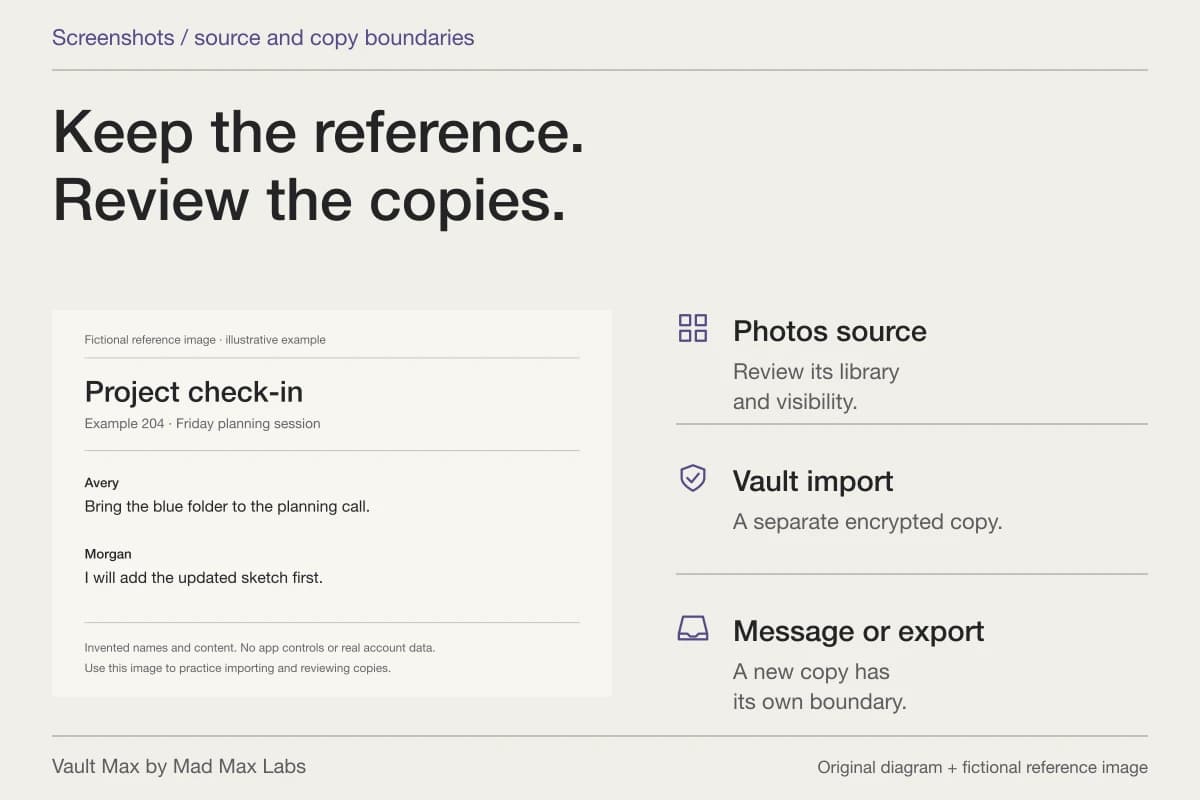
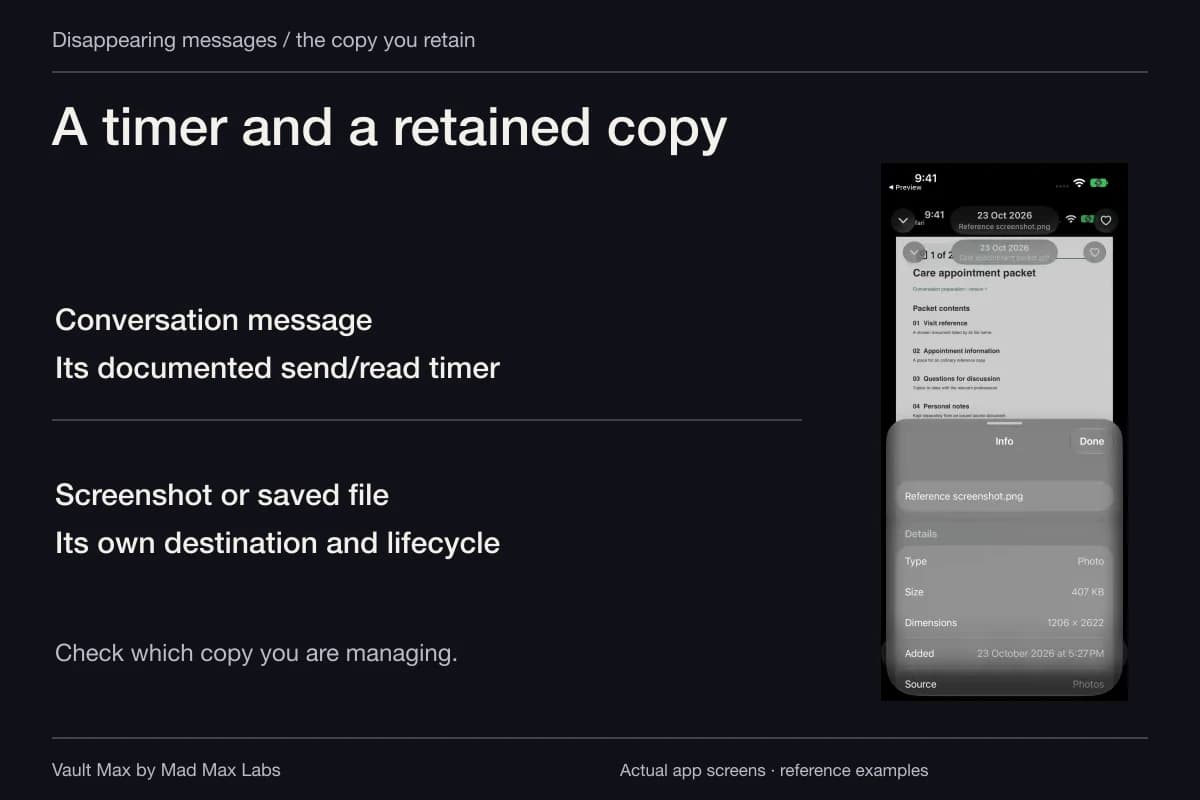
Any recording you already attached to a message or saved elsewhere needs a separate check. Follow the screenshot-copy guide for the same useful habit: identify the actual file, its destination and earlier shared copies.
Configure notifications for the particular sharing route
Apple's current notification guide documents Settings → Notifications → Screen Sharing → Allow Notifications for SharePlay or Screen Mirroring, with notifications allowed by default. Its Personal Safety FaceTime guide separately says the other participant cannot see notifications in that described sharing context.
Avoid turning either statement into a promise about every meeting app or capture method. Before a demonstration, review the route and system version you will use, turn off unneeded sharing notifications where that control applies, and rehearse with harmless material. Notification settings do not change sensitive content you deliberately open inside an app.
Close the collection deliberately
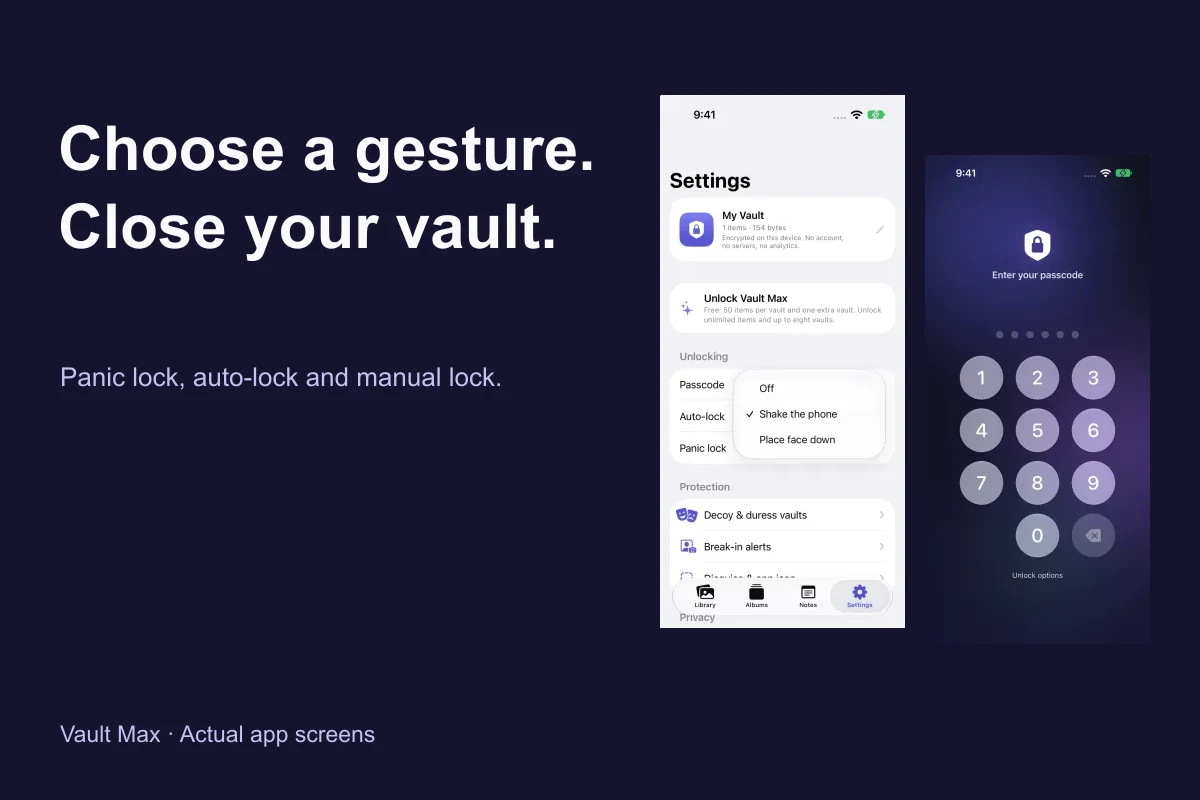
Vault Max's Lock and Lock now controls end an unlocked vault session. Practice that finish action before you need it during a call, and check the resulting locked presentation.
Vault Max with sample content. Use the controls to pause or replay.
Background auto-lock determines the return behavior after leaving the app. The app-switcher privacy cover obscures an inactive snapshot. Neither is a reason to reopen private content while a sharing route remains unresolved. The lock walkthrough explains those settings and how to rehearse them.
Vault Max also offers an optional screenshot and recording shield. It is best effort and can vary with iOS. Apple notes that some apps restrict recording, but that general observation does not establish what every capture route will do with your collection.
Sample Vault Max library. Select a screen for a closer look.
Practice the moment before opening the vault
The fictional cases below ask you to identify the active route and choose the next useful action. They do not inspect your phone or control a real session.
Fictional decision exercise
Match the stop control to the active screen session
Consider three separate fictional situations: a live call sharing your screen, a local screen recording on another occasion, and screen mirroring to a nearby display on a third occasion. In each situation, you want to end the active session before opening private material.
Read every decision and explanation
Decision 1 of 3
Which action directly addresses what the call participants can see?
Situation 1: a live call is actively sharing your screen.
- Lock the vault and assume the call has stopped sharing
A vault lock does not itself confirm that the call's sharing session ended.
Next step. Use the call's real sharing control and confirm that live sharing has stopped before opening private material.
- Stop screen sharing in the call and confirm its sharing status
This addresses the live call's sharing session. The result still needs a check in the actual call.
Next step. Keep the private material closed until you have confirmed that the call is no longer sharing the screen.
- Open the app switcher and assume that ends the session
Changing the visible app is not confirmation that the call stopped sharing the screen.
Next step. End the session with the actual sharing control and check its resulting status.
Decision 2 of 3
What addresses the active recorder?
Situation 2, on another occasion: a local screen recording is running. This is separate from the previous call example.
- Stop the active screen recording and inspect the saved result before sharing it
This addresses the active recorder in this situation rather than using an unrelated call control.
Next step. Check what the saved recording already contains and where it is stored. Stopping now does not remove earlier frames or delivered copies.
- Close the private app and treat the recording as deleted
Closing an app is not a deletion check for the recording or proof that capture ended.
Next step. Use the active recording control and review the resulting saved file separately.
- Look for a call's sharing control instead of the recording control
That addresses the wrong task. This situation is an active local recording, not the earlier call example.
Next step. Find the actual recording control, stop it, and inspect any output already saved.
Decision 3 of 3
Which action addresses this mirror connection?
Situation 3, on a third occasion: a nearby display is receiving the phone's live mirrored screen.
- Switch to another app without checking the mirror connection
The display can still be connected even though the foreground app changed.
Next step. Use the active screen-mirroring controls and confirm that the destination is disconnected.
- Delete a saved recording and assume the mirror disconnected
A saved video and a live mirror connection are separate things.
Next step. End the actual mirror connection. Handle previously saved or shared recordings through their own locations.
- Stop the active mirror connection and confirm the display disconnected
This addresses the mirror connection in this situation. The display's disconnected state needs a real check.
Next step. Confirm the connection has ended before opening private material. Earlier recordings and recipient copies, if any, need their own handling.
Your plan matches three separate situations to their actual controls: stop the call's screen share, stop the local recording, or stop screen mirroring. A vault lock or app-switcher preview is not a universal promise against recording, sharing or previously saved copies.
No call, recording or display connection is inspected or stopped here. This is a decision exercise, not a native screen-protection demonstration. No account details or personal files are requested; choices stay in this page and reset when it is reloaded.
For your next presentation, finish with a specific check: the sharing or recording route has stopped, any saved recording has been reviewed, and the private collection is locked. If something private was already visible, stop further exposure and review the actual saved or delivered copies. A locked vault cannot withdraw what another destination already received.
Common questions
Does the app-switcher cover protect an open screen share?
The cover obscures an inactive app snapshot. Treat an active shared display as a separate route: stop that share before opening private material, then check the route's actual state.
Can Vault Max guarantee that a recording captures nothing?
Its optional screenshot and recording shield is best effort and can vary with iOS. Use deliberate locking and the sharing or recording controls instead of depending on a universal blocking guarantee.
Does stopping a screen recording remove the video?
Apple saves screen recordings to Photos. After stopping, review the saved video and any destination to which you sent it. Ending capture does not itself remove an existing copy.
Continue reading
More guides
Practical tips for your private library. Swipe or scroll to choose your next guide.
5 guides to explore