
Privacy in practice
Remove location from iPhone photos before sharing the right copy
Remove a photo's saved location, omit location for one iPhone share, and stop future Camera geotags. Check the outgoing copy and visible clues separately.
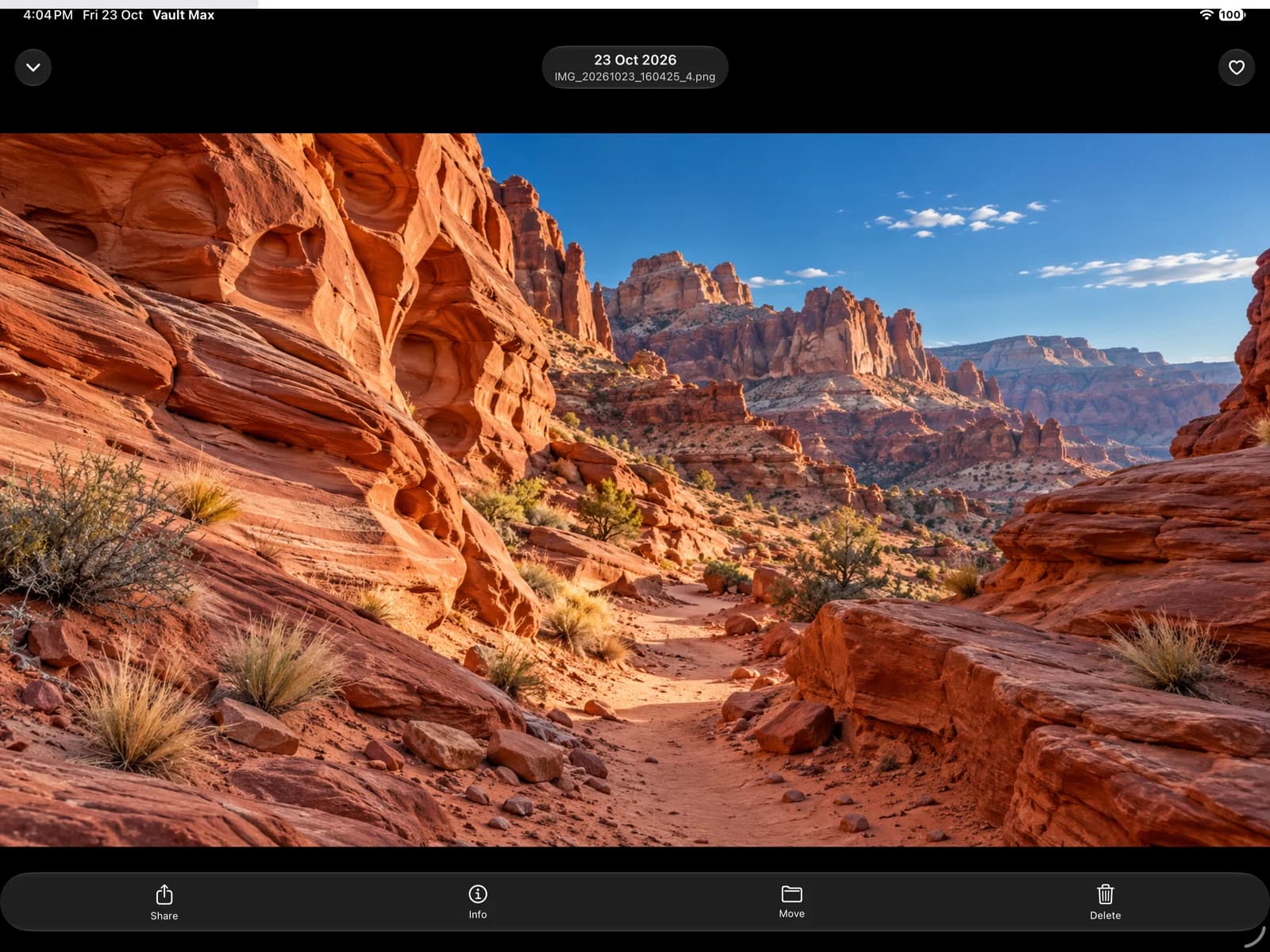
Choose which result you need: leave location out of one share, remove the saved location from a library item, or stop Camera collecting it for future photos. These are separate controls. None changes a copy somebody already saved.
A location tag can reveal where a picture was taken even when the image itself seems ordinary. A private vault controls access to its collection; the file you send out needs its own review. We make Vault Max, and explain its sharing boundary below without treating storage encryption as metadata removal.
Review the photo and decide what must change
Open the intended item in Photos and swipe up or use Info to inspect the displayed place. Apple's Personal Safety location guide describes this review and the controls below.
Decide whether you need the location in your own reference collection. A site photograph, travel record or insurance picture might have a legitimate reason to retain it privately while omitting it from a casual share. You do not need to remove useful private context merely to prepare one narrower outgoing copy.
| Your goal | Control to review | What still needs checking |
|---|---|---|
| Send one selection without its place | Photos: Share, Options, Location off | The actual outgoing file and receiving route |
| Remove the saved place from an existing item | Photos: Adjust Info, Adjust Location, No Location | Other copies and any synchronized library changes |
| Stop future Apple Camera geotags | Settings: Privacy & Security, Location Services, Camera | Existing pictures and other camera apps |
Before any share, also look at the image itself. A road sign or address label can reveal more than the coordinates you remove.
Omit location from one Photos share
For an outgoing selection in Photos:
- Select the exact photo or photos you intend to send.
- Open Share, then Options.
- Turn Location off and return to the sharing choices.
- Check the selected items and intended destination, then complete the share.
Apple documents this as a way to share without including the capture location. It is a setting for the share you are preparing, not a universal promise about third-party upload controls. Recheck when you change the selection or start another route.
If a receiving website asks you to choose a file directly, do not assume it uses the Photos share options you previously selected elsewhere. Prepare the intended copy first, then inspect the file you actually choose for upload.
Remove the location saved with an existing item
For an item whose saved place should change, Apple's current Personal Safety instructions use More → Adjust Info → Adjust Location → No Location. Some system versions expose Adjust Location directly. Follow the labels on your device and inspect the item again afterward.
This is a library change. If iCloud Photos is in use, Apple explains that photo edits synchronize across connected devices. It still does not revise an attachment, export or message somebody already received.
Keep any original you intentionally need in an appropriate private collection, and distinguish it clearly from a prepared share copy. Do not call the entire folder “location removed” after changing only one item.
Stop future Camera location collection
For Apple's Camera, review Settings → Privacy & Security → Location Services → Camera and choose Never if you do not want it to receive location access. This affects future collection; existing photographs need their own review.
A different camera app has its own permission and behavior. Changing Apple Camera's setting does not establish what another app saved, what location text you typed into a caption or what a service inferred later.
Apple's Location Services overview explains app-specific location access. Keep this adjustment proportional to the job: you do not need to disable every location service on the phone to change Camera's permission.
If you share from Vault Max, check its own setting
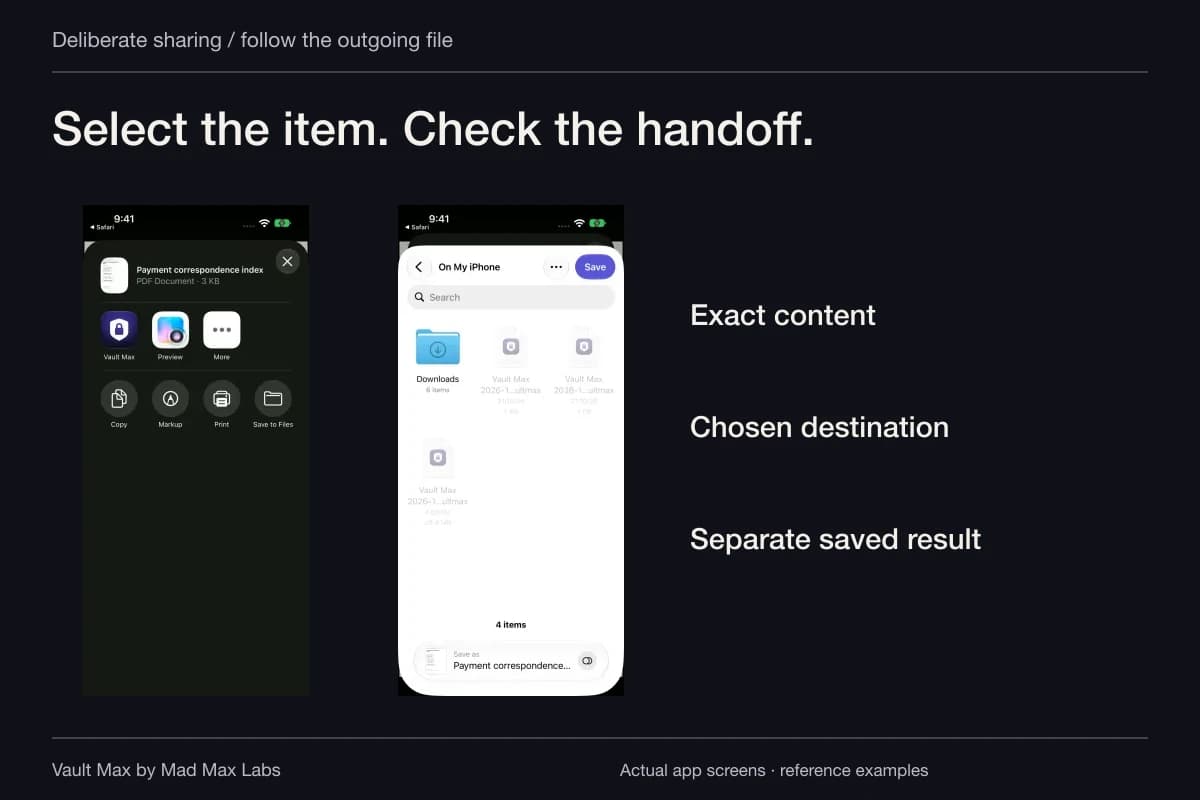
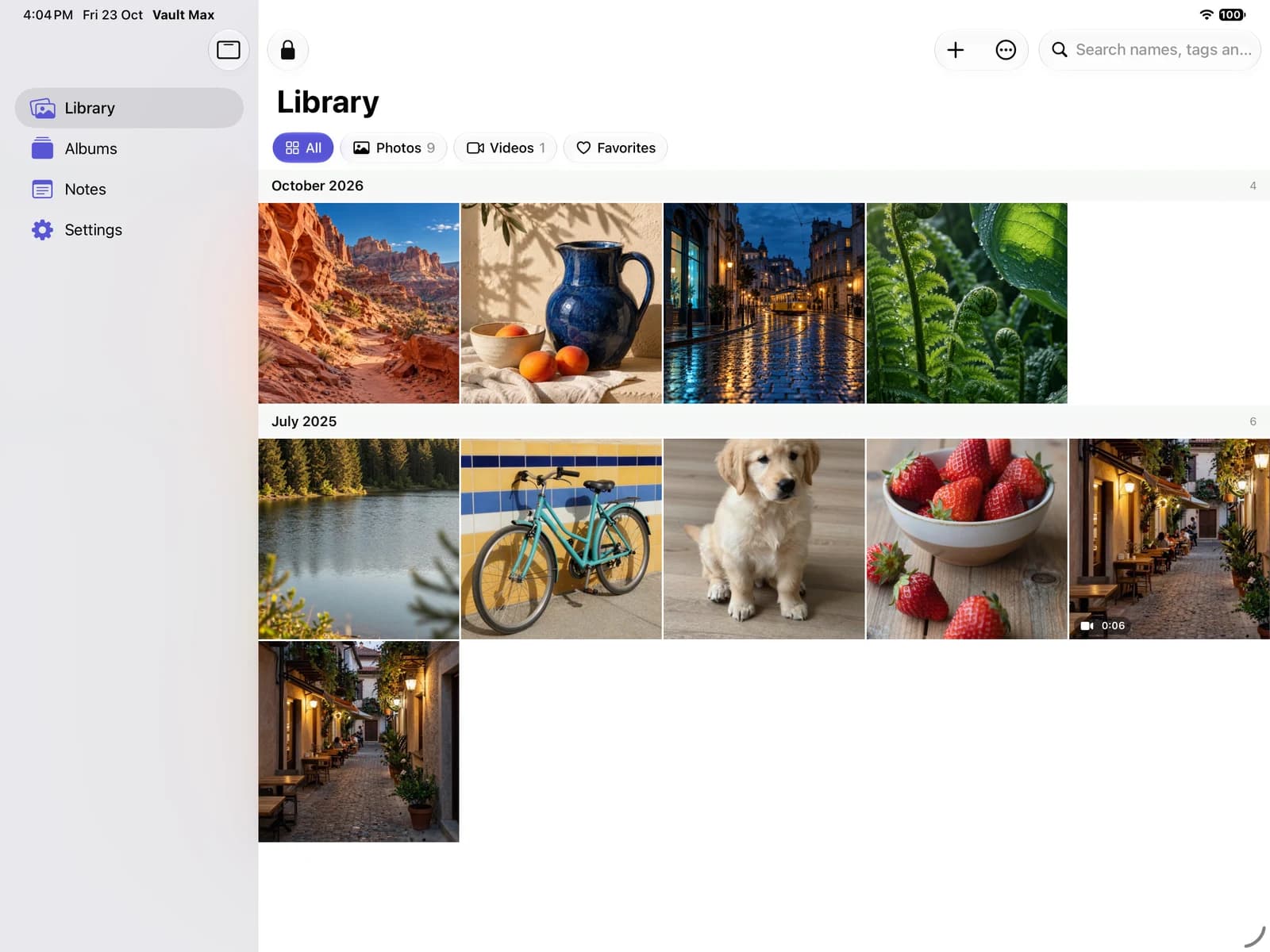
Vault Max has a Strip metadata on share setting. Its ordinary storage and its outgoing-share preparation serve different jobs. The working collection can retain the imported source while a supported share prepares a separate file.
Sample Vault Max library. Select a screen for a closer look.
The setting applies to photos. Videos, Live Photo motion clips and documents retain their embedded metadata. A Live Photo's still can therefore receive different treatment from its moving companion. A PDF can also contain an address on the page. A metadata preference cannot remove information you can see or hear in the content.
Use a harmless test item for a new route. Share to a destination you control first, open the resulting file and inspect its details with a tool that supports that format. If you need stronger assurance about particular fields, choose a suitable metadata inspector and record what it can actually read. Do not upload a private original to an unfamiliar checking site.
Review clues that are outside GPS metadata
Inspect the full image for street names, school or workplace logos, delivery labels, reflections and recognizable views. For motion or video, check the surrounding frames and sound too. A still preview can hide context that becomes obvious during playback.
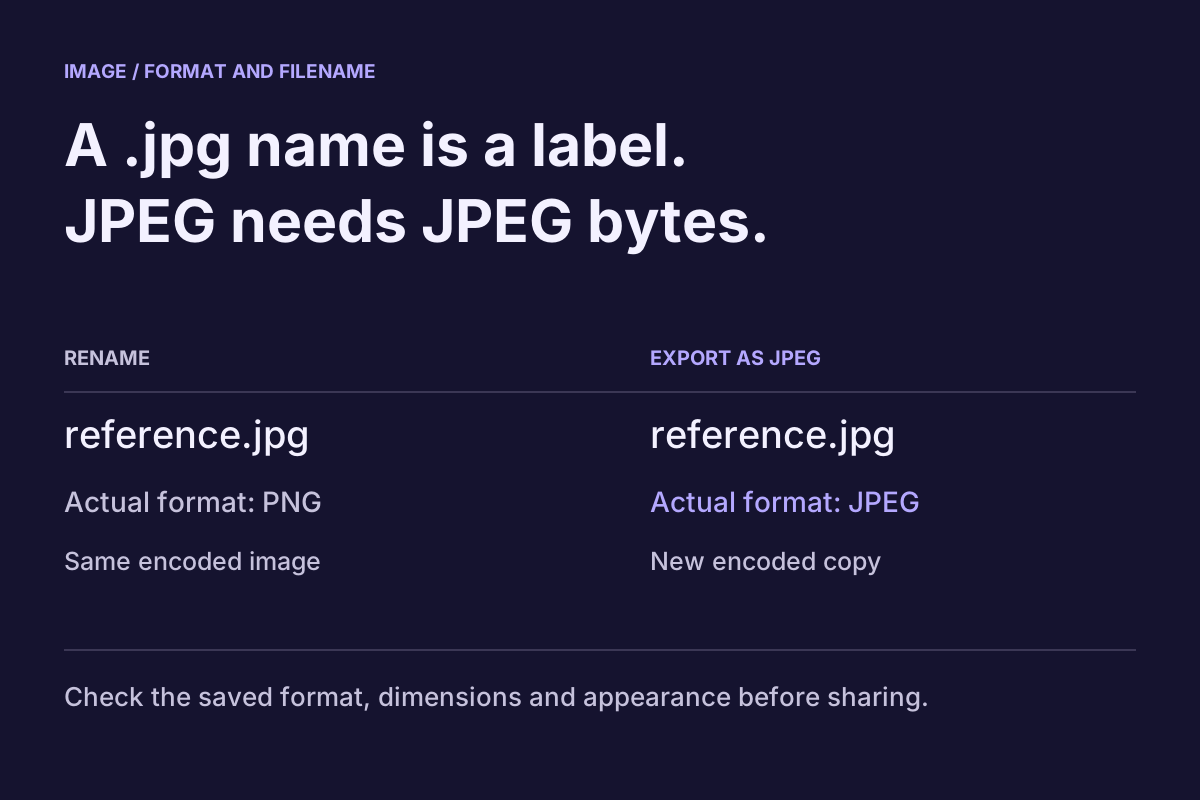
Look at the filename and caption you are sending. Keep only the context the recipient needs. Renaming a file changes its name, not its internal metadata or the visible picture. Converting a format is also a separate operation; follow the image-conversion guide when the recipient needs a different format.
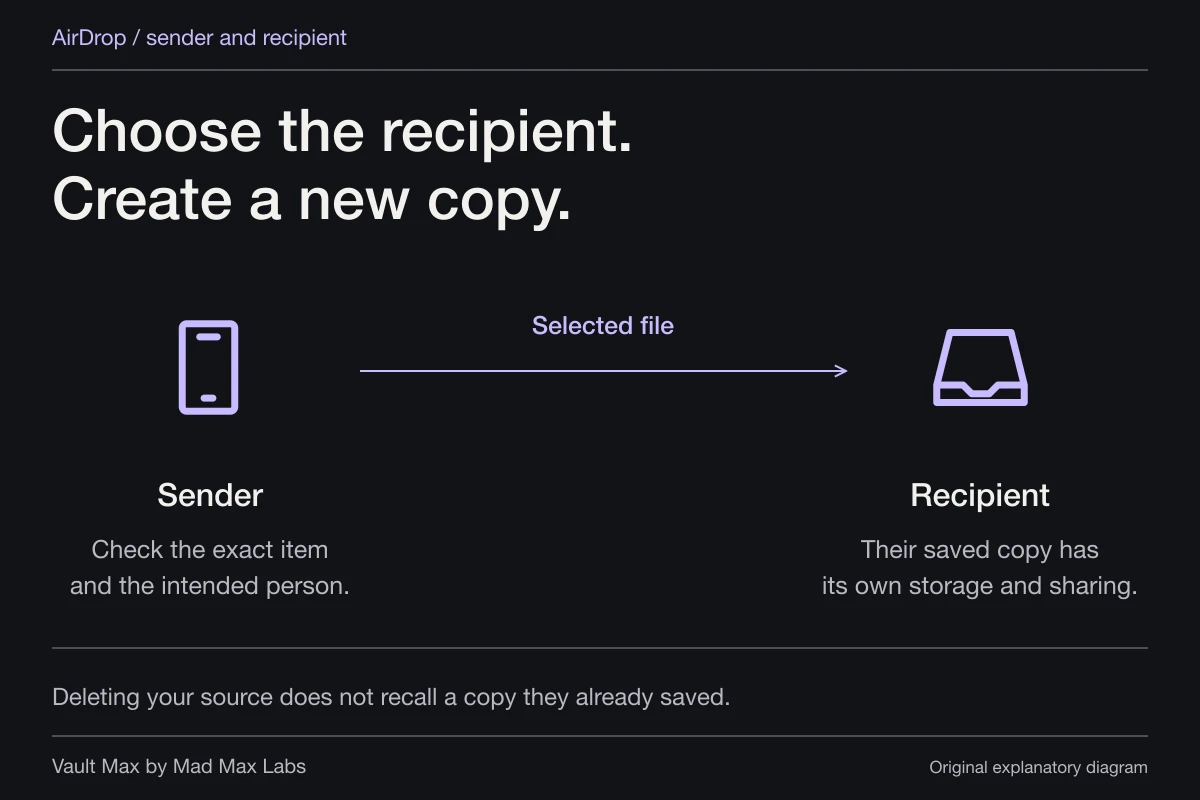
The receiving channel matters as well. An AirDrop audience setting controls discovery and reception, not whether the picture contains a place. A private message still gives its recipient a copy they may retain.
Finish by checking the copy that will actually leave
Return to the final selection after any edits or re-export. Confirm the intended file, its visible content, the location treatment you chose and the correct destination. A check on yesterday's export does not establish today's output.
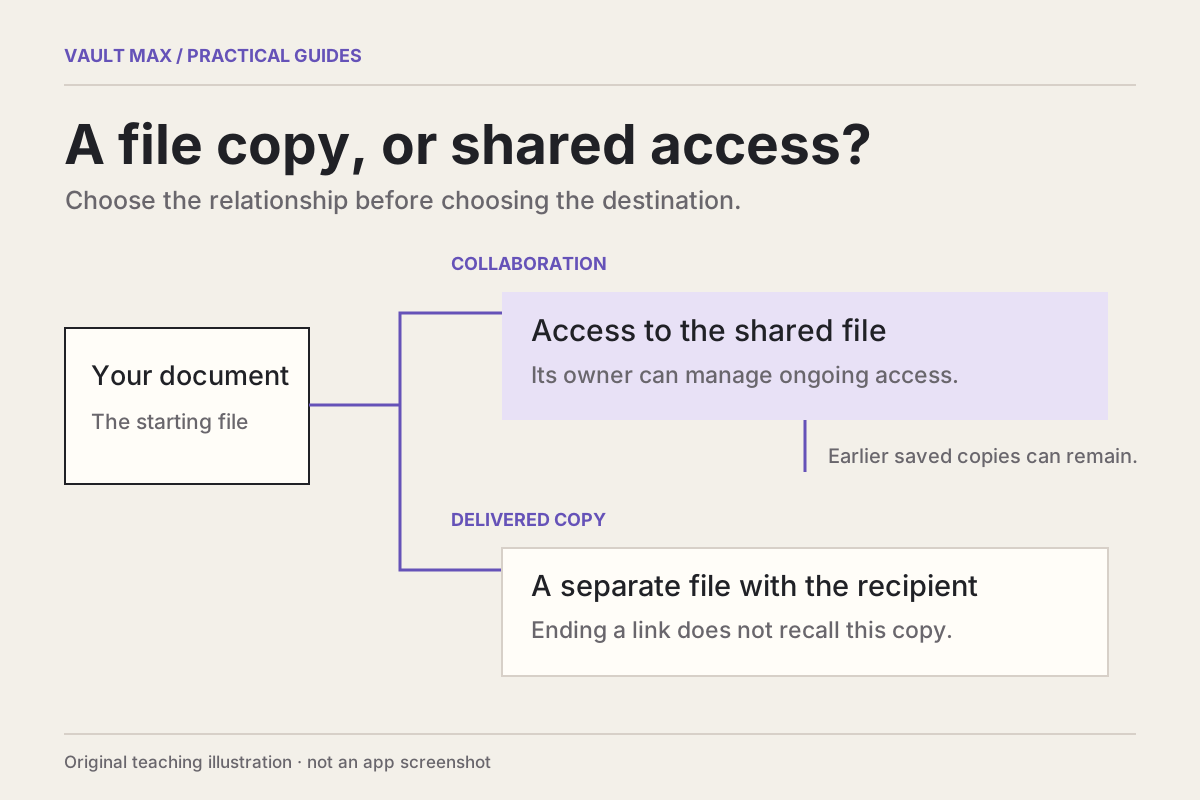
If you already sent the wrong copy, changing your library cannot withdraw a recipient's saved file. Check the service's actual removal controls and communicate with the recipient where appropriate. A file-sharing link and an attachment behave differently; the copy-or-link guide explains the distinction.
The useful result is a deliberate share with a known scope: the private source stays where you intend, the outgoing copy contains only the context you chose, and the recipient is the person you meant to reach.
Common questions
How do I send an iPhone photo without its location?
From Photos, select the intended item, open Share, then Options, and turn Location off before completing that share. Apple's Personal Safety guide documents this route. Check each outgoing selection rather than assuming every app or later share uses the same options.
Does turning off Camera location remove old photo locations?
No. Camera location permission concerns future collection. Review existing items separately and use their location-adjustment control or the outgoing share's Location option as appropriate.
Does removing GPS make a photo anonymous?
No. The picture may still reveal a place through signs, addresses, reflections or recognizable surroundings. Captions, filenames and the receiving app can disclose other context. Review the image and the actual outgoing file.
Continue reading
More guides
Practical tips for your private library. Swipe or scroll to choose your next guide.
5 guides to explore