
Privacy in practice
Reorder or remove PDF pages on iPhone before you send a copy
Reorder PDF pages and remove unwanted pages in Preview on iPhone. Practice with a fictional packet, then inspect the saved recipient copy before sending.
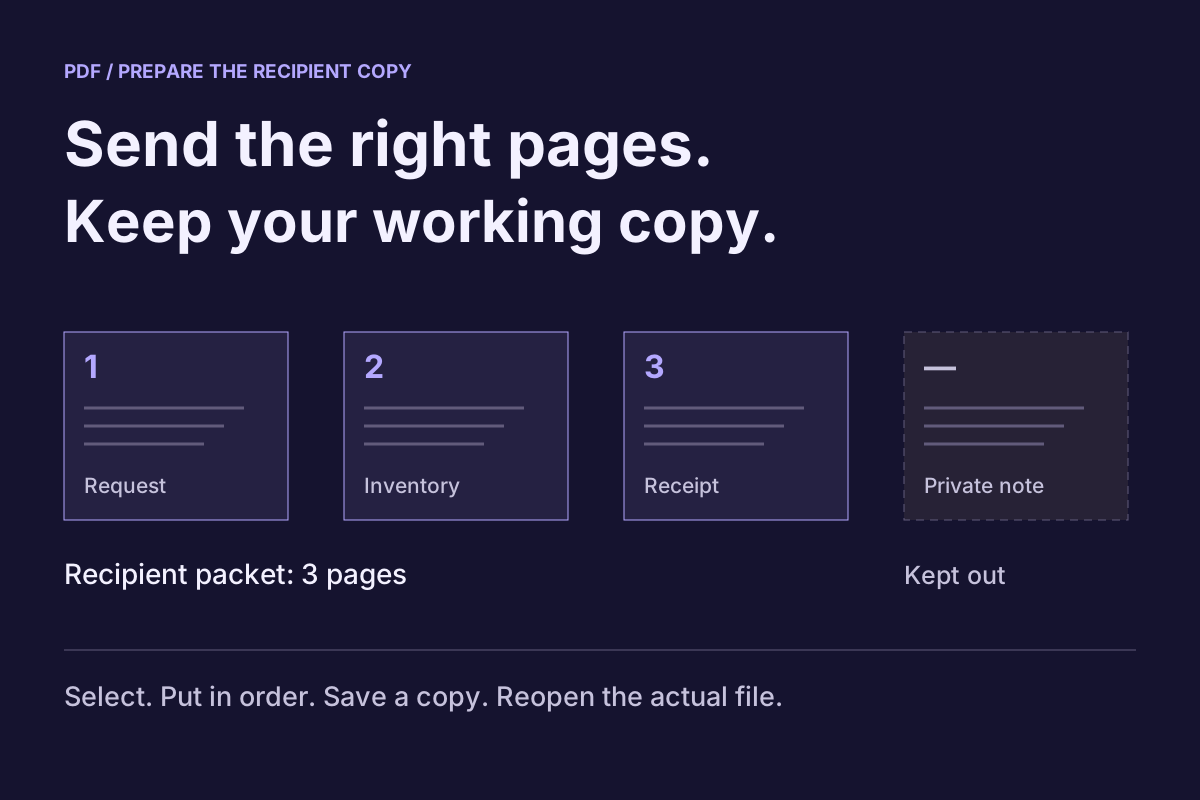
Make a recipient copy, remove the pages that do not belong in it, arrange the remaining pages, then reopen the saved PDF. On current iPhone software, Apple's Preview provides page deletion and reordering. The important decision comes first: which pages should this person receive?
A working packet often contains more than the finished attachment needs. It might include an internal reminder between an application and its receipt. Sending that entire file because its first page looks right exposes the wrong material. A deliberate recipient version gives you a smaller, clearer object to inspect.
This guide follows Apple's current iOS 27 documentation. It does not claim a fresh device walkthrough. Use the controls available on your version and try the fictional practice document before working with important material.
Decide what belongs in the recipient packet
Write a short target sequence using page subjects rather than numbers alone. For example: Request → Inventory → Receipt. If the working PDF has a private note in the middle, say explicitly that the note stays out.
Page numbers become unreliable after the first deletion. Yesterday's page 4 can become today's page 3. Recognizing a heading, date or distinctive section makes it easier to confirm the intended document after rearranging it.
Ask whether the recipient actually needs each retained page. A page can belong to the same project without belonging in this attachment. Conversely, avoid removing a page merely because it looks repetitive: it may contain the terms or explanation that make the next page understandable.
Practice with a fictional four-page document
The exercise below starts with four invented pages: a request, an inventory, a private working note and a receipt. Omit the note and arrange the retained pages as Request → Inventory → Receipt. Move a retained page, then move it back, to see why content identity matters more than its current position.
Prepare a fictional recipient copy
Choose the pages that belong in the packet
The recipient needs Request, Inventory, Receipt, in that order. The private working note belongs with the sender. Include or omit pages, then use the move buttons to adjust the selected order.
Check the recipient copy
- Request
- Private working note
- Inventory
- Receipt
The private working note is still included. Omit it before preparing this recipient's copy.
All four sample pages are included. The private working note is still in the packet.
Read the sample pages and recipient check
The source has four pages: Request, Private working note, Inventory, Receipt. The intended recipient copy has three: Request, Inventory, Receipt. Omit the note, then confirm the saved output’s page count, order and readable contents.
Request
The recipient's purpose and the three pages they need.
- Please review the inventory and receipt for the sample kit.
- Recipient order: Request, Inventory, Receipt.
- Omit the private working note from the recipient packet.
- No real person, transaction or account is represented.
Private working note
A sender-only draft. Omit it from the recipient packet.
- This fictional draft is for the sender only.
- Check the sample kit count before preparing the packet.
- Recipient packet: omit this page.
- No real private information appears in this teaching sample.
Inventory
Three fictional kit items for the recipient to review.
- Example kit
- 2 paper folders
- 1 blank notebook
- 3 wooden clips
- These invented items are not a real customer's property.
Receipt
A fictional acknowledgement to place at the end.
- Sample reference: CEDAR-EXAMPLE-04
- Acknowledgement: the fictional kit is ready for review.
- No payment was made and no signature is required.
- End of sample packet.
Excluding a whole page is different from covering words with a drawing. Keep the source and inspect the separate recipient PDF before sending it.
This browser exercise generates only these fictional pages. It cannot open or change your PDF, and it does not upload files. The download demonstrates its own output, not the behavior of an iPhone PDF app.
The workbench creates a real sample PDF from your chosen fictional pages in your browser. Download it and open the file to compare the result with the visible selection. It does not edit your documents, accept uploads or reproduce Preview's interface.
You can also download the four-page source PDF for practice in Preview and compare it with the three-page example recipient PDF. These are original teaching files, not customer records or evidence of a native editing test.
Duplicate before changing pages
Apple's Preview file-management guide documents Duplicate in the action menu beside the filename. Create that separate copy before editing. Give it a useful name such as Workshop request — recipient.pdf and confirm its location.
Keep the complete working source identifiable too. Two files called Document.pdf in different folders make the next share unnecessarily uncertain. A brief role in the name is usually enough; avoid adding private details that the recipient does not need to see.
Open the intended duplicate again before continuing. Check its heading and filename together. If the source already has the final name, choose a different working name rather than relying on a small thumbnail to distinguish the files.
Remove a page and change the order in Preview
Apple's PDF page-editing instructions describe the thumbnail controls:
- Open the duplicate in Preview and show the thumbnail sidebar. Tap the PDF if the sidebar control is hidden.
- Hold the thumbnail of a page you intend to omit and choose Delete Page.
- To reorder a retained page, hold its thumbnail until the menu appears, then drag it above or below another thumbnail.
- Read the sequence again after each change. Preview also provides Undo through its More menu if you make a mistake.
For the practice packet, the note should disappear from the recipient version while the request, inventory and receipt remain. Open each retained page rather than approving the result from the thumbnail count alone.
Save, leave the editor and inspect the actual file
Apple documents the Back control as saving the file and returning to Preview's main menu. Leave the editing view, locate your recipient copy by name and reopen it from its saved location.
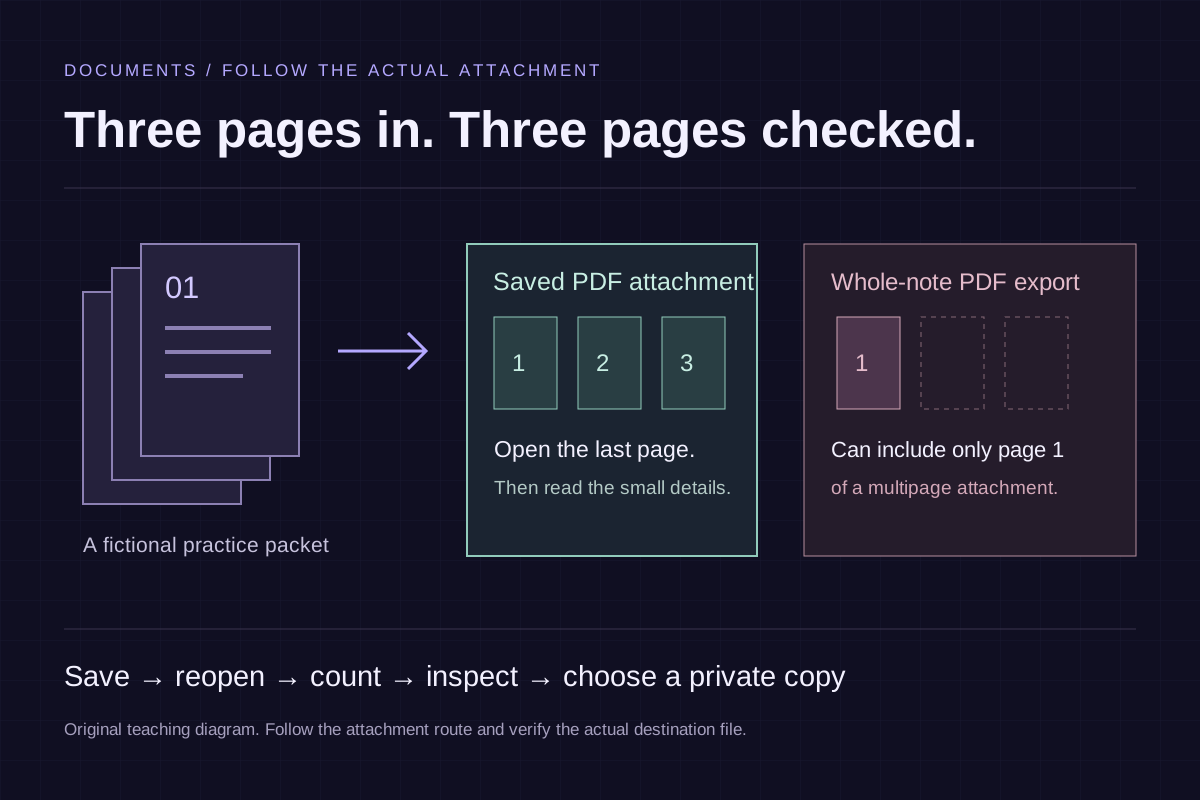
Check three things independently: the unwanted page is absent, the intended pages remain, and their reading order makes sense. A three-page result can still contain the wrong three pages. Read the first and last page and inspect the transition between every pair.
Look at the retained content as well as the removed page. Omitting a working-note page does not remove a private sentence that also appears on the inventory. If you need to conceal selected words inside a retained page, use an appropriate redaction workflow and verify its output separately. Rearranging pages does not solve that different job.
Page selection checks what the reader sees; it does not audit metadata, attachments or other hidden document content. Adobe's PDF sanitization guidance treats those as a separate removal task. For information that must be irreversibly removed, use an appropriate redaction and sanitization workflow and inspect its saved result. This page-order exercise does not certify an editor's sanitization behavior.
Send the checked recipient version
Attach or share the saved recipient PDF you just inspected. Before completing the send, compare its filename with the source and confirm the destination. A familiar first-page preview is insufficient when both versions begin with the same request.
Use a harmless sample to learn an unfamiliar upload or messaging route. If the destination exposes the uploaded file for review, open that result and compare the contents. Keep the recipient's instructions in view; an upload that accepts a PDF has not necessarily confirmed its page requirements.
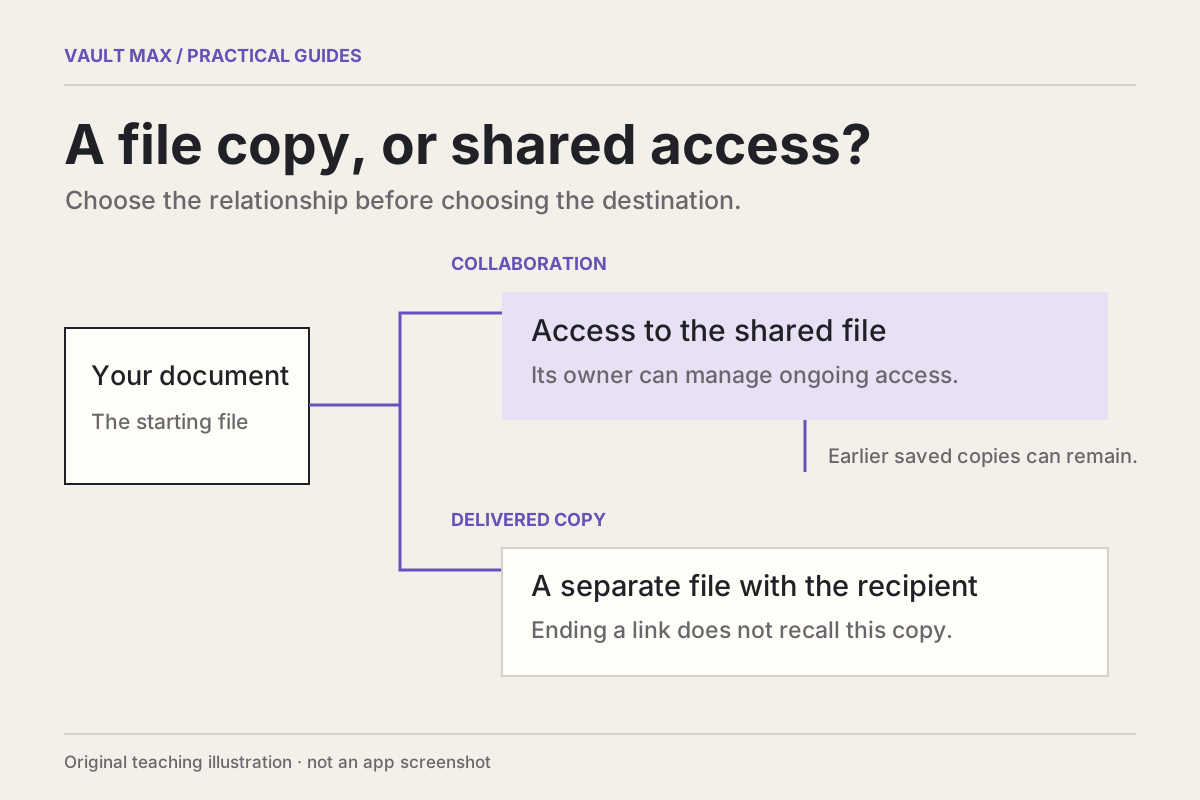
Our copy-versus-link guide explains what changes once someone receives an independent attachment. Editing your working source later does not update a PDF that has already been sent.
Keep file preparation separate from private storage
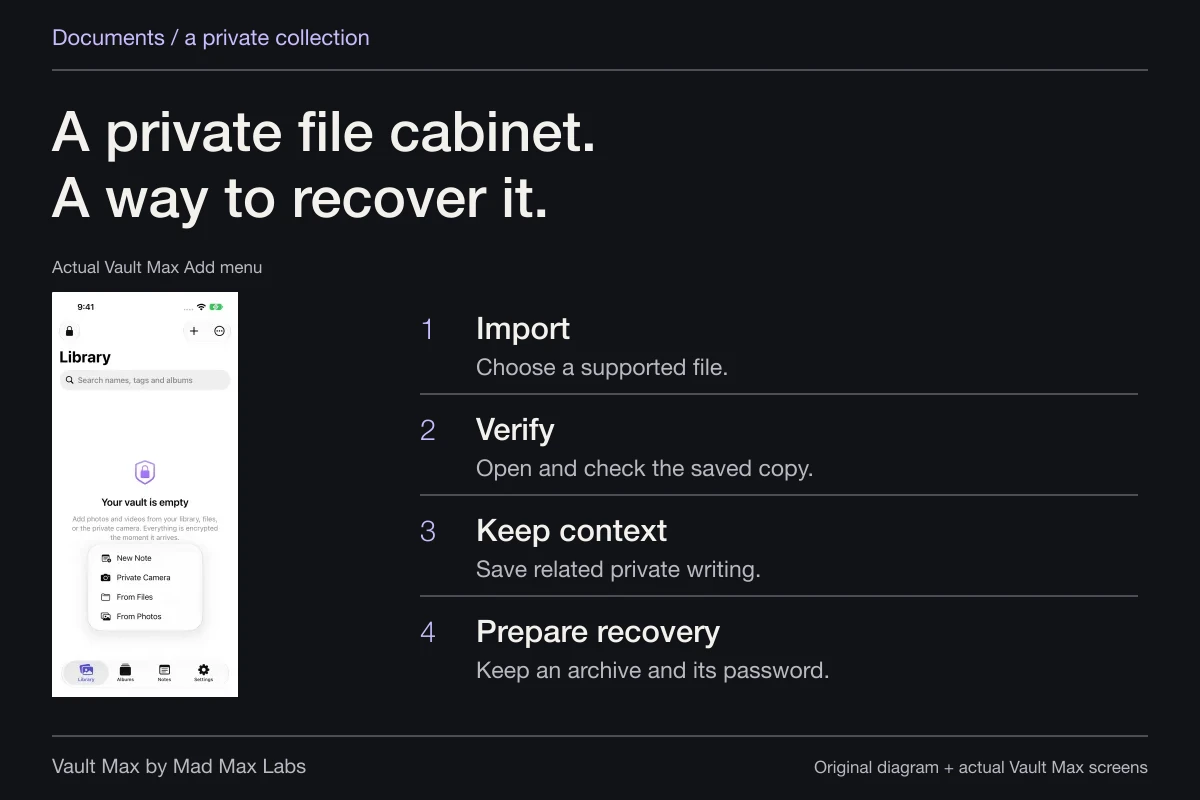
If the checked document belongs in a private collection, import the supported saved PDF into Vault Max through From Files and open the retained item. Do the page editing in Preview or another appropriate editor before that import.
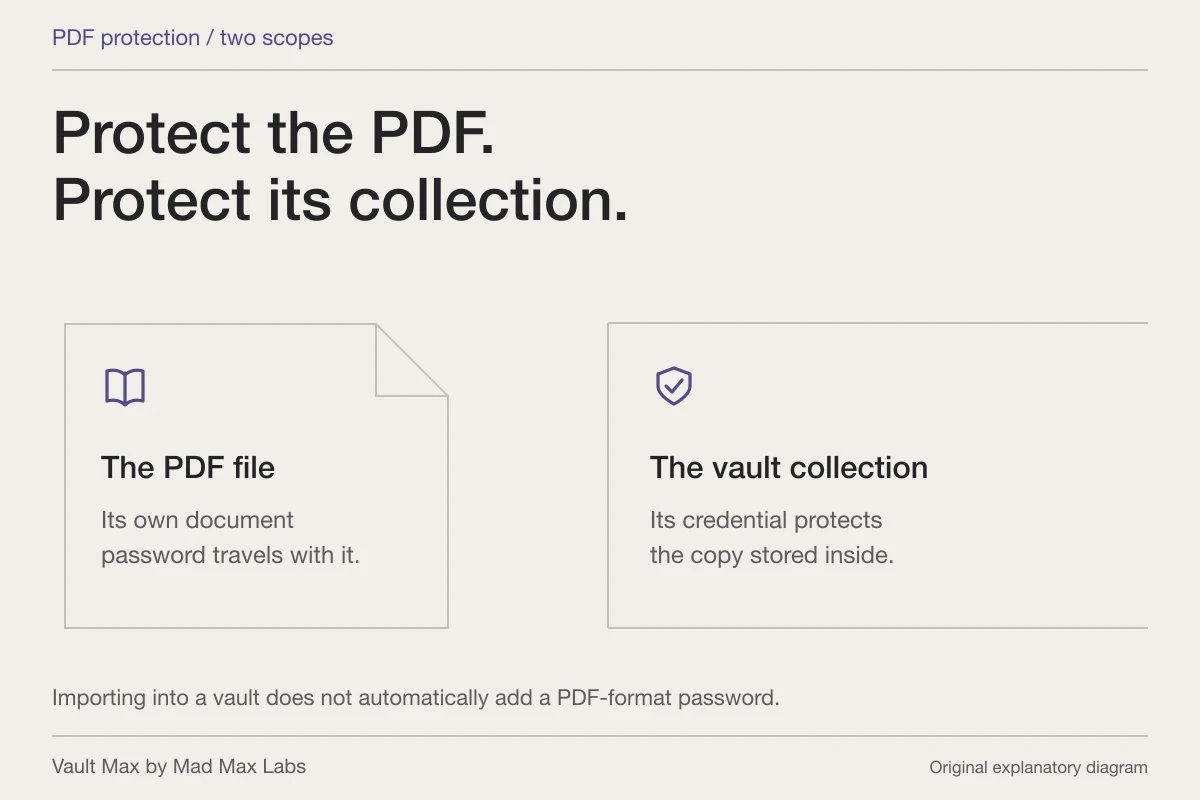
Vault Max supplies an encrypted local home for the collection. It does not make a recipient attachment inherit the vault credential, and this workflow does not add page editing to the app. If the outgoing PDF needs its own password, follow the separate PDF password guide.
The useful finishing point is concrete: a named recipient file that opens from its saved location, contains the intended pages in a sensible order and leaves the working note outside the packet.
Common questions
Can I reorder and delete PDF pages on iPhone without uploading the document?
Apple documents both actions in Preview on iPhone. Open the PDF's thumbnails, hold a page to access Delete Page, or drag its thumbnail into another position. Work on a duplicate and check the saved result before sending.
Does deleting a page from a duplicate remove it from my original PDF?
A separate duplicate lets you prepare a recipient version while retaining a working source. Confirm that you opened and edited the duplicate, then inspect both files. Similar filenames alone do not establish which copy you changed.
Does Vault Max edit or reorder PDF pages?
This workflow uses an external document editor for page changes. Vault Max can import a supported saved PDF into its private collection; importing is not a PDF page-editing or redaction operation.
Continue reading
More guides
Practical tips for your private library. Swipe or scroll to choose your next guide.
5 guides to explore