
Backup & recovery
Switch photo vault apps with the files and recovery plan checked
Switch photo vault apps with a small export-and-import trial, an inventory and destination checks. Keep formats, private staging copies and recovery clear.
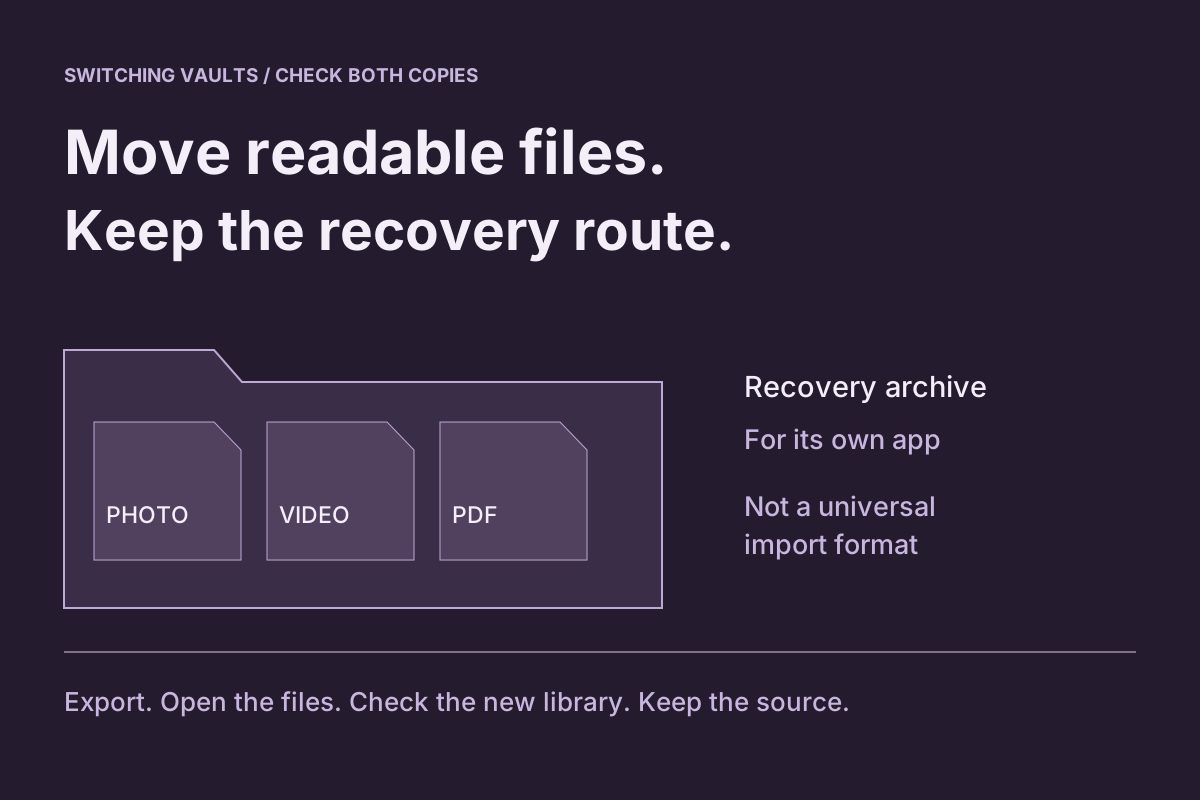
Keep the old vault intact, test a small ordinary-file export and import, then move in batches you can reconcile. Verify the actual destination items and its recovery route before deciding to remove the source. Installing another vault or seeing the same thumbnails is not a completed migration.
The awkward part is often the space between apps. An encrypted collection may need to become ordinary photo, video or document files before the new app can import them. Those temporary files need a deliberate location and access plan too.
We make Vault Max. This guide works in either direction: moving supported items into it or exporting from it to another destination. It does not promise that another product accepts its archives or preserves every format and organizational detail.
Define what needs to arrive
Start with an inventory by content type and collection. Count the photos, videos and documents you intend to move, and list private notes separately. Identify important albums, captions, filenames or favorites that you use to understand the library.
Avoid making a public list of sensitive subjects. A private record such as Batch 1: 12 reference photos, 2 clips, 1 PDF can be enough. Add unresolved items and destination checks alongside it, so the list becomes a progress record rather than a second sensitive document.
Choose the destination for practical reasons: supported formats, credentials, recovery, capacity and the devices where you need access. A lower price does not settle whether an uncommon video plays or a private note can be exported. Test those requirements before buying capacity for the complete library.
Separate readable exports from a vault recovery archive
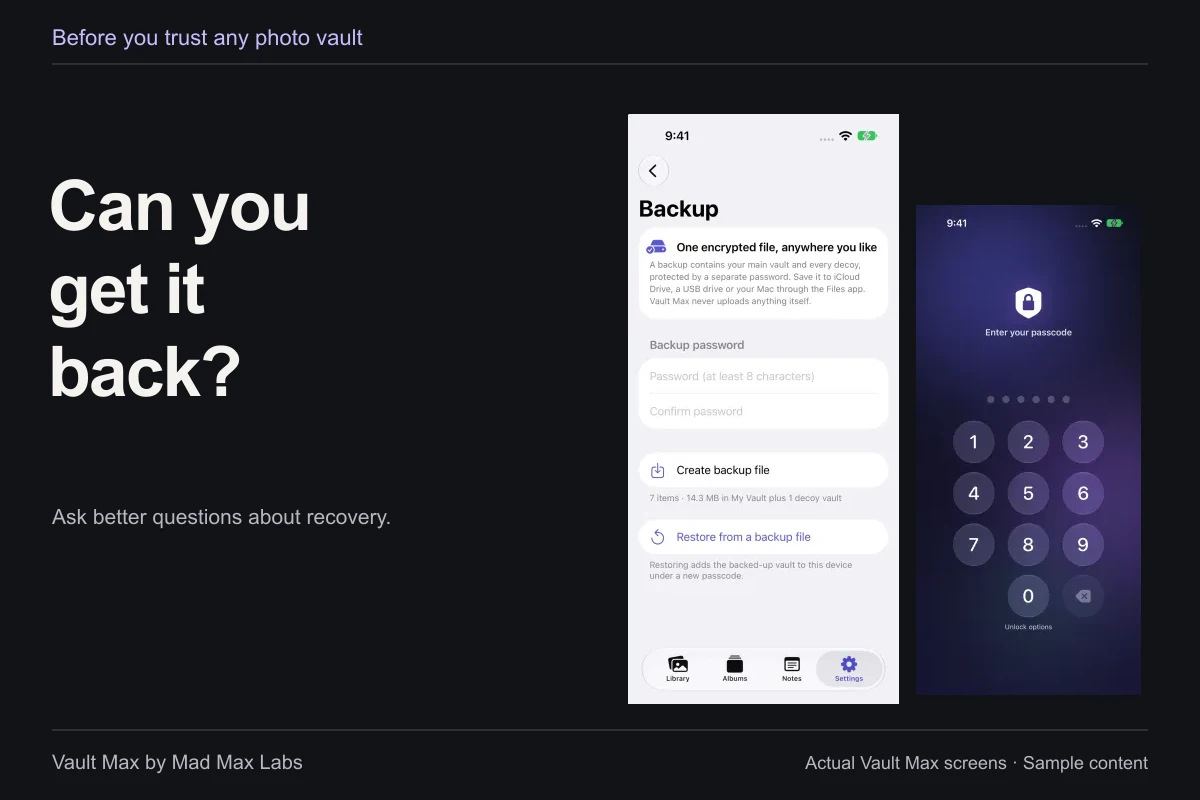
A recovery archive belongs to a particular restore system. Keep the original extension, required password and supported app information. A .vaultmax file is not a folder of JPEGs that a different vault can necessarily read.
Ordinary exports are different objects. A new app may accept a JPEG, MP4 or PDF through its documented import route even though it cannot read the old app's encrypted archive. That route can omit the old app's albums, favorites, tags or note relationships, so account for those separately.
| Object | Useful role | What still needs checking |
|---|---|---|
| App-specific encrypted archive | Recovery through a documented compatible restore route | Required app/version, archive password and actual restore support |
| Ordinary photo, video or document export | A supported input for the destination app | Completeness, format, readable contents and destination import |
| Inventory or private organization notes | Track batches and rebuild useful structure | Which details did not travel with the media files |
If you are moving between phones while keeping Vault Max, use the same-app transfer guide. Switching products needs a different compatibility check.
Choose a staging location before exporting
Create a recognizable temporary folder and identify its actual Files location. Apple's Files guide distinguishes On My iPhone, iCloud Drive, connected storage and third-party providers. A folder name by itself does not tell you whether its contents stay on one device or sync elsewhere.
Use an ordinary location you can inspect and protect appropriately. The old vault credential does not become the password for a PDF saved outside it. Avoid a shared folder unless that audience is intentional. If space is tight, reduce the batch size rather than deleting the old library to make room first.
Exporting to Photos creates a different staging choice. Apple's iCloud Photos explanation says library changes synchronize across enabled devices, including deletions. Know that arrangement before using Photos as a temporary bridge and later cleaning it up.
Run a representative trial before moving the full collection
Choose a few recognizable items: a detailed still image, a video with movement and sound if relevant, and a multipage document if you store documents. Include a Live Photo or unusual format when keeping that behavior matters. A trial containing only simple JPEGs cannot answer a question about Live Photo motion.
Use harmless material to learn unfamiliar controls. Export the small set through the source app's supported route, leave the app and open the actual saved files. Check that the files exist in the intended folder and that the expected contents are present.
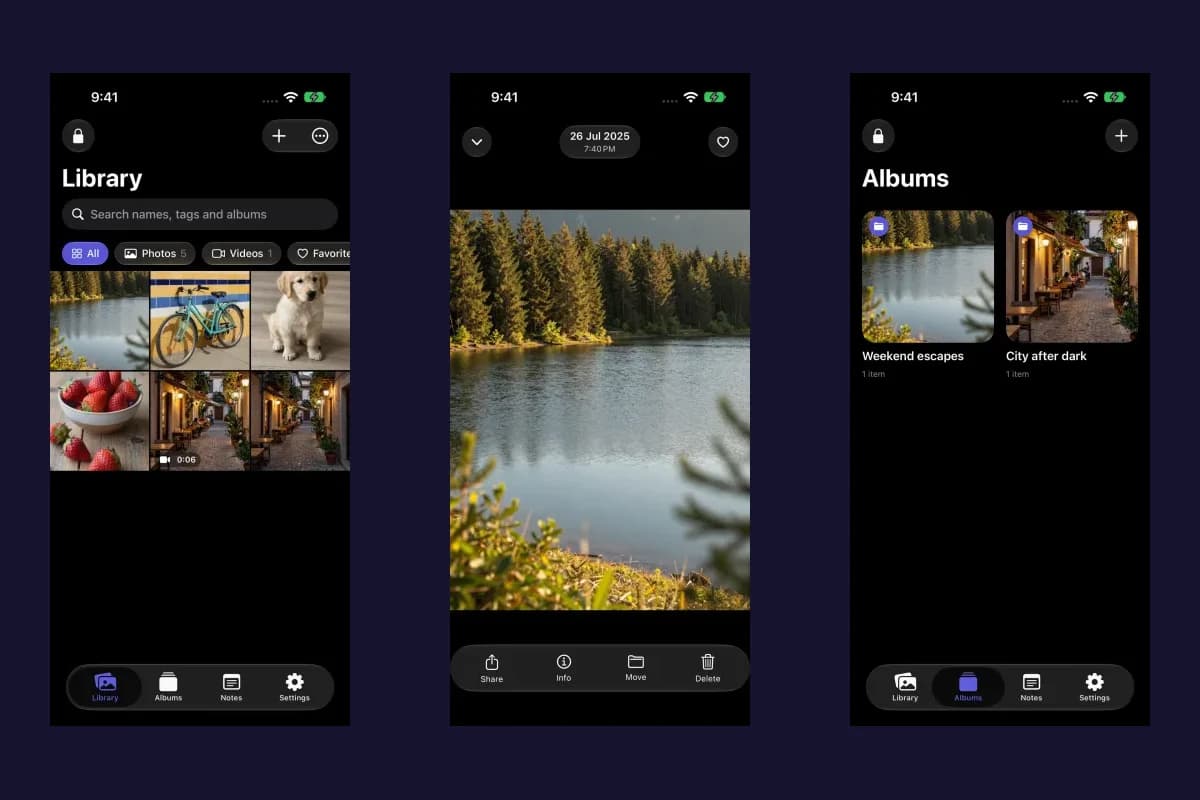
Sample Vault Max library. Select a screen for a closer look.
Try the decision exercise at this point, before treating a successful first step as permission to remove the source.
Fictional decision exercise
Move the files the destination can actually read
A fictional source vault contains 12 chosen items: photos, videos and a PDF. The destination accepts ordinary media and PDFs, but its documented import list does not include the source app's proprietary vault archive.
Read every decision and explanation
Decision 1 of 2
Which route fits the documented destination?
The source offers individual file export and its own encrypted archive. You need files readable in the destination.
- Rename the vault archive to .zip and assume the destination will read it
A filename change does not add a compatible archive importer or turn encrypted app data into ordinary media.
Next step. Keep the archive for its own supported recovery route. Use formats the destination actually documents.
- Export the selected ordinary files and check their formats before import
This matches the destination's documented file types. Export availability and exact supported formats still need checking in the real apps.
Next step. Use a known saved destination. Inspect a photo, play a video and open the PDF before importing the complete chosen set.
- Restore the source app's purchase in the destination
A purchase entitlement is not a cross-app transfer format or a copy of the 12 files.
Next step. Follow the source's real export route and the destination's real import requirements.
Decision 2 of 2
Is the selected set ready to leave behind?
After the fictional import, the destination shows 11 items for the 12-item chosen set. A thumbnail grid is visible, but the PDF and video have not been opened.
- Eleven looks close enough; remove the source app
One selected item is unaccounted for, and thumbnails have not established that the PDF and video work.
Next step. Keep the source. Compare the chosen list with the saved exports and destination items.
- Find the missing item and inspect representative imported files before removing anything
This catches a concrete 11-of-12 mismatch and separates counting from checking readable contents.
Next step. Reconcile the missing item, check the PDF pages and video playback, and preserve the source until the chosen set is accounted for. A matching count alone is not enough.
- Treat the visible thumbnails as proof that all originals transferred
A preview grid cannot establish the missing item's location or the complete contents of every file.
Next step. Check actual saved files and their destination copies, including names, selected count and readable contents.
Your plan uses documented, readable formats and resolves a specific missing-item check before removing the source. It has not performed a migration or verified a real app's archive compatibility.
This exercise imports no files. A proprietary recovery archive and an ordinary file export have different jobs; compatibility must be checked for the exact destination. No account details or personal files are requested; choices stay in this page and reset when it is reloaded.
Import the trial and inspect the retained items
Use the destination's documented route for each supported type. For Vault Max, the import walkthrough covers Photos, Files and supported shared attachments. Open the imported item inside the intended vault after the operation finishes.
Inspect more than a thumbnail. Zoom into important text or detail in the photo. Play and seek the video; listen if audio matters. Check the document's page count and last page. Close the viewer, manually lock the collection and reopen it normally, then find the same items again.
Sample Vault Max library. Select a screen for a closer look.
If the trial fails, stop expanding the batch. Keep its source, note the exact unsupported type or broken behavior and investigate that issue before assuming a larger selection will work.
Reconcile each batch before starting the next
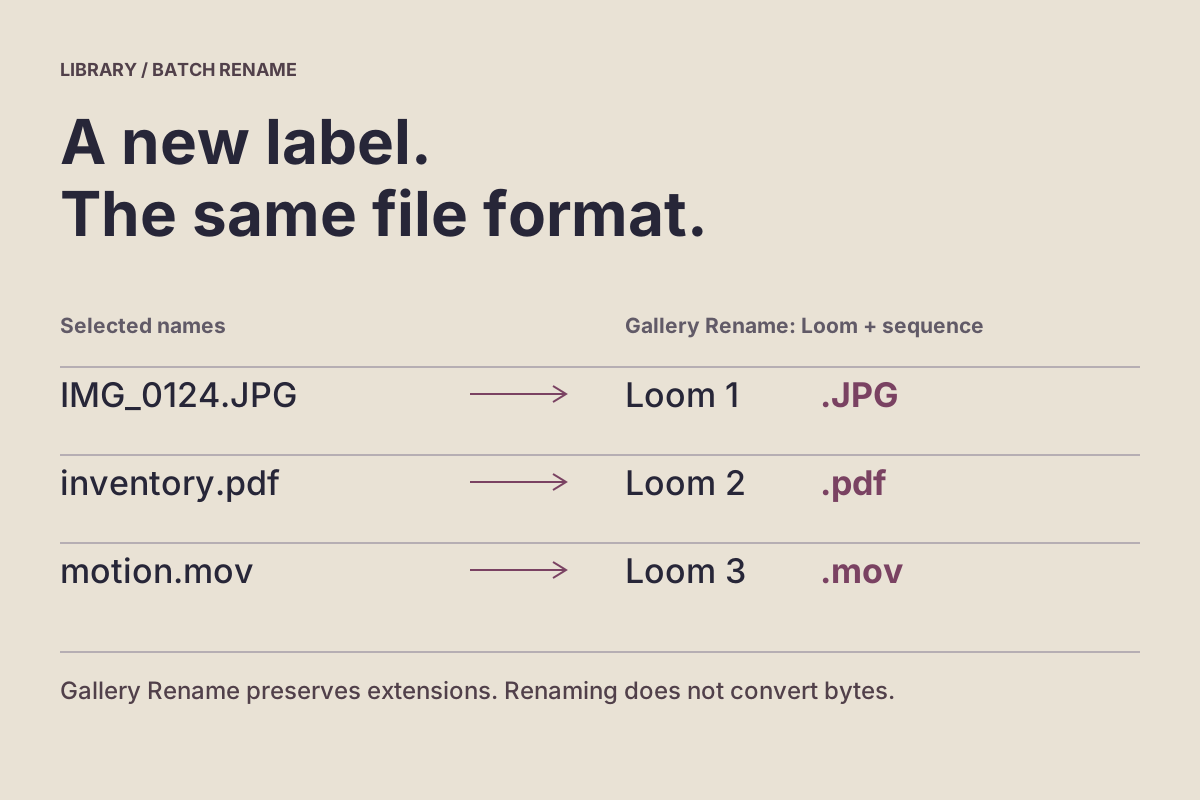
Move groups small enough that a failure is easy to locate. Record the selected source count, exported result and imported result for each group. Use filenames and content identity together; two unrelated pictures can share a filename.
A simple numerical match is useful but not sufficient. One Live Photo may involve a still and a motion resource. A destination may display those as separate items or accept only one. Conversely, two exported files with the same contents can produce an apparent success count while another item is missing.
Mark the batch complete only after resolving those differences. If an operation reports a partial failure, compare the actual outputs before retrying. Repeating the entire group can create duplicates and make the missing item harder to identify. Retain a small unresolved list rather than remembering exceptions informally.
Check quality and private information as separate requirements
Compare the source and saved output when original format, dimensions or motion matters. Do not use a screenshot as a substitute for an export if you need the underlying file. A familiar-looking preview cannot establish that the full original was retained.
Also review the export's privacy options. Vault Max's photo metadata-removal setting can change its outgoing photo copy; videos, Live Photo motion clips and documents keep their embedded metadata under the published setting. That is different from an ordinary unchanged-file export, and neither choice removes a private address visibly printed in the picture.
These recorded examples cover one PDF and a silent video. Test the formats and export settings important to your collection, especially when motion, sound or fine detail needs to survive the move.
Preserve notes, organization and recovery separately
Rebuild only the organizational structure you need. A new vault's album model can differ from the old one. Keep enough private context to identify the correct document or sequence without expecting favorites and tags to appear automatically.
For notes, inspect supported text export, copy or backup options individually. Preserve the writing in an appropriate private destination and verify it there. Counting photo thumbnails cannot account for a note that was never part of the media export.
Once the new collection is useful, establish its own backup and recovery routine. Retain the old recovery material until you have a dependable alternative. A working local destination and a usable recovery copy answer different failure scenarios.
Retire the old app and temporary copies deliberately
Review the inventory one last time: all intended batches checked, special formats resolved, important organization retained and destination recovery arranged. Keep the source if an irreplaceable item remains uncertain.
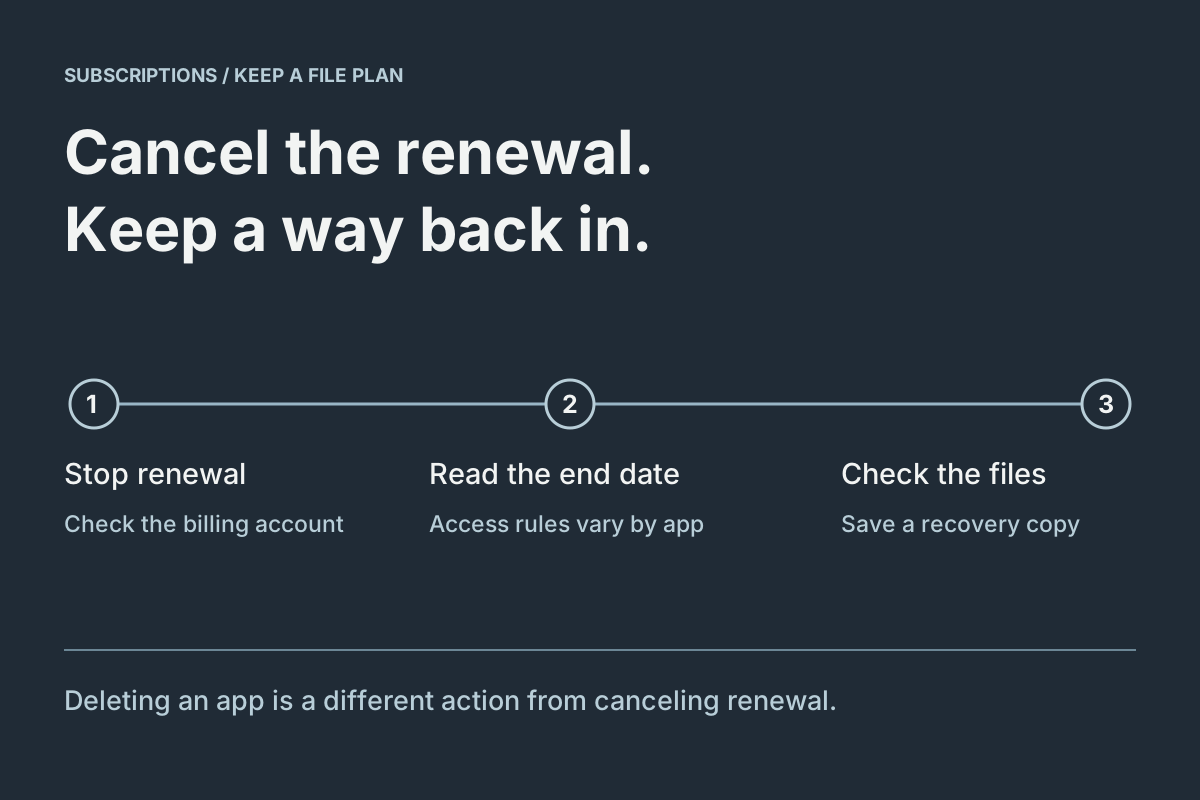
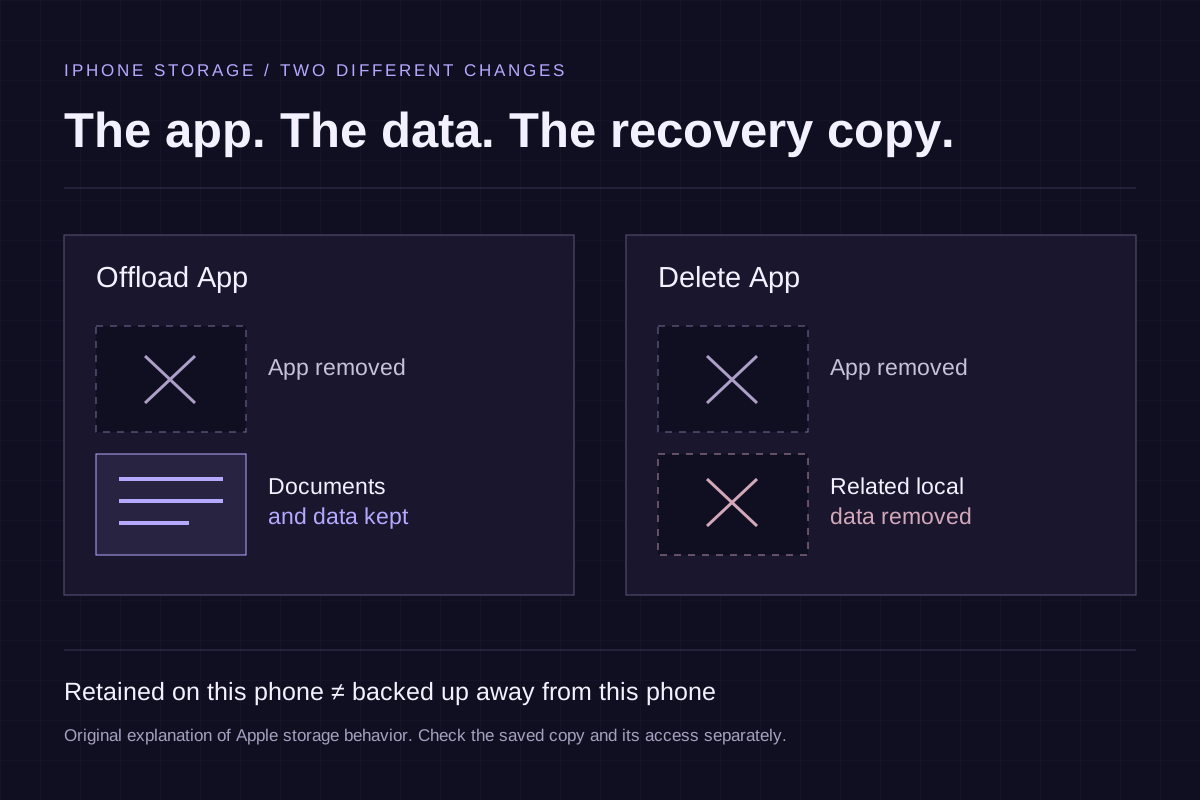
Handle billing separately through the subscription-cancellation guide. Installing a replacement does not settle renewal. Before uninstalling anything, review offloading versus deleting local app data.
Finally identify temporary exports in Files, Photos and any synced locations. Remove only copies you have deliberately decided are no longer needed, following that location's deletion behavior. The finished move is a collection you can retrieve and recover, with the old source and staging copies accounted for—not merely two apps showing similar galleries.
Common questions
Can one photo vault import another vault's encrypted backup?
Do not assume archive interchange. An app-specific encrypted archive needs a documented compatible restore route and its required credentials. To switch products, test supported ordinary file exports unless both publishers explicitly document a compatible transfer.
Should I delete the old vault after the first successful import?
A small trial establishes one route, not a complete migration. Keep the old library while reconciling every batch, checking representative files and unsupported items, and arranging recovery for the destination collection.
Will albums, favorites and private notes move with exported photos?
Ordinary media exports do not establish that an app's organization or notes will transfer. Inventory those separately, check each app's supported options and record anything you need to rebuild or retain outside the photo batch.
Continue reading
More guides
Practical tips for your private library. Swipe or scroll to choose your next guide.
6 guides to explore