
Privacy in practice
Use Photos Utilities to find the receipt, saved image or missing file
Find and organize iPhone Photos Utilities by the task: receipts, recently saved images, duplicates or recovered files. Learn which actions change files and which change the view.
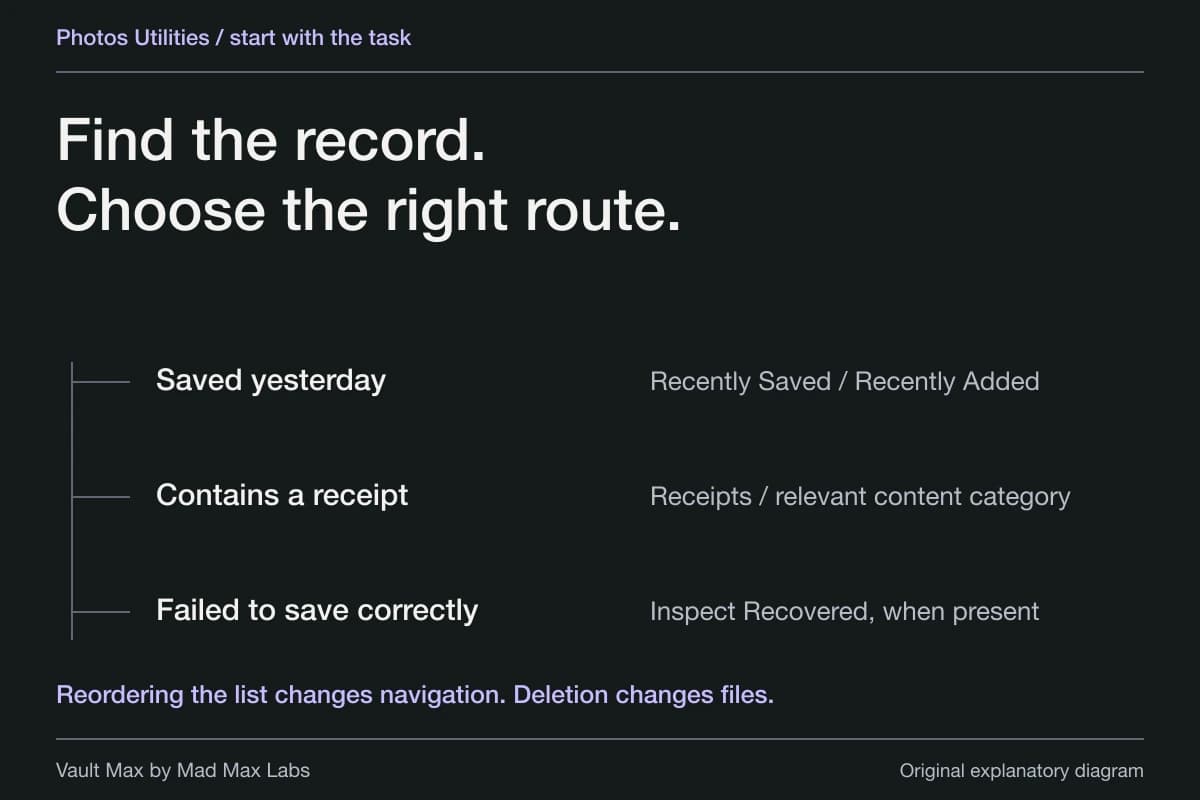
Open Photos → Collections → Utilities, then choose the collection that matches what you are trying to find. Utilities can help locate a receipt, an image recently saved from another app, a duplicate or a file Photos recovered outside its normal library. It is a set of useful views and maintenance tools, so start with the job rather than treating the whole section as a hidden folder.
Imagine you saved a purchase confirmation yesterday and now need it for a return. The fastest route may be Recently Saved or Receipts. If the item was deleted, that is a different recovery question. If it needs private storage after you find it, that is another deliberate step.
Try the decision
Find the right Photos collection
Start with what happened to the item. The right destination depends on the task, not just the word ‘hidden’.
Start with when the image arrived
- Open Photos → Collections. Look for Recently Saved, including under Utilities on supported layouts.
- Check the recently saved images, or sort Library by Recently Added if you remember when it arrived rather than when it was taken.
- Open the whole image. Confirm the source, date and details before choosing what to retain.
A picture taken years ago may have been saved today. Recently Saved and Recently Added help with that difference; neither creates a private copy.
Find an image I just saved: read the whole route, or follow one step at a time on your own phone.
Menu wording varies by iOS version. Follow the current Apple instructions linked in this guide if your screen differs.
A browser teaching example. These controls do not access your photos, change your settings, or save your choices.
Find Utilities in your version of Photos
Apple's Utilities guide places it below Collections and describes categories including receipts, identity documents, handwriting and QR codes. Start there on the current layout. If your phone looks different, select your software version in Apple's guide and follow that layout.
Once you have found the section, scan the collection names before opening one. A task such as “the image a colleague sent this morning” gives you a better starting point than scrolling through the entire library by capture date.
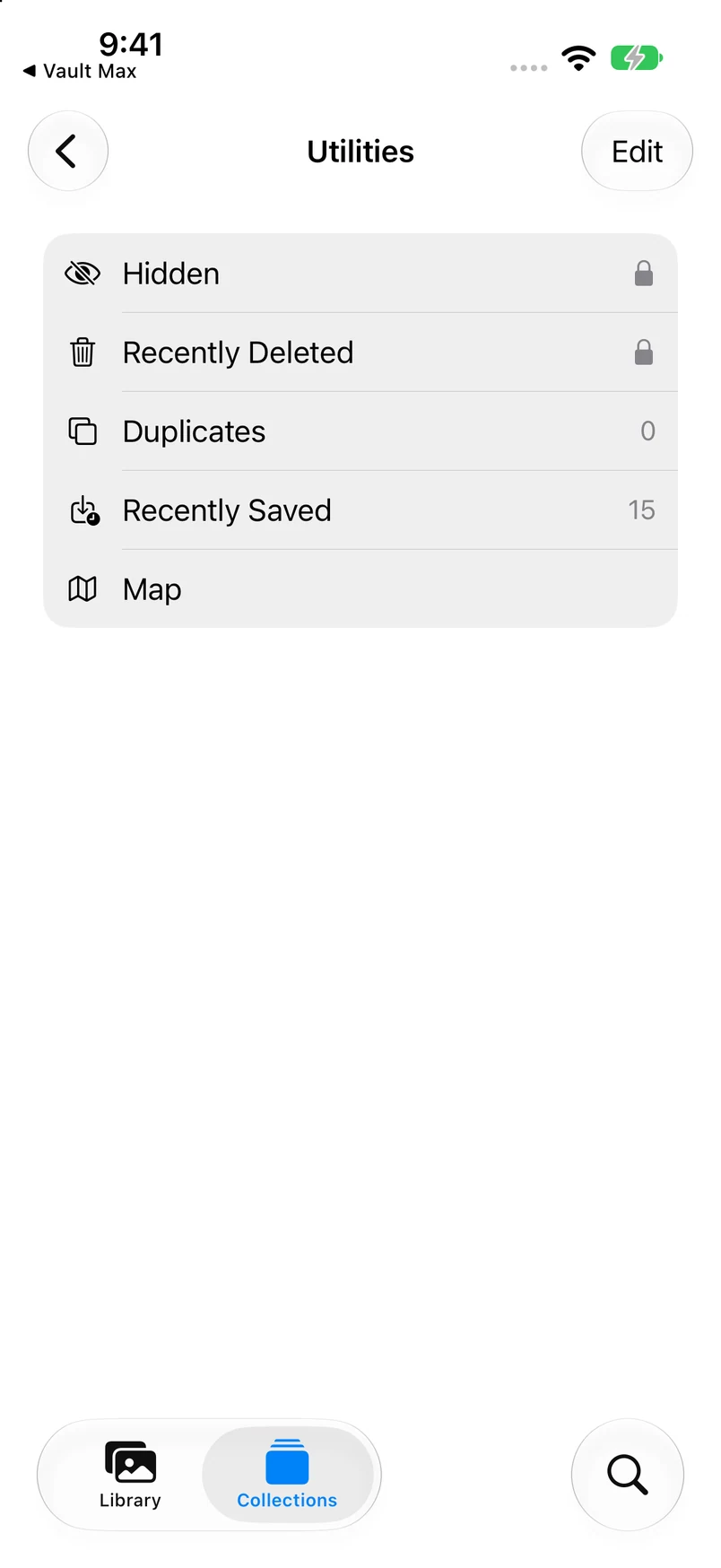
Fresh Apple Photos on the iOS 27 QA simulator shows Hidden and Recently Deleted with lock icons, Duplicates with zero items and Recently Saved with 15. Other collections depend on the library and version. No merge, deletion or recovery was performed to obtain this screen.
Actual Apple Photos · QA simulator, October 24Choose the collection that matches the task
Open original image: Choose the collection that matches the taskThe same photograph may be useful through more than one view. An image saved yesterday can also contain a receipt. Seeing it in a useful category does not mean you deliberately created a second secured copy or moved it away from the ordinary library.
Find a picture saved from another app
Apple's Recently Saved guide describes photographs saved from apps such as Messages, Safari and Mail, including AirDrop arrivals. Look for Recently Saved in Collections; the current guide also places it under Utilities. You can instead sort the Library by Recently Added.
This distinction matters when an older photograph was only just sent to you. Browsing by its original capture date can take you far away from the day you received it. A recently added view is a better starting point when your clearest memory is when you saved the item.
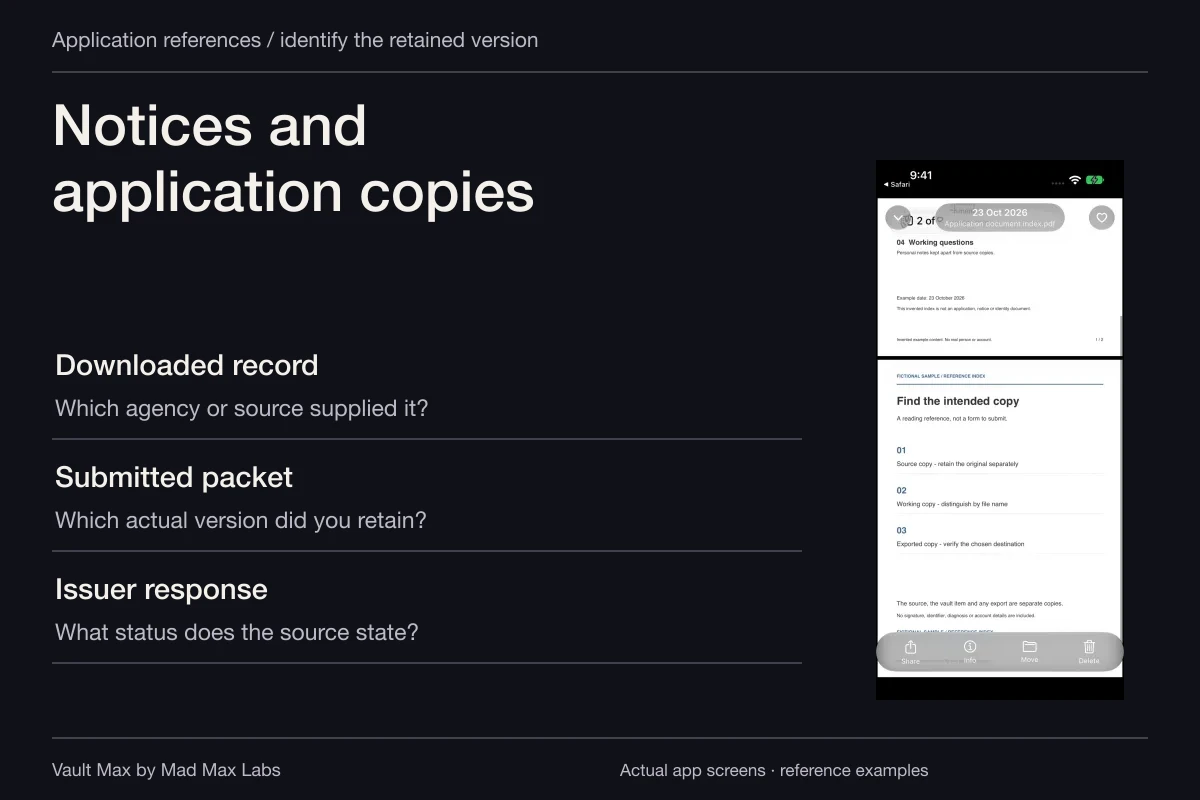
Open the full image before acting. Check the merchant, date, page edges or other detail that tells you this is the right reference. A thumbnail can look similar to another version from the same conversation. If you need a document rather than a picture of one, also inspect the original app or Files destination where you may have saved the actual document.
Use content categories as a starting point
For a receipt or handwritten note, try the relevant Utilities category. Read the result and confirm that it contains what you need; do not assume a collection label certifies the accuracy or completeness of the record.
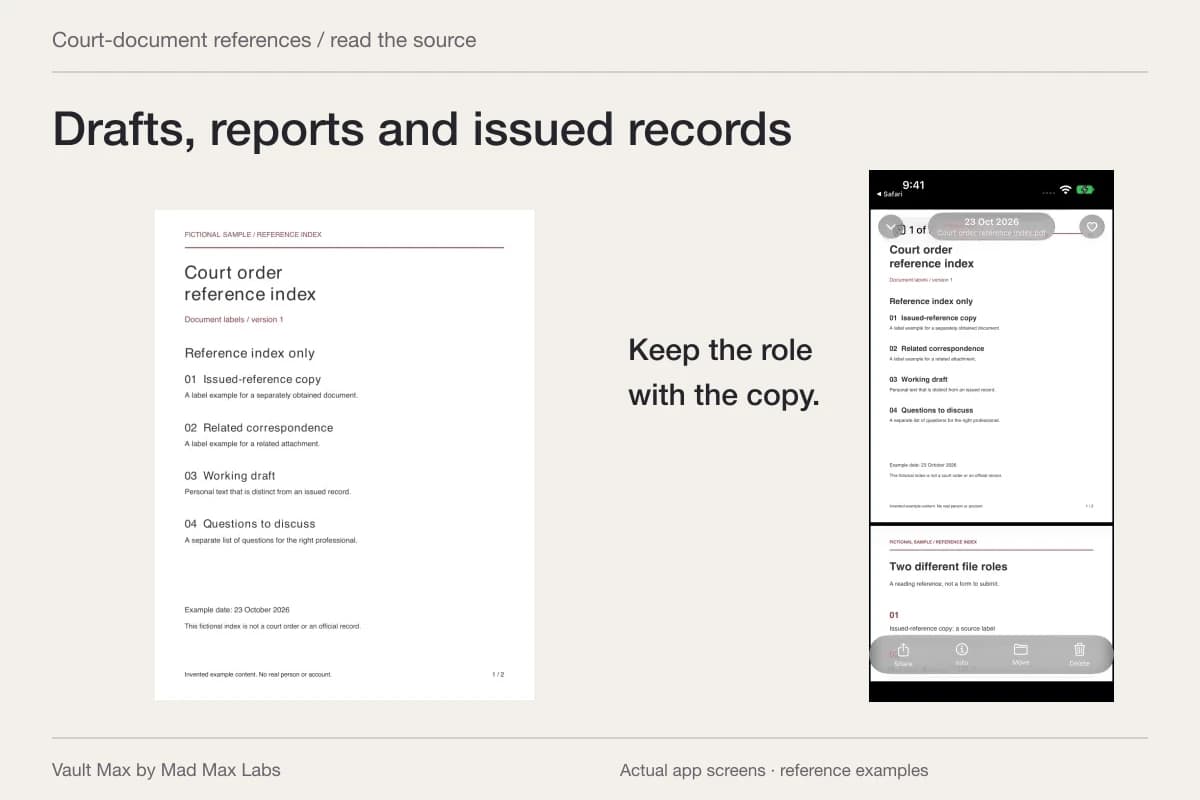
A photograph of an invoice can be useful for identifying a purchase while still missing its second page or an attachment. A picture of an identity document can be a reference without satisfying the requirements of an organization asking for the original. Keep the task in view so a convenient image does not become an unsupported substitute for a required document.
If the category does not show the image, return to a broader route: Recently Saved, the date you remember, Library search or the app that supplied it. Classification is a convenience, not the only place to look. Avoid deleting an original because its category did not display it.
Put the collections you use within reach
In the current Utilities layout, Apple documents Edit, touching and holding a collection and dragging it into a new position. Reset undoes that ordering. Move the collections you actually consult closer to the top, then return to Utilities and check whether the arrangement makes sense for your routine.
For example, someone gathering receipts weekly may prioritize Receipts and Recently Saved. Someone troubleshooting an image problem may temporarily prioritize the relevant recovery view. The useful outcome is less hunting, without changing the files simply to make navigation easier.
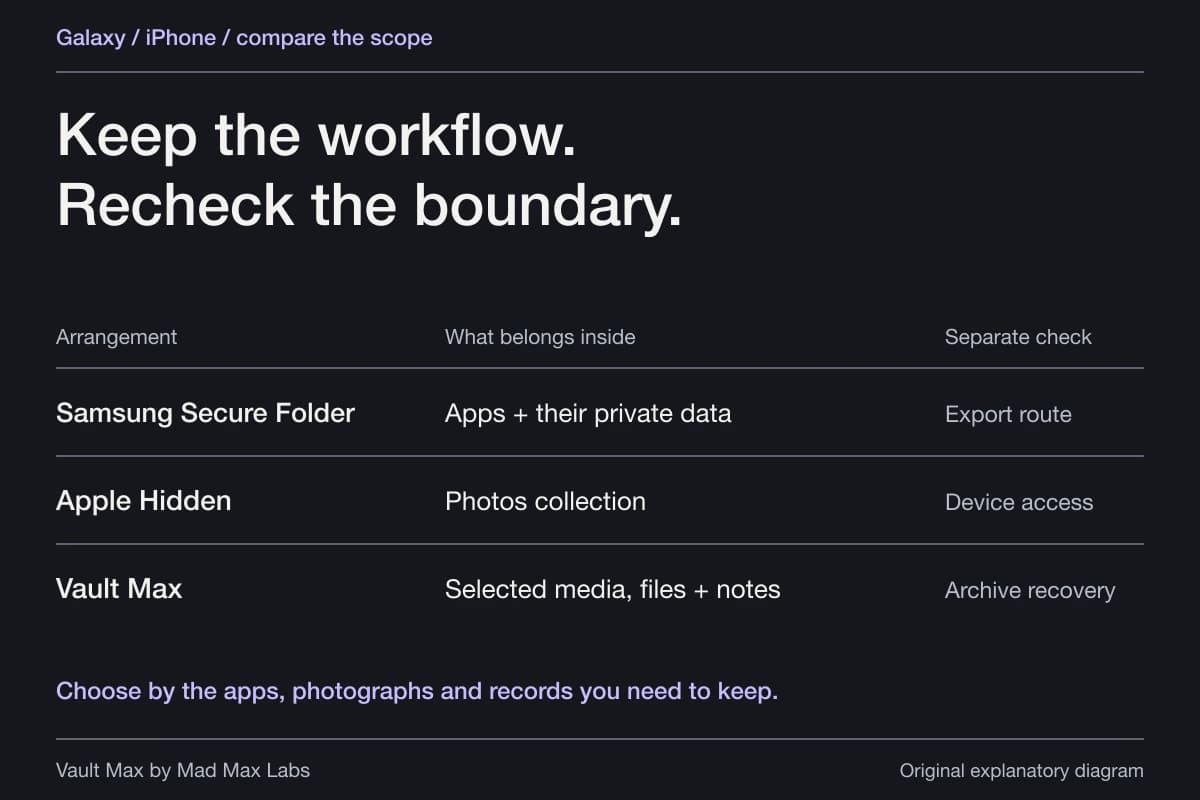
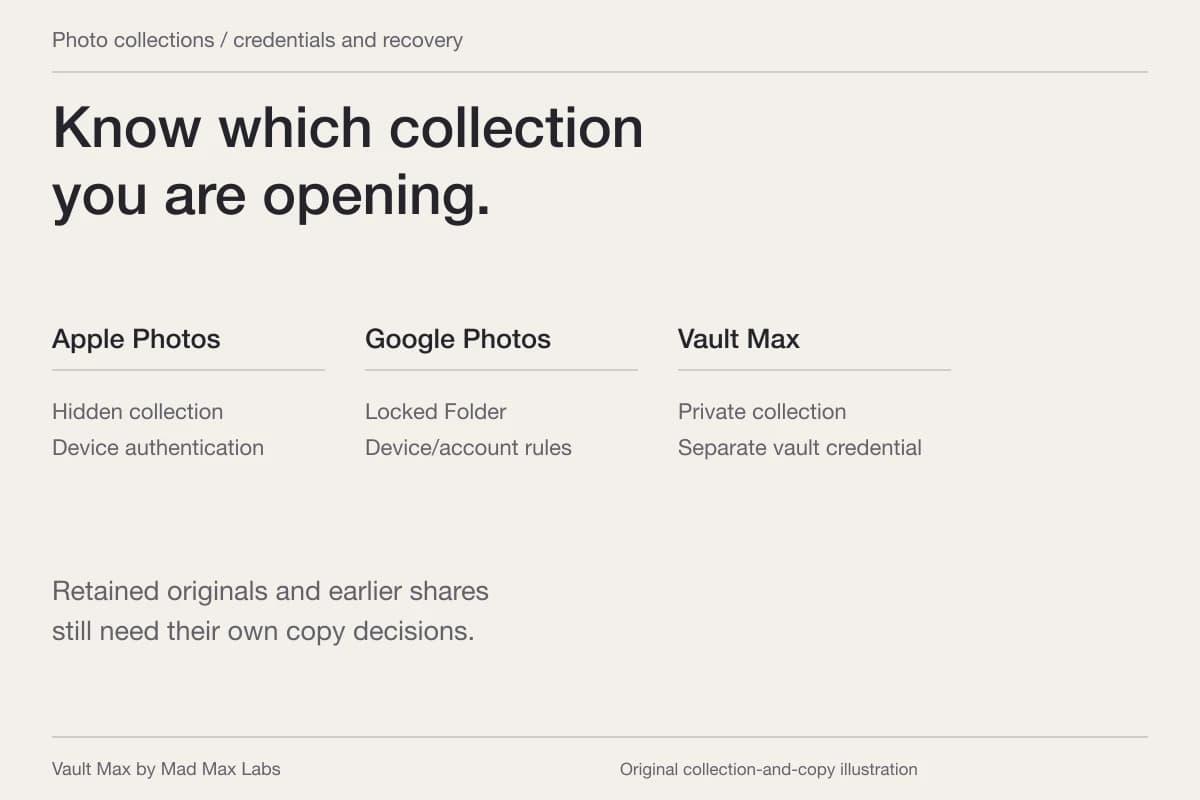
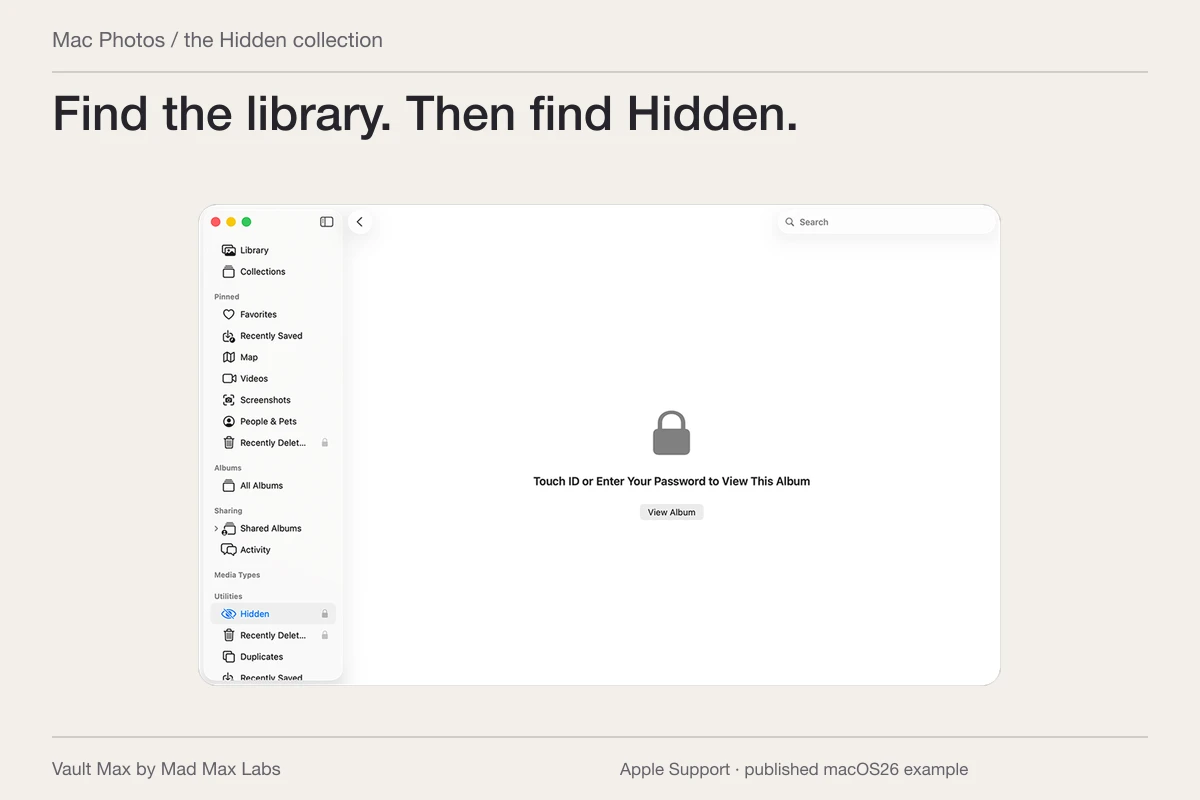
Treat this as layout customization. If your goal is privacy, a collection's position is a weak completion check: putting something lower in the list does not assign a new credential. Review the Hidden guide when you need Apple's protected collection, or a separately credentialed vault for selected material.
Pause before merging or deleting
Apple's Duplicates guide describes the Duplicates collection and its Merge control. Inspect a proposed group before merging important reference images. Visually similar pictures may contain details you still need to assess.
Make a small choice first rather than using a whole-library cleanup as your first experiment. If the collection is not available, consult Apple's version-specific guidance; its absence is not proof that no similar-looking files exist in every app on the phone.
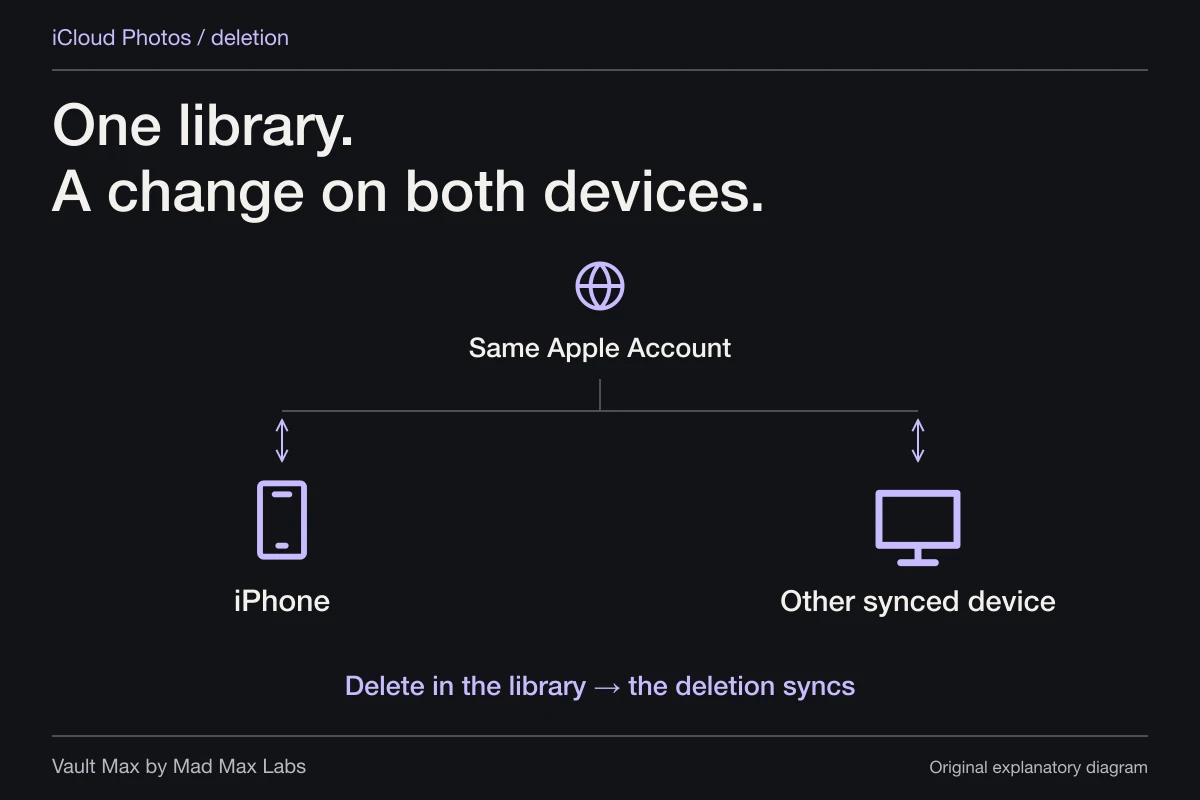
Photo deletion also has its own scope. Apple's delete-or-hide guide describes Recently Deleted and iCloud Photos propagation. Read the actual prompt before removing an important item from a connected library. Reordering a view and deleting a record are very different levels of change.
Understand Recovered before choosing an action
Apple describes Recovered as a possible place to find media that was not saved properly and could not be added to the library. If an item is there, inspect it and choose Restore to Library when that is the result you want. Its Permanently Delete action does not send the item through an ordinary second chance in Recently Deleted.
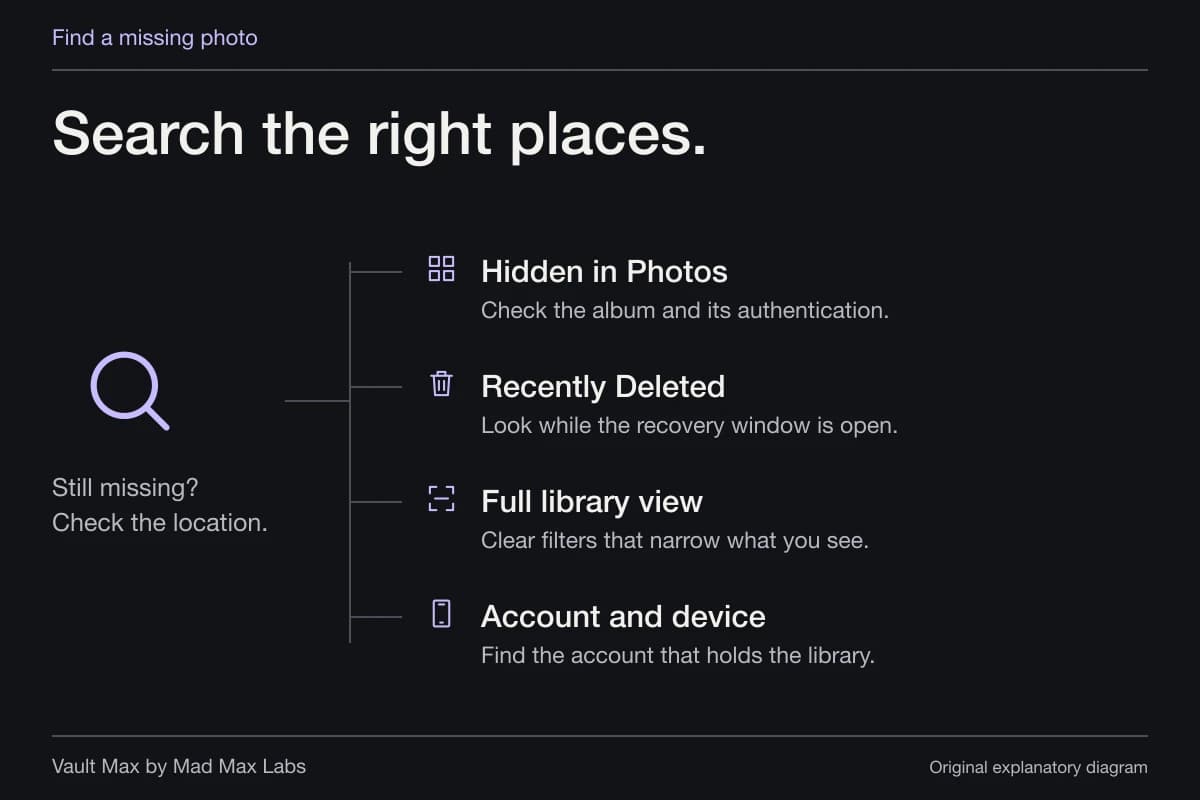
Do not expect Recovered to be a general archive of everything ever removed from the phone. If the image is missing, use the missing-photo guide to review Hidden, Recently Deleted, library views and account or device choices.
For something irreplaceable, preserve a usable copy before experimenting with cleanup. A recovery view is most useful when you can identify the file and explain the operation you are about to perform.
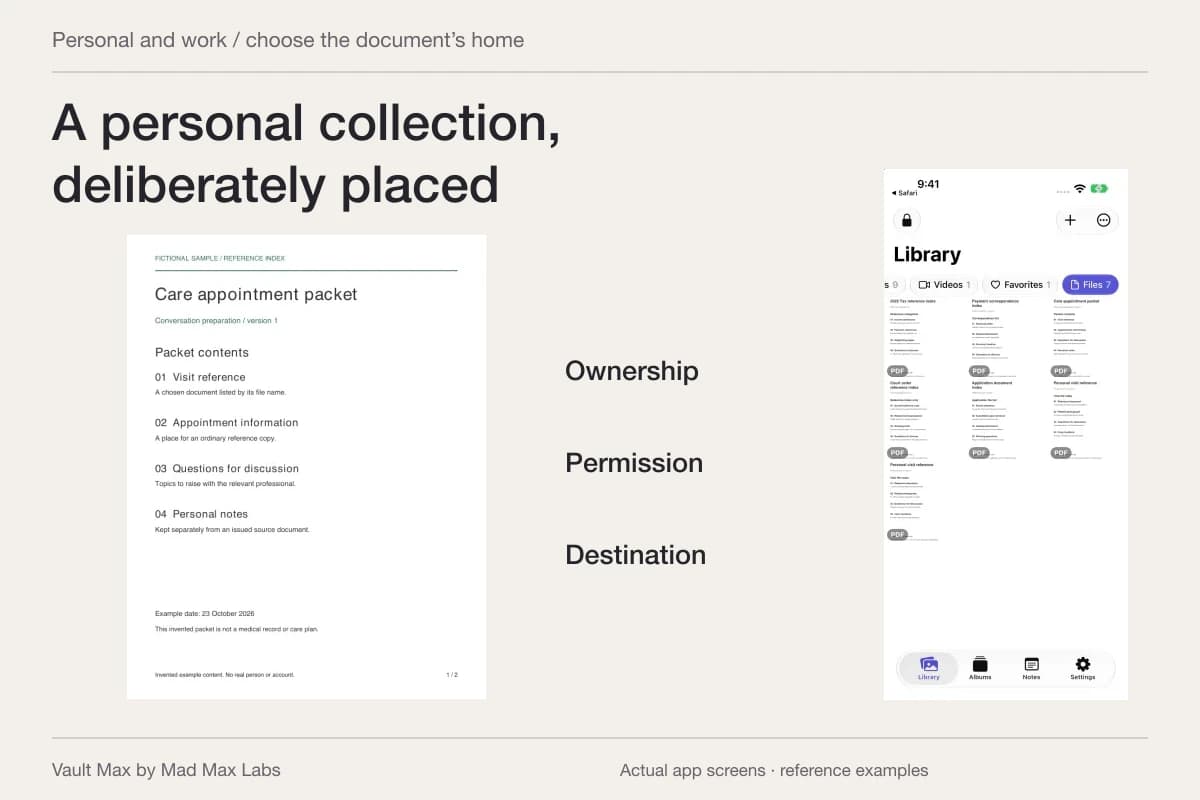
Give a private reference a deliberate home
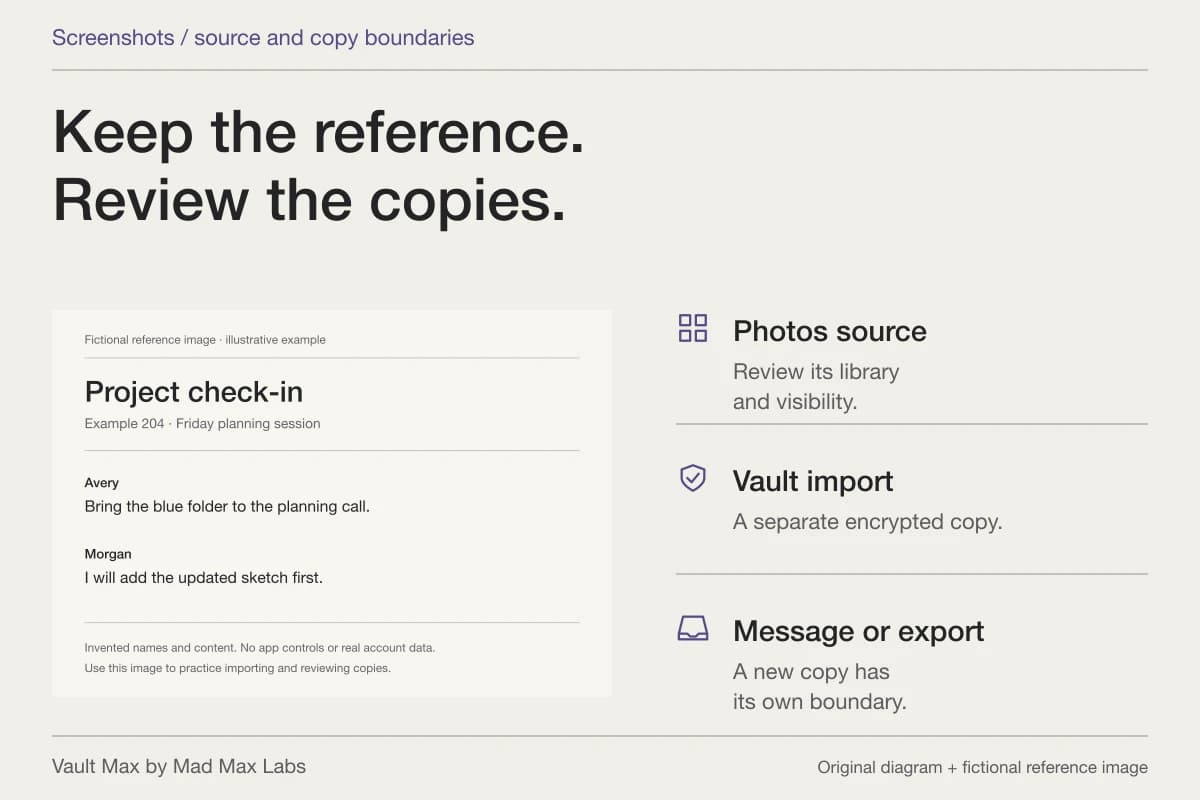
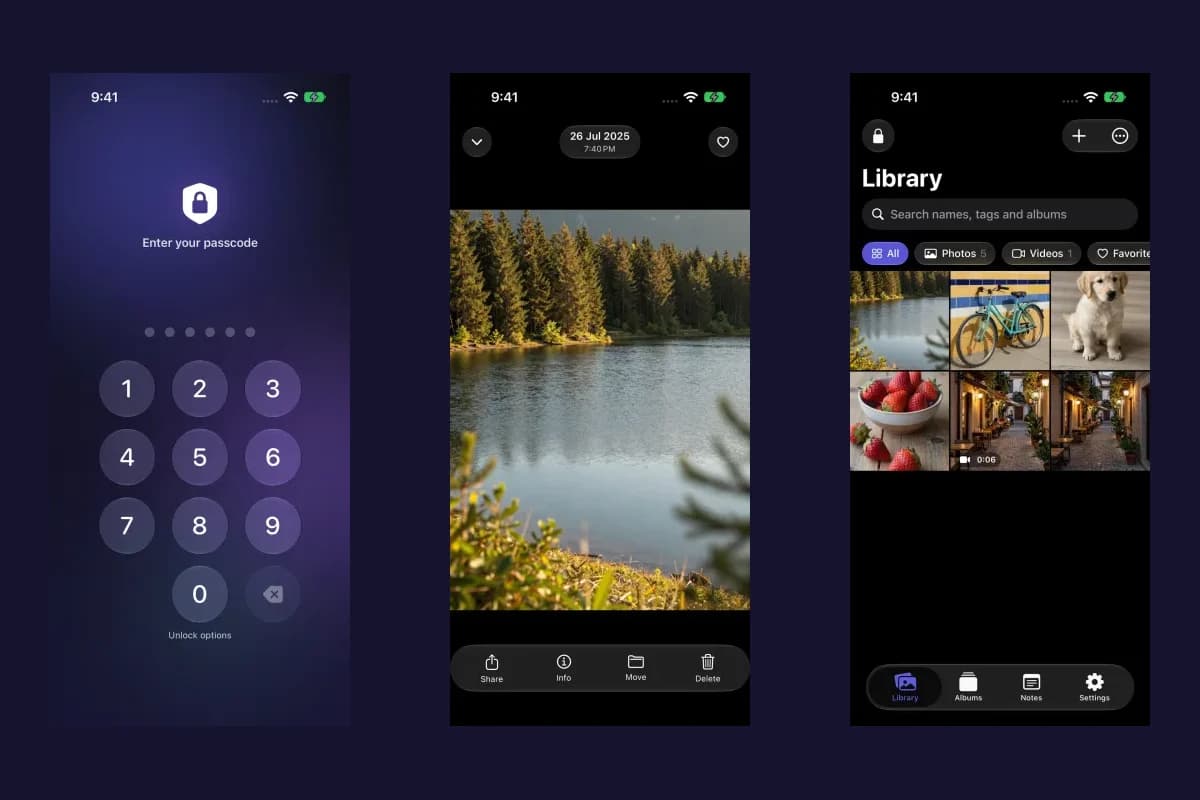
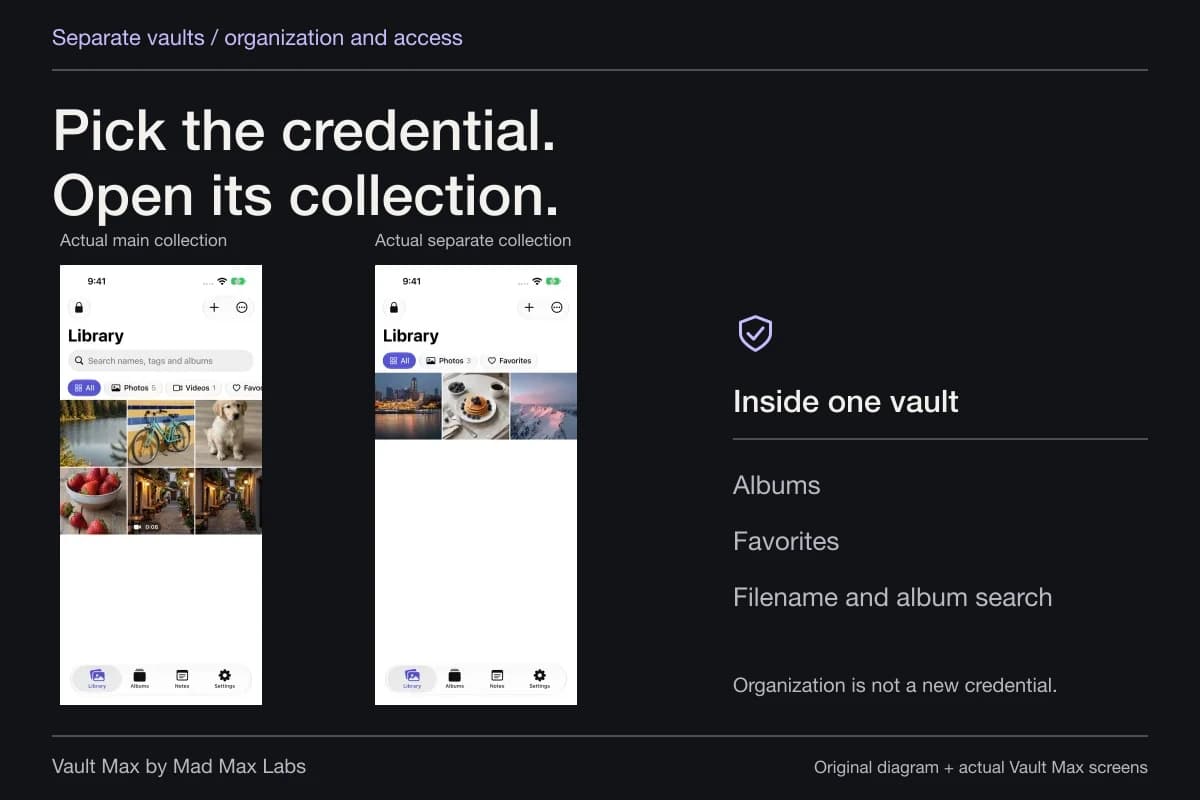
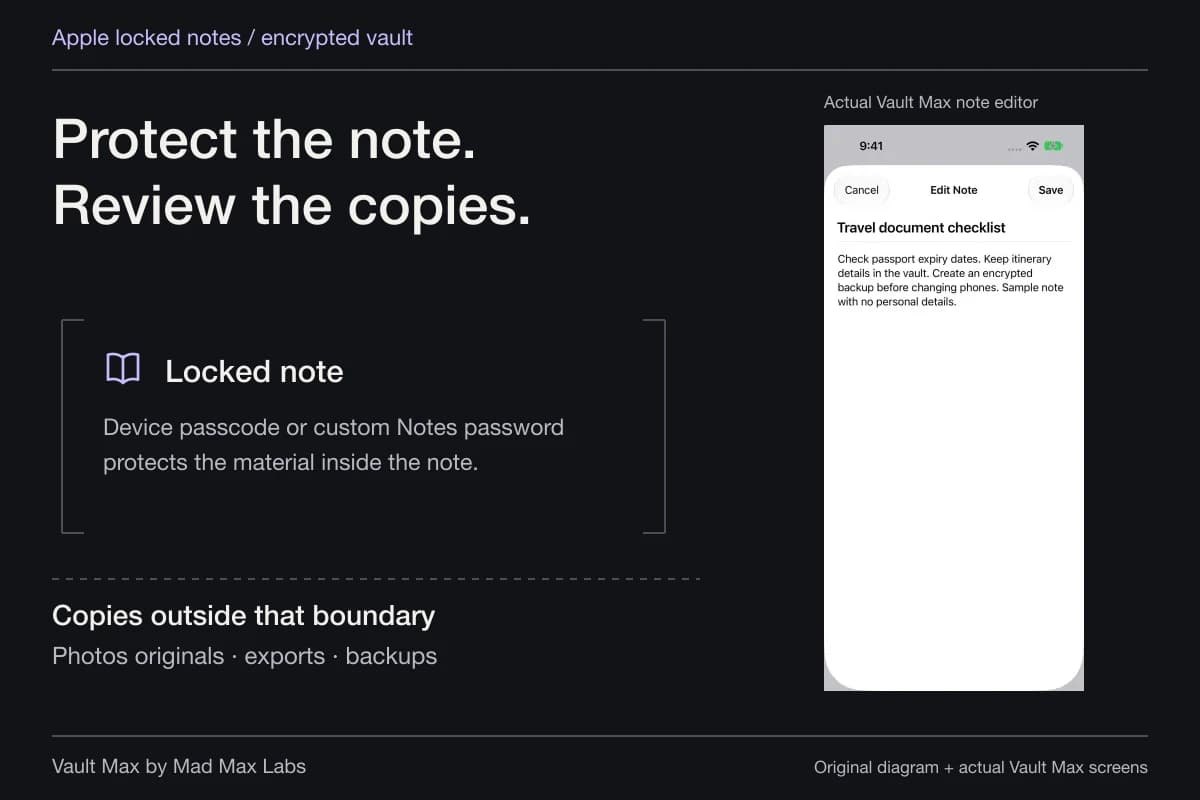
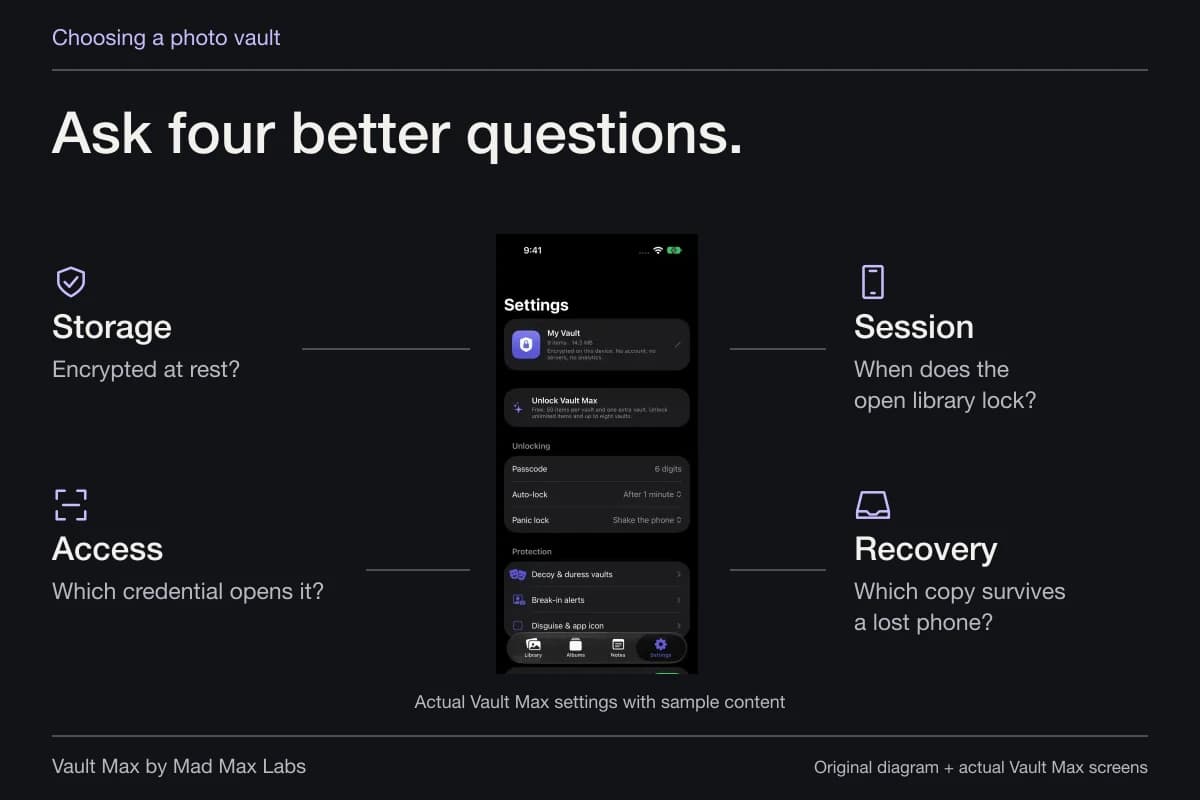
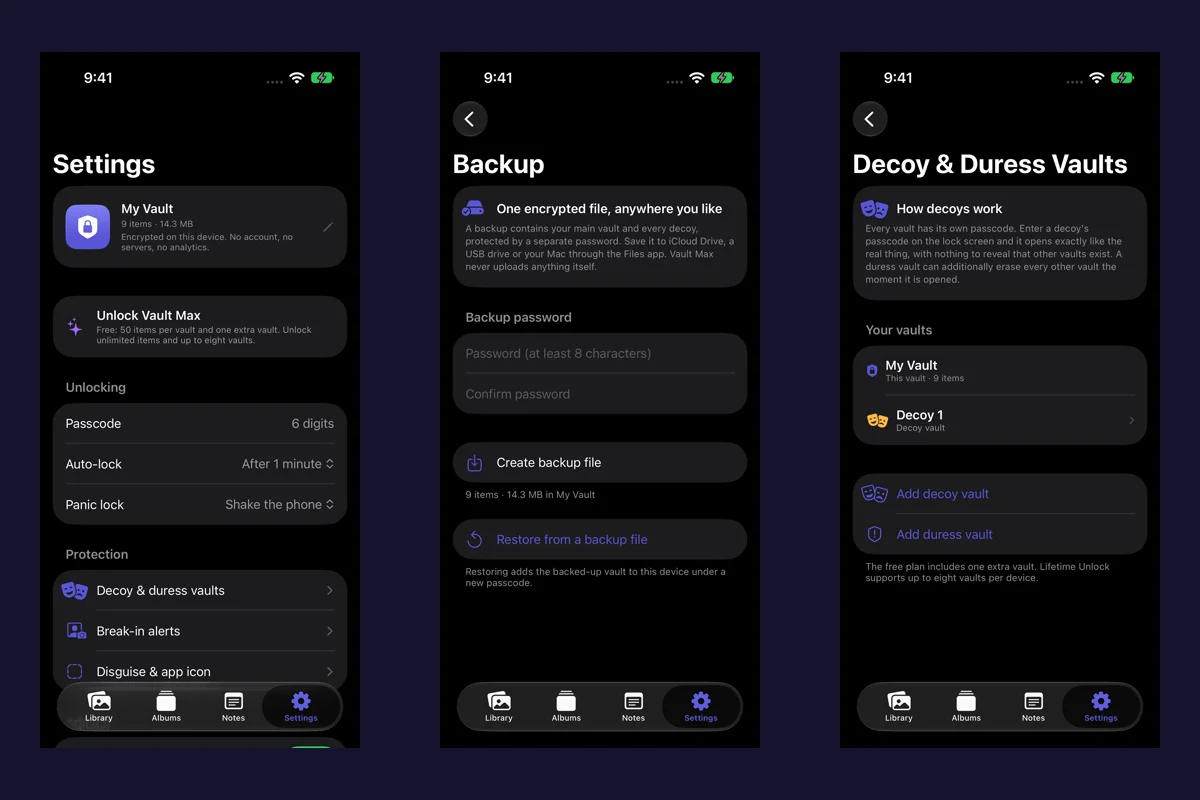
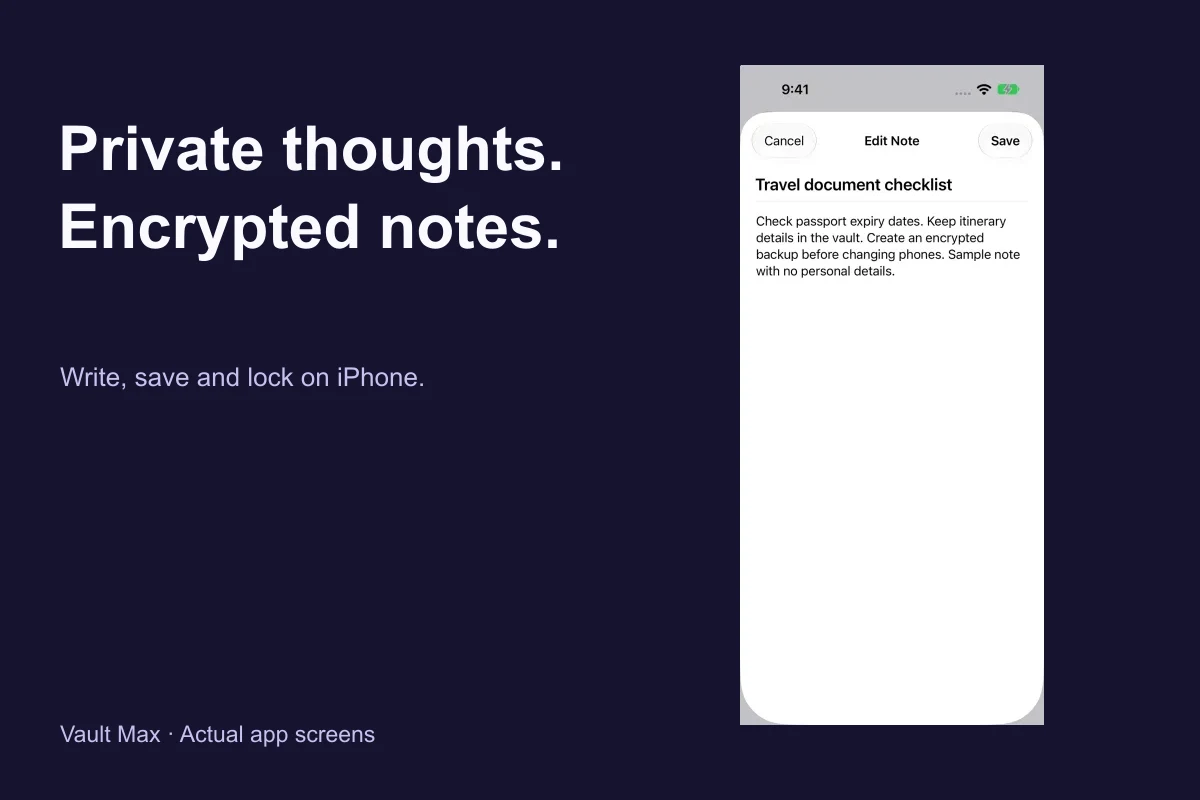
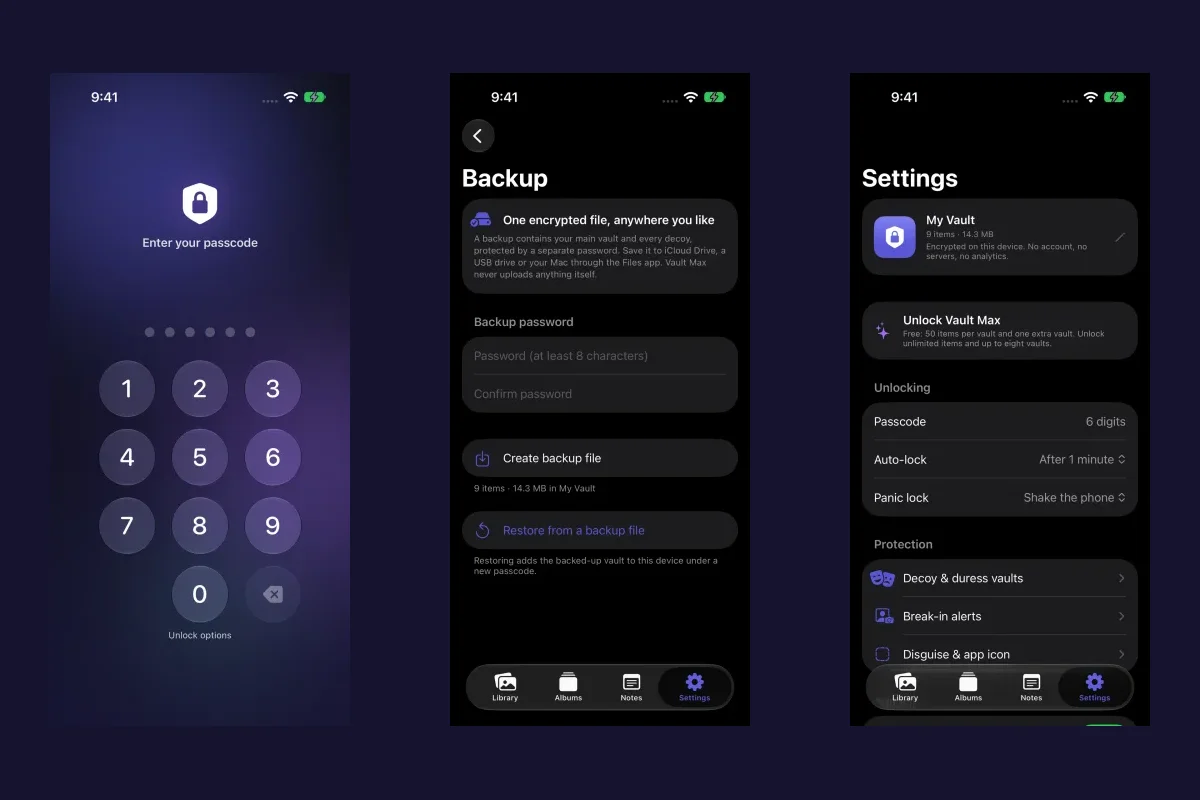
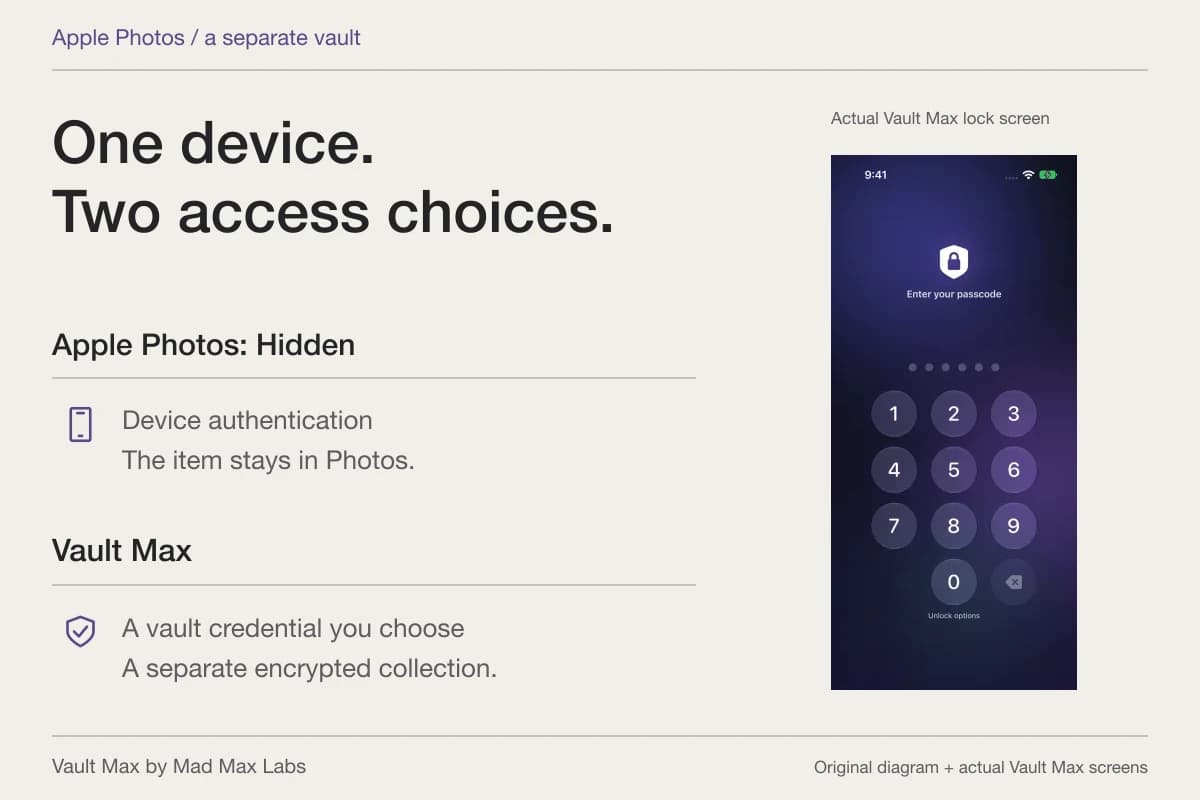
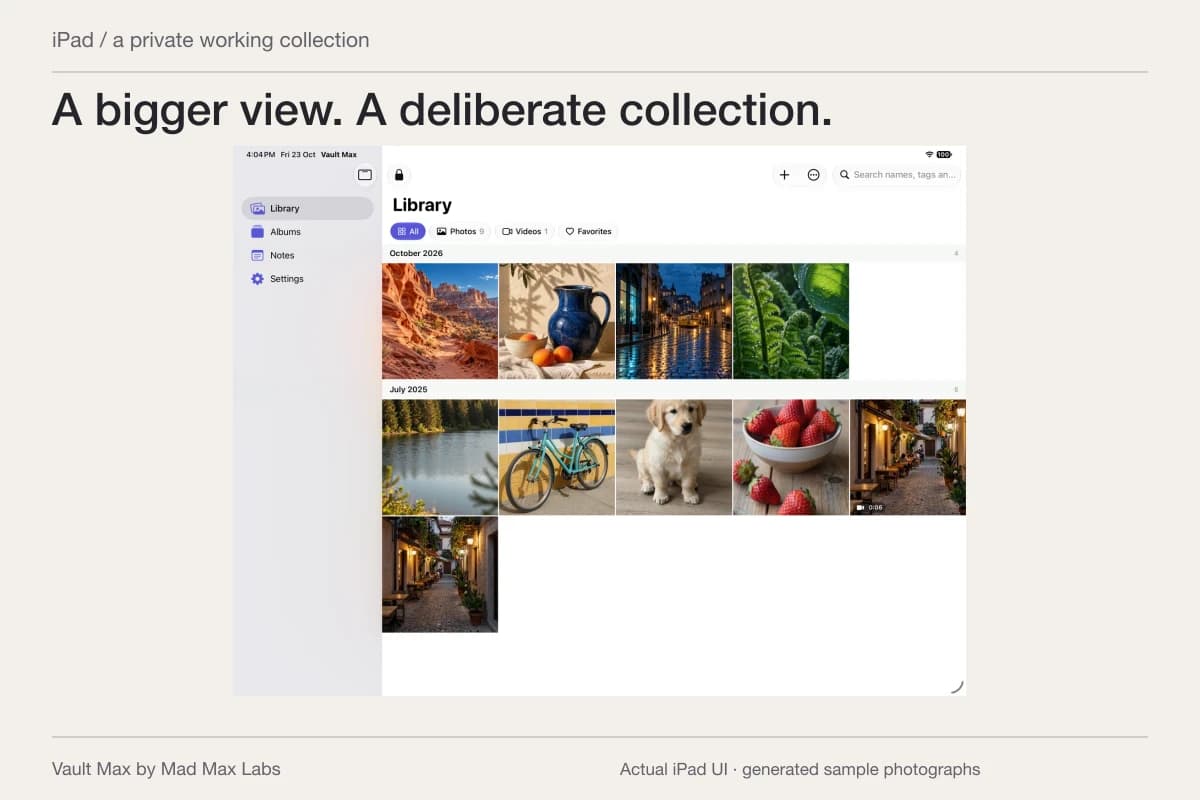
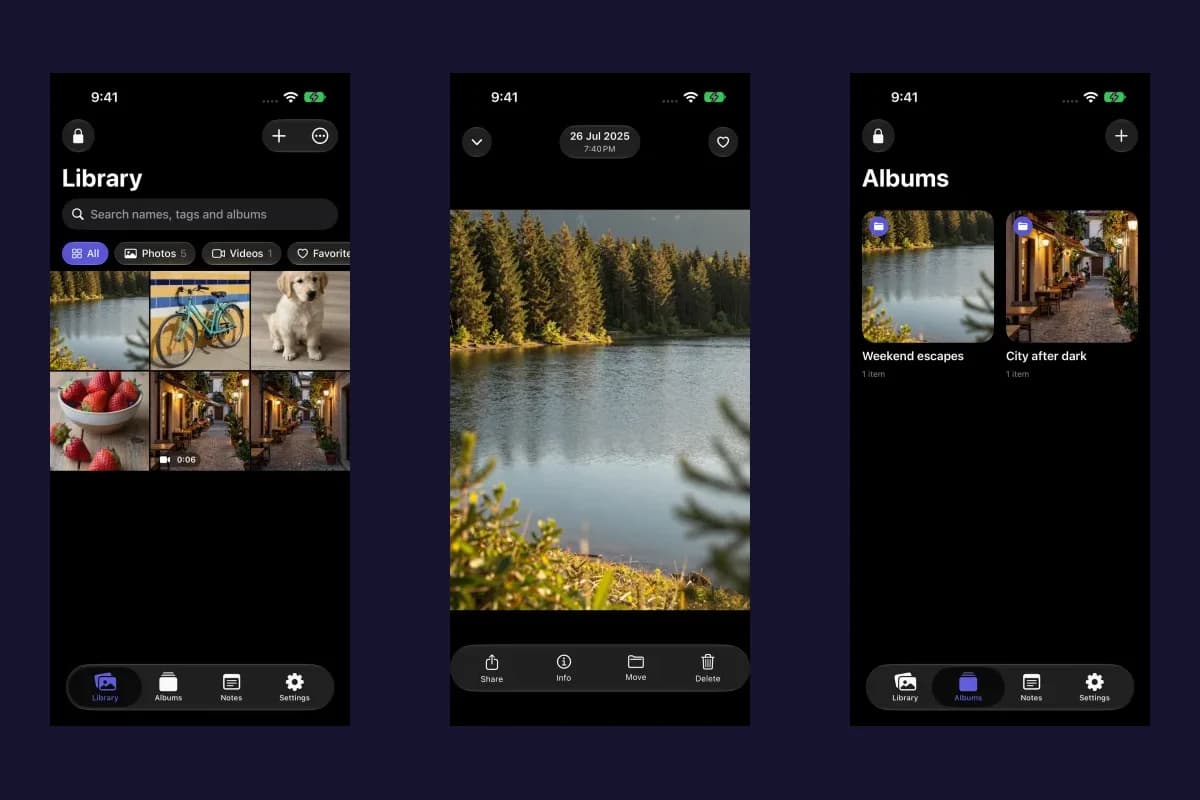
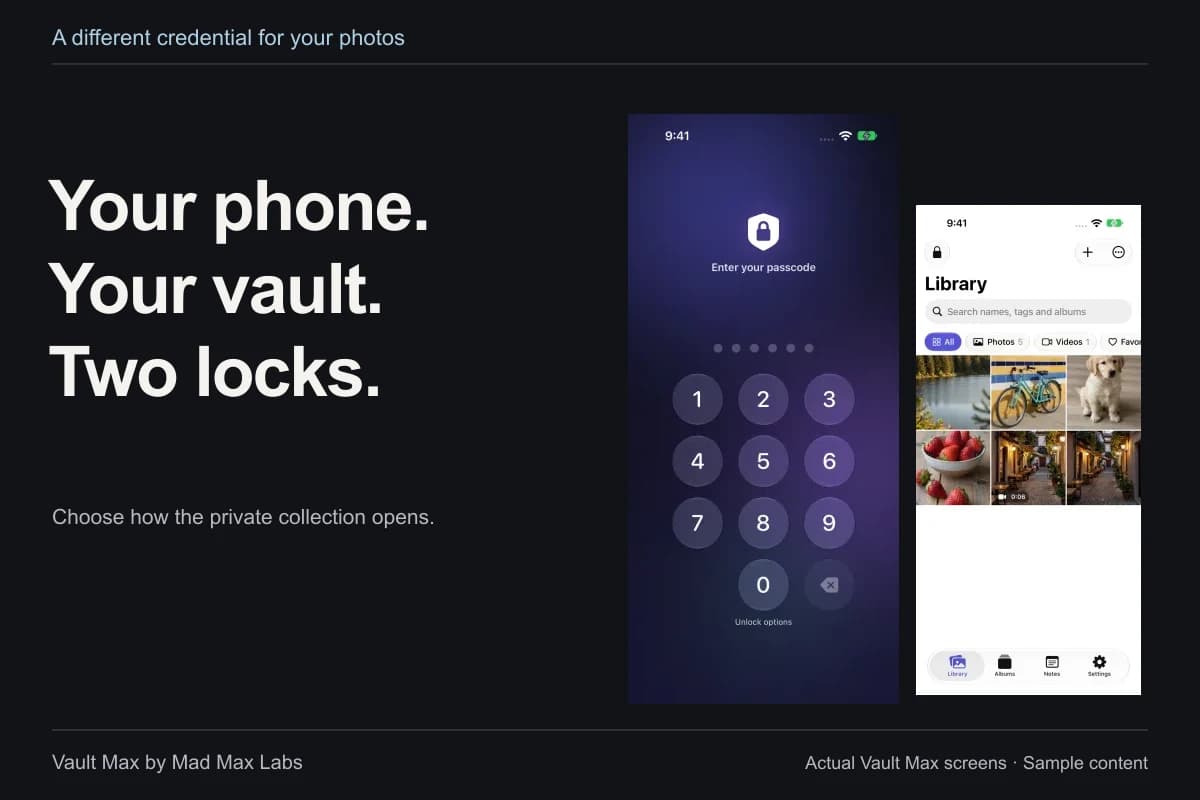
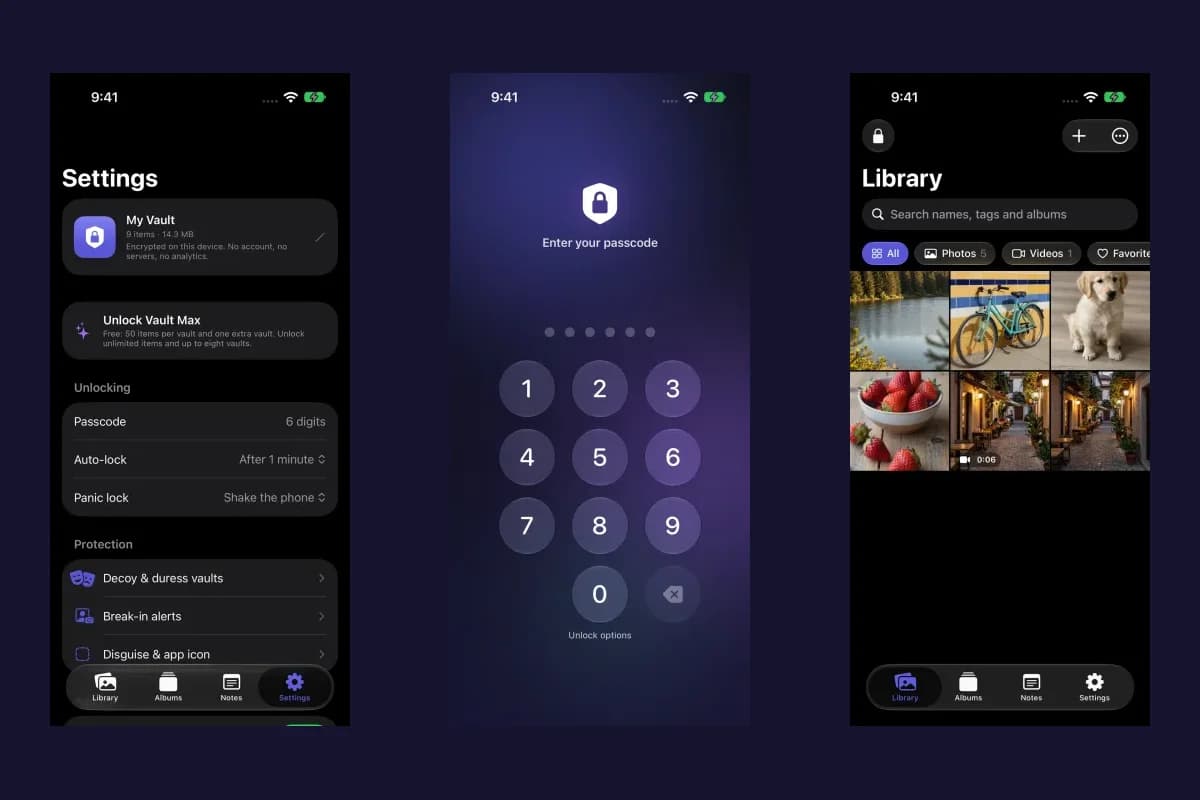
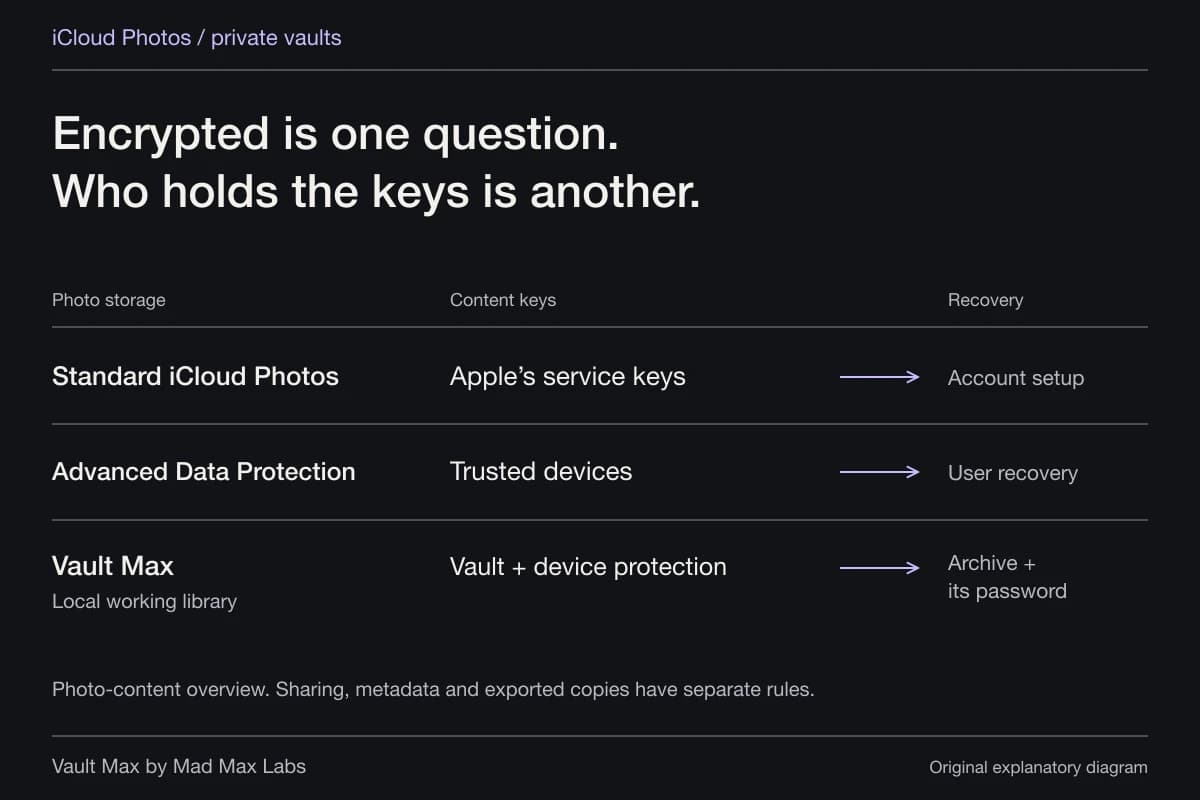
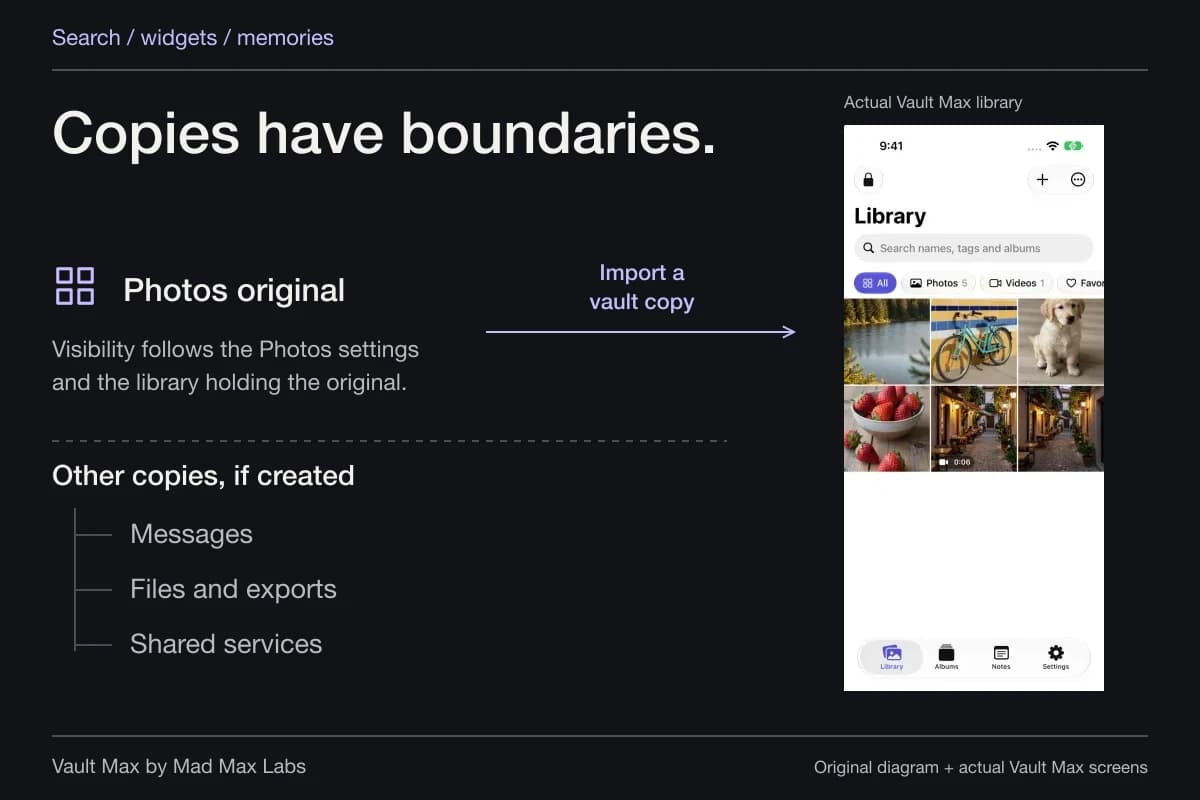
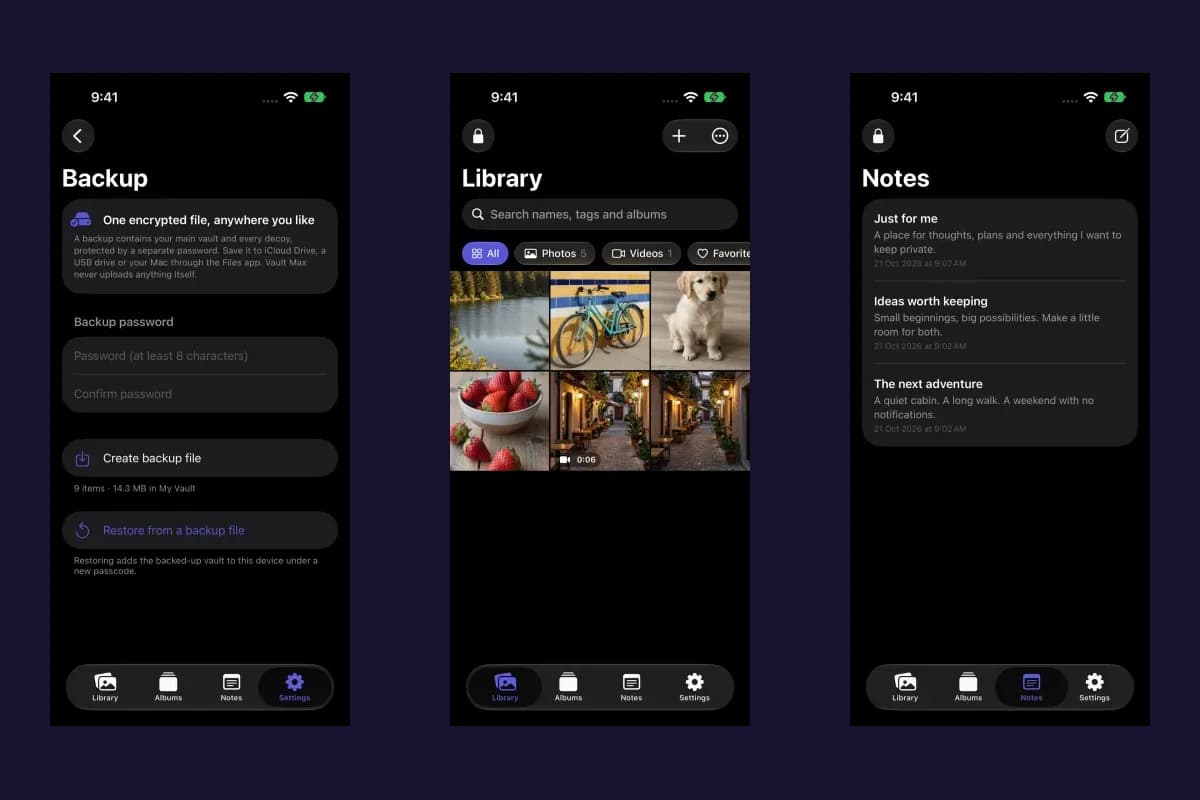
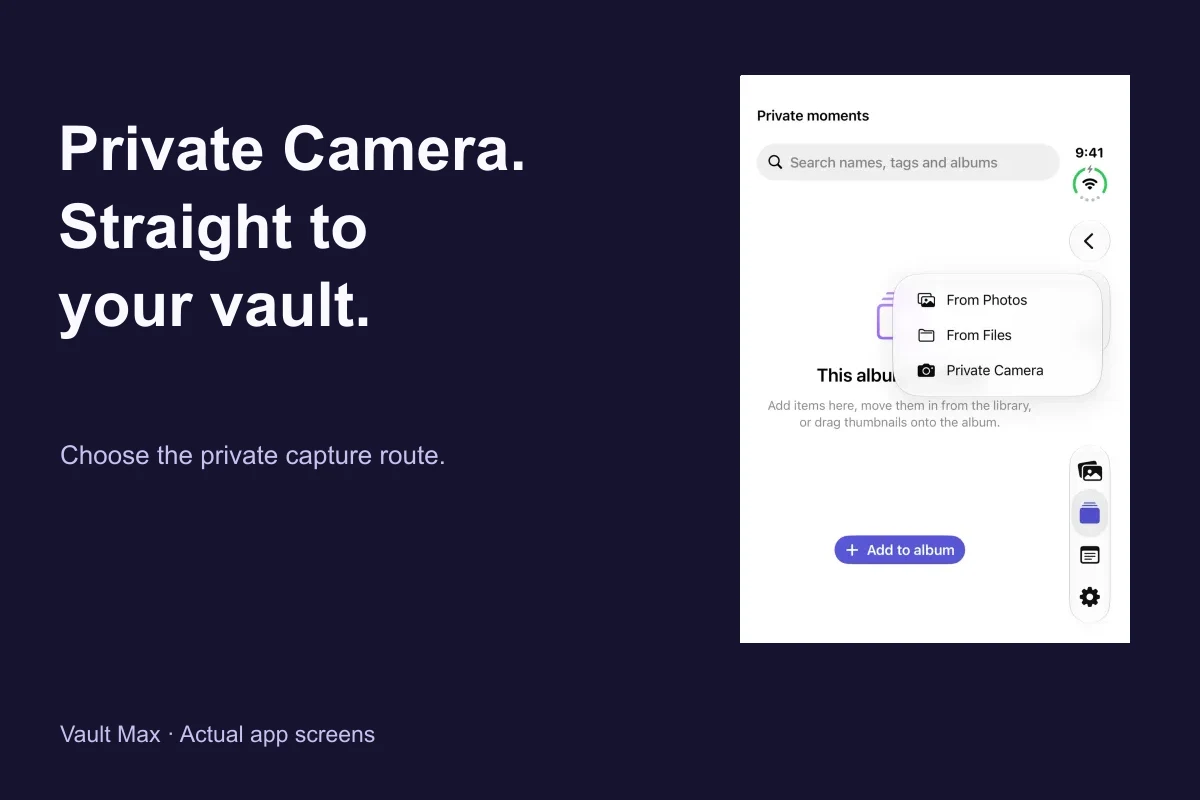
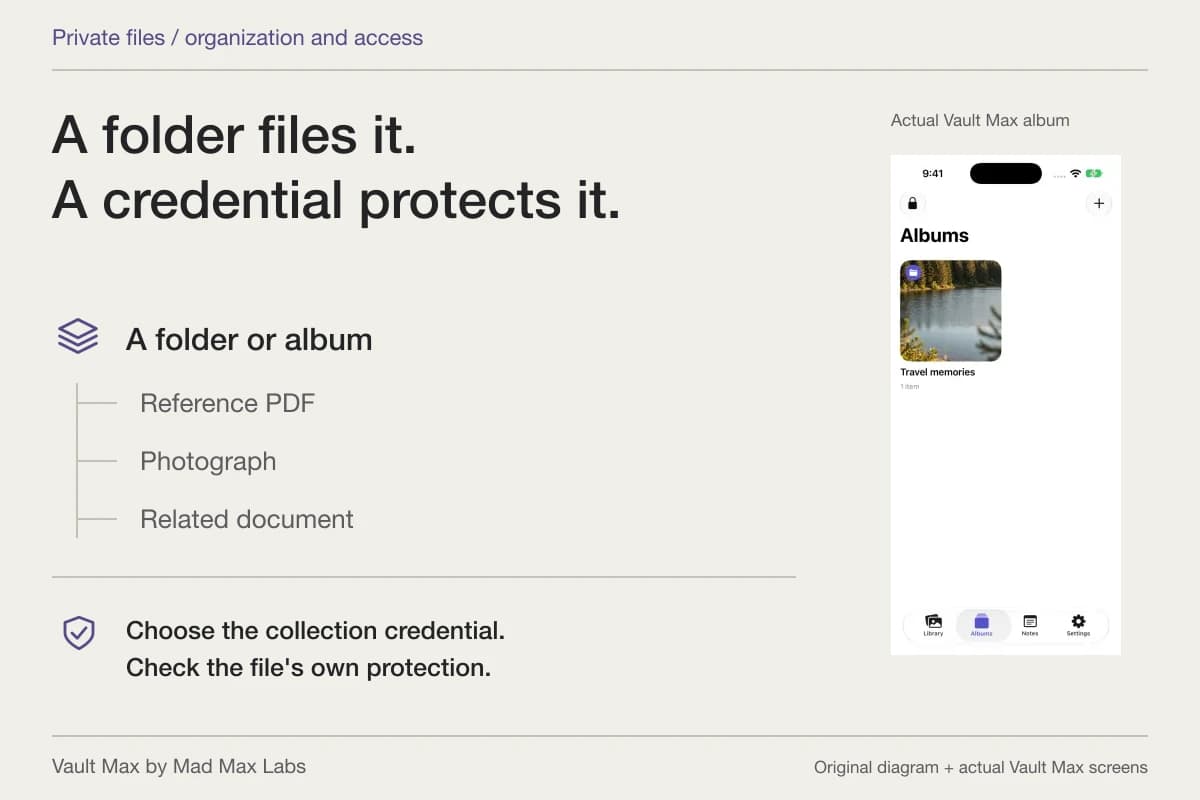
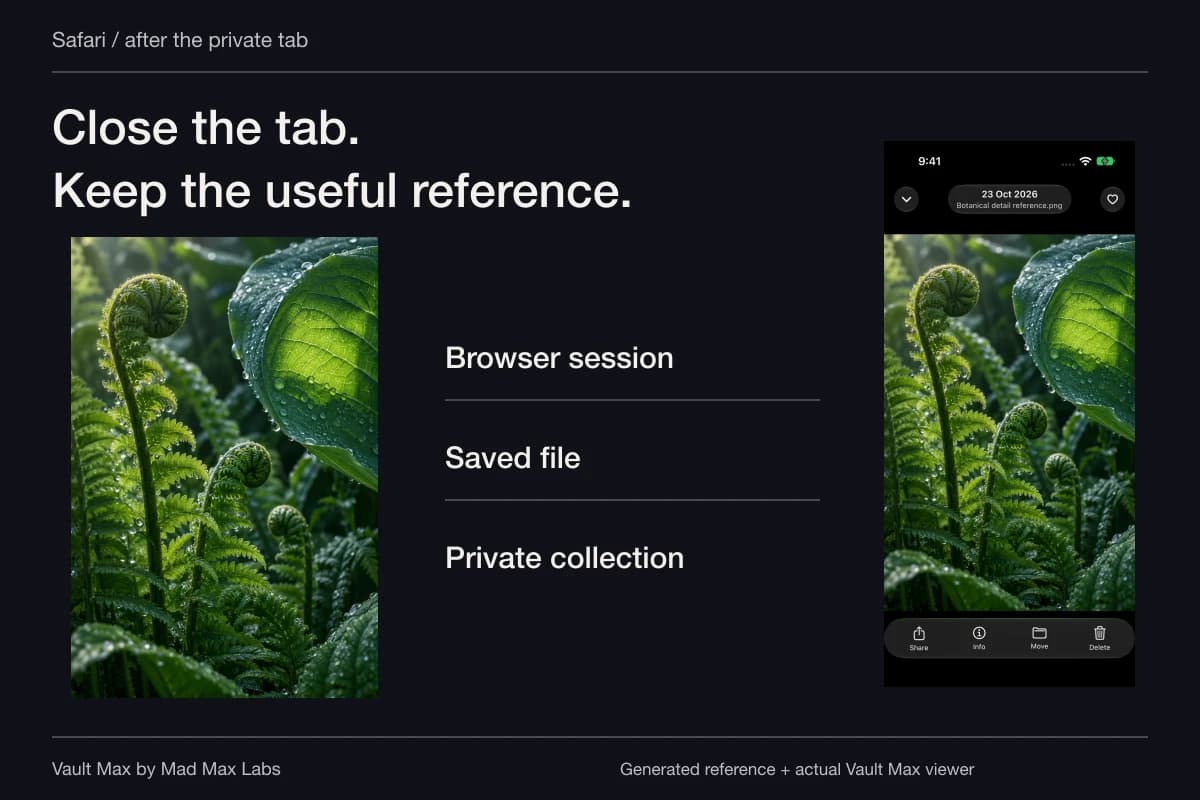
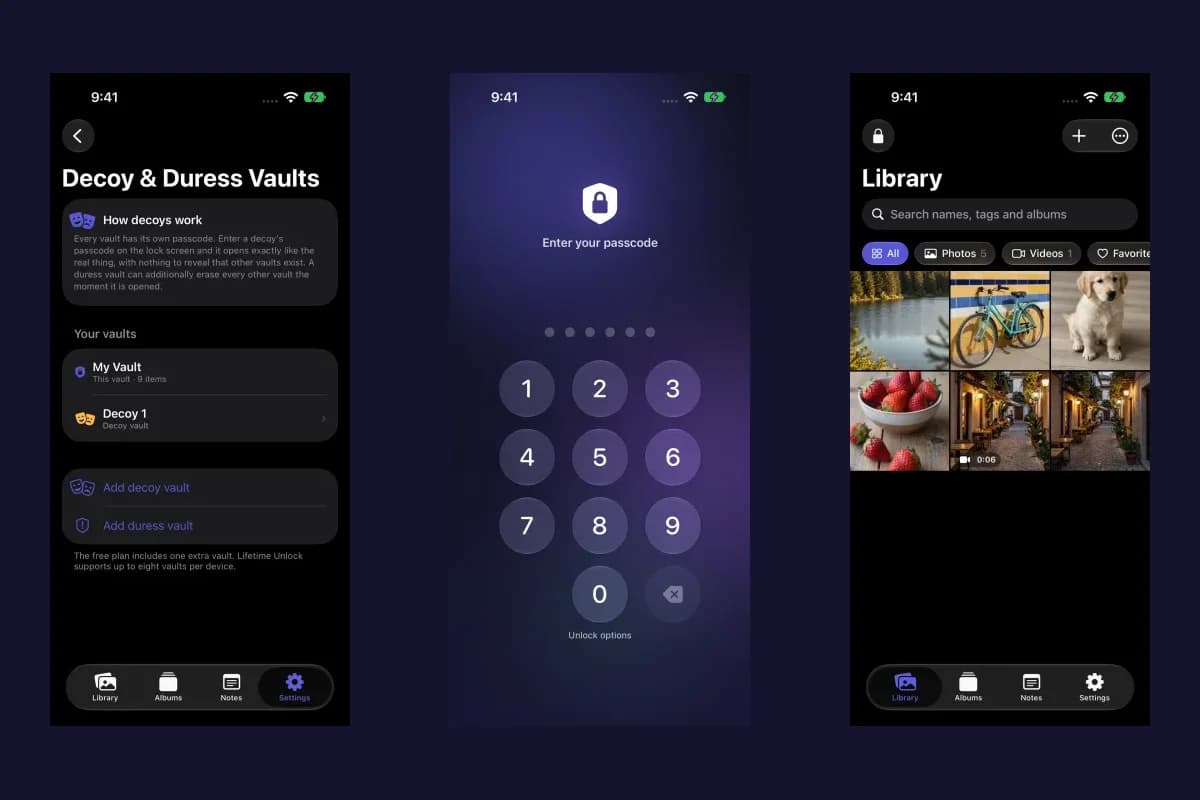
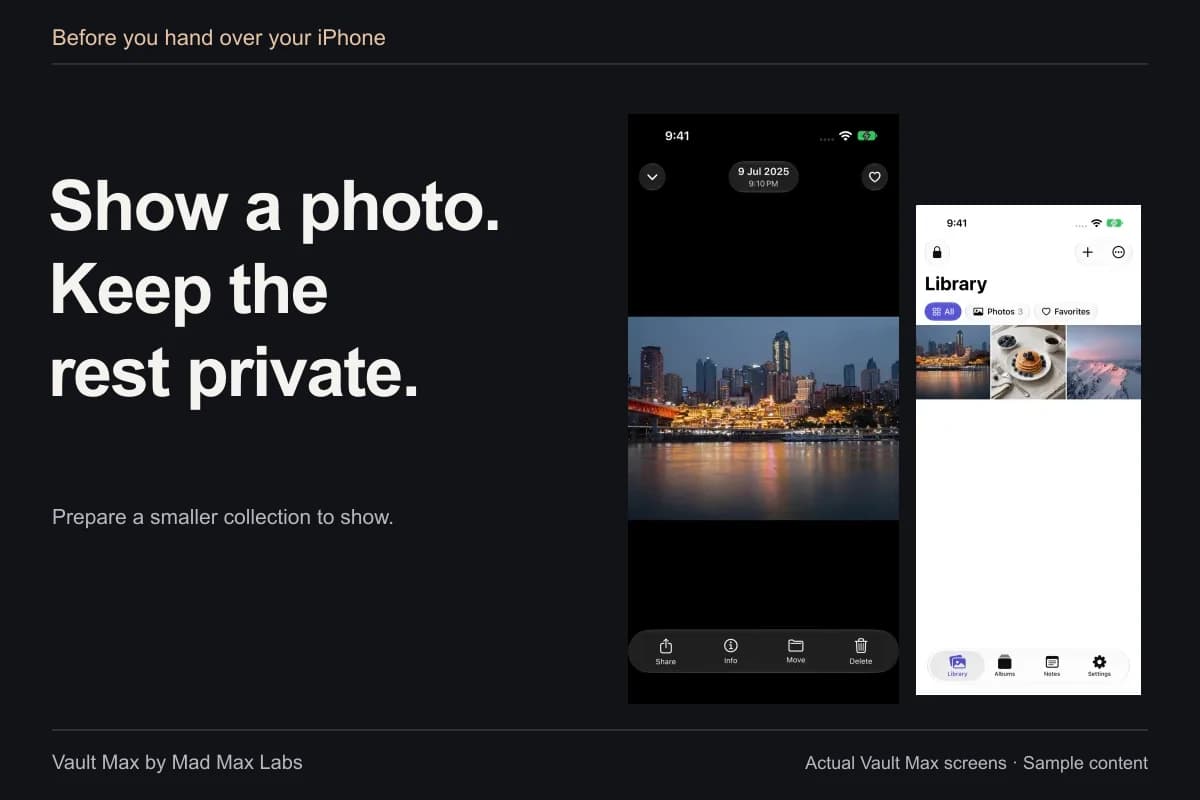
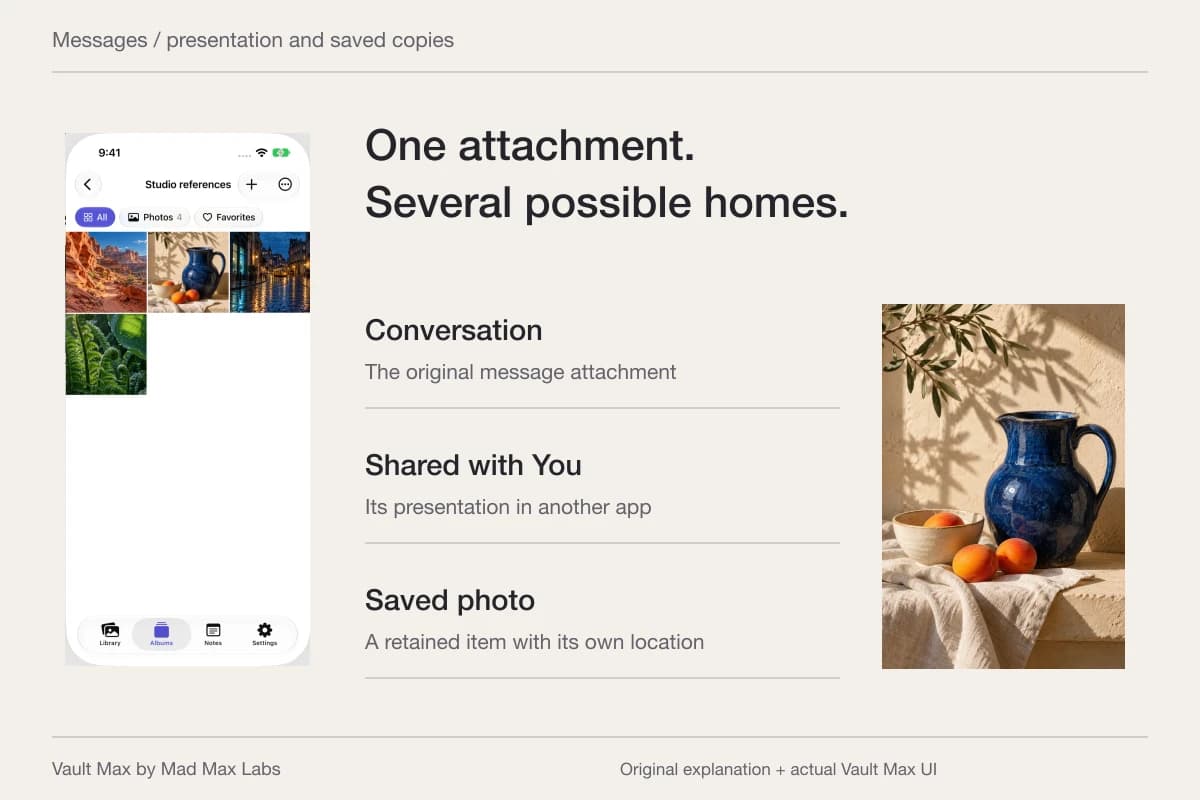
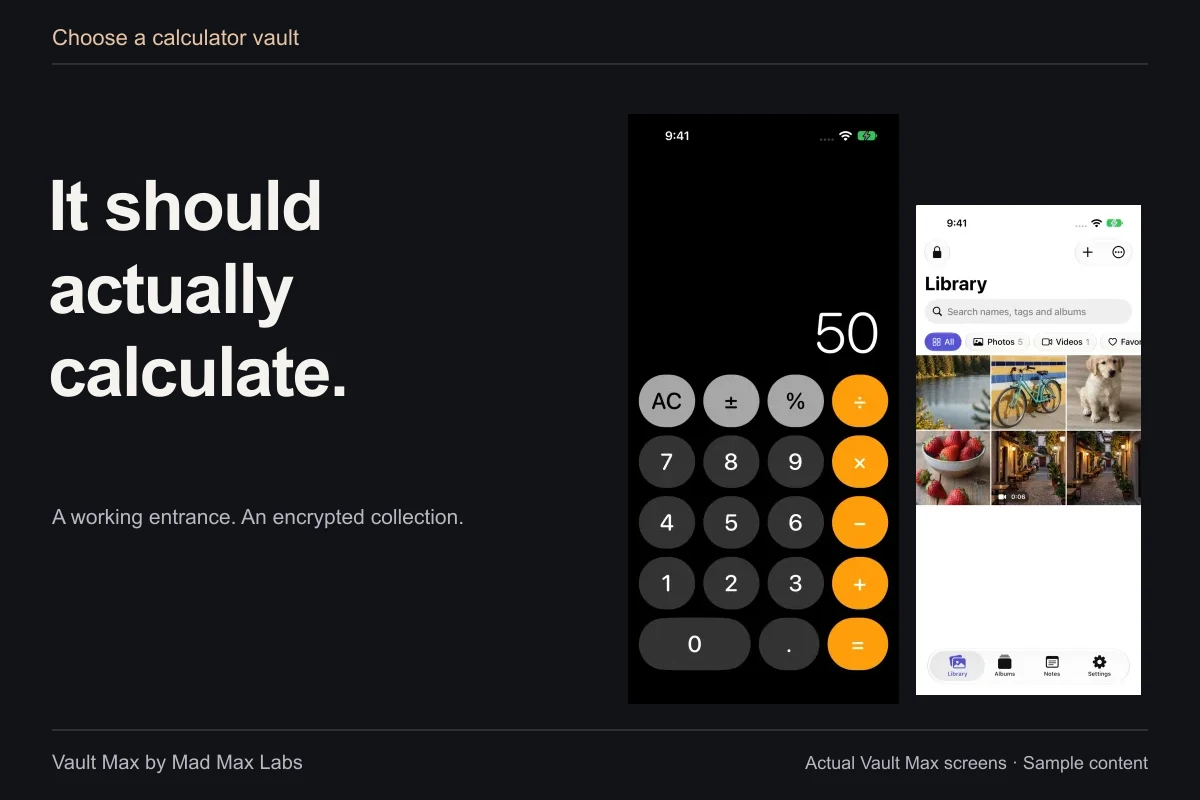
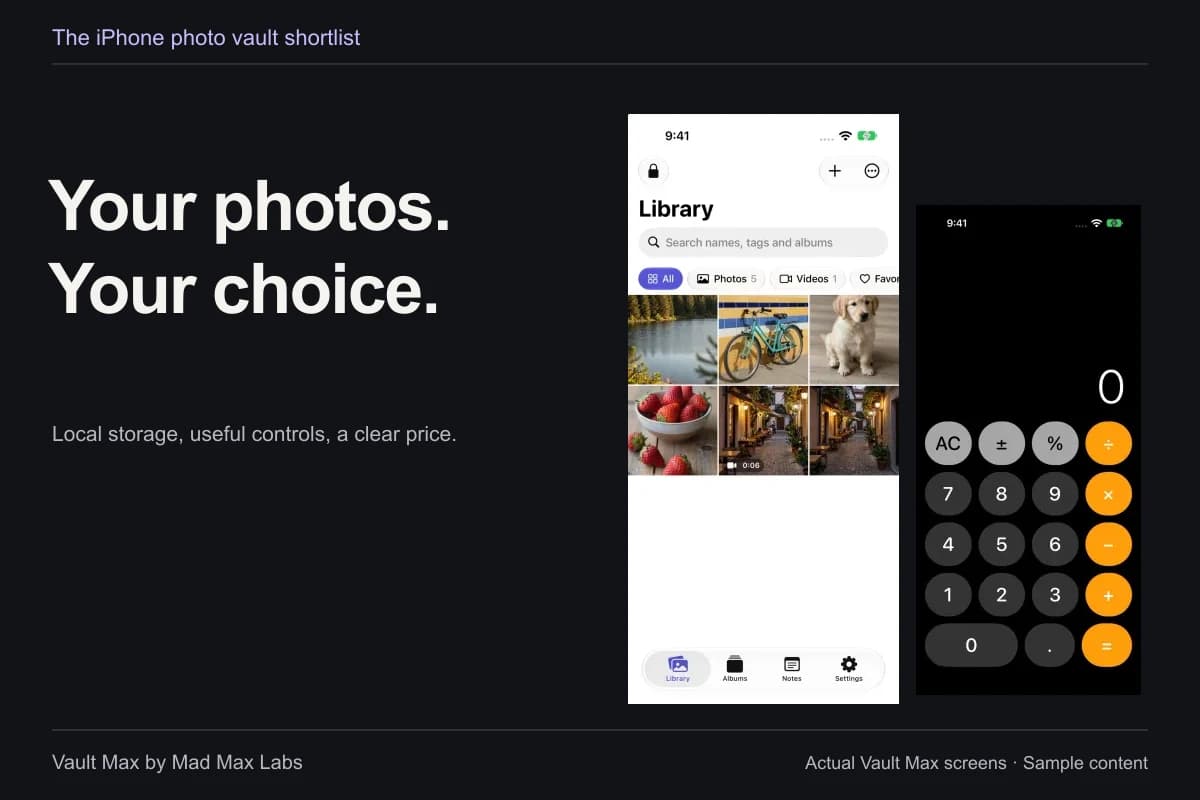
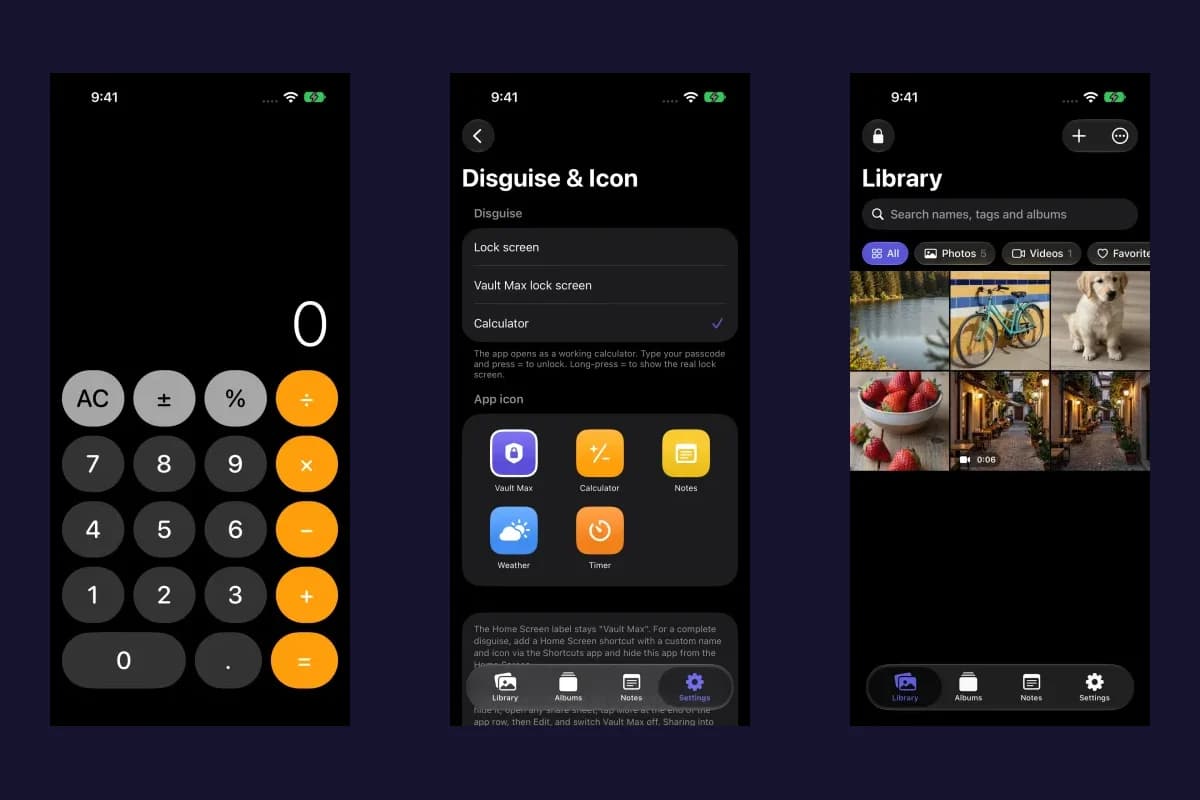
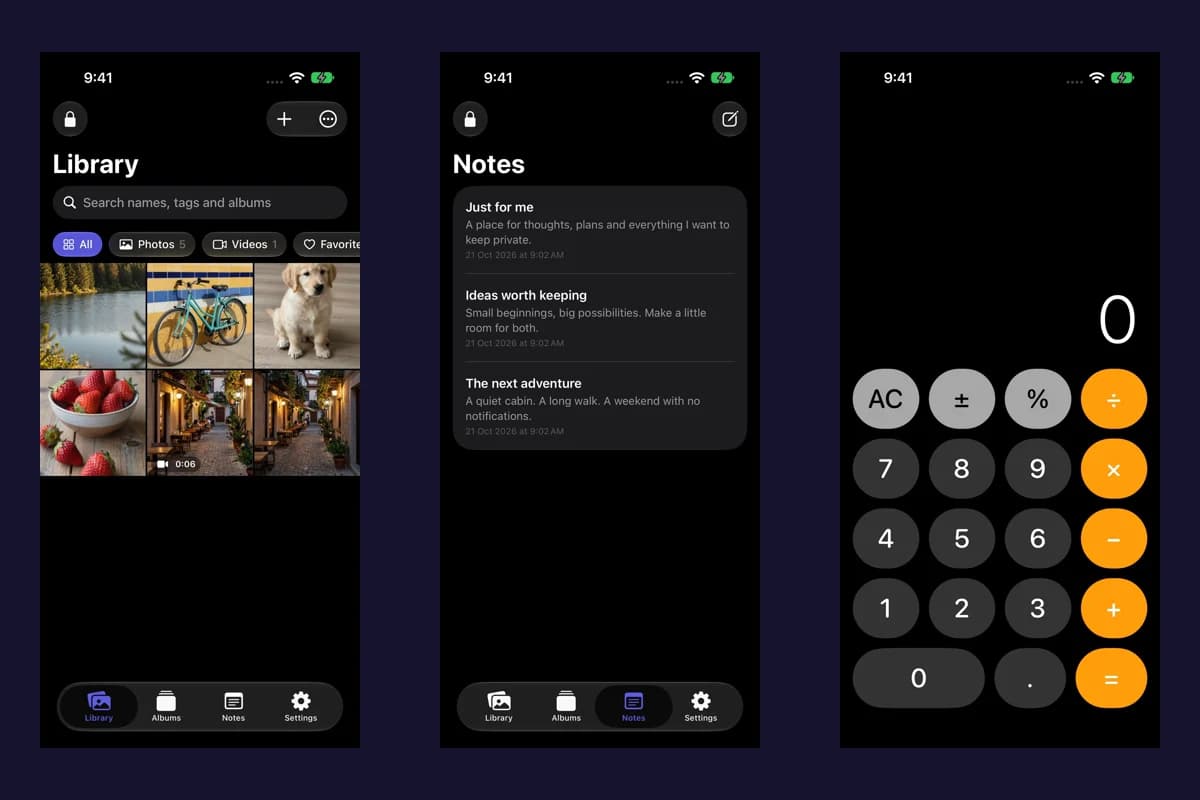
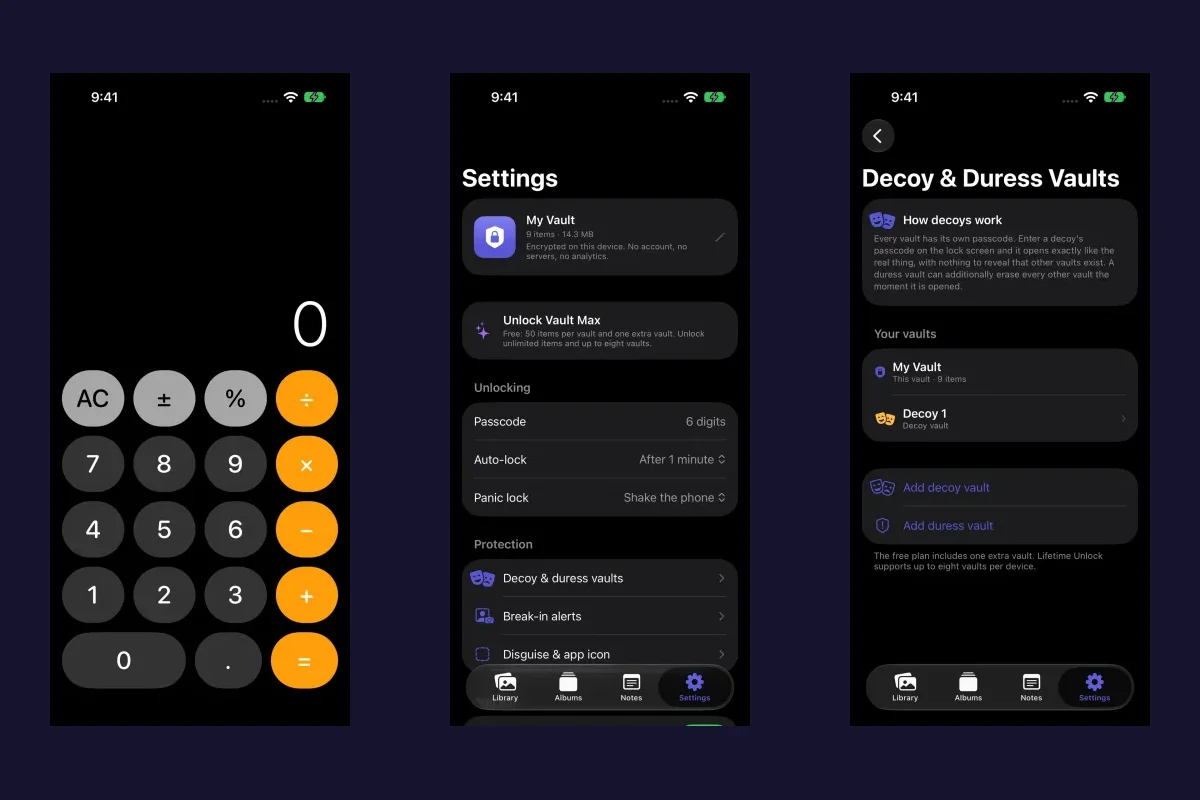
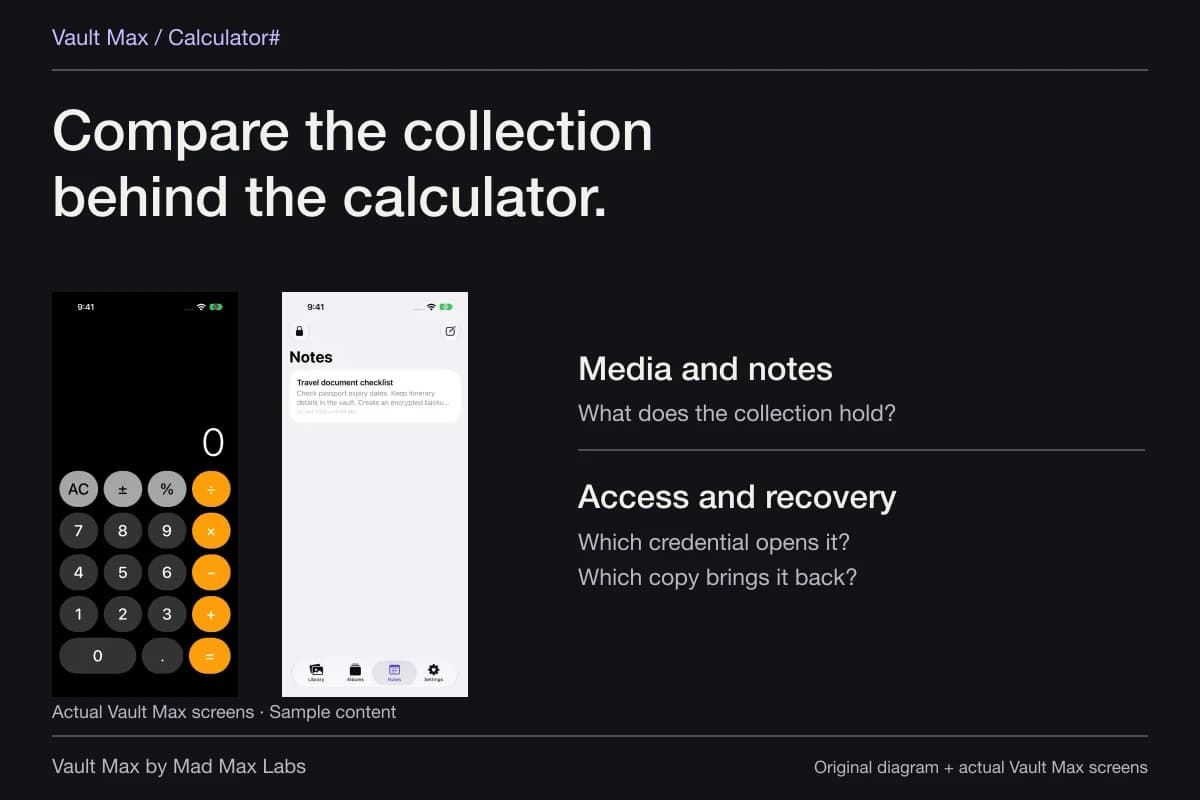
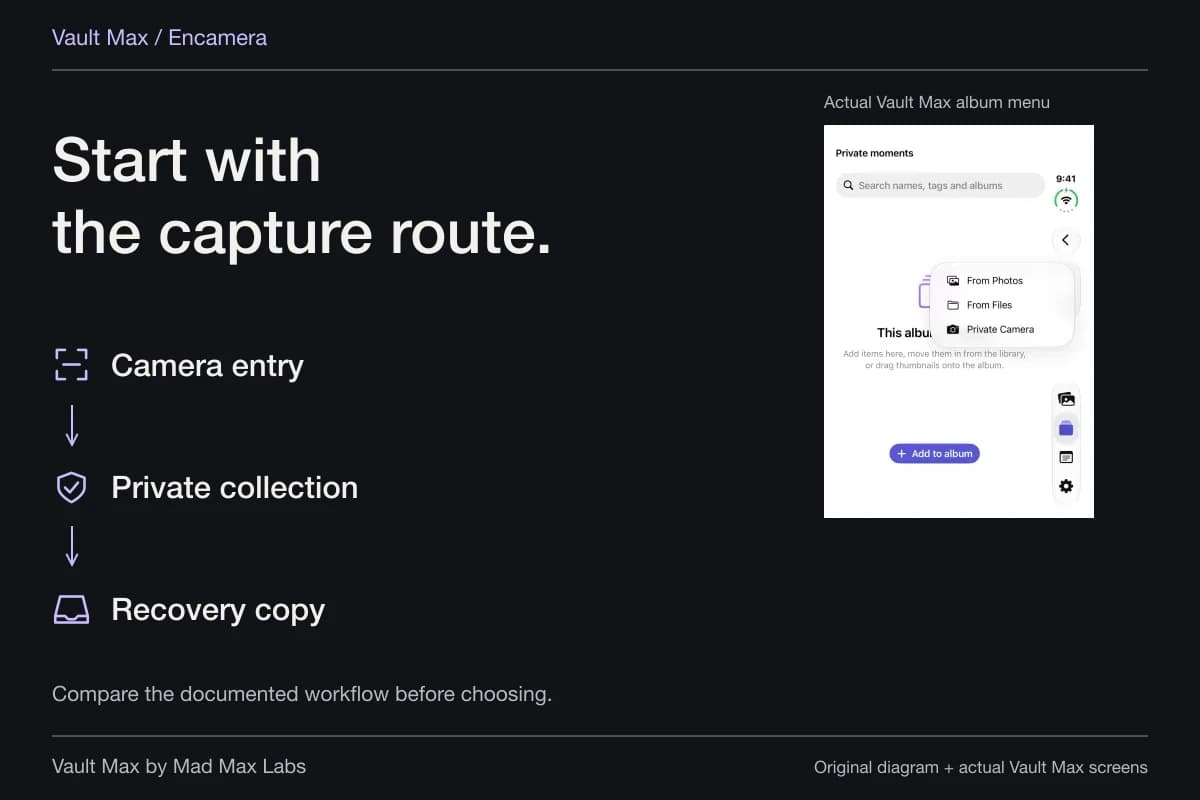
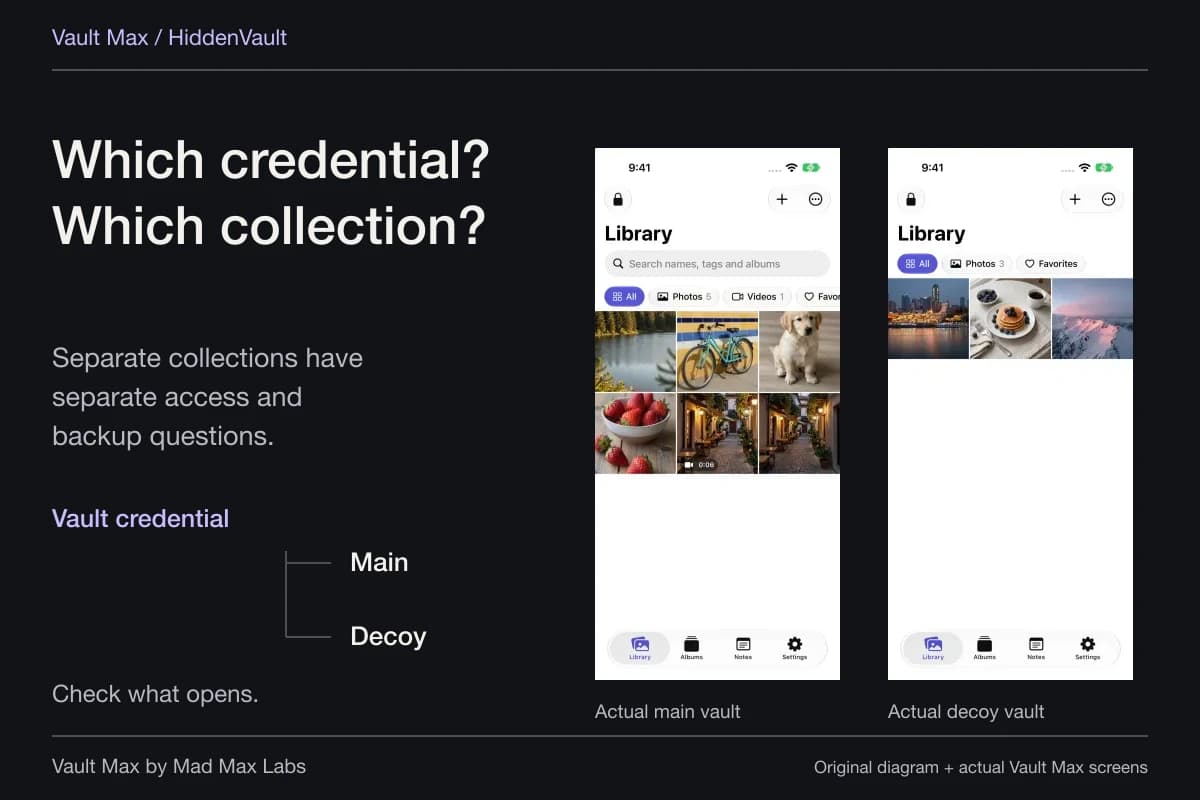
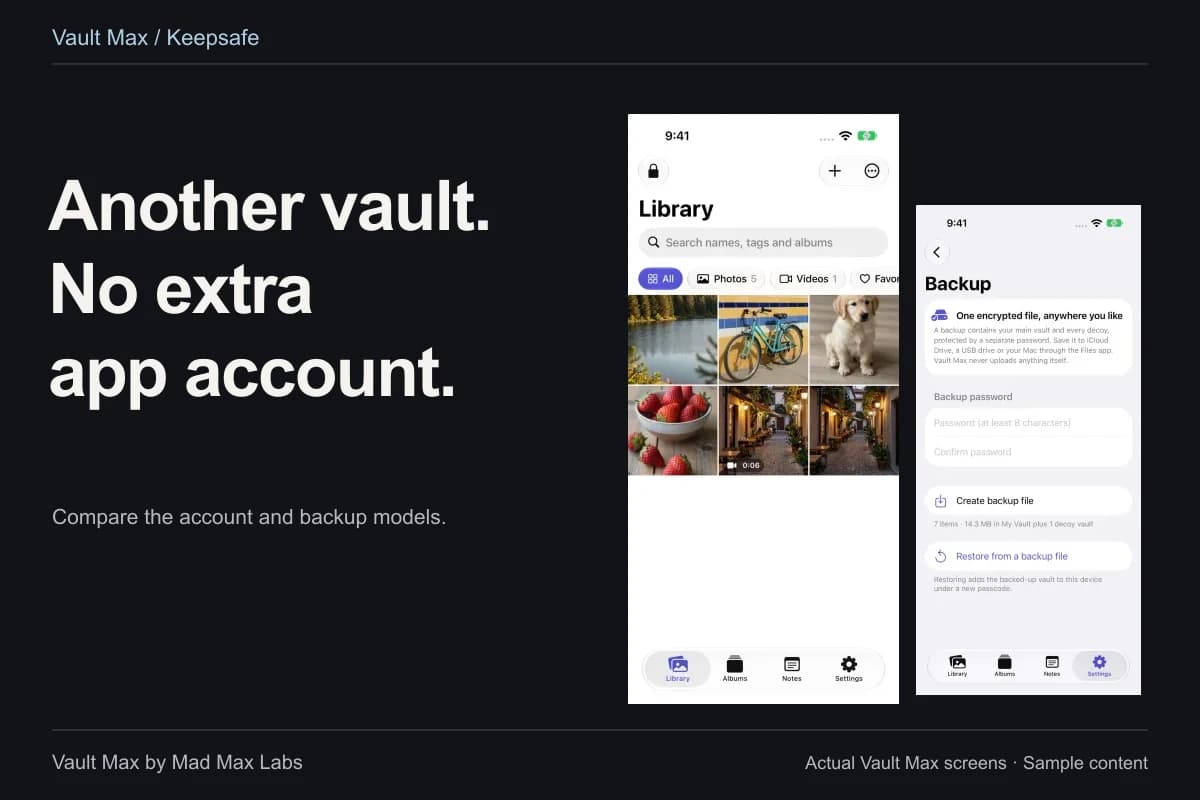
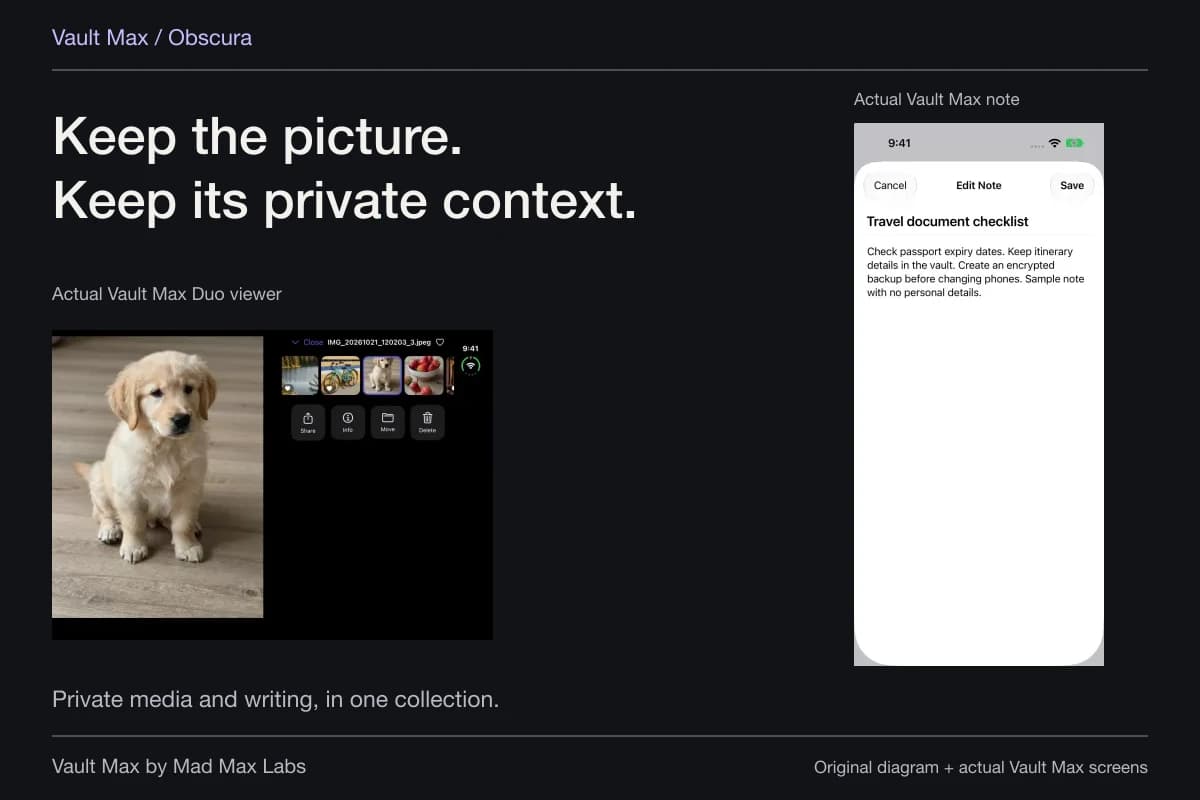
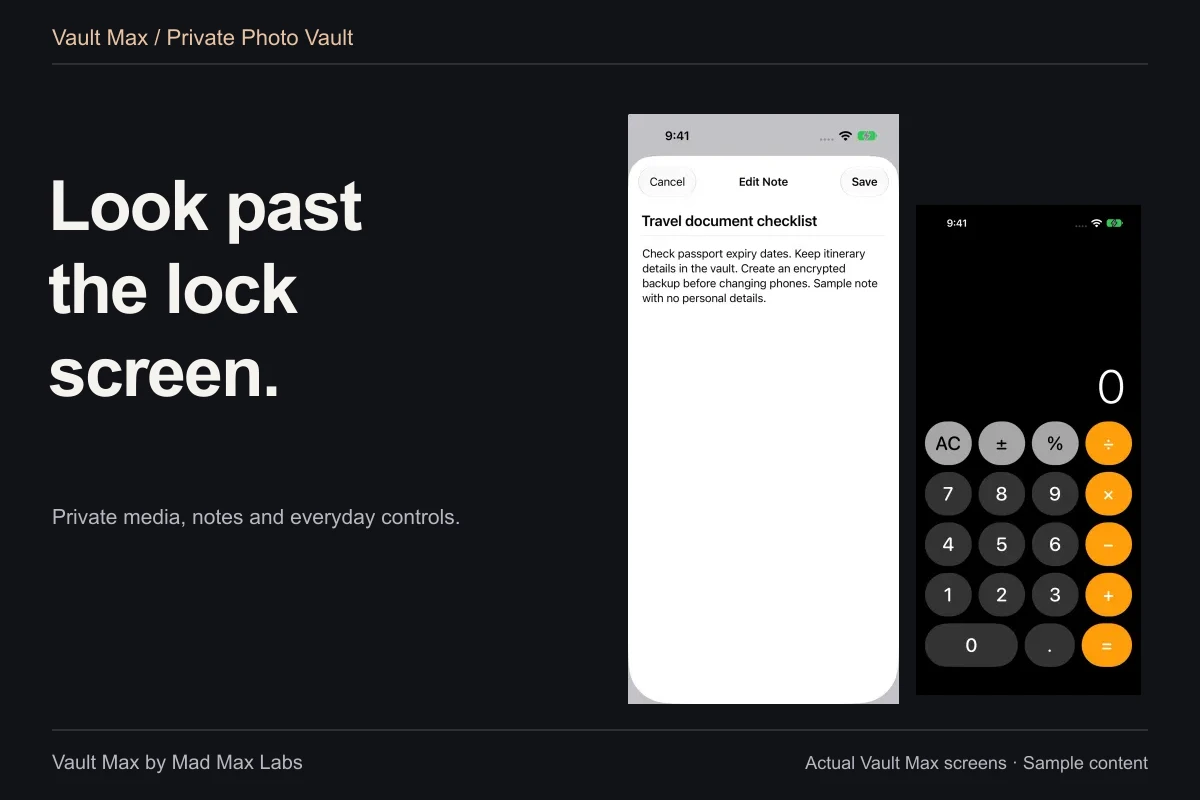
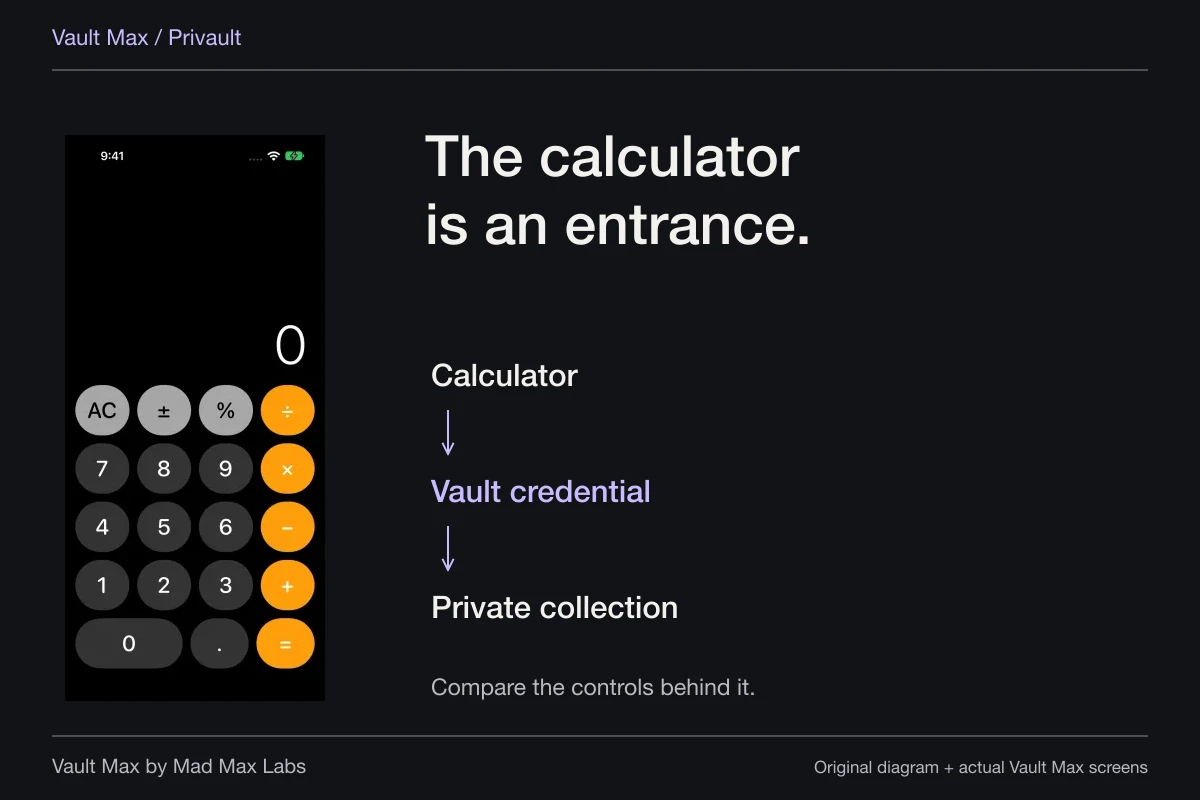
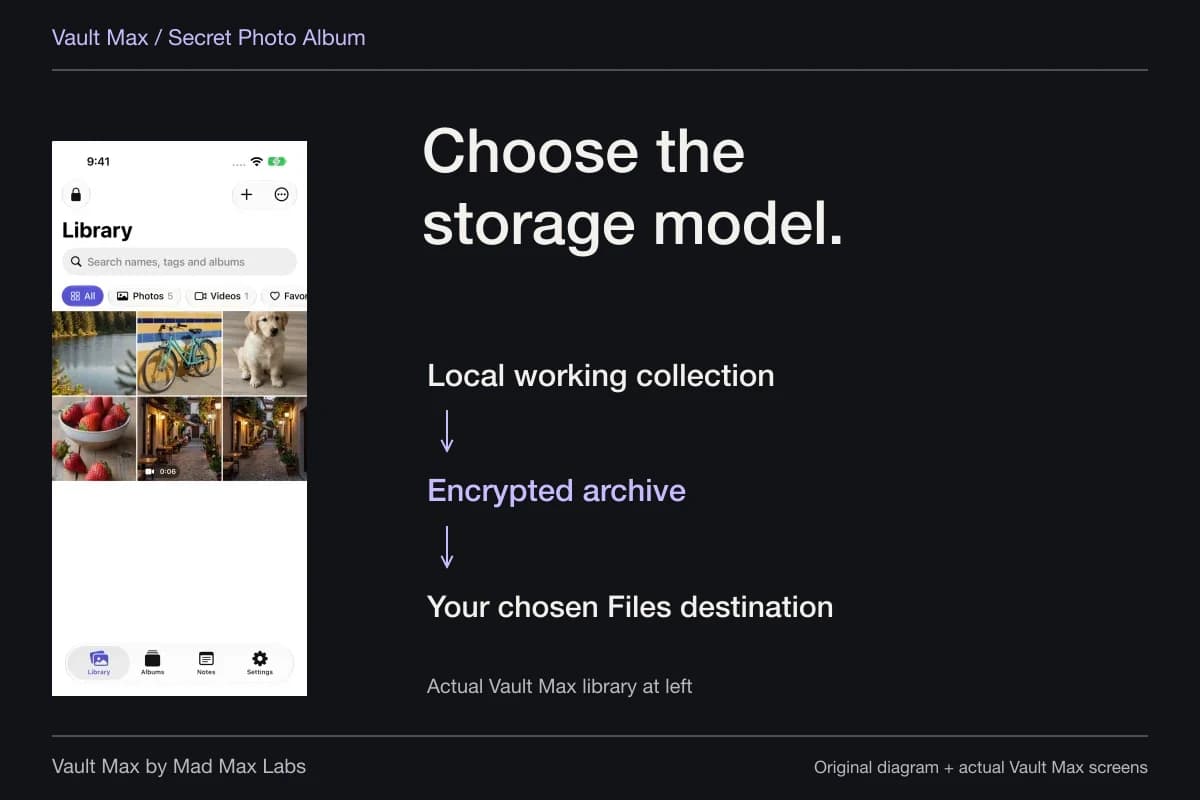
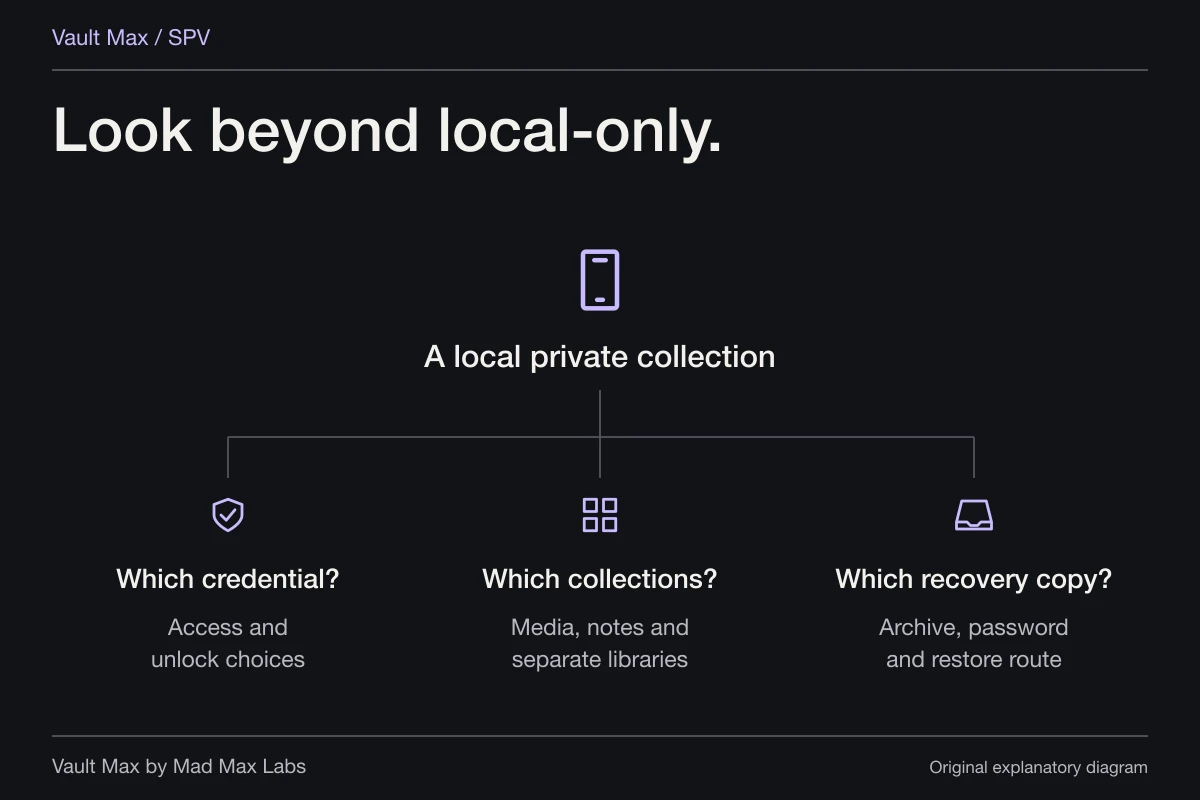
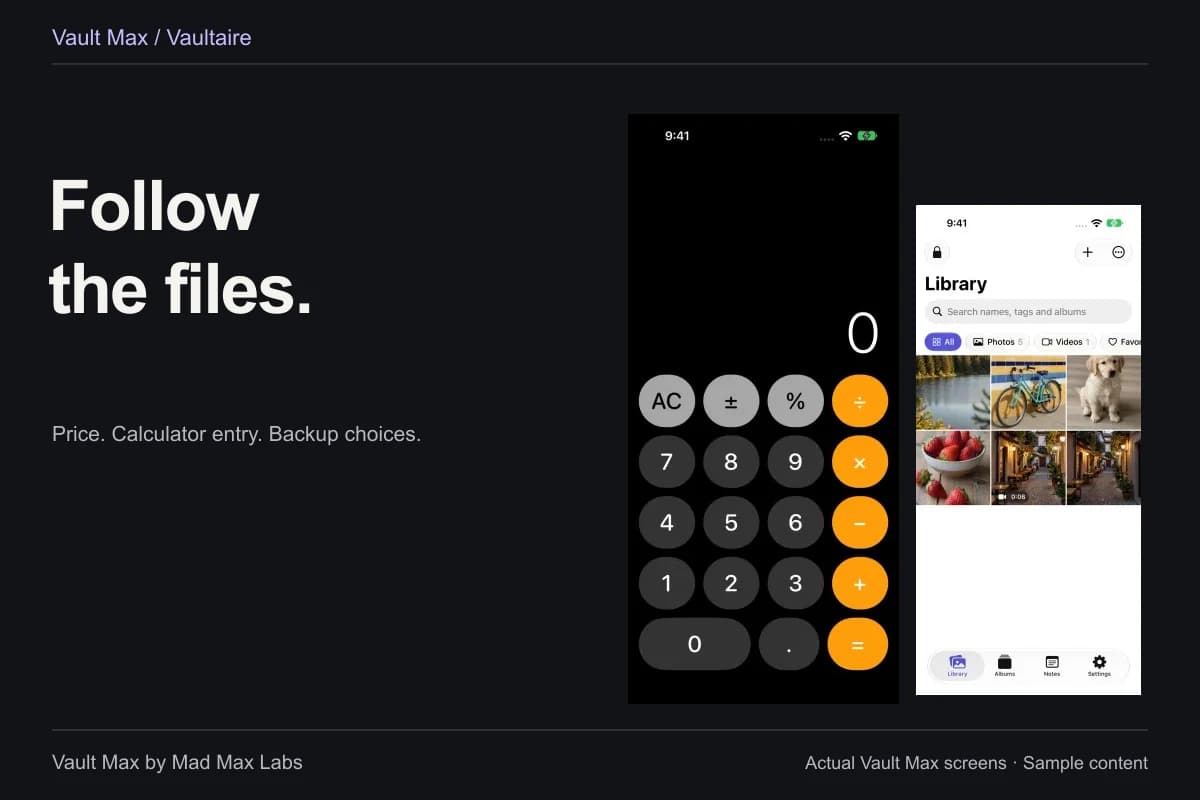
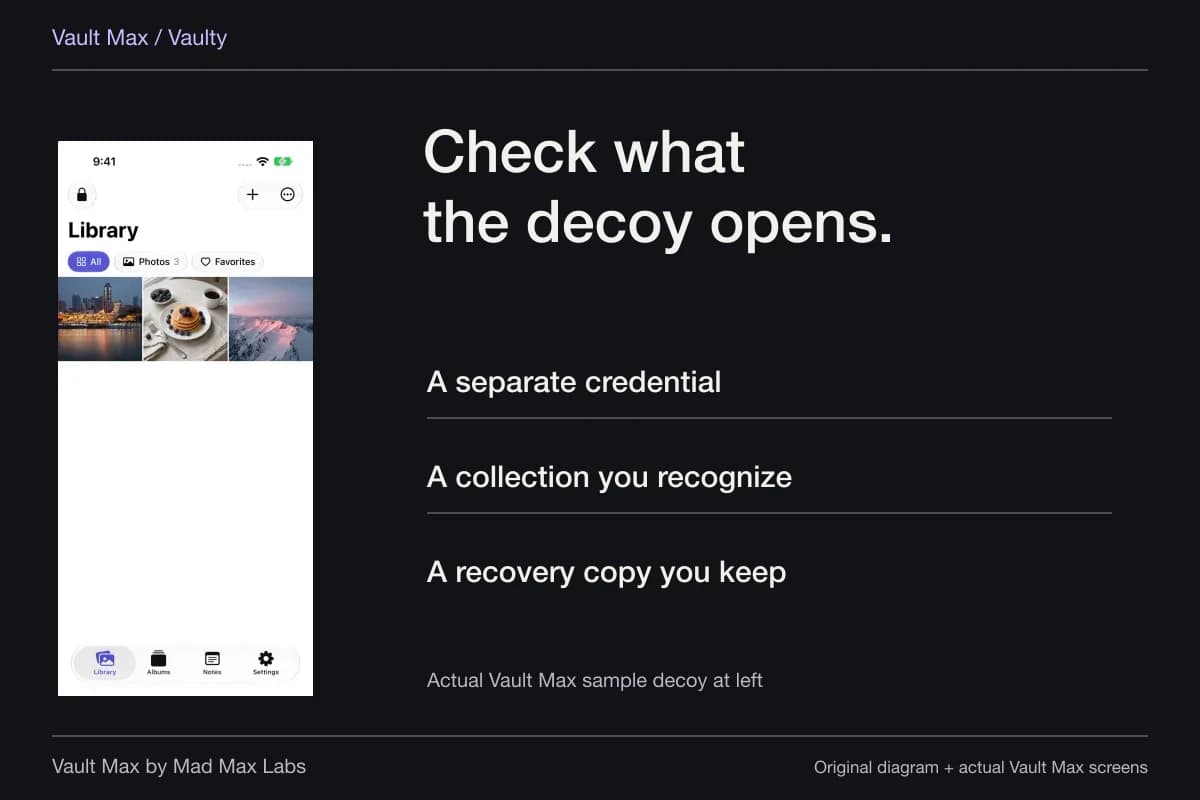
After finding the useful record, decide whether ordinary Photos browsing is its right long-term home. Vault Max can hold selected images alongside files and encrypted notes in a local collection with its own credential. Mad Max Labs makes Vault Max; it does not administer Apple's Utilities categories or promise to recover missing Photos content.
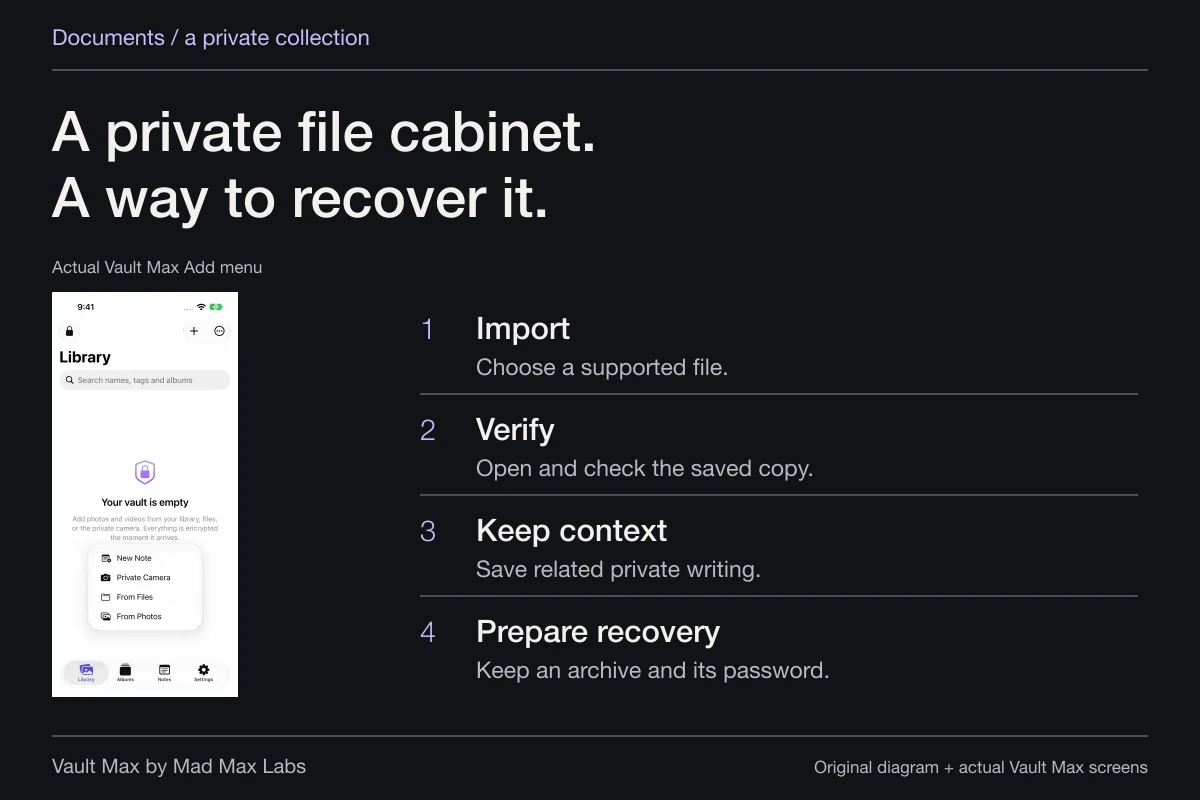
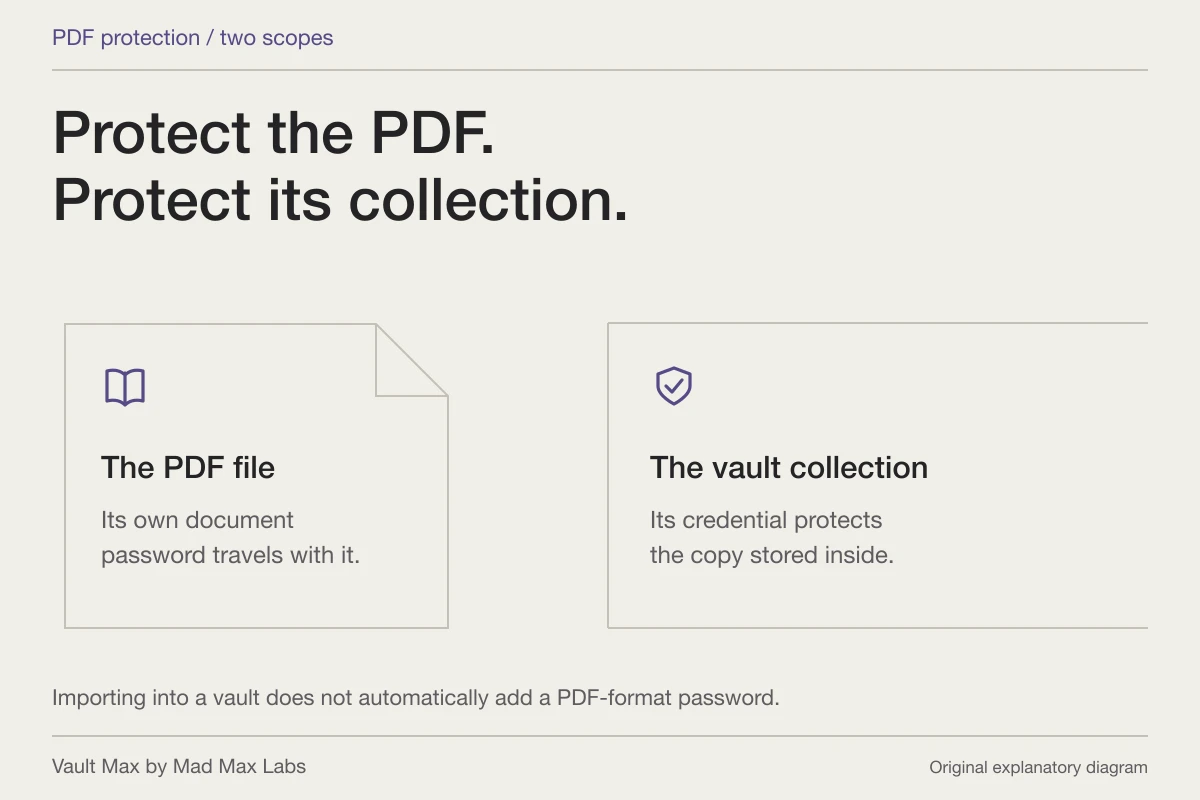
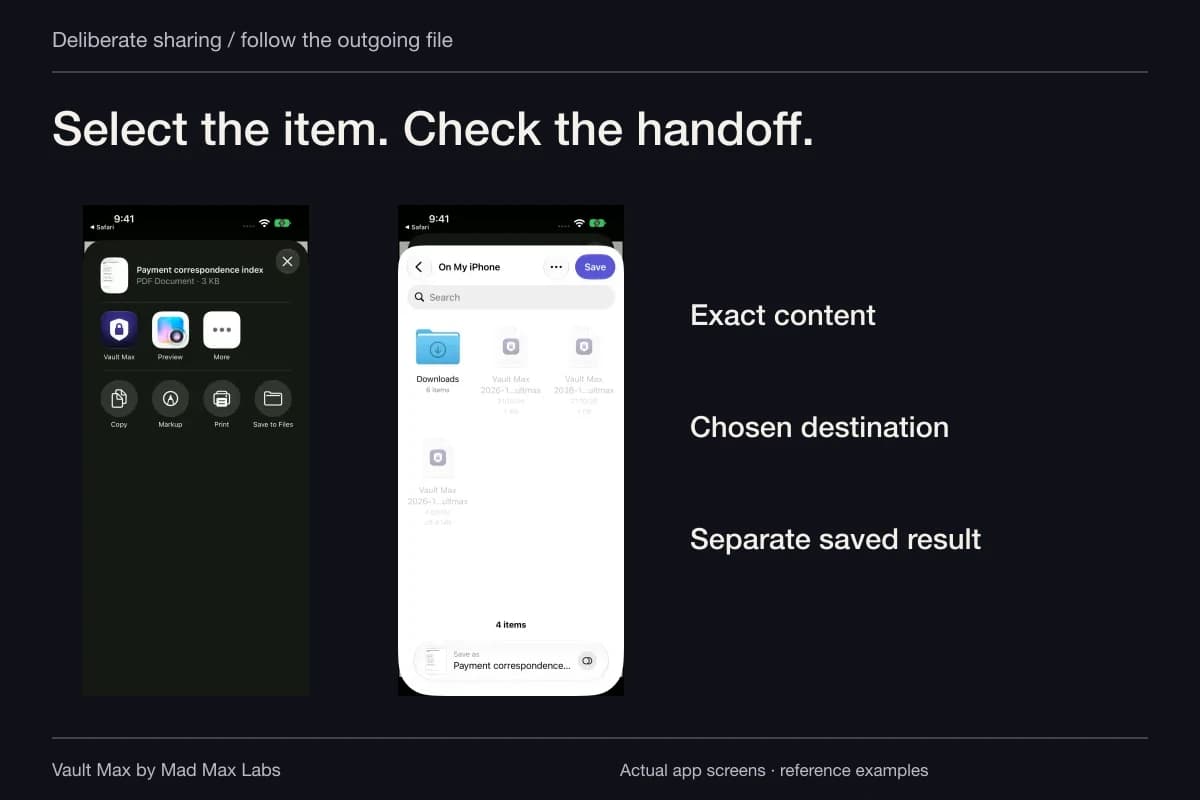
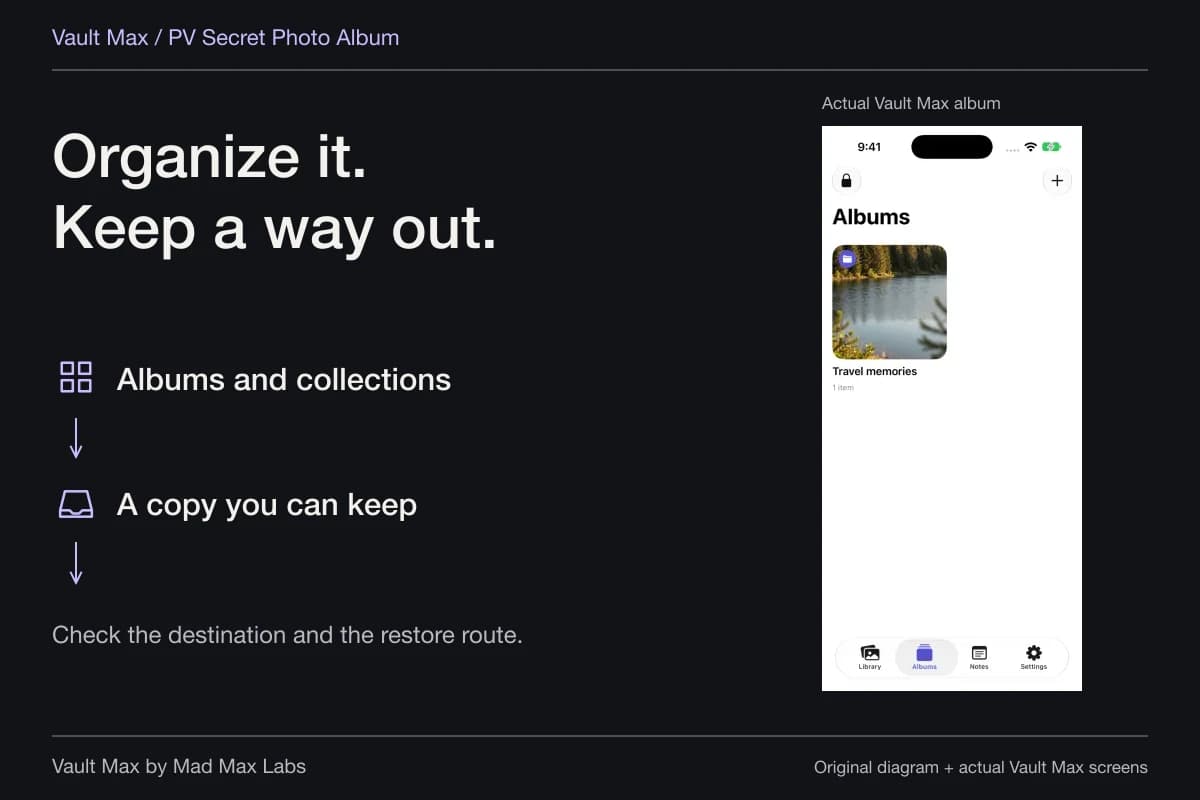
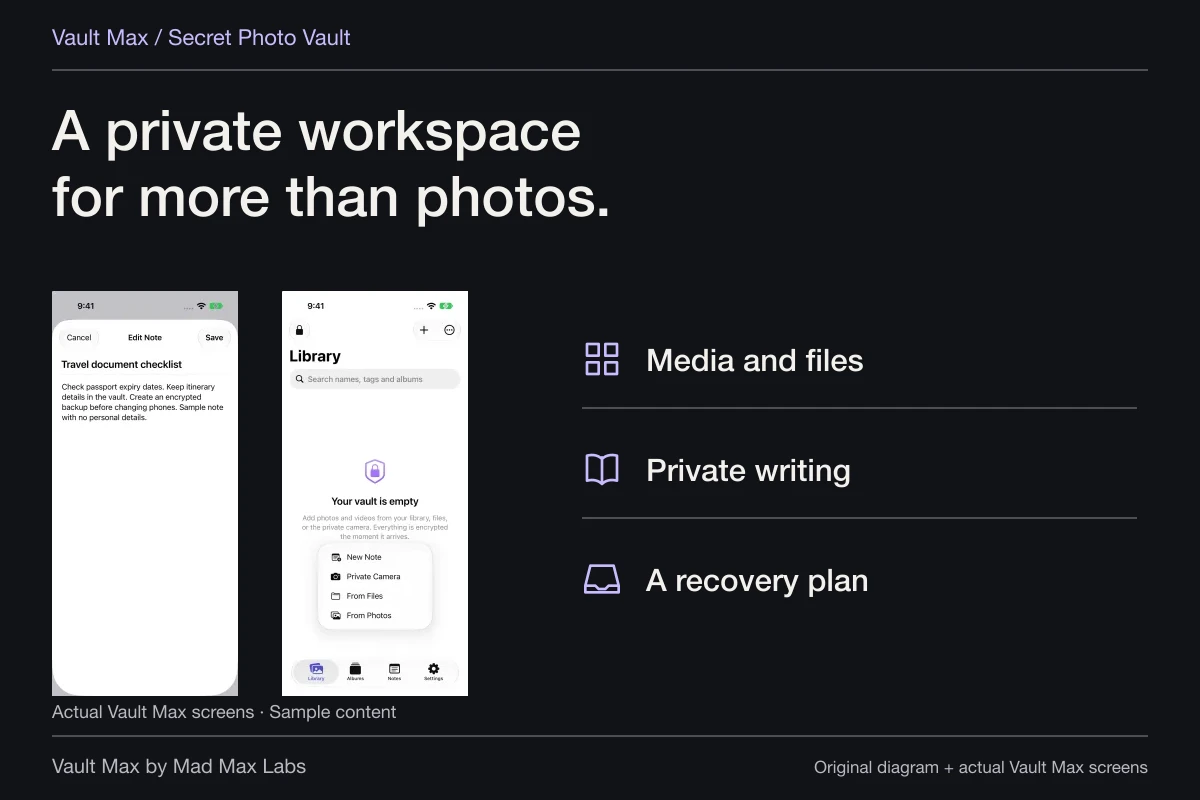
Import the selected image and open it in the intended vault. Add the surrounding context you need in a private note, or organize related records into an album. Keep the actual PDF as a file when that is what the task requires rather than substituting a cropped screenshot.
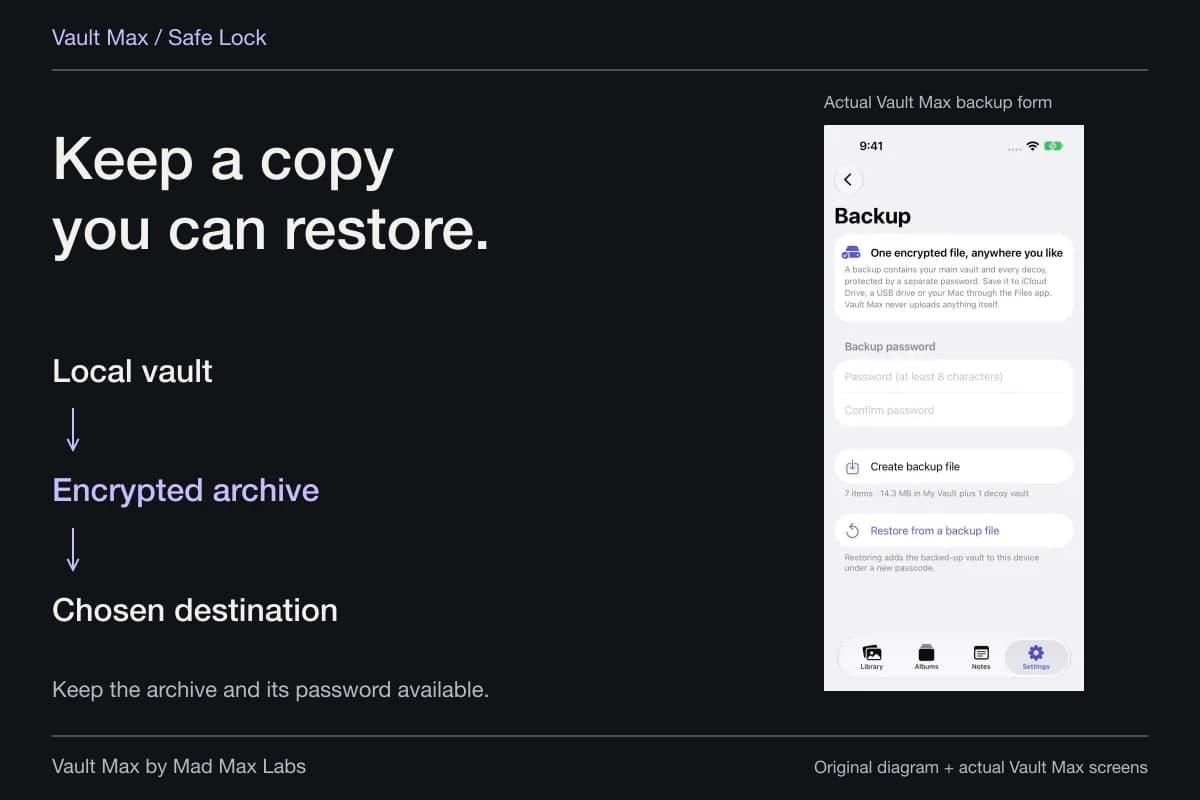
Vault Max with sample content. Use the controls to pause or replay.
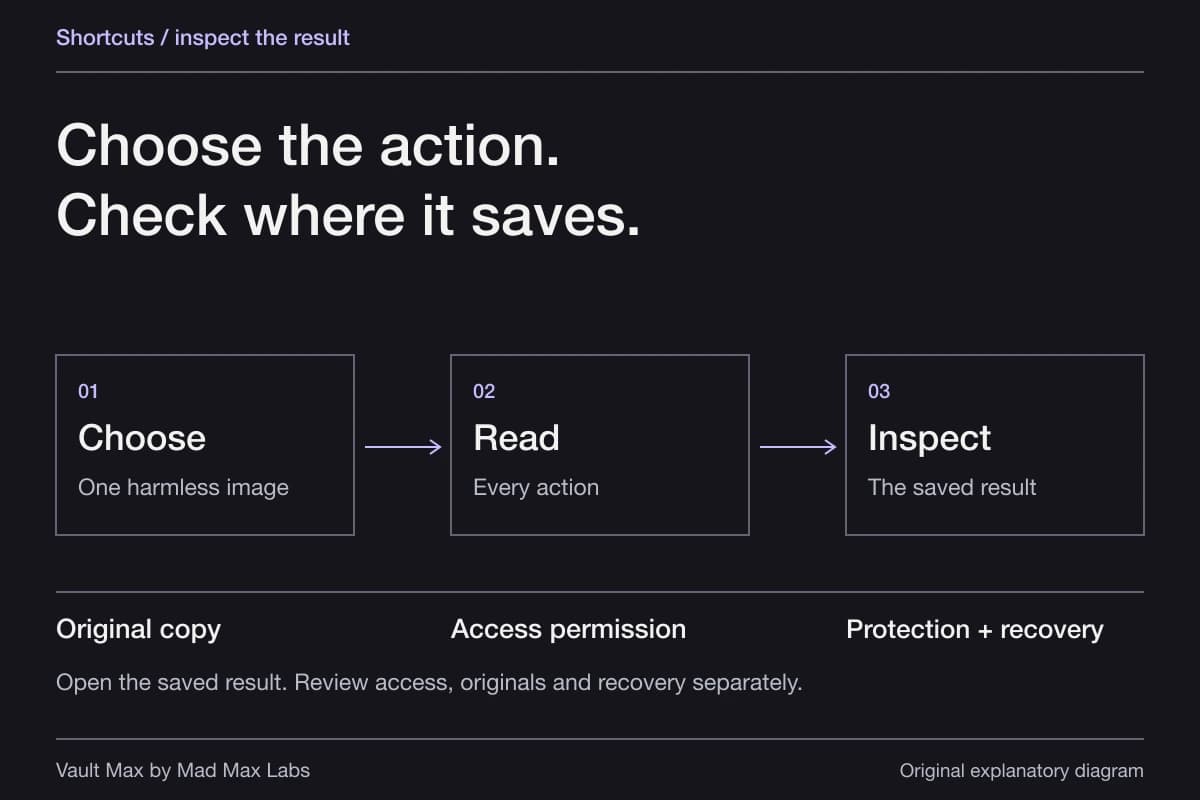
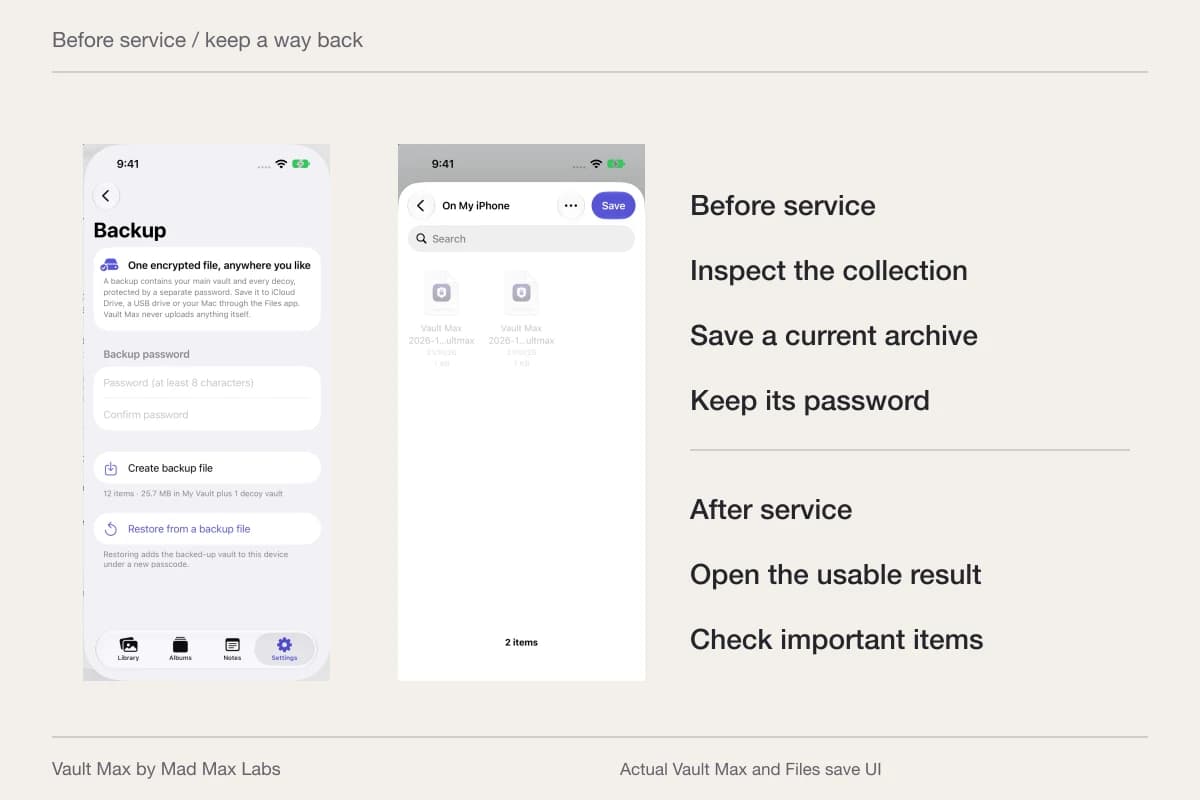
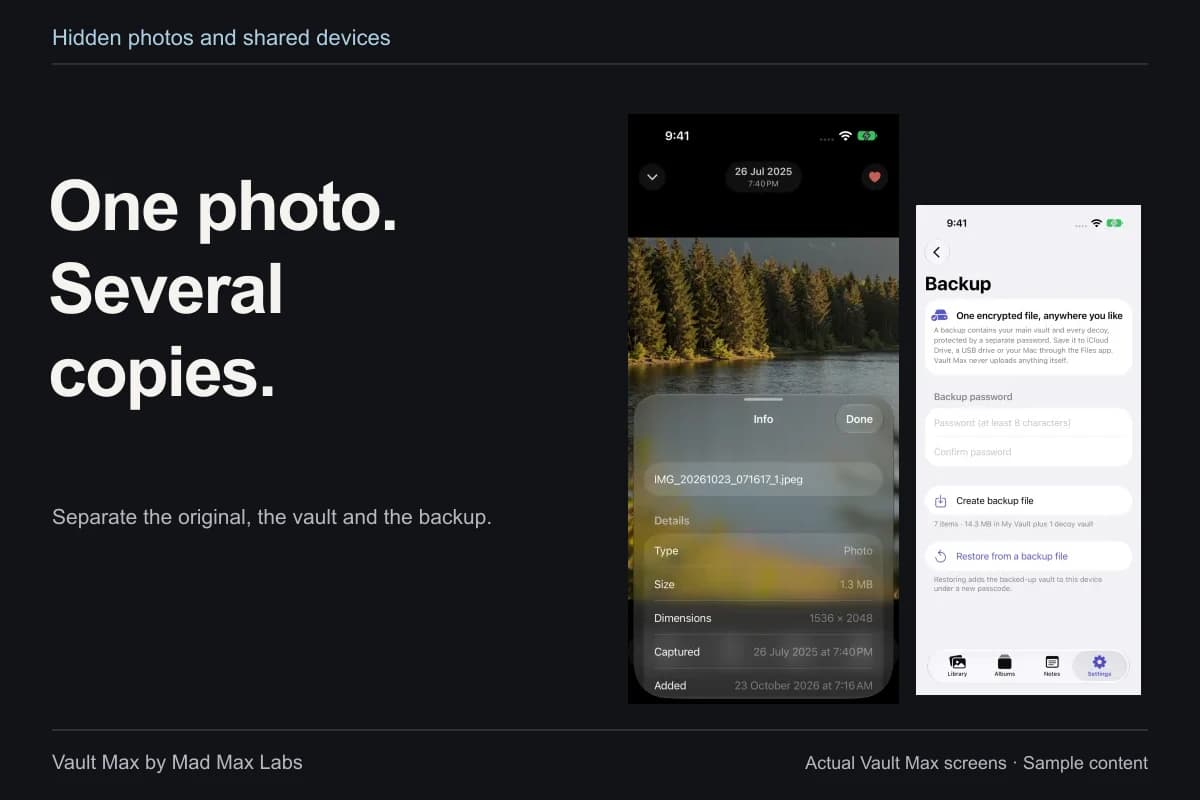
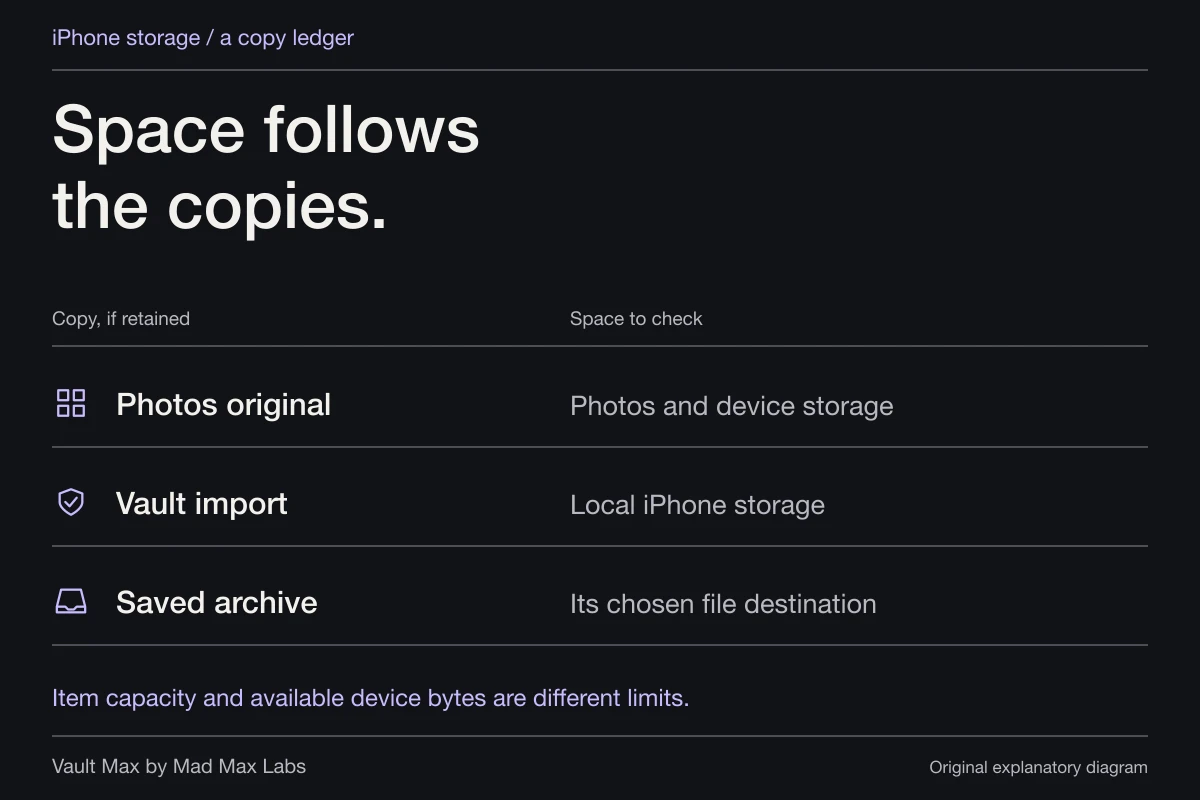
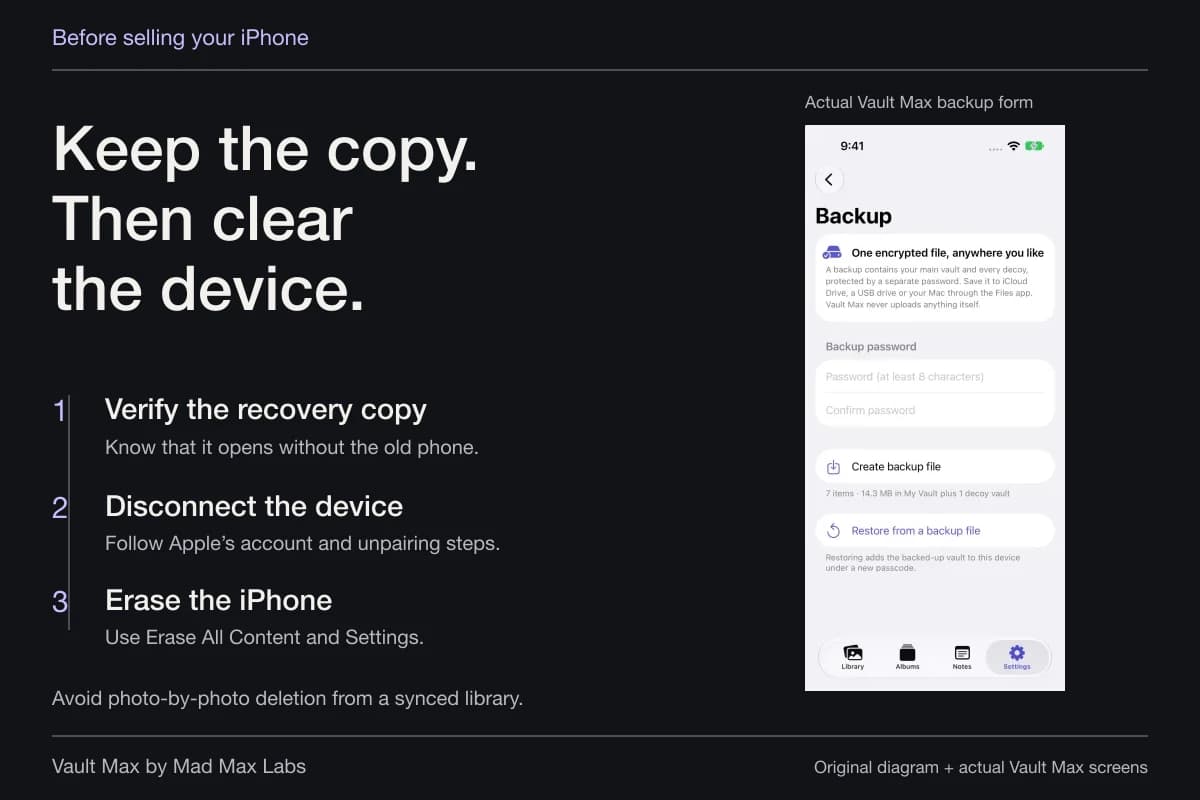
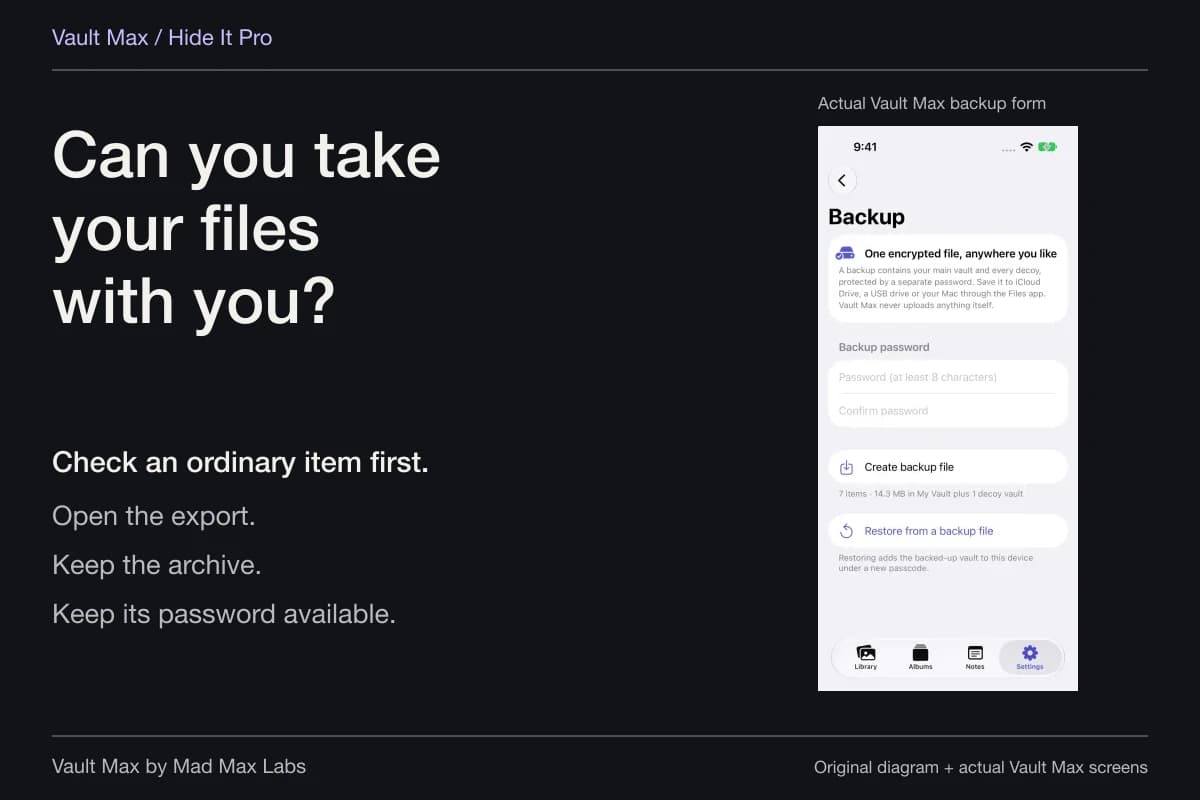
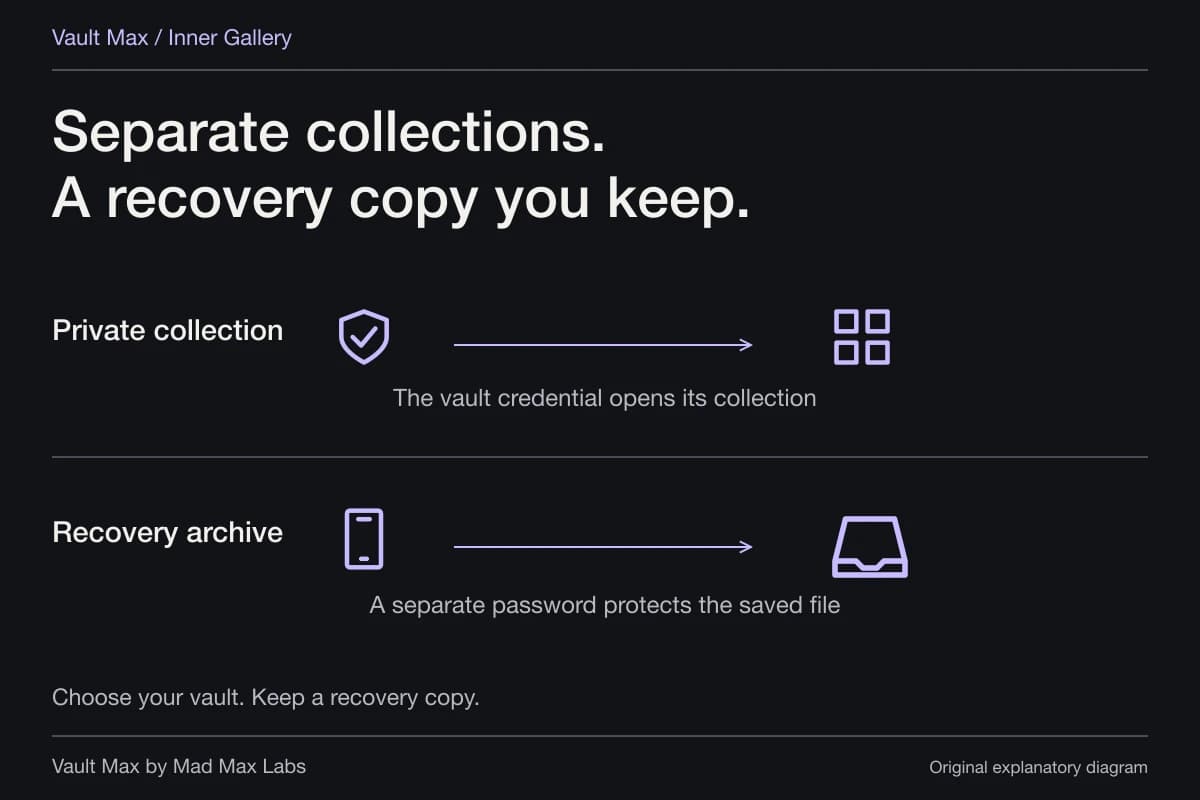
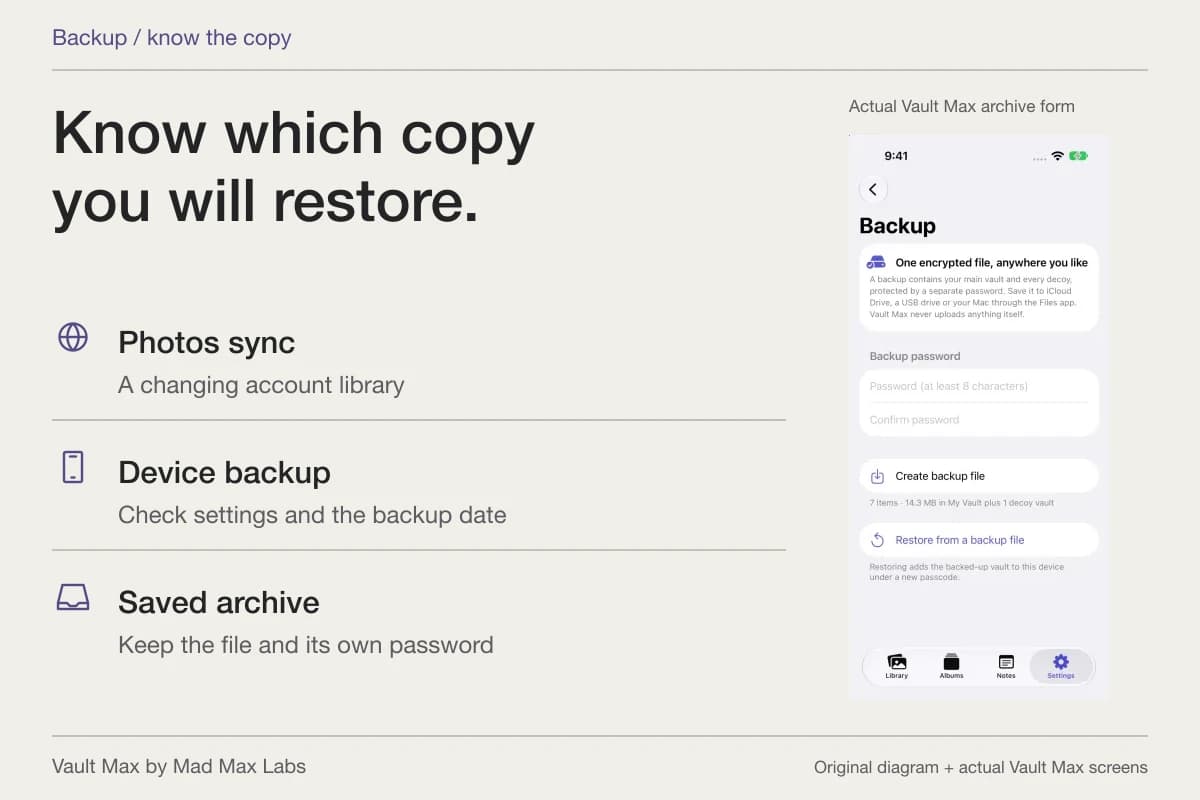
Before removing the Photos source, inspect the retained result and create a usable recovery archive. This turns a successful search into an organized record you can find again, with a clear distinction between the source library and the private copy.
- Find a saved image, a content category, a duplicate or a recovery item.
- Check the identifying details and completeness before editing or cleanup.
- Reordering a collection does not move or secure the files.
- Understand Merge, Recently Deleted and Recovered before confirming.
- Inspect the private import and recovery copy before removing a source.
Tap a box as you go. Checks reset when you leave this page.
Common questions
Where is Utilities in Photos on iPhone?
Apple's current guide says to open Photos, tap Collections and scroll to Utilities. The layout and collections vary by system version; use Apple's version selector when following older instructions.
Are all Utilities collections locked?
No. Apple identifies collections such as Hidden and Recently Deleted as locked by default. The Utilities heading is a place to find several kinds of collection, not a separate password around everything it contains.
Is Recovered the same as Recently Deleted?
No. Apple describes Recovered as a possible location for photos or videos that were not saved properly into the library. Its Permanently Delete action is permanent. Recently Deleted has its own deletion and recovery lifecycle.
Continue reading
More guides
Practical tips for your private library. Swipe or scroll to choose your next guide.
92 guides to explore