
Privacy in practice
Set up a spare iPhone for a separate job, without copying your whole life
Plan a spare iPhone or second number for a separate task. Check cellular setup, accounts, sync, private files and recovery without confusing separation with anonymity.
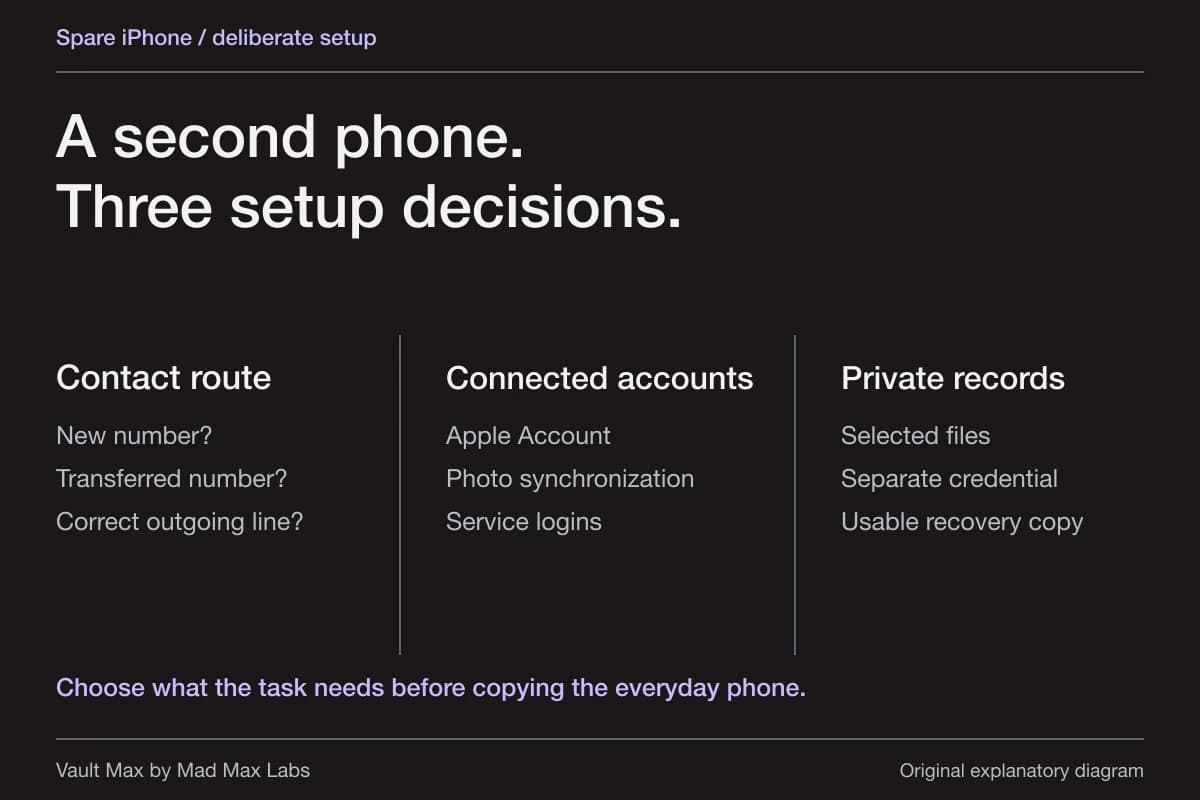
Decide whether you need a second number, a second device or a separate private collection before setting up a “burner” iPhone. A spare phone can keep a project from interrupting your everyday device. A second line can keep a personal number off a listing. Neither choice automatically separates the accounts, Photos library or files you bring with you.
For an ordinary example, imagine selling equipment over several months. You want a contact number for enquiries, a small set of listing photographs and a record of collection arrangements. You do not need your family photo history, personal conversations and every saved password to become part of that setup.
Try the decision
Prepare the spare phone without losing your only copy
Work through a sample handover plan. Mark only checks you have actually completed on your own devices.
5 checks remain
Next: make sure you know which copies I need. List the items on the old device and distinguish Photos, Files, vault contents and shared copies.
Keeping a spare gives you another device to maintain. Review its software updates, physical access and backup destination regularly.
A browser teaching example. These controls do not access your photos, change your settings, or save your choices.
Choose the smallest arrangement that does the job
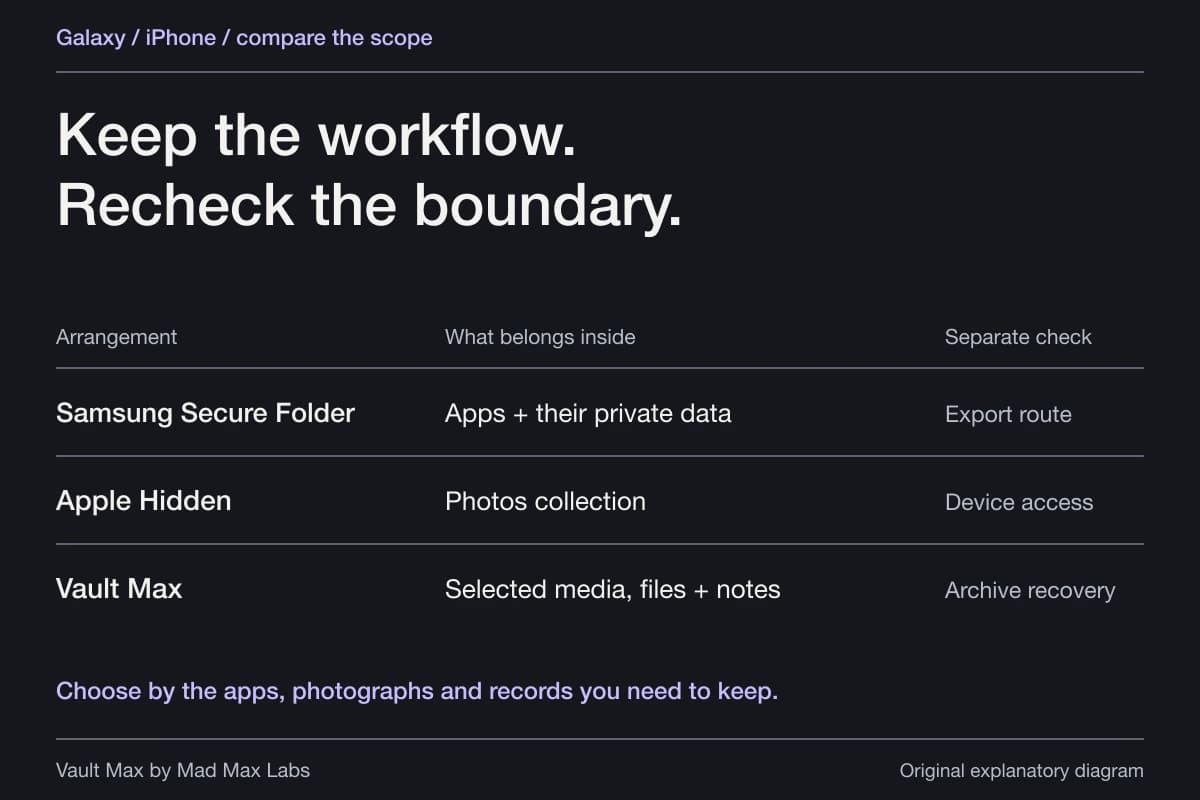
If the goal is a different contact number, Apple's Dual SIM guide explains using separate lines for personal and business calls on supported models. Check model, region and carrier support before buying service. Label the lines clearly and inspect which line a new call or message will use.
A second device is more useful when you need a physically separate workspace, a handoff device or a phone you can put away between sessions. That brings extra responsibilities: charging, software updates, access recovery and a plan for content that exists only there.
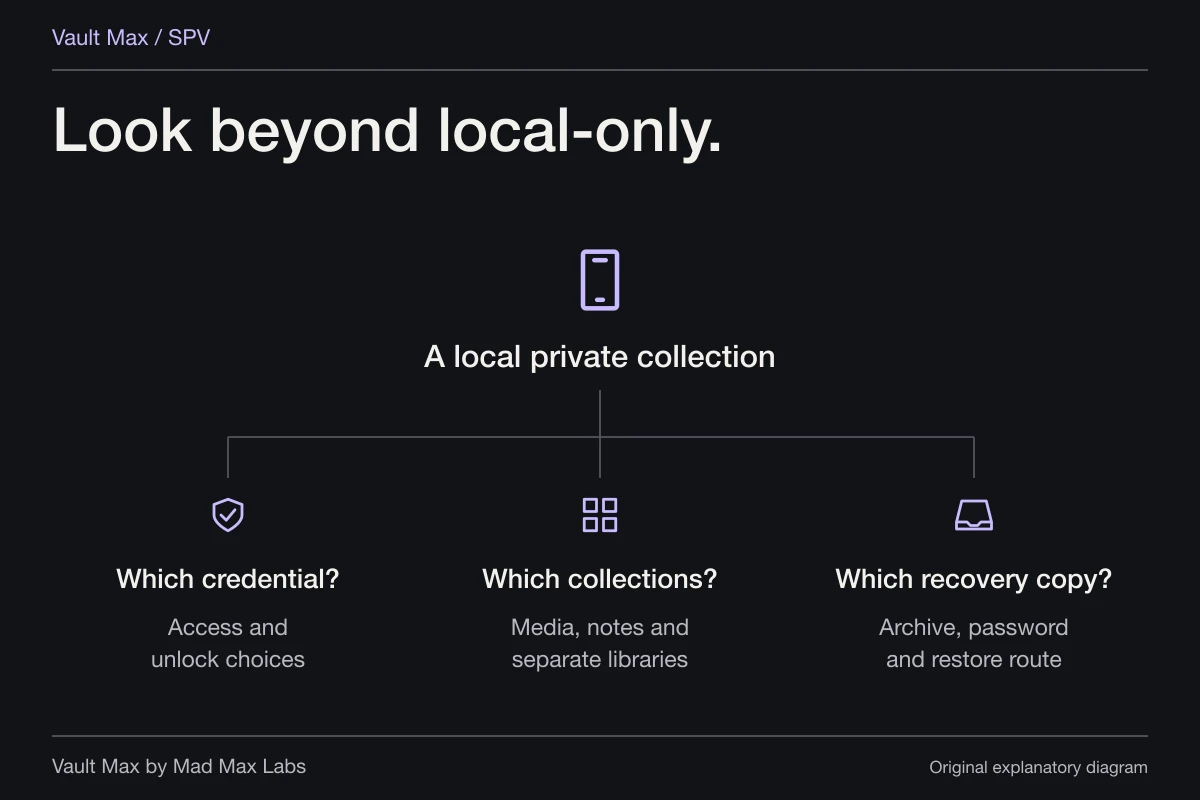
A separate vault solves a narrower storage task on a device you already use. It can keep selected media and notes behind their own credential, while leaving the phone number and the rest of the operating system unchanged. Choose the arrangement according to the actual problem instead of paying for a second phone when the job is simply storing a few private references.
Set up cellular service deliberately
Apple's cellular setup guide documents supported eSIM activation methods, including carrier activation and a carrier-provided QR code. On a configured phone, the route begins in Settings → Cellular → Set Up Cellular or Add eSIM. Confirm with the carrier that you are adding the intended new line.
Adding a new number and transferring your existing number are different operations. Apple notes that when an existing number is transferred to a new iPhone, it stops working on the previous iPhone. If your intention is to keep your everyday number working there, do not select a transfer merely because it is offered during setup.
Review the plan's renewal, registration and account requirements with the provider. The word “burner” does not define those terms. Keep the service's recovery access somewhere you can still reach if the spare phone stops working, and check whether any essential account now depends on a number you may later discontinue.
Start device setup with a content plan
For an unconfigured spare iPhone, Apple's setup instructions include Set Up Without Another Device and Don't Transfer Anything when you are not bringing data across. Read the actual setup choices rather than automatically accepting a full copy of the everyday device.
Do not erase a working phone just to follow a cleaner-looking example. First inventory what is already on it, identify usable backups and determine whether anything belongs to someone else. A previously used phone can contain important local files even when its Home Screen looks empty.
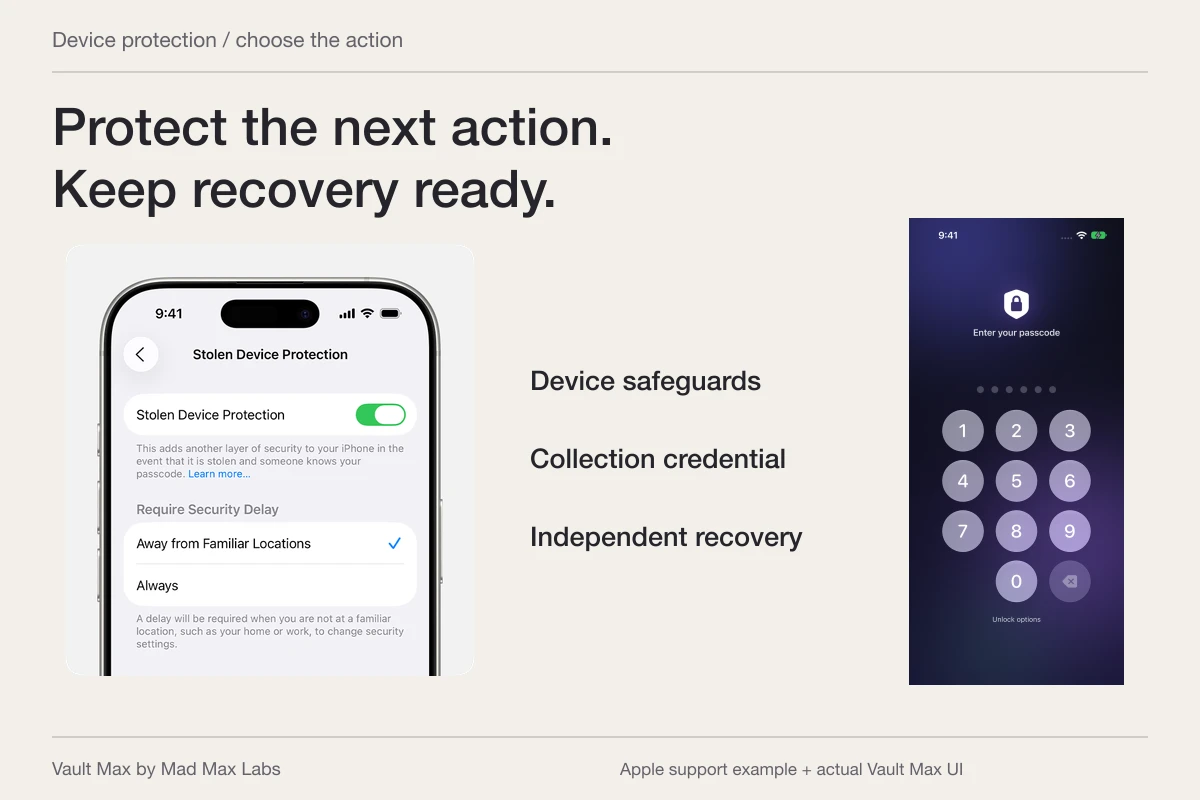
Choose a device code you can retain securely. Think through who will use the spare and whether anyone should know its code. If the phone will be handed to a colleague for a particular task, do not populate it with material outside that task merely because a migration tool can copy it.
Check the accounts that can reconnect your data
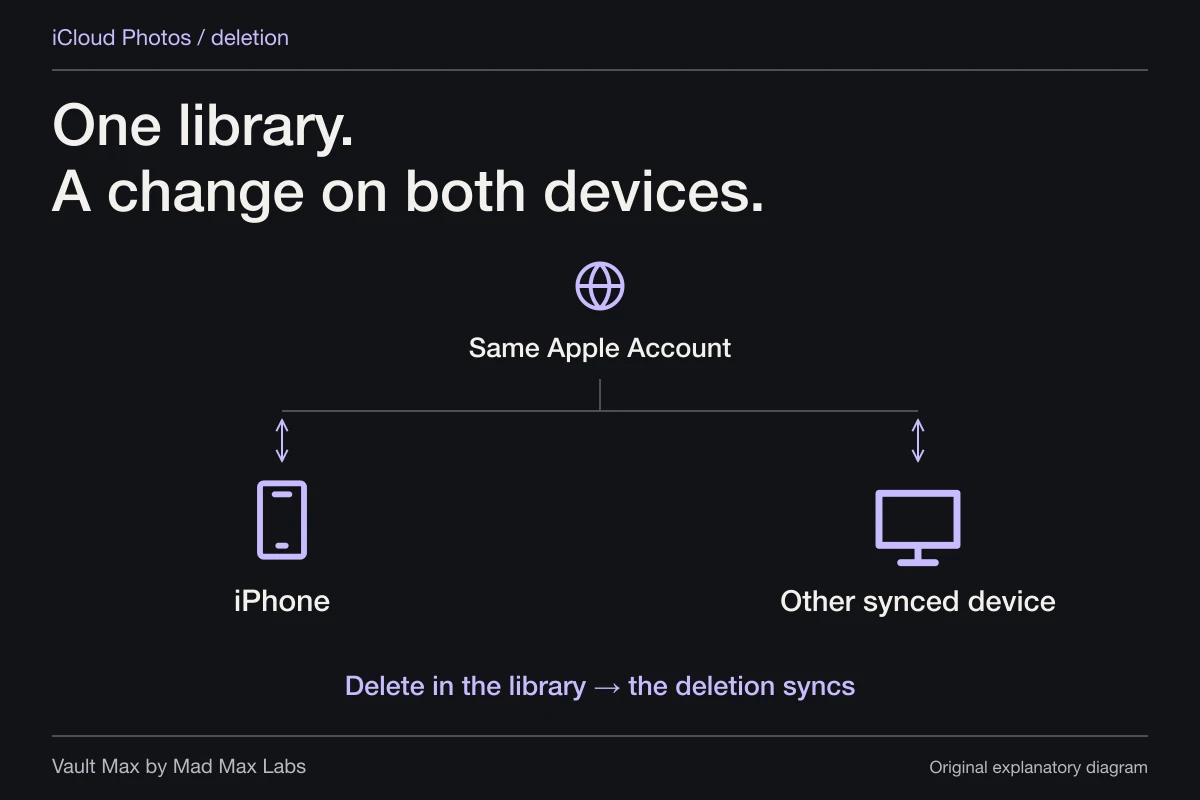
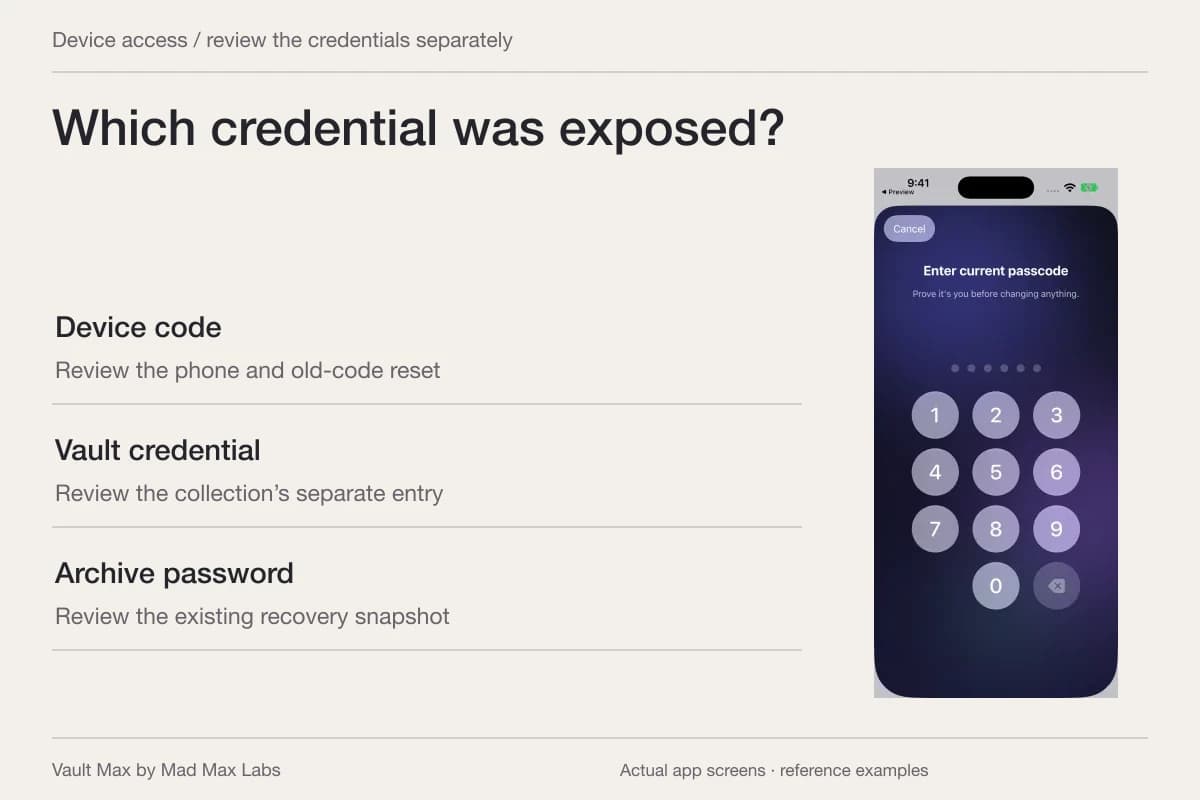
After setup, inspect the account shown in Settings and the accounts inside the apps you intend to use. An app login, a carrier account and the Apple Account are separate decisions. A second piece of hardware can still connect to a familiar cloud library when you sign into the same services.
Apple's iCloud settings guide explains choosing which apps sync and store data through Settings → your name → iCloud → See All beside Saved to iCloud. Review the actual enabled apps rather than inferring sync from the device's nickname or second number.
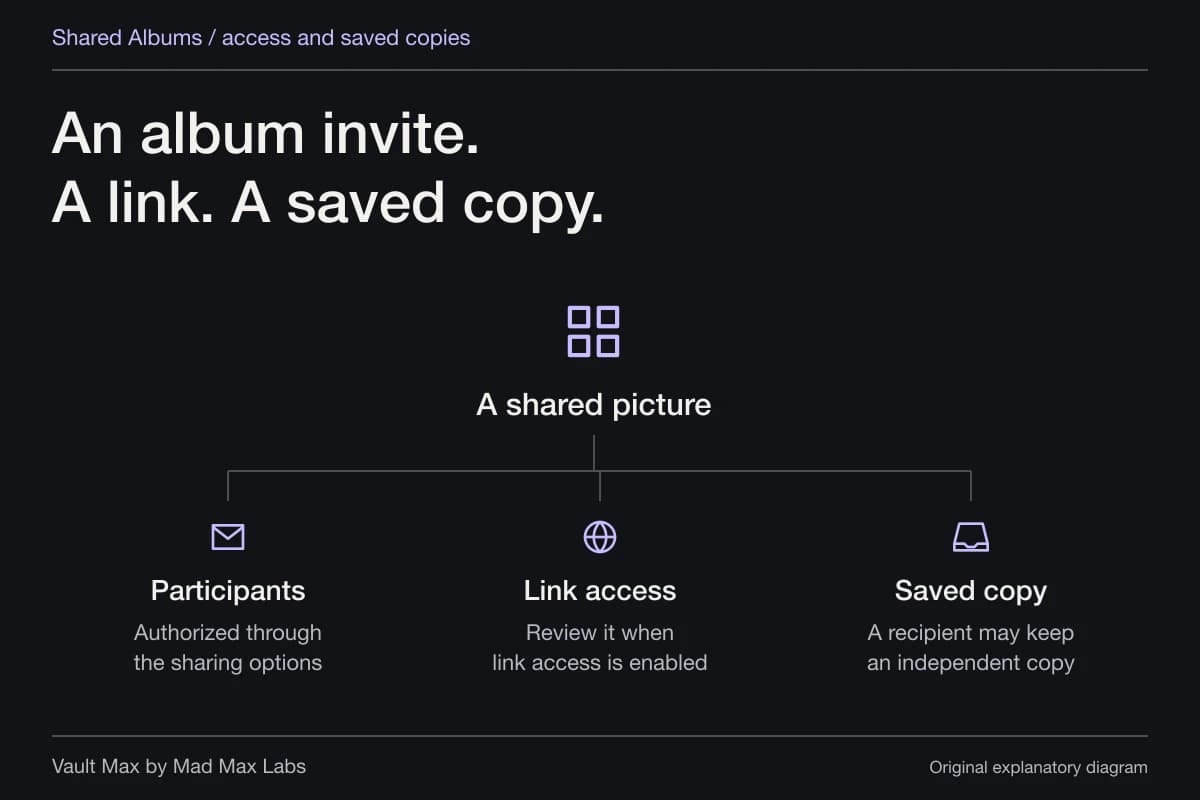
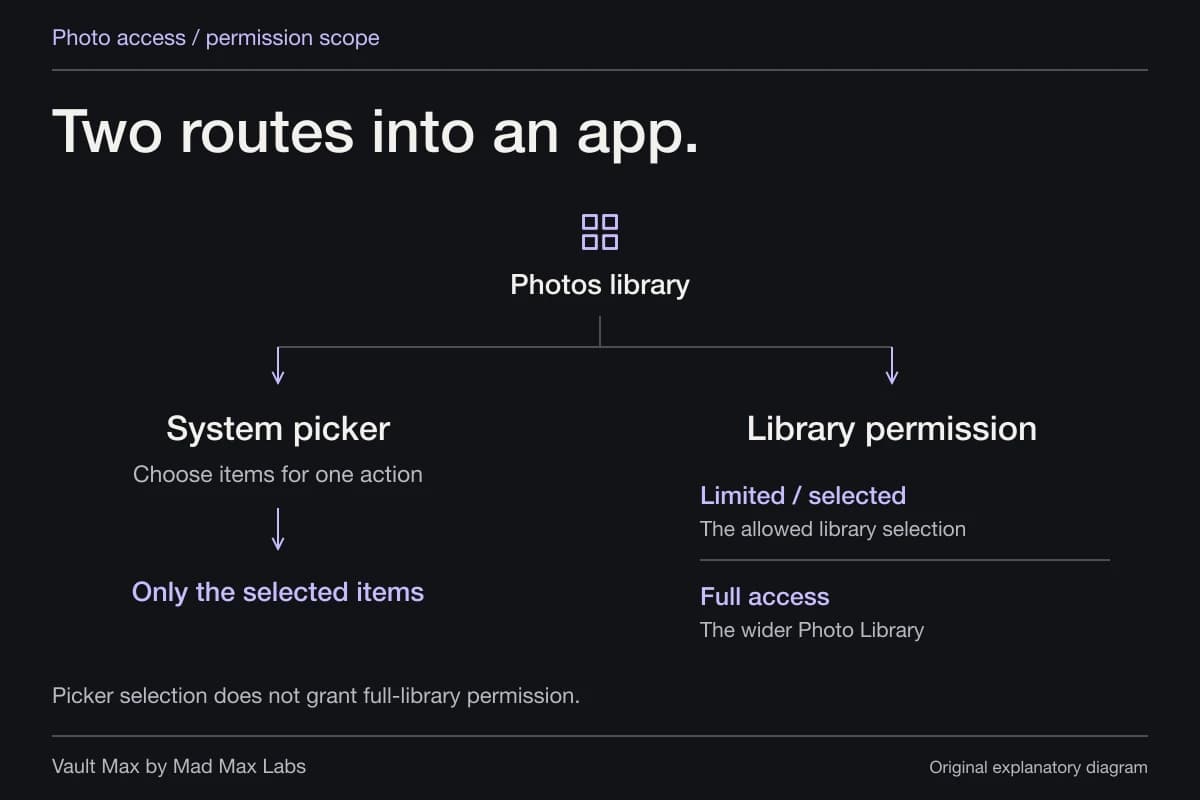
For photographs, inspect the Photos account and library arrangements before adding sensitive content. Our iCloud and shared-device guide explains why the copy and account matter. Avoid deleting an unexpected library photo until you know whether that deletion would affect another connected device.
Bring only the references you need
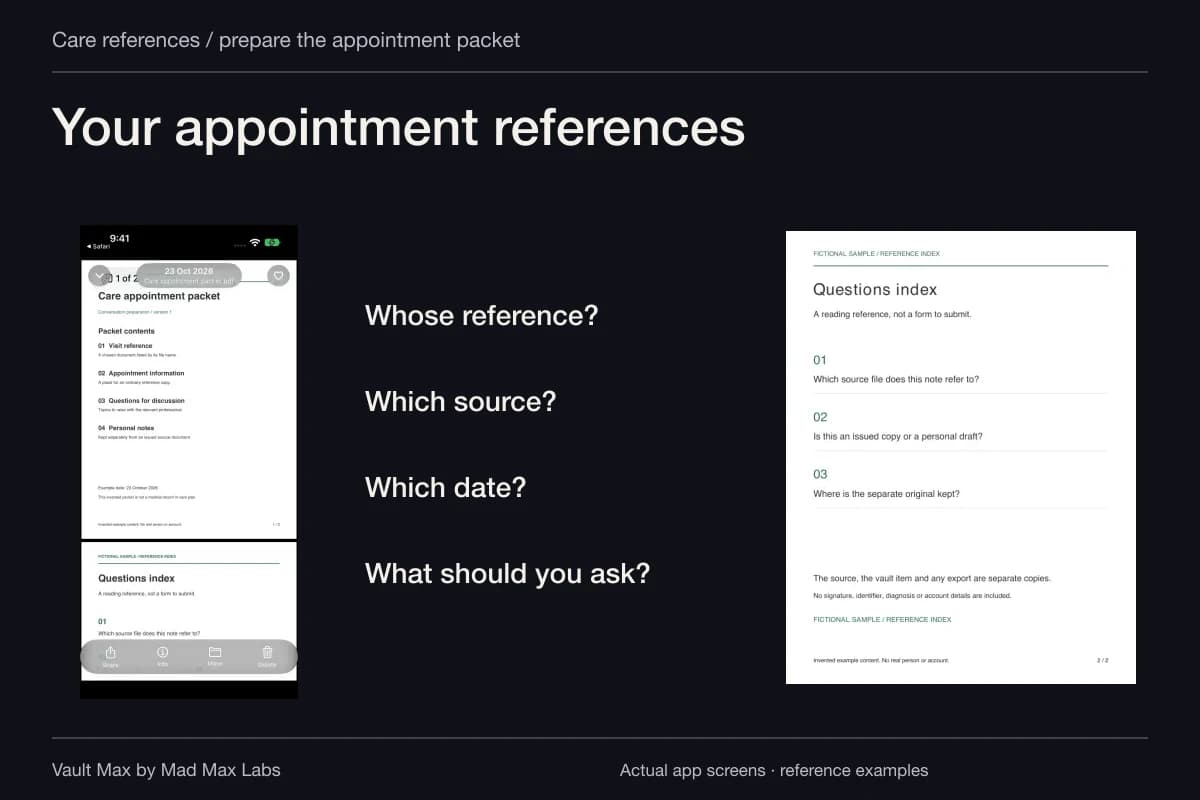
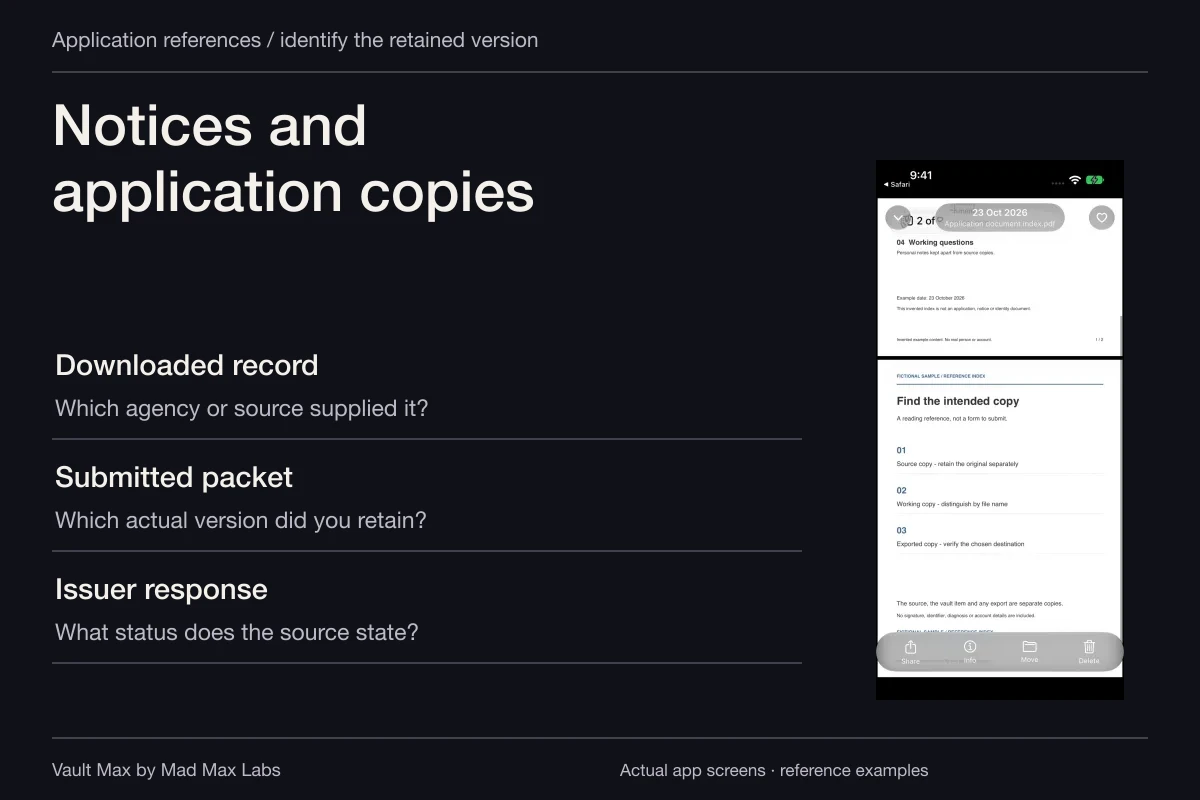
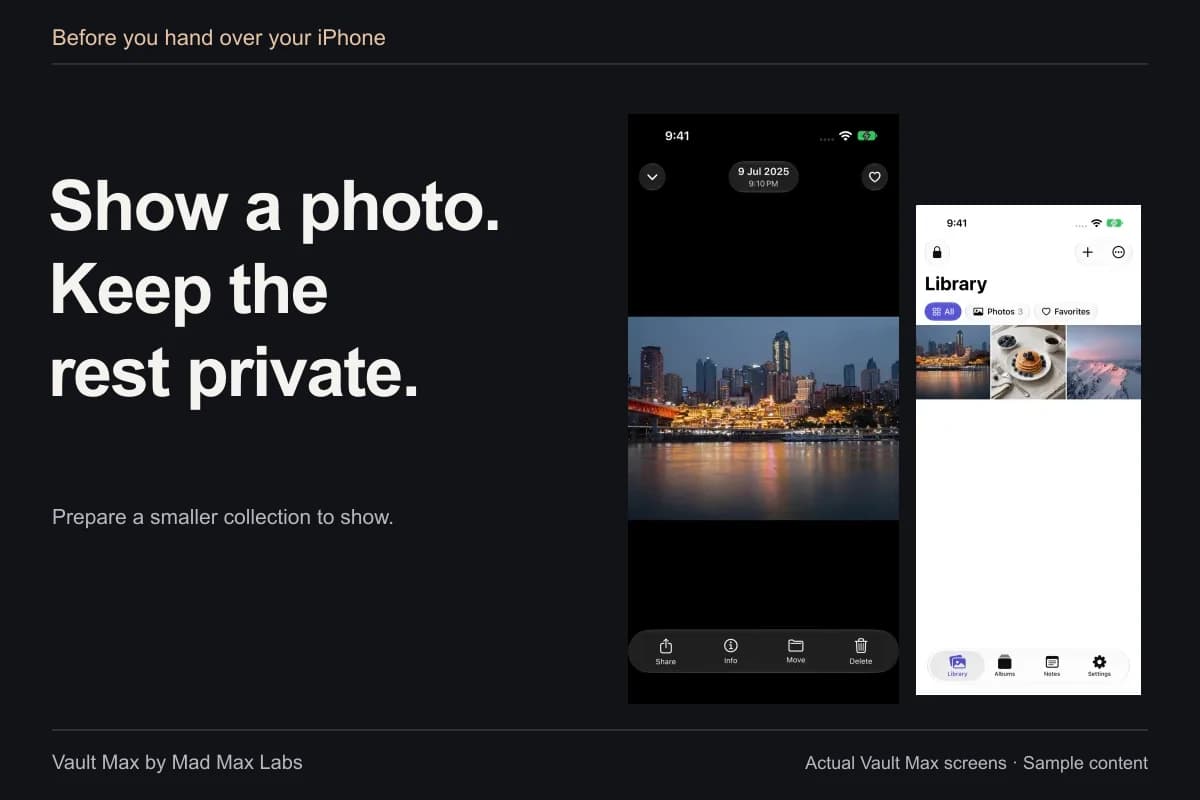
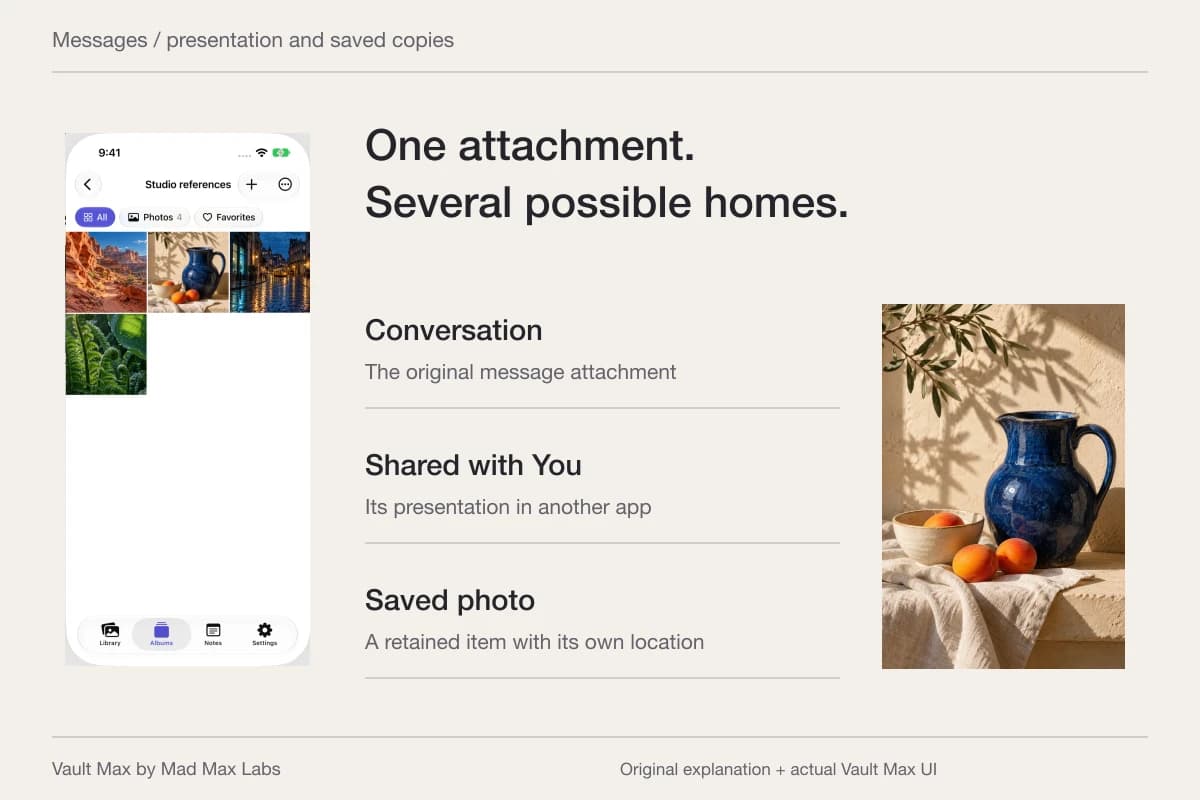
Create a short inventory for the job: listing photos, a document you need to consult and a few written instructions. Keep the original source intact while you import and inspect those chosen items. A small intentional collection is easier to maintain than a full phone clone whose contents you have not reviewed.
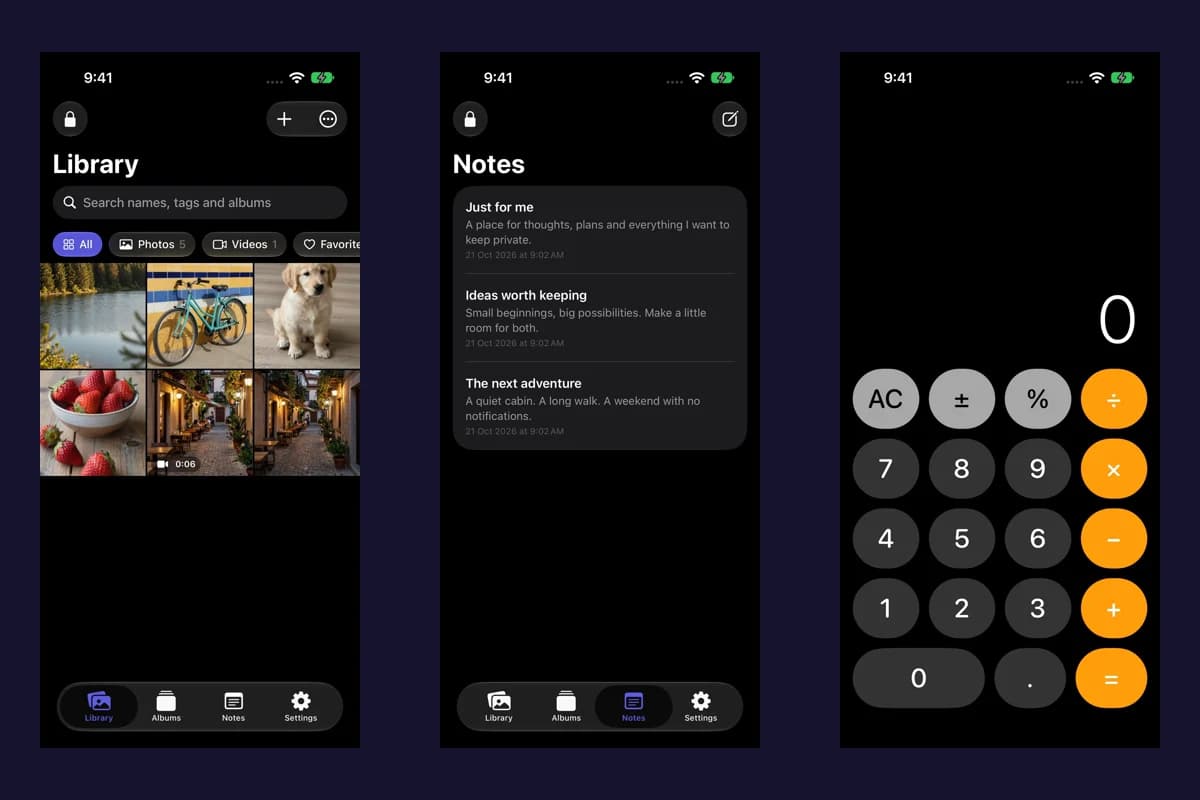
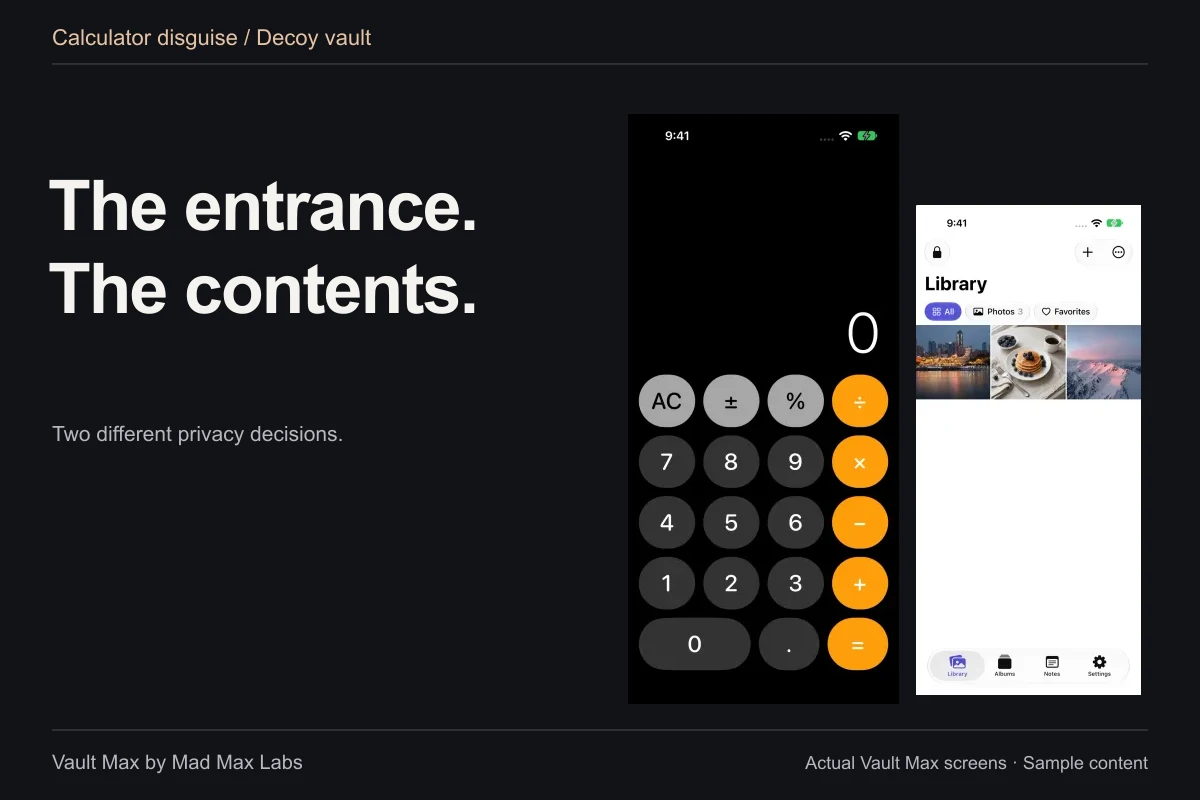
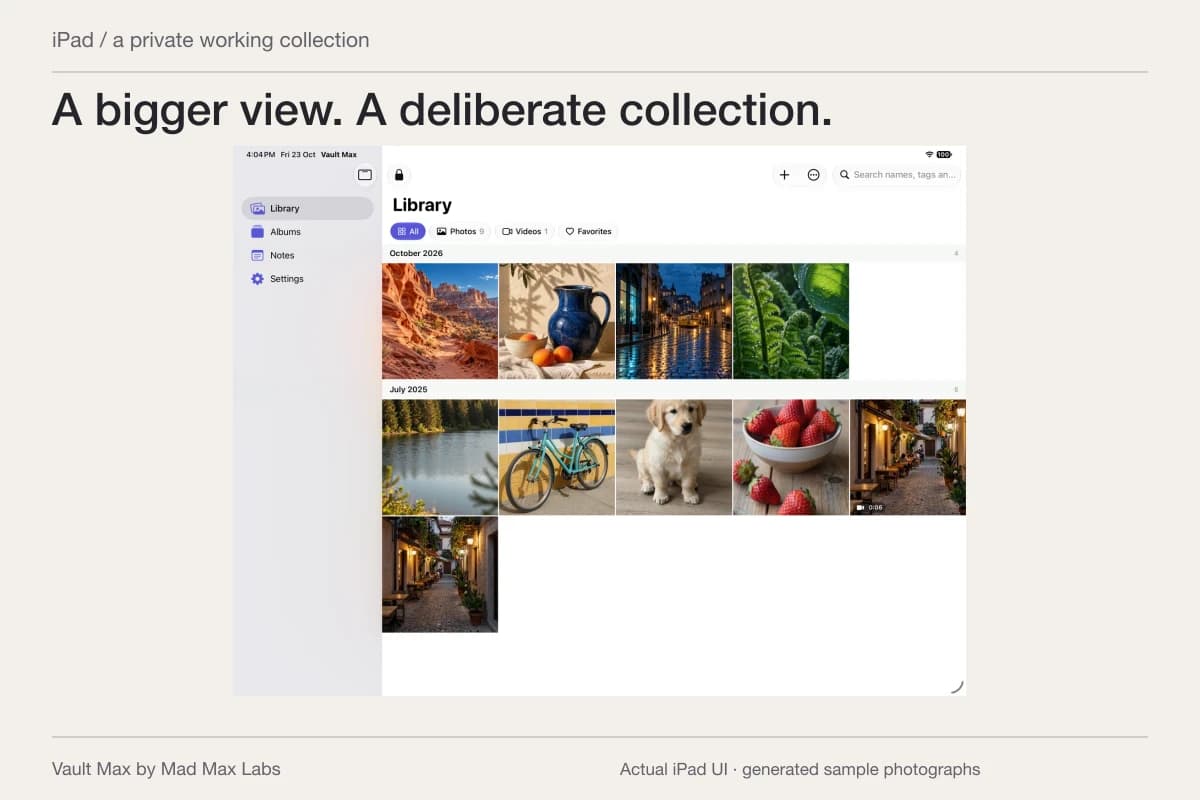
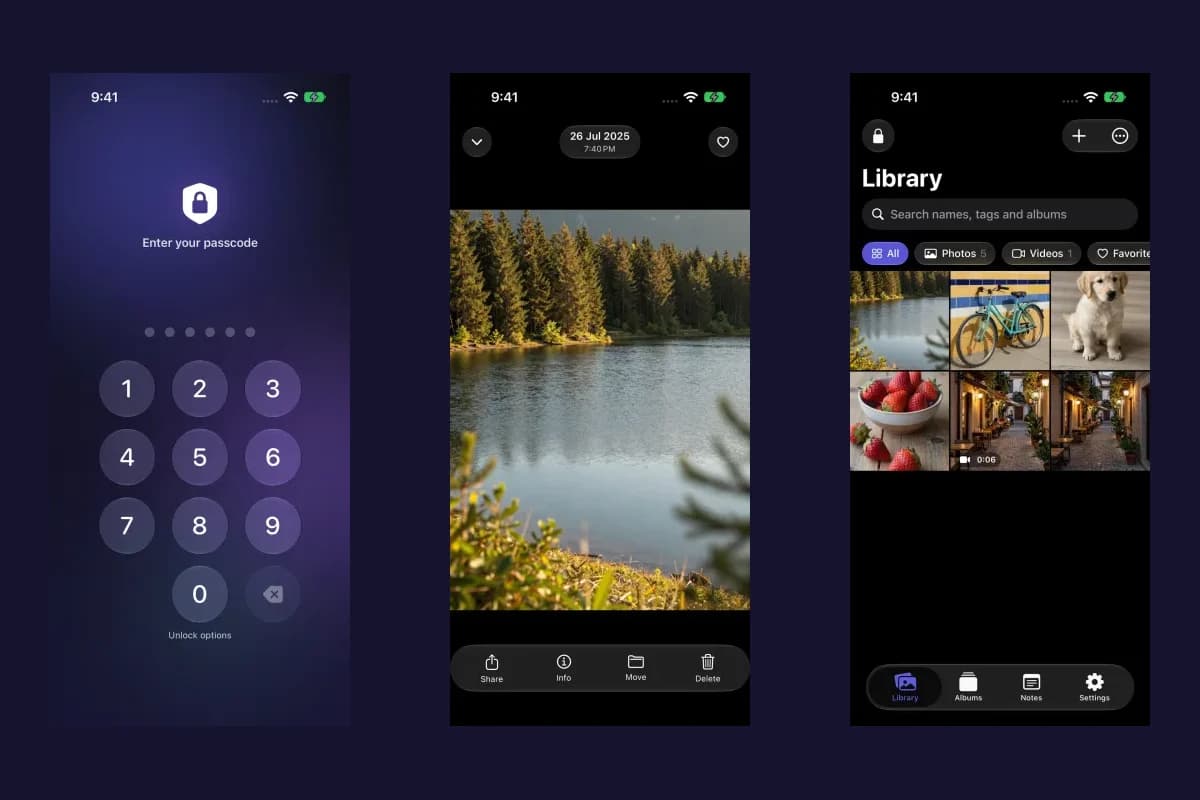
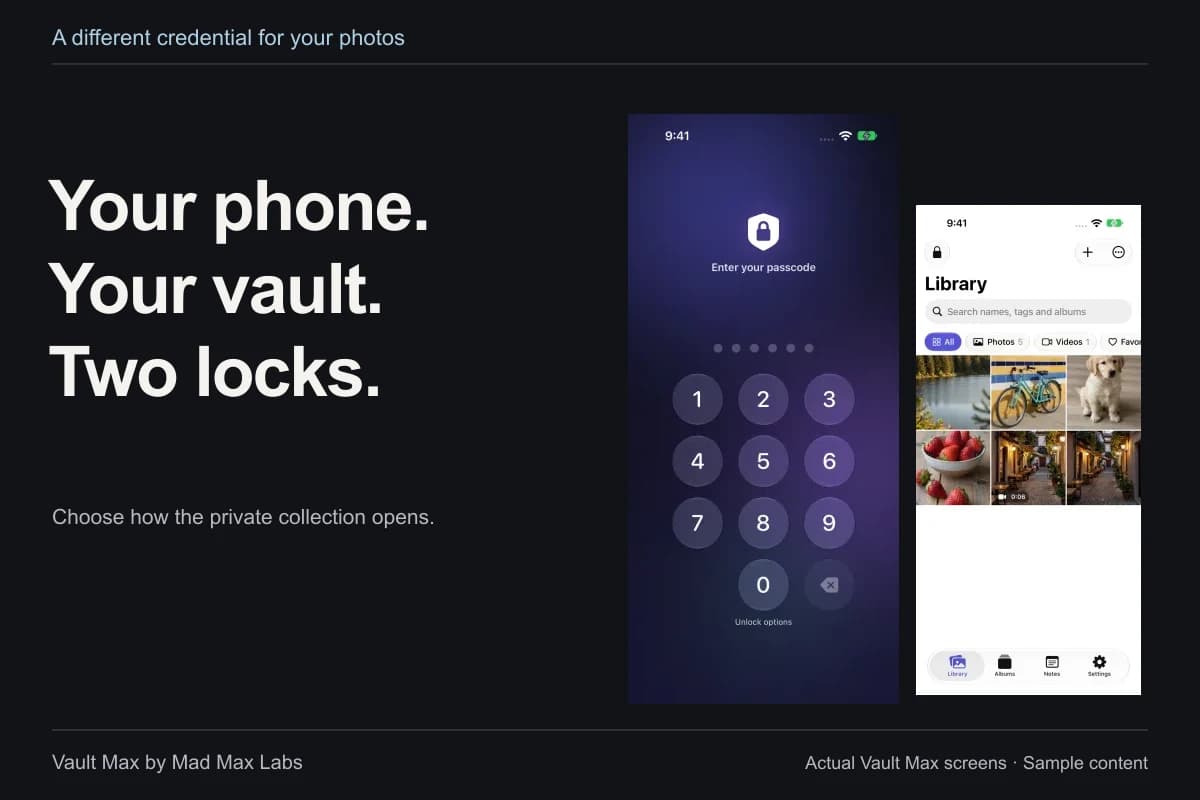
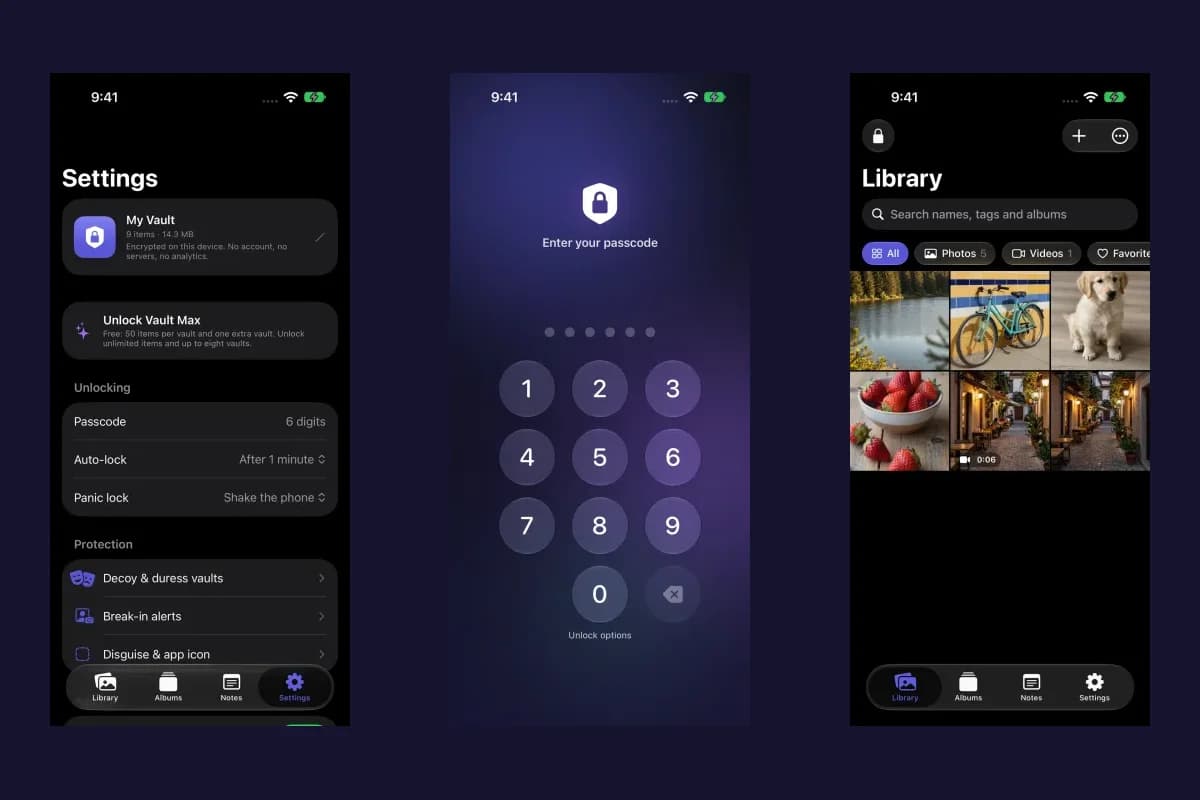
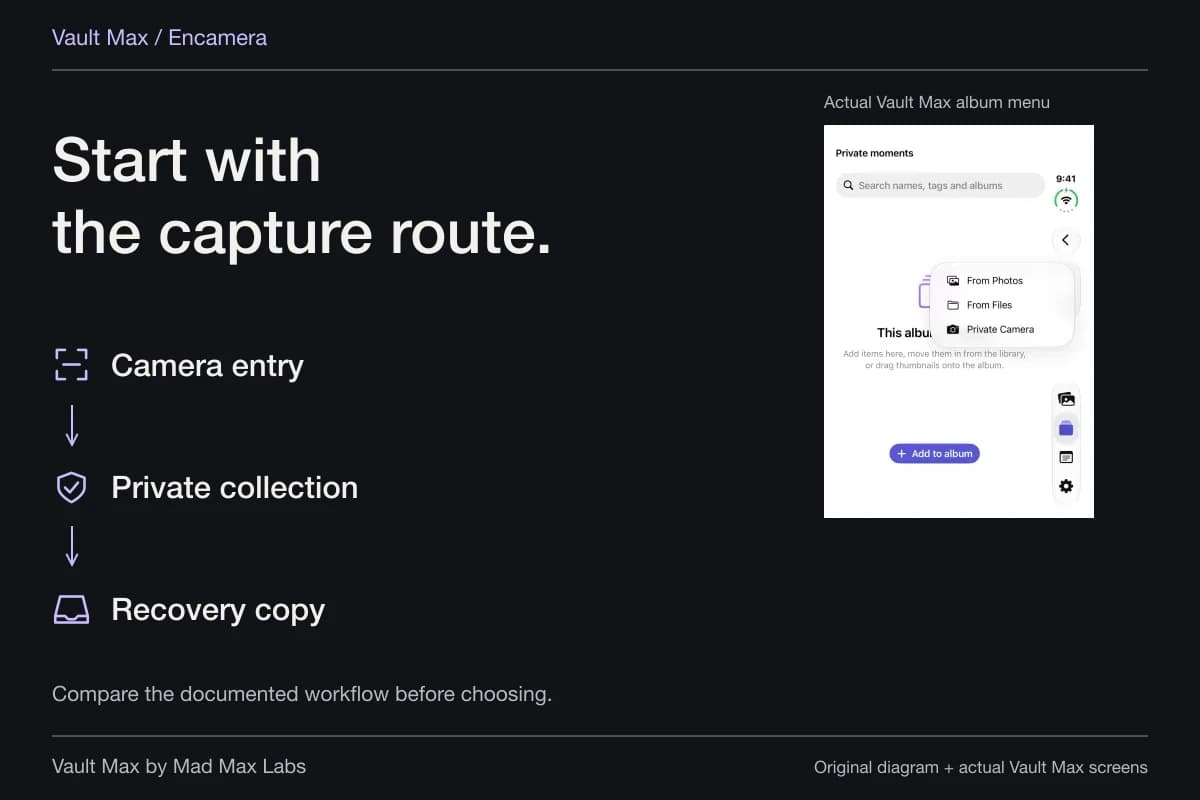
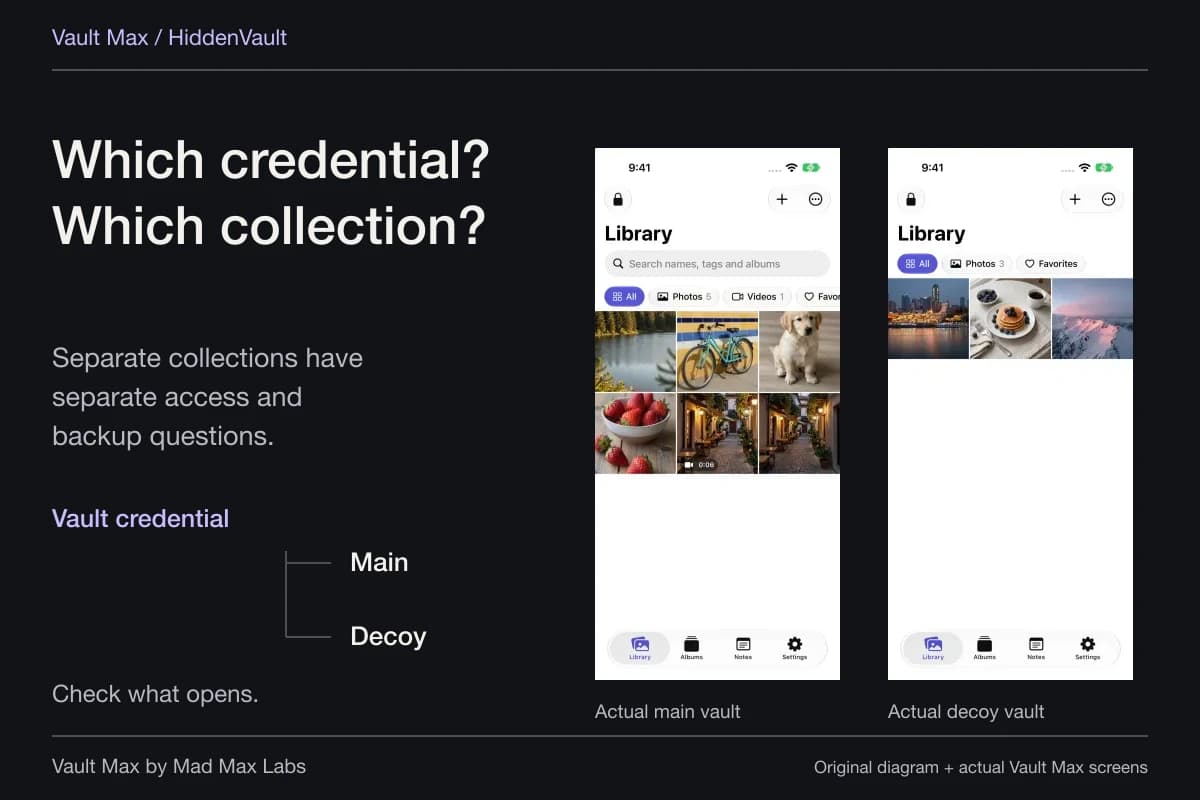
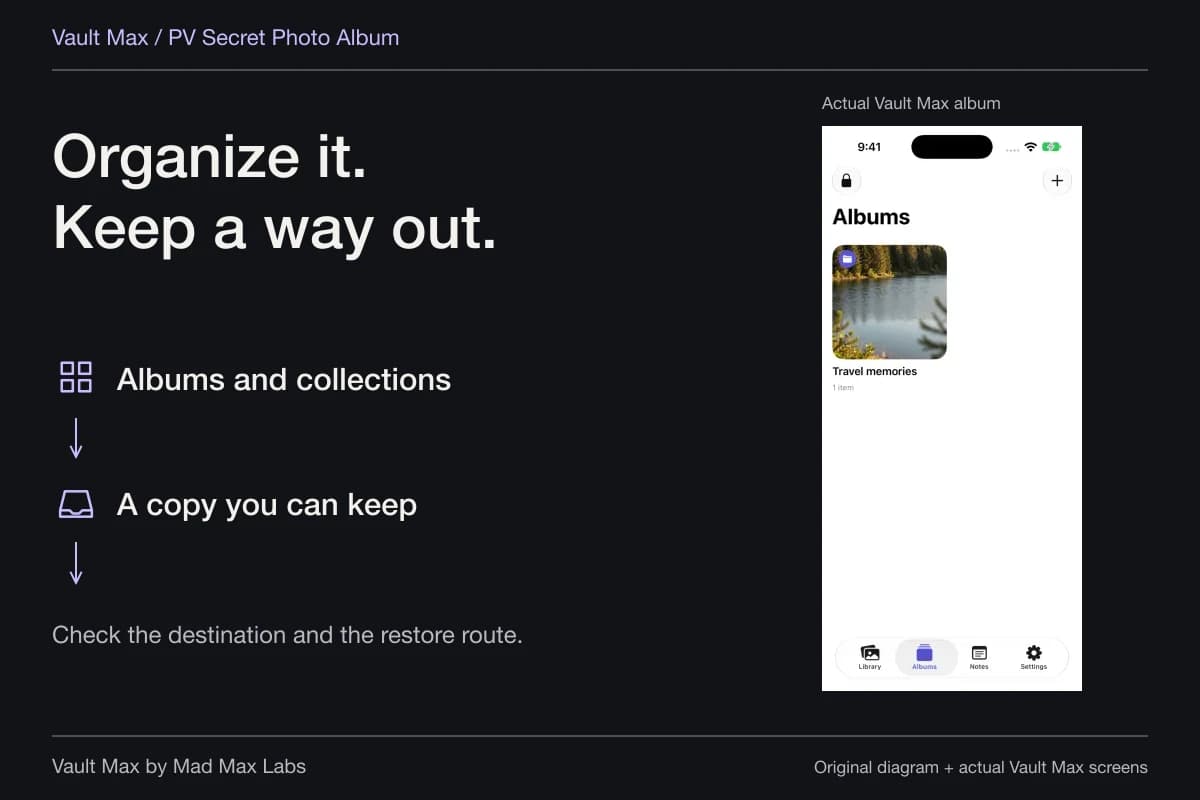
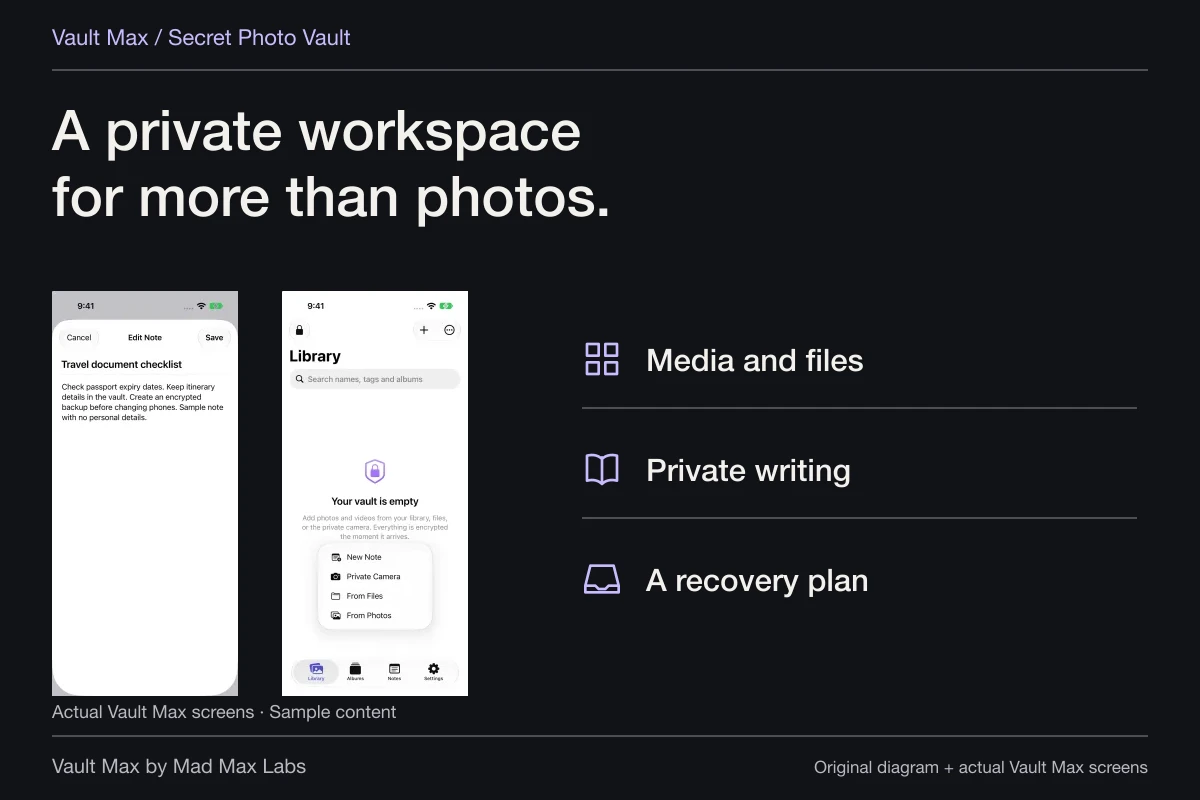
Vault Max can keep selected photos, files and encrypted notes in a local collection with a separate vault credential. Mad Max Labs makes Vault Max. No Vault Max account is required, and it does not supply a private calling number, administer a carrier account or create anonymous identities for the apps you use.
Open the imported item at full size and check that its context is appropriate for the task. For a listing photograph, inspect the background as well as the object. An address label or reflection can reveal information independently of which phone number appears on the listing.
Make recovery work without the spare phone
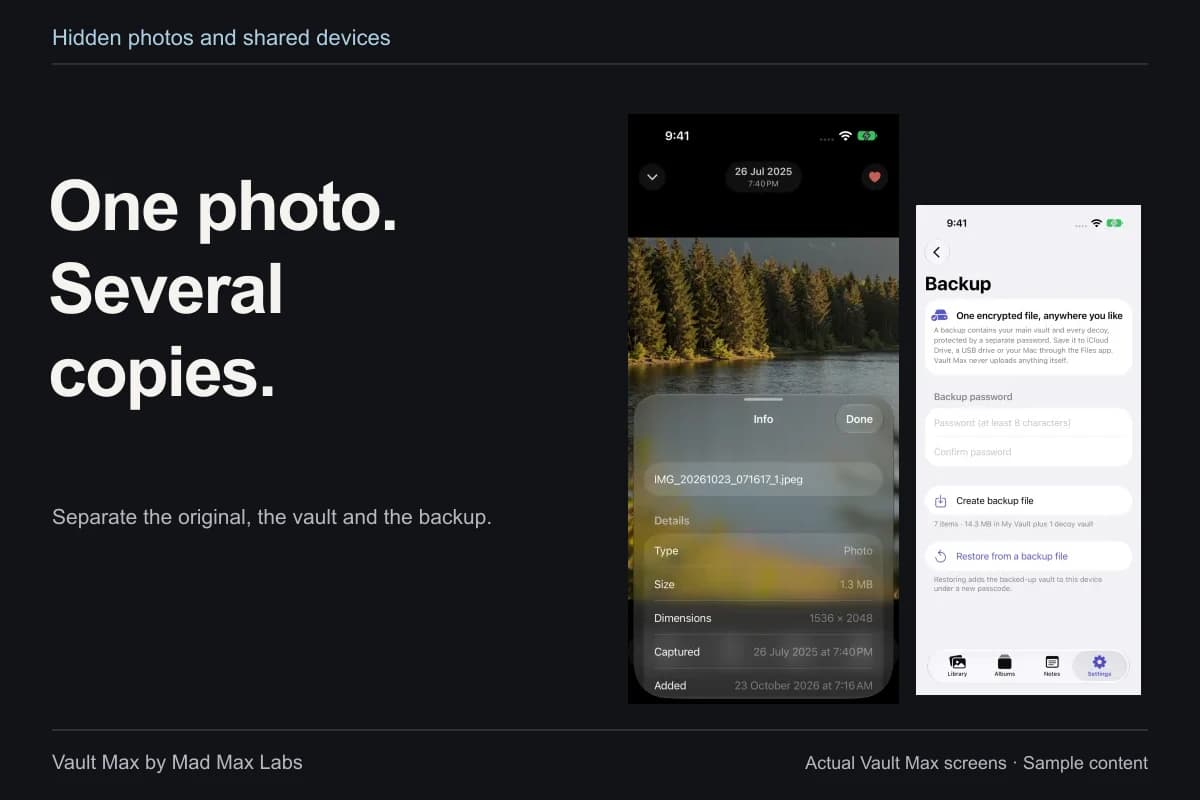
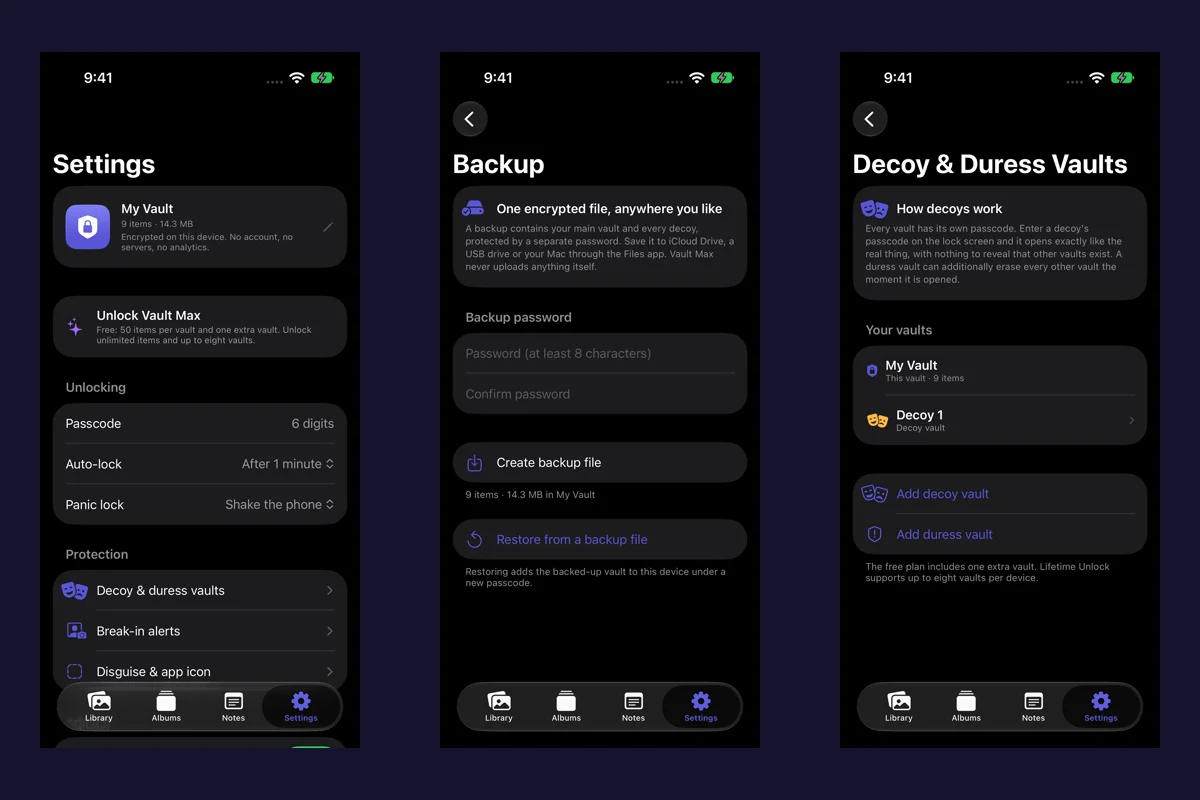
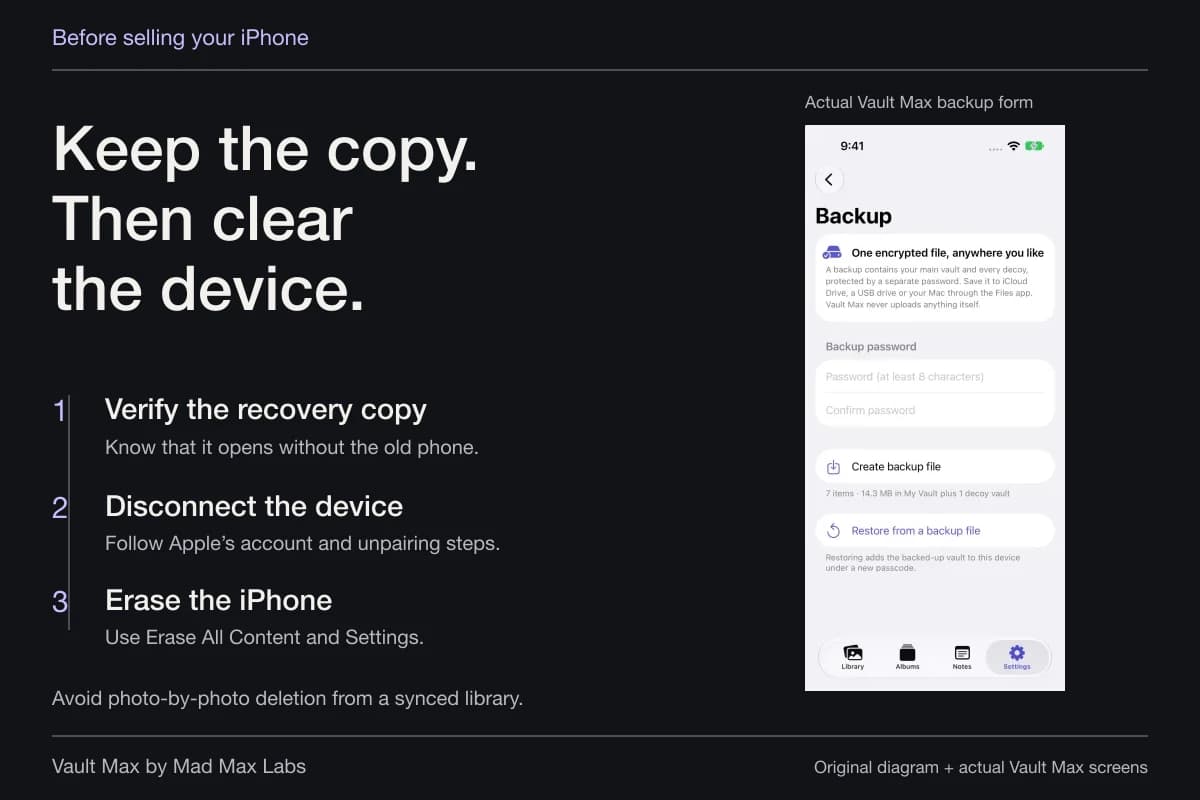
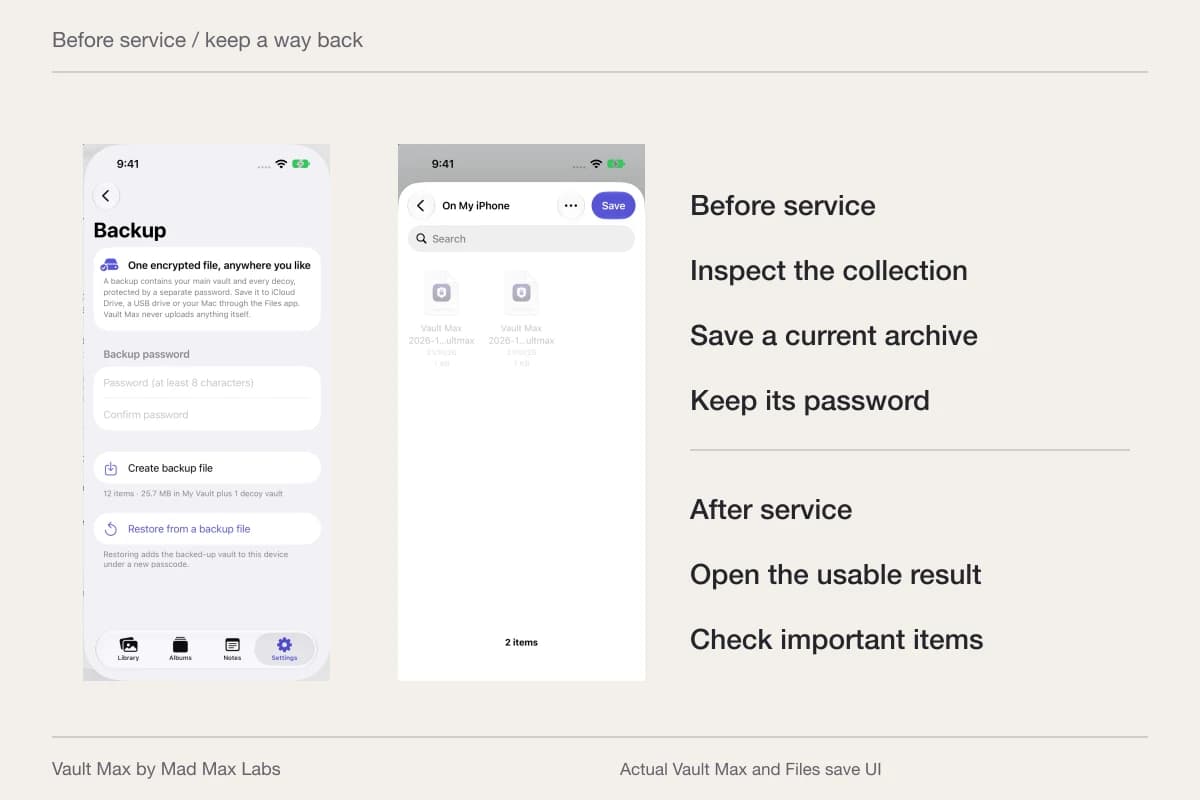
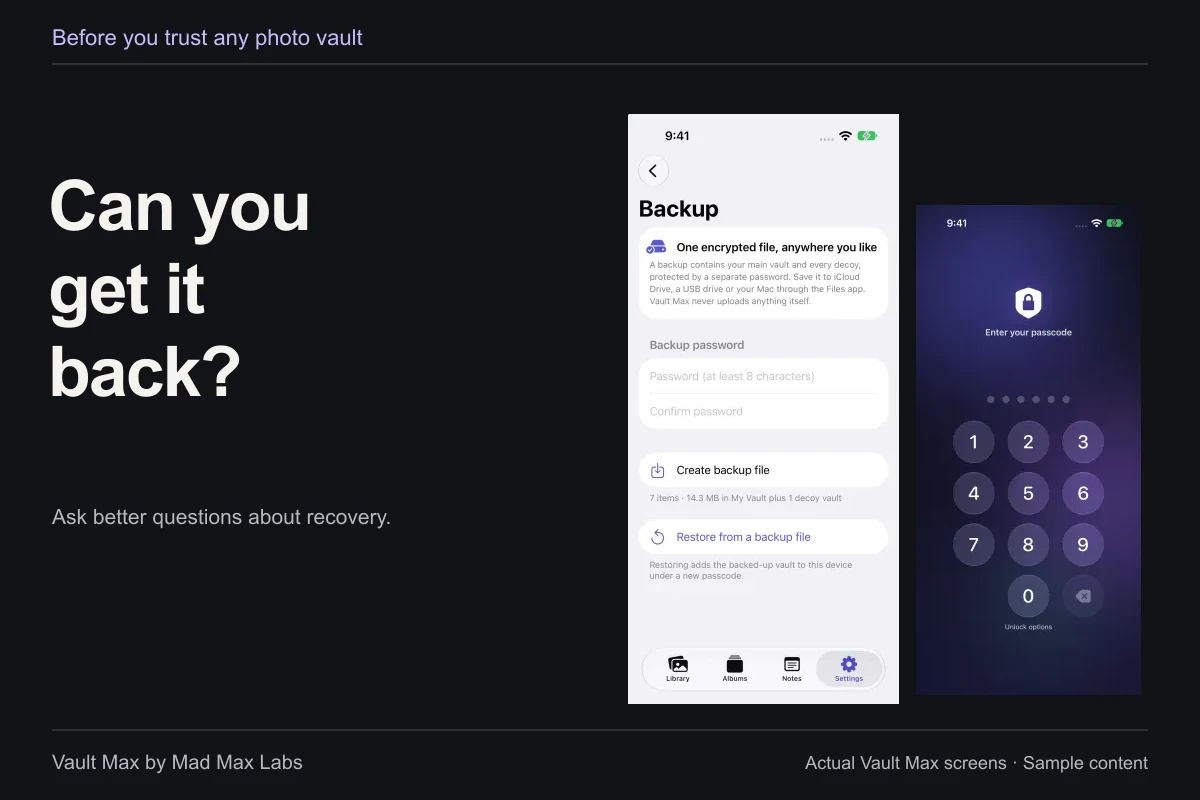
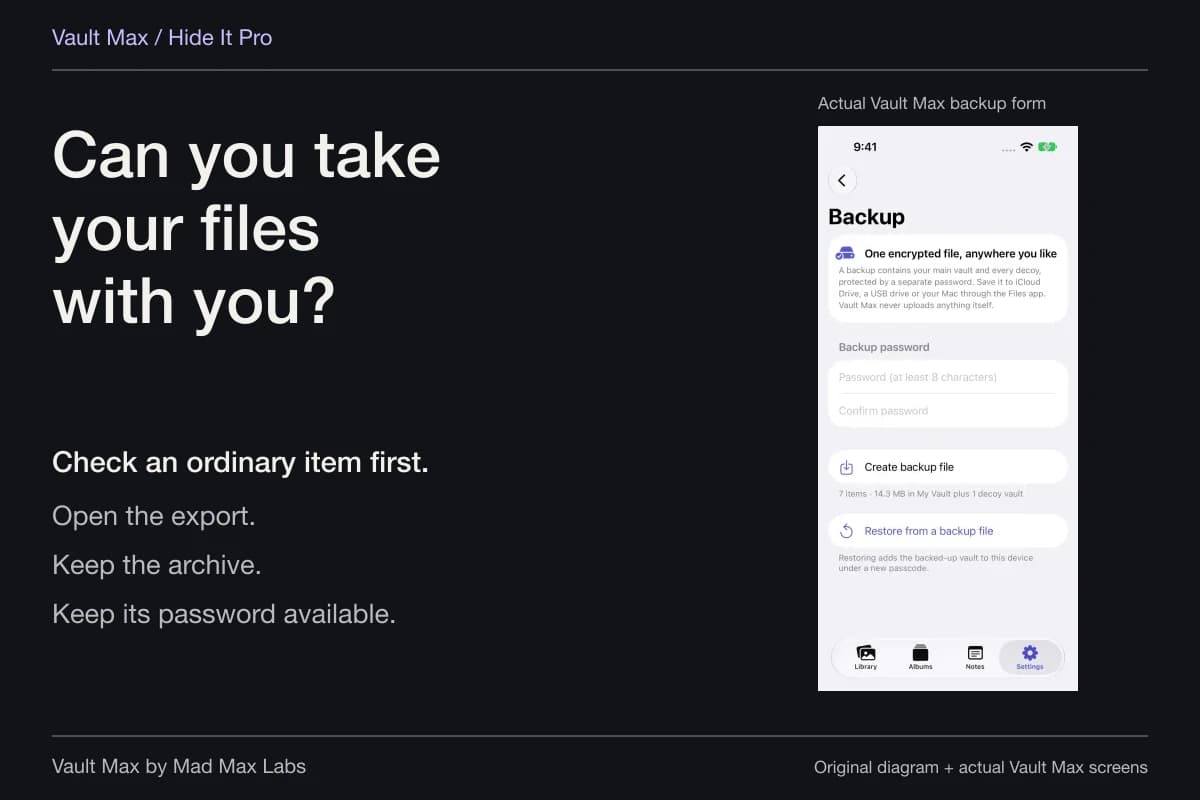
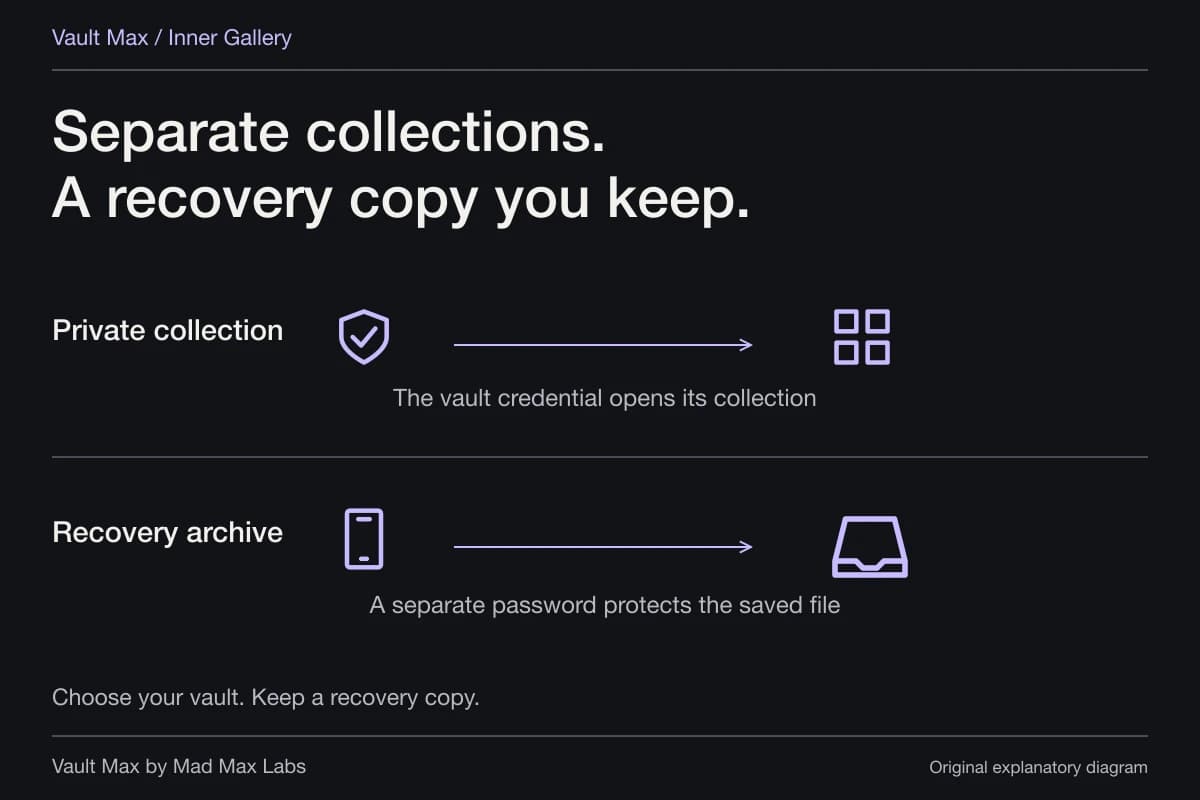
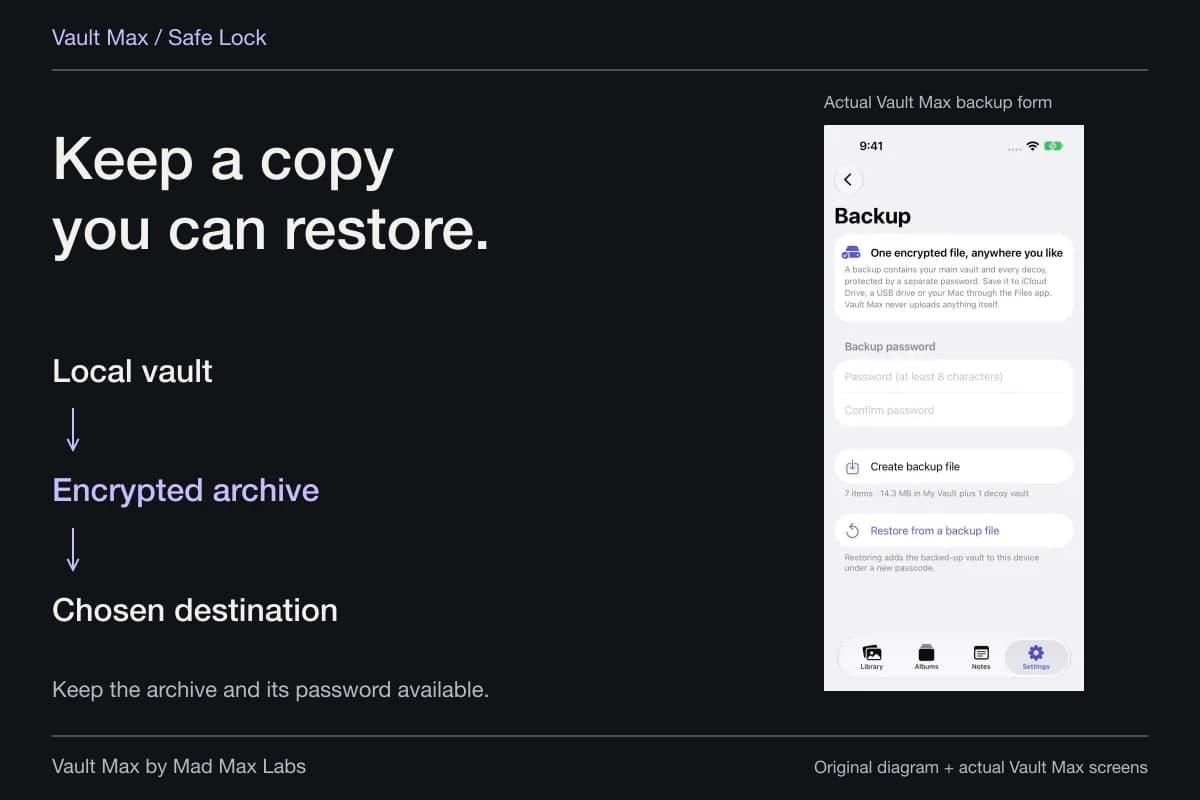
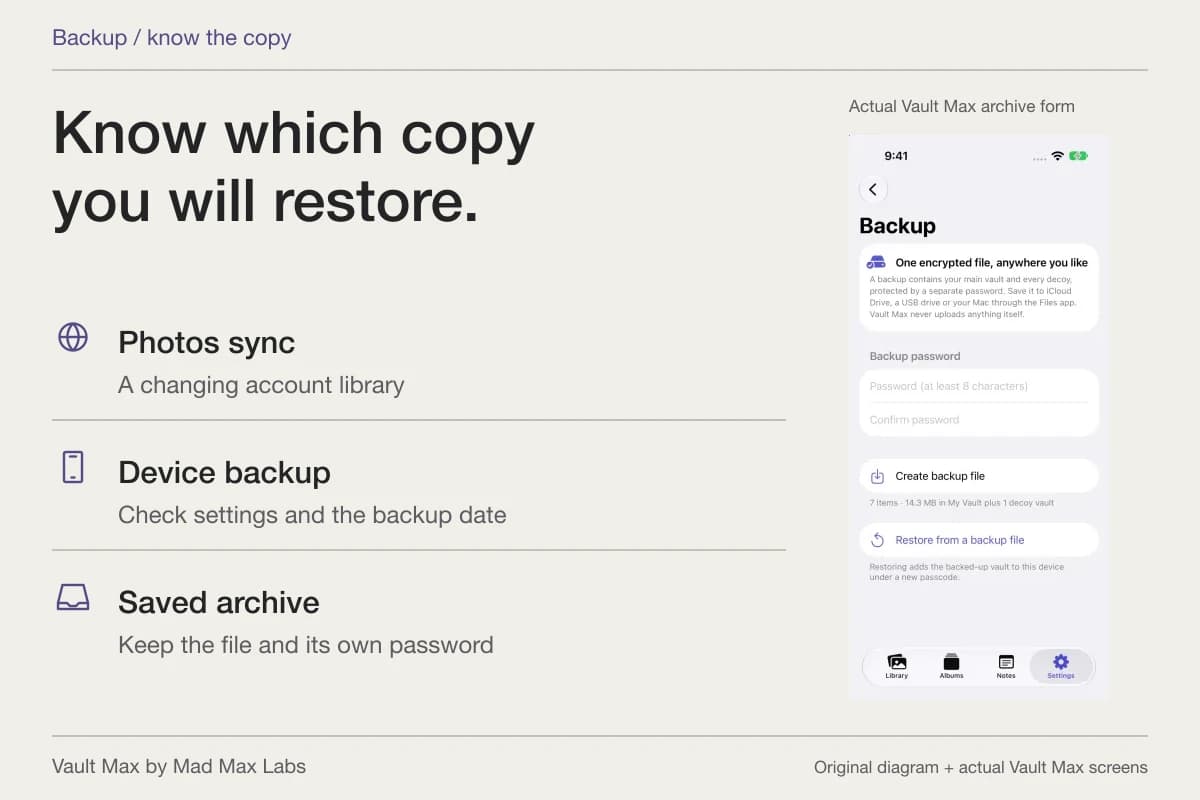
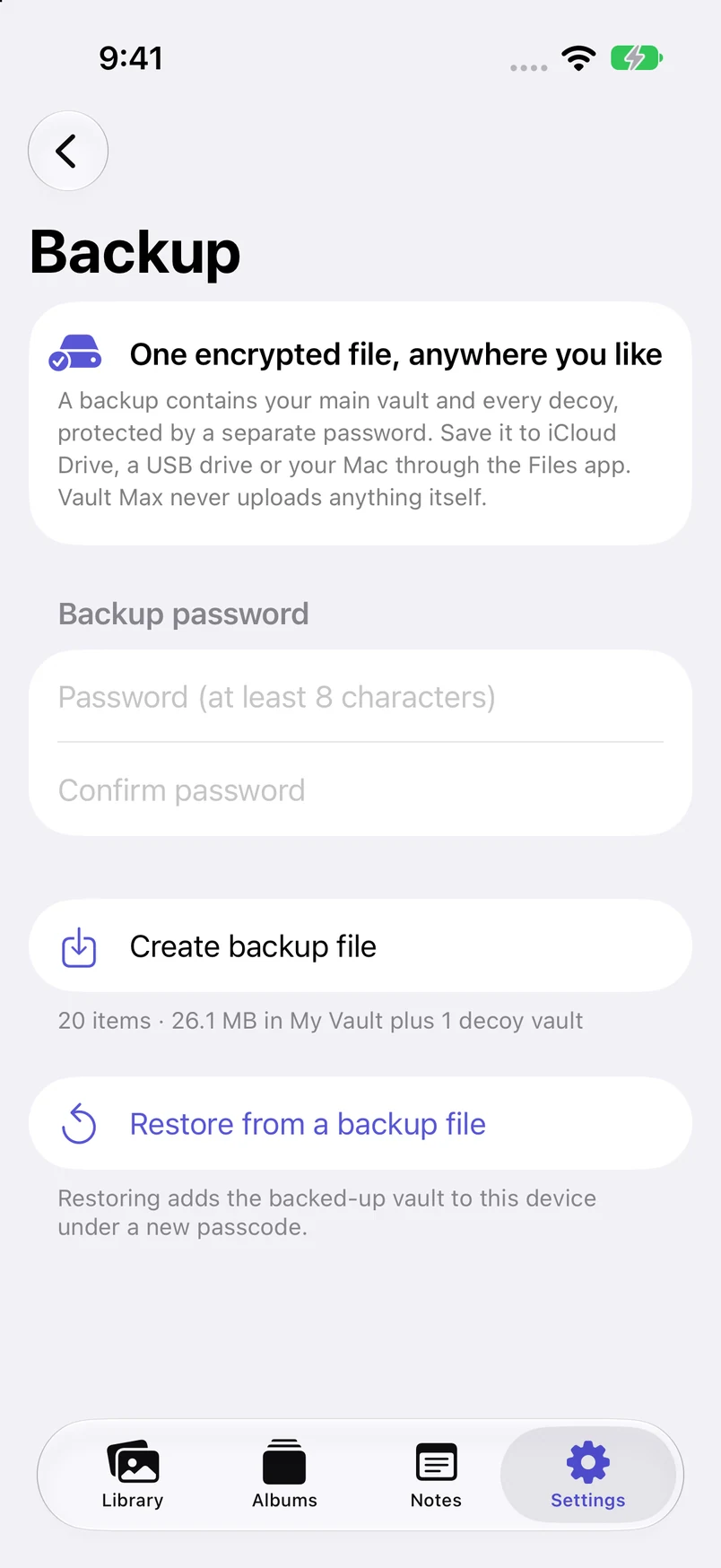
A rarely used device is easy to forget until its battery, screen or storage fails. For a local vault, create a current password-protected archive, complete the save and keep its password independently available. Choose a destination you could reach if the spare itself were lost.
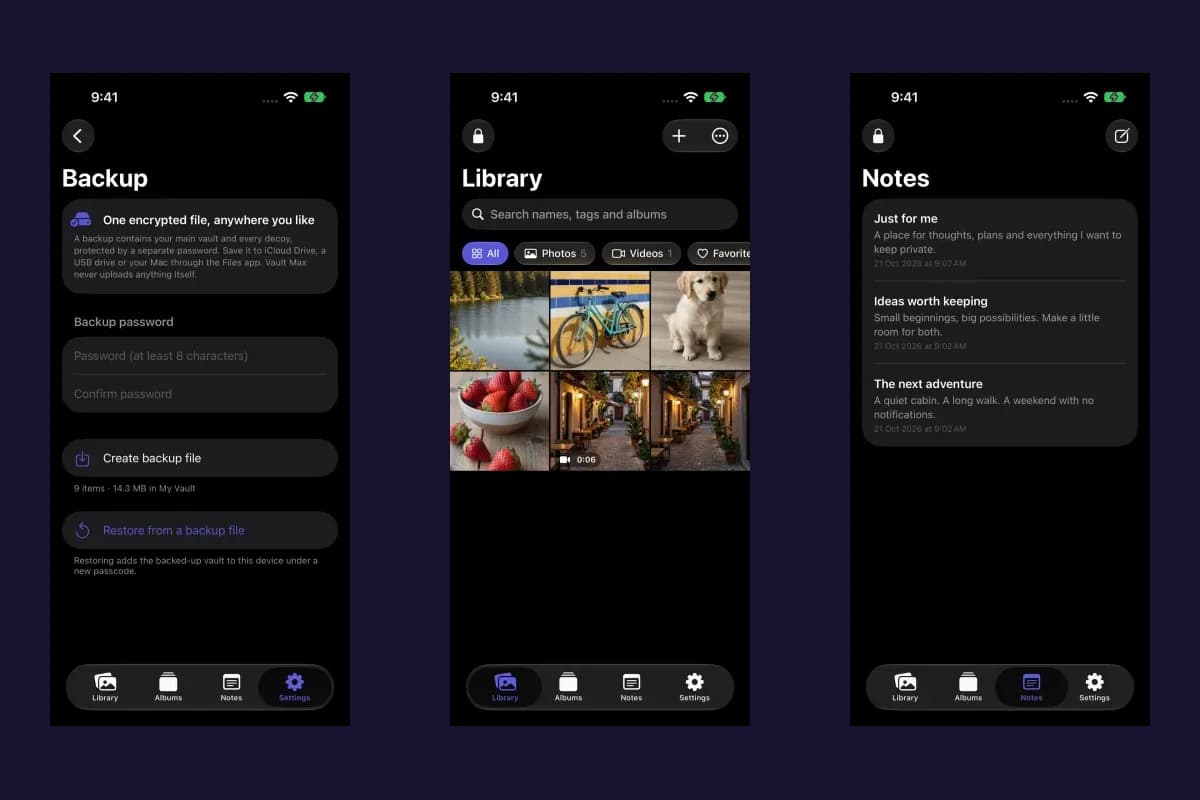
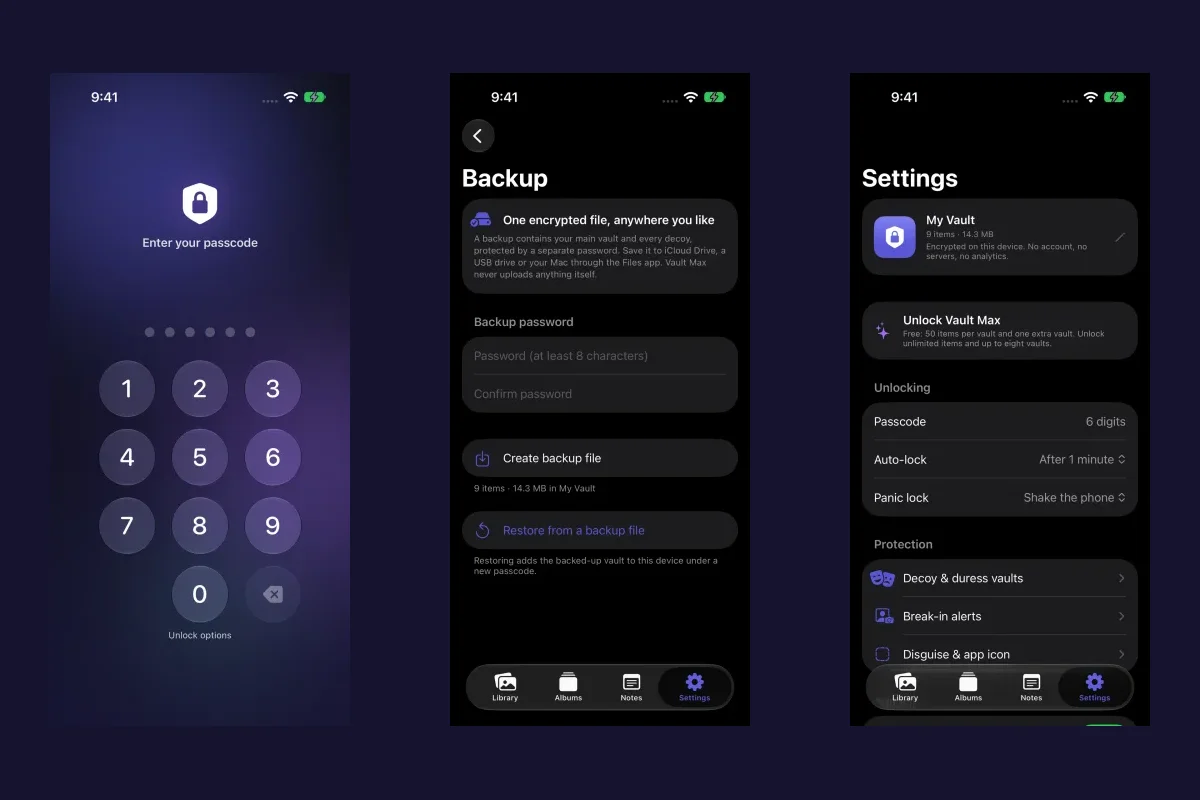
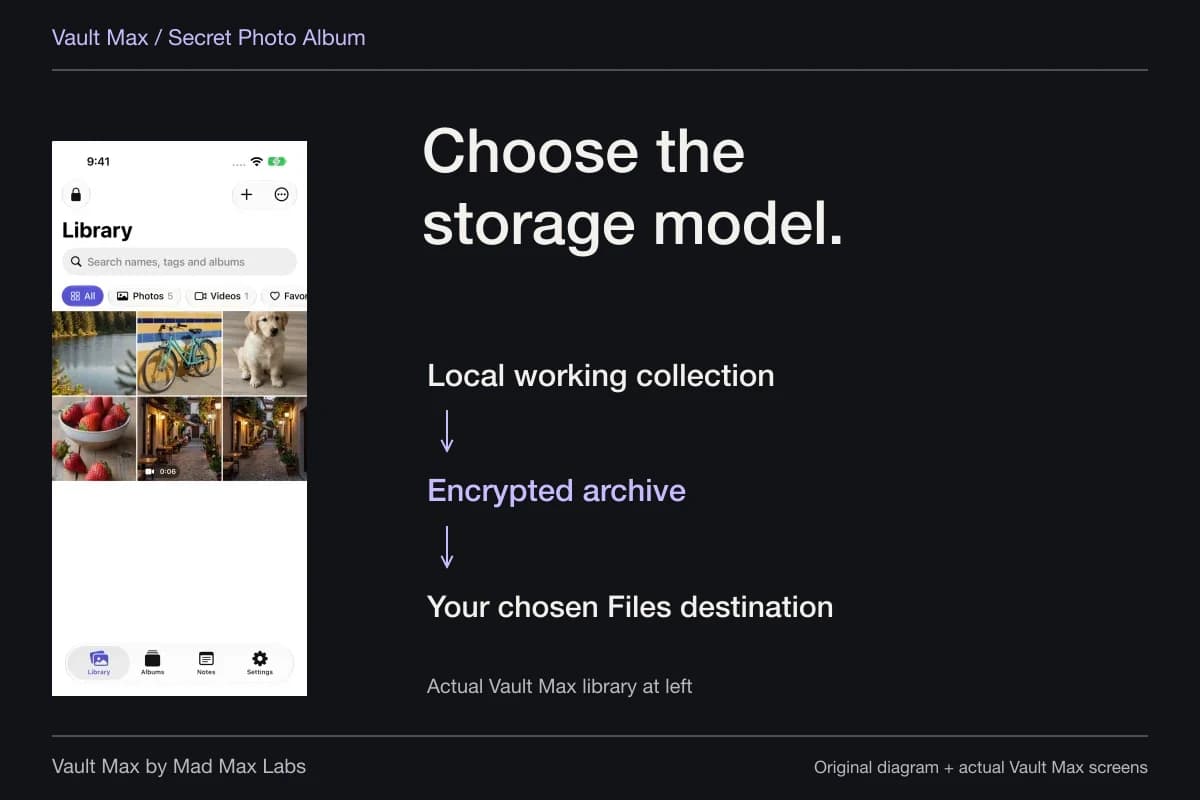
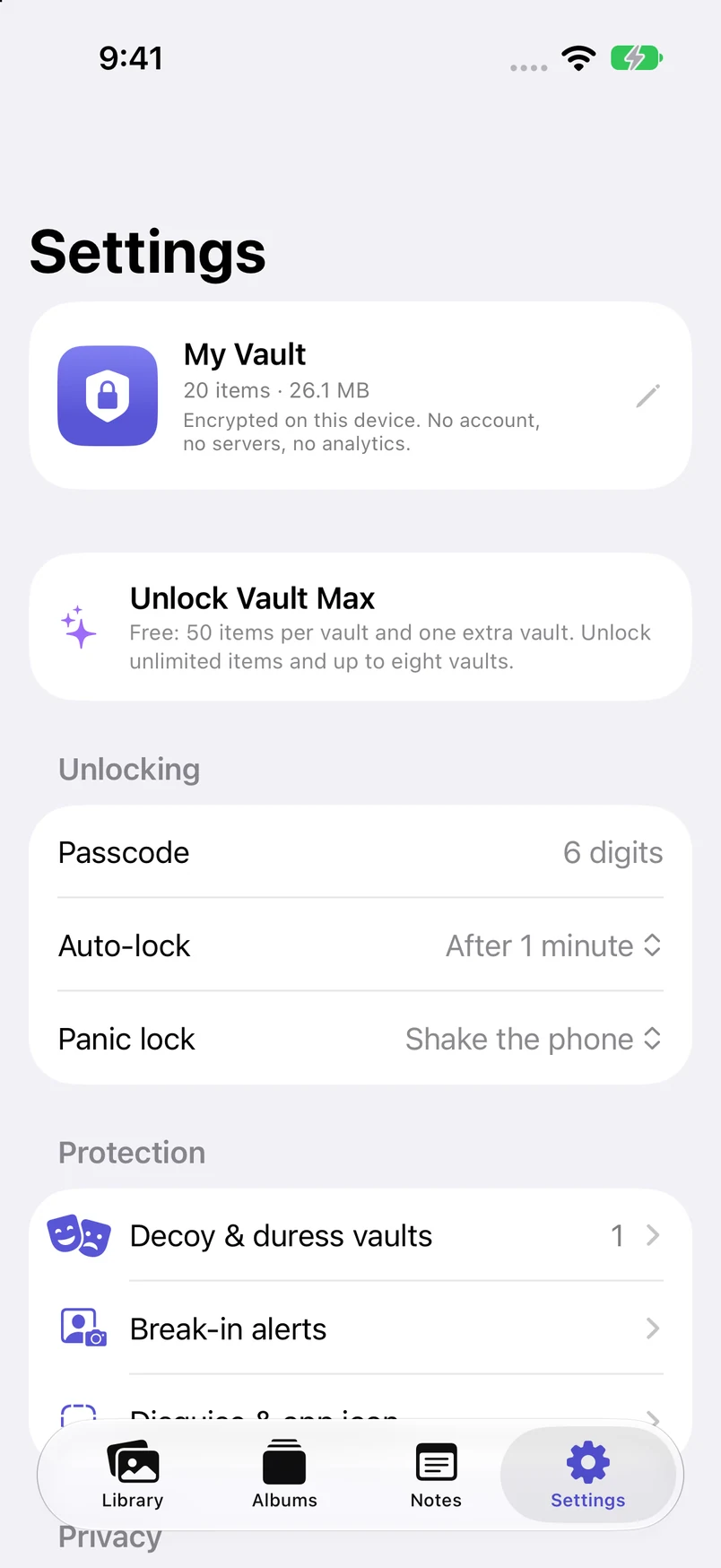
Fresh actual Vault Max screens show the sample collection's local-storage statement and the separate backup-password form. The form is blank: no archive was created or restored in this session. The installed app is 1.0.0 build 2, and the screen's 20-item total describes this sample collection.
Actual Vault Max · QA simulator, October 24Understand the local working copy
Open original image: Understand the local working copyPlan a separate recovery file
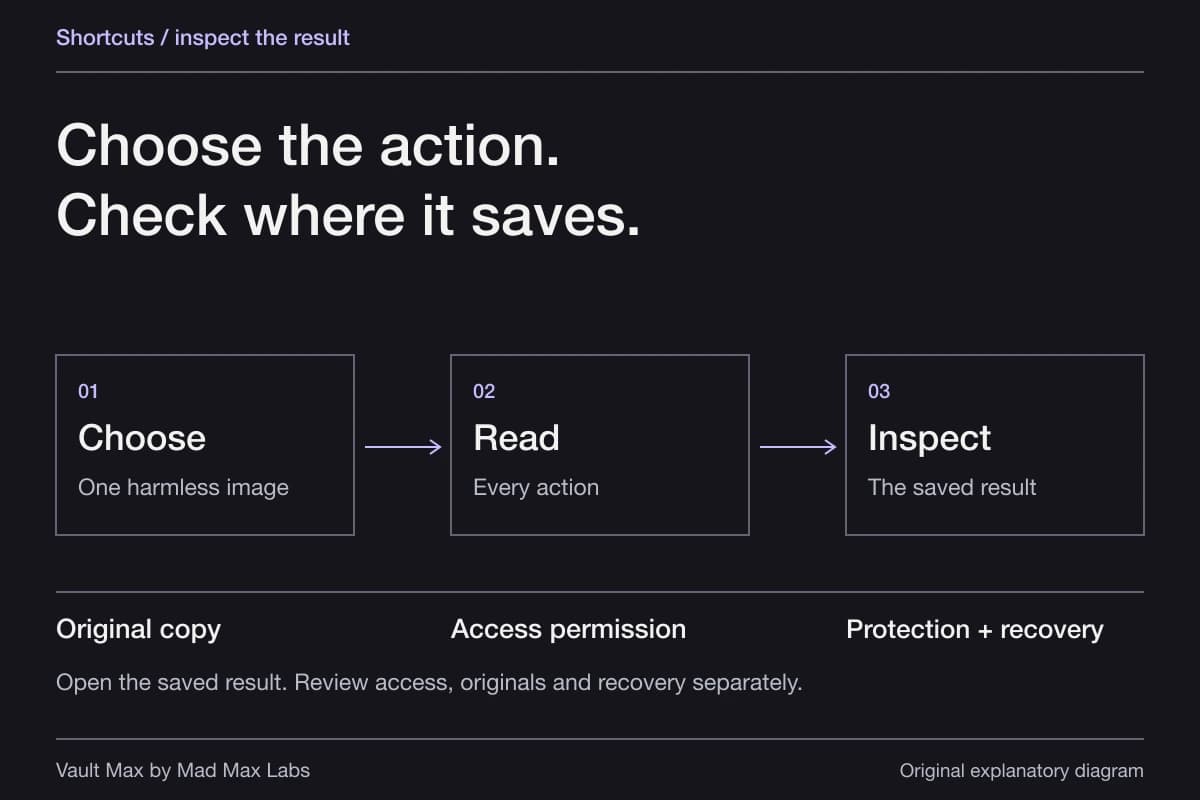
Open original image: Plan a separate recovery fileAn archive file's existence and a successful restore are separate checks. Keep the source collection and any useful original until you have inspected the destination content through a supported restore. The transfer guide explains the process and the evidence limits; a purchase restore does not recreate private files.
For a short project, set a practical review point: after the last transaction, decide which records still matter, save a usable retained copy and remove access you no longer need. Do this before closing a number used for account recovery.
Check the first real use and the eventual handoff
Before distributing the new contact number, use an ordinary test exchange with someone you trust. Confirm the intended line and account identity shown to them. Do not use sensitive pictures as the first test of a new service or sharing arrangement.
Open the spare's Photos library, intended apps and private collection once more. The useful completion state is specific: the right contact route works, the necessary references are present and recovery does not depend entirely on this phone.
If you later sell or pass on the device, follow the device handoff checklist. Ending a project is a separate task from deleting its app icon or removing the SIM. Preserve what you need before beginning account removal or erasure.
- Use a second line, a spare device or a private collection according to the job.
- Distinguish adding a number from transferring the existing everyday number.
- Review Apple Account, Photos and service logins before adding private content.
- Open only the references you deliberately brought across.
- Keep usable copies and passwords before losing the device or ending its number.
Tap a box as you go. Checks reset when you leave this page.
Common questions
Is a second phone number the same as a separate iPhone?
No. Supported iPhones can use Dual SIM for separate numbers on one device. The second line does not create a second Photos library, separate app installation or independent account for every service.
Can I make a burner iPhone anonymous by using a new number?
A different number is useful contact separation, but it is not a promise of anonymity. Review the carrier's account and registration requirements, the services you sign into and the files or photos you share.
Does Vault Max automatically appear on my other iPhone with the same files?
Vault Max does not maintain a developer-hosted account library. Its working collection is local. Plan an explicit usable archive and destination restore rather than assuming an App Store download or purchase restore transfers the content.
Continue reading
More guides
Practical tips for your private library. Swipe or scroll to choose your next guide.
92 guides to explore