
Privacy in practice
A shortcut can save taps. Check what it does to the photo.
Understand what an iPhone photo shortcut actually changes. Inspect actions and permissions, test harmless samples, and choose Hidden or a separate private vault.
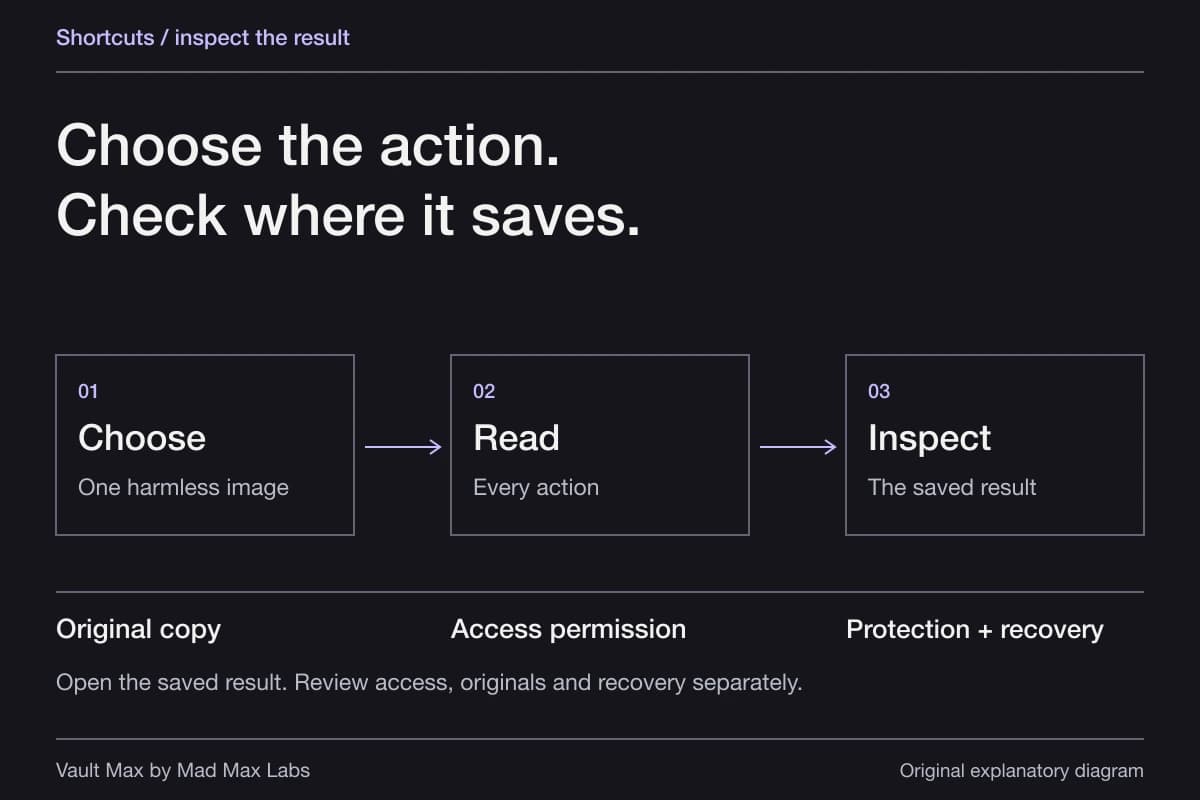
Shortcuts includes a Hide Photos action in the iOS 27 catalog we inspected. Its availability does not give Hidden a separate password. To use a shortcut responsibly, inspect its complete sequence and test the destination with a harmless sample. For Apple's direct manual route, open a picture in Photos and choose More → Hide.
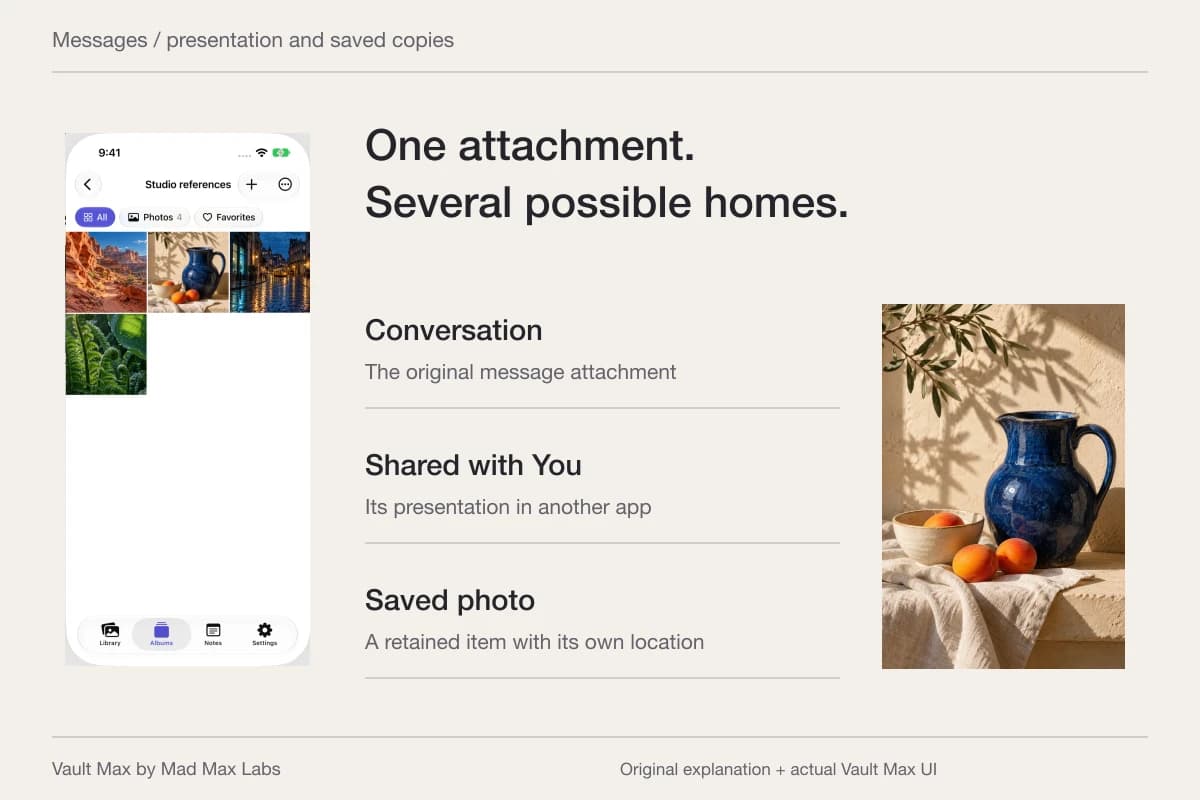
A routine that opens Photos, displays an image, saves a file and sends an attachment can feel equally quick to run. Those routines have very different outcomes. The practical goal is to explain the result in one sentence: “This item is now in this collection, protected by this credential, with these other copies still present.”
Try the decision
Follow one photo through three choices
Choose an action and watch which copies change. Then add or remove a previously shared copy from the example.
- Photos original
- Still in the libraryThis is the item managed by your Photos library.
- Destination
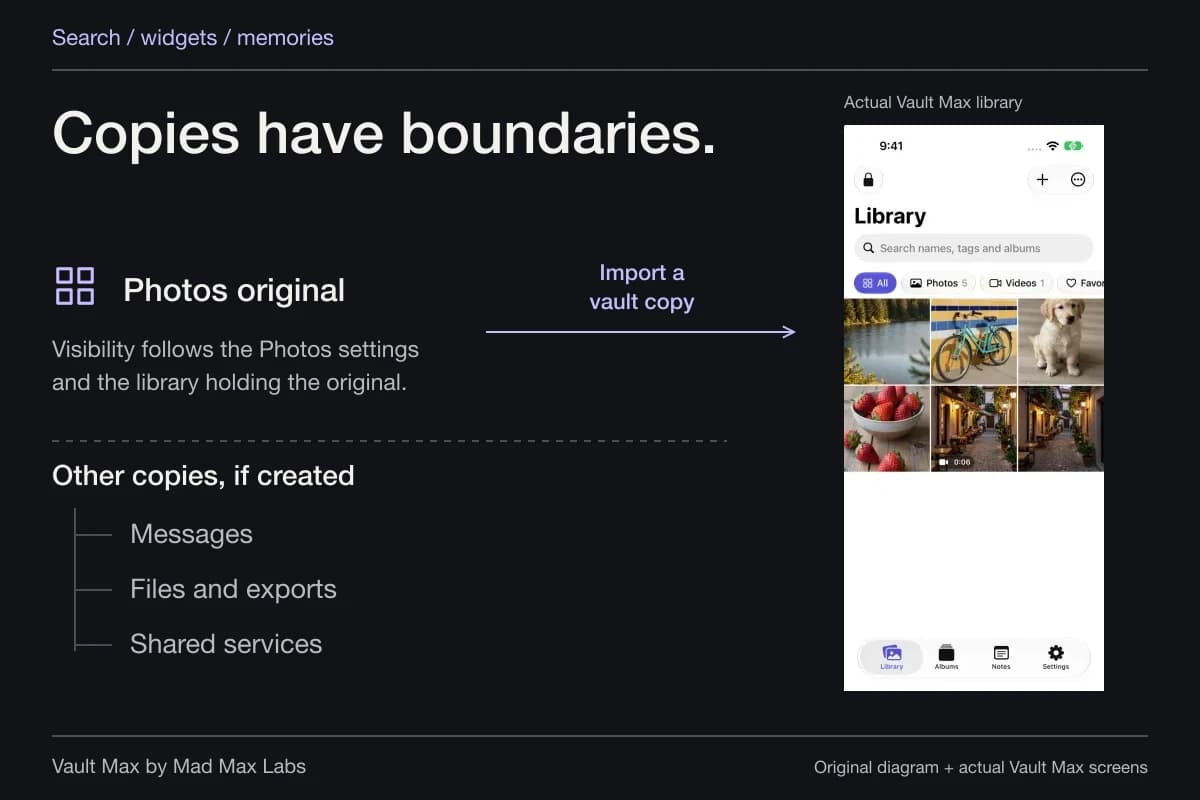
- An album referenceAdding to an ordinary album organizes the same Photos item. It does not make a private second vault.
- Cloud and other devices
- Review separatelyYour sync and backup configuration determines other copies. This example cannot inspect them.
- Recipient’s saved file
- Still exists in this exampleNone of these three actions removes it.
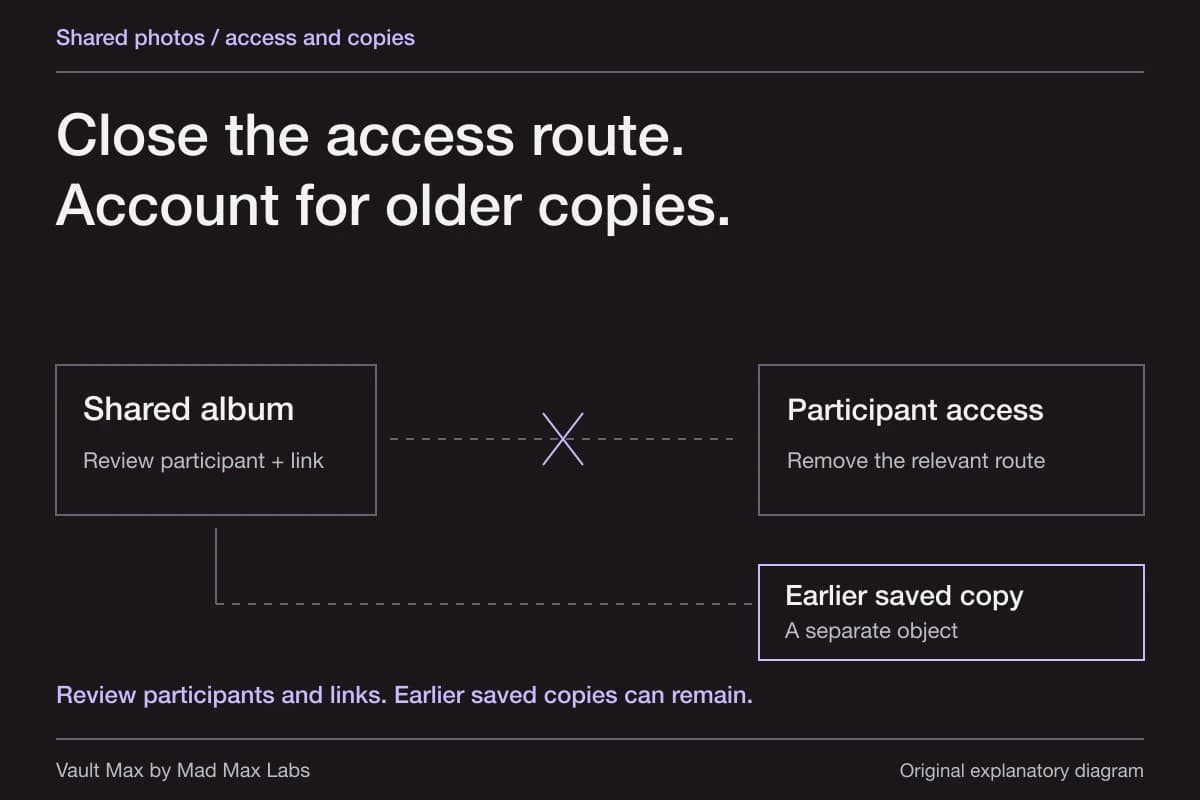
Use an album when finding the picture is the problem. Review a shortcut’s actions and output before adding automation. The example recipient’s saved copy remains.
A browser teaching example. These controls do not access your photos, change your settings, or save your choices.
Begin with the result you need
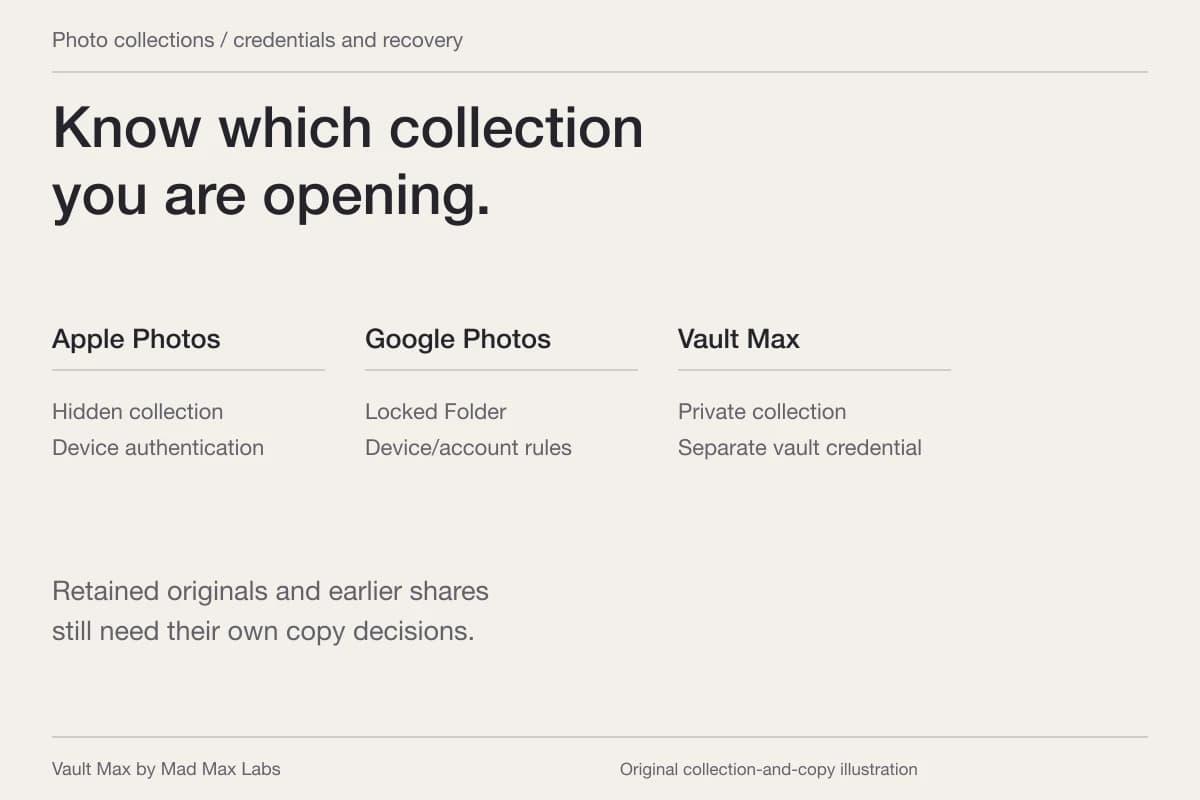
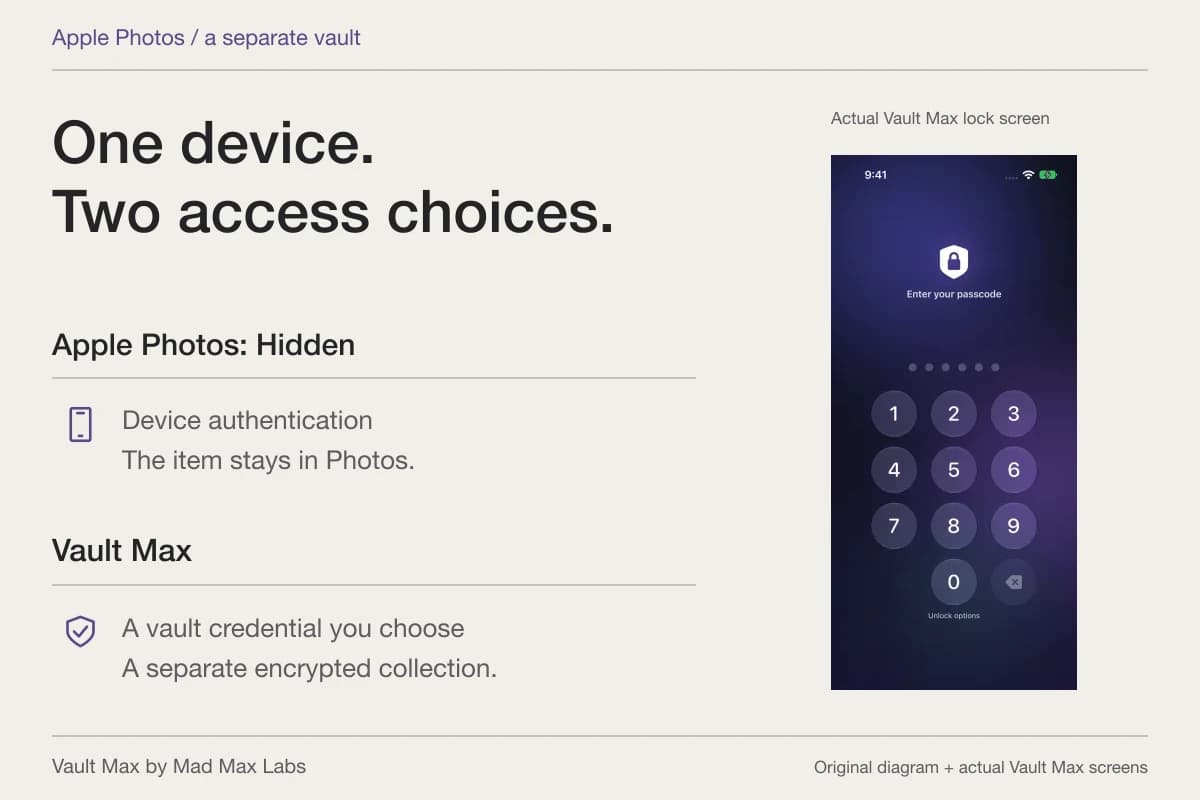
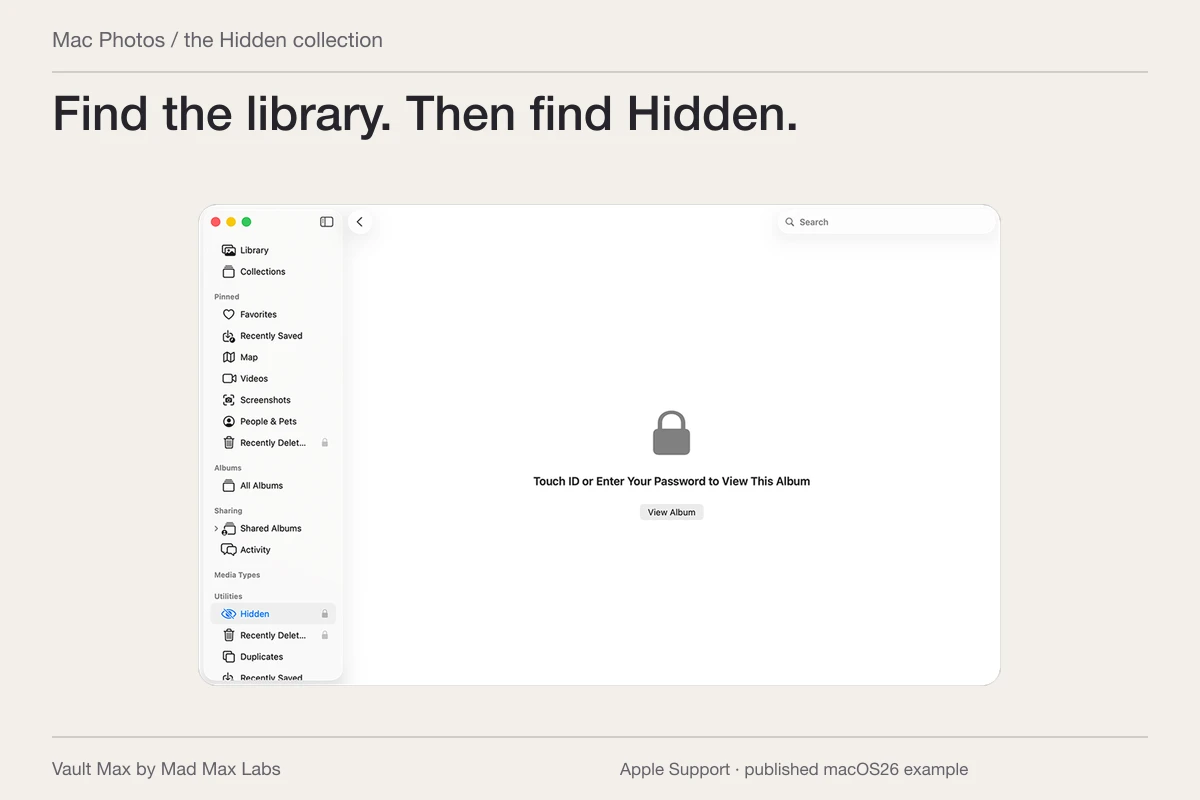
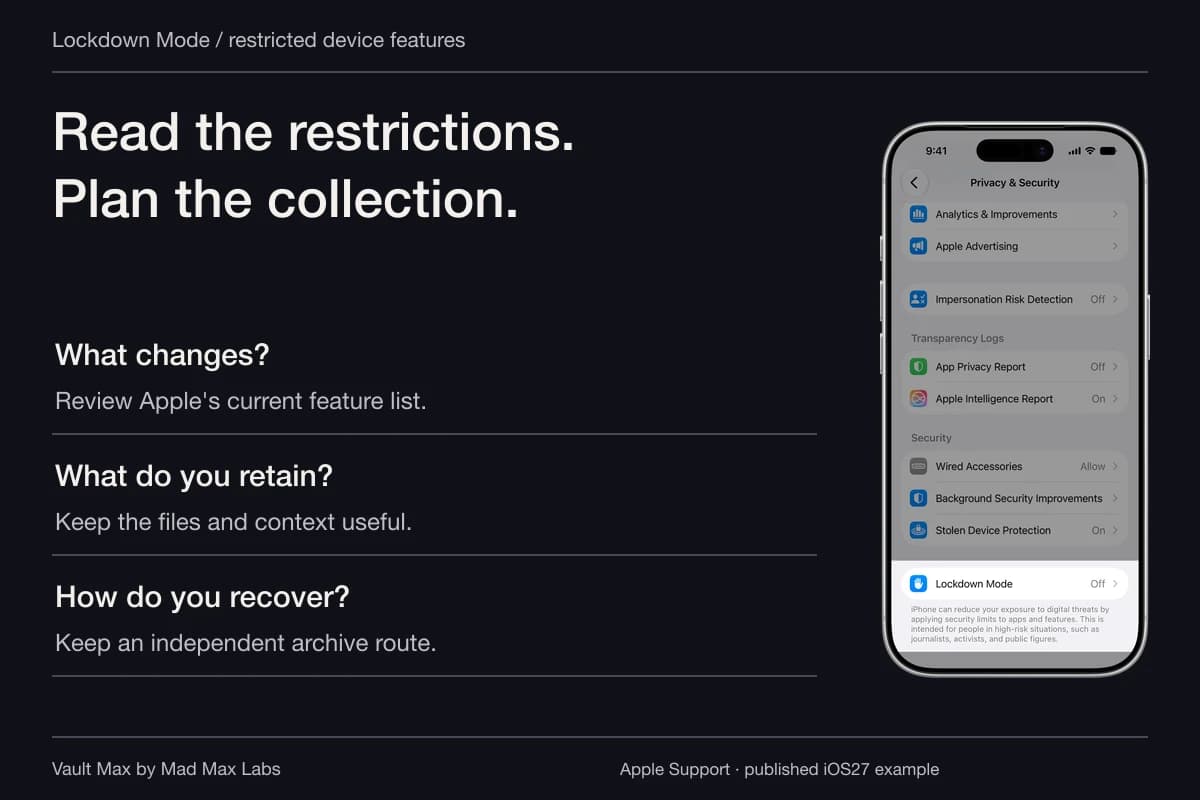
If you simply want a picture out of ordinary Photos browsing, start with the manual Hidden workflow. Apple's delete-or-hide guide documents the Hide control, the Hidden collection and its Face ID, Touch ID or device-passcode authentication. That gives you a supported destination to inspect.
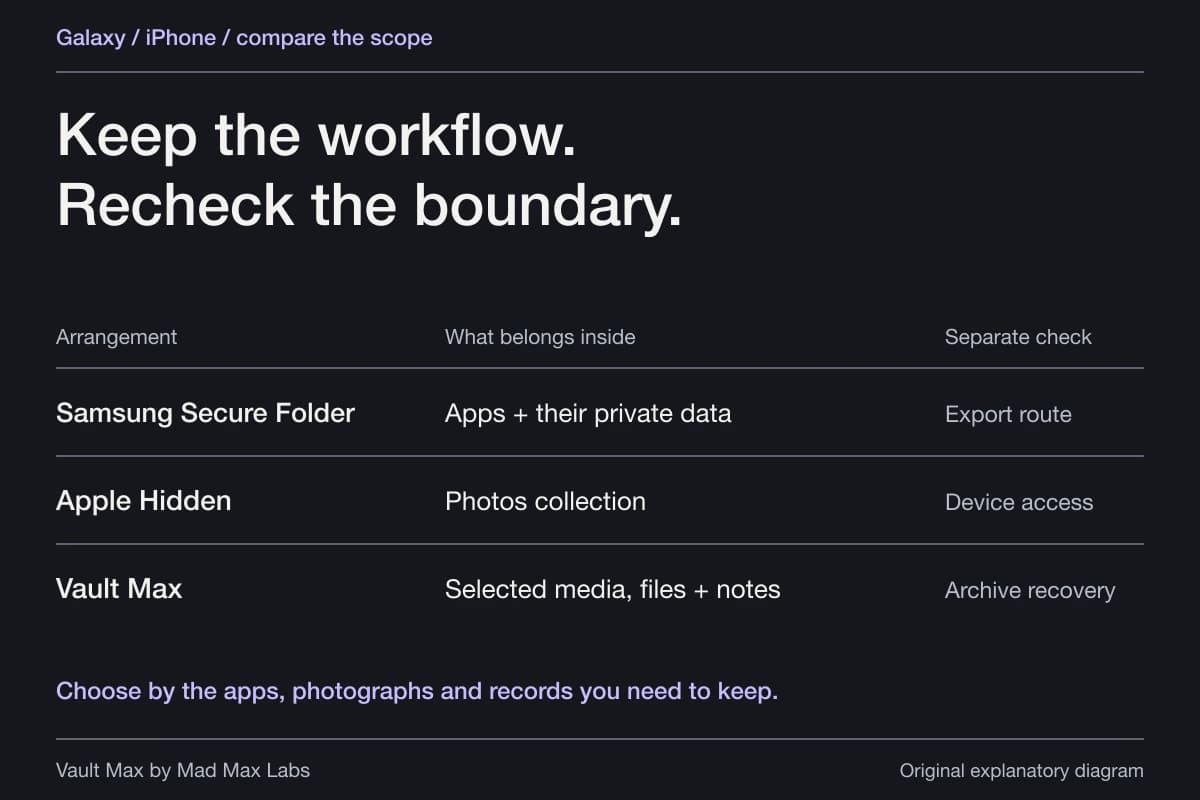
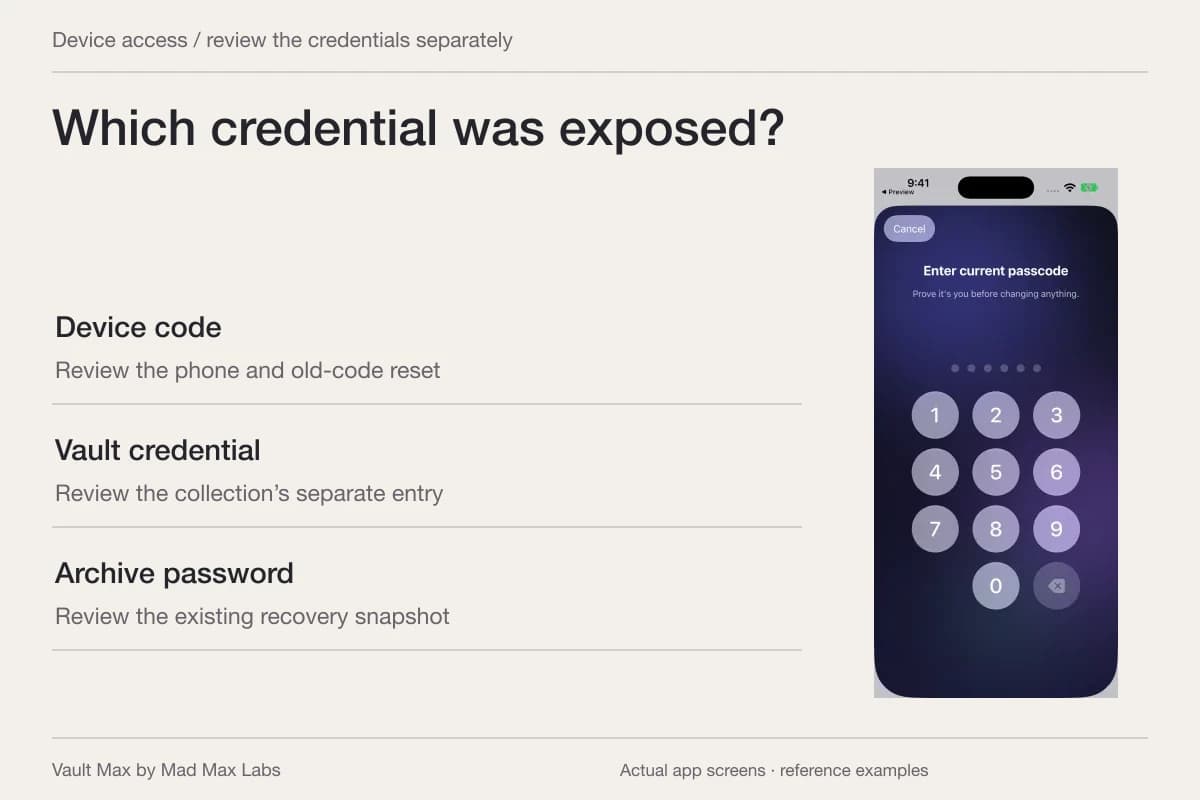
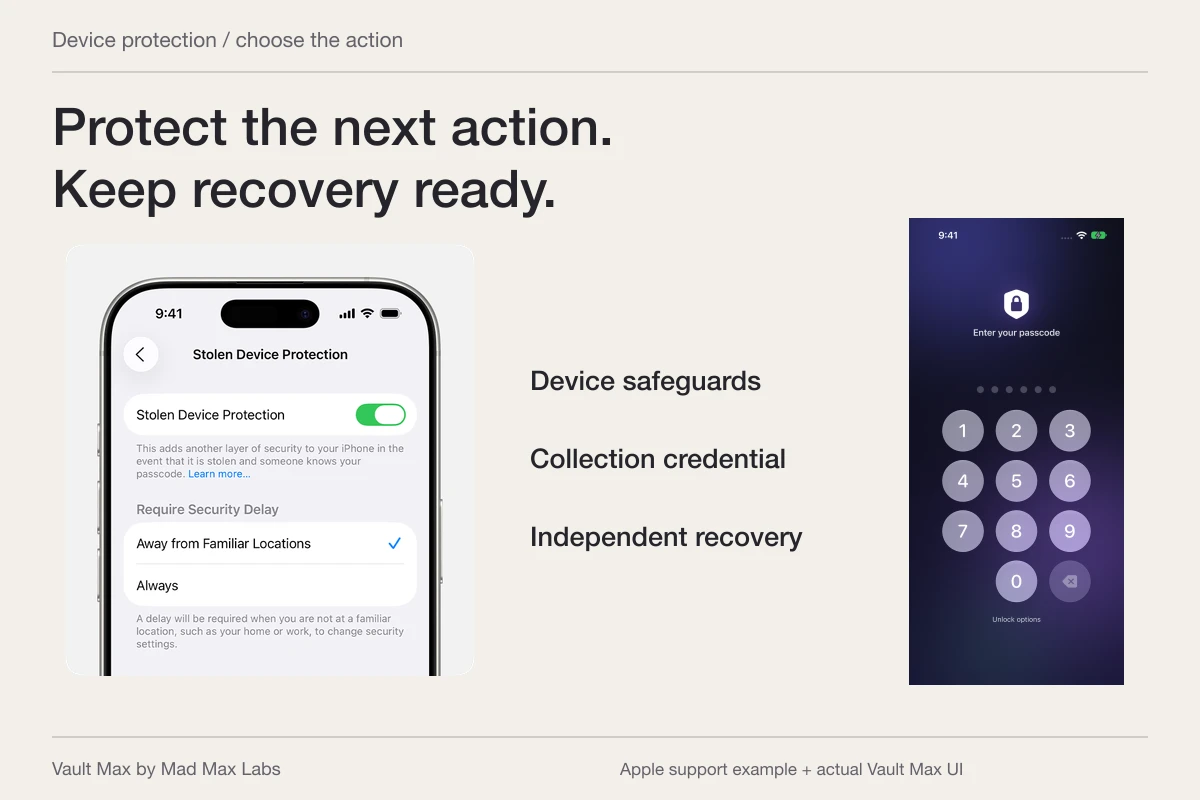
If someone already knows your device code, saving taps on the way to Hidden does not address your main concern. Consider a collection with its own credential. If you only want to open a frequently used app more quickly, a launcher can be useful without handling any photo data at all.
Write down the smallest task first. “Open the private collection” is easier to inspect than “find every sensitive picture, move it, delete the original and send a confirmation.” Combining several steps makes it harder to notice when one step did something different from what you expected.
Read the actions before running a shared shortcut
Open the shortcut in its editor. Read from the first action to the last, including expanded parameters, chosen albums, file paths and recipients. Apple explains that content passes from action to action; an action can retrieve images and pass them to a later sending action. A reassuring icon does not describe that whole chain.
Pay particular attention to actions that share, send, upload, save or delete content. A shortcut that asks you to choose one photograph is a different proposal from one that retrieves the newest photographs automatically. A destination named “Private” might be an ordinary folder or album. Read the destination rather than inferring protection from the label.
If a field contains a variable, follow it back to the action supplying it. For example, confirm whether the next step receives your deliberate selection or the output of a broad library search. Stop when you cannot explain where an item goes; you can remove or revise the uncertain step before trying again.
Build a small, inspectable experiment
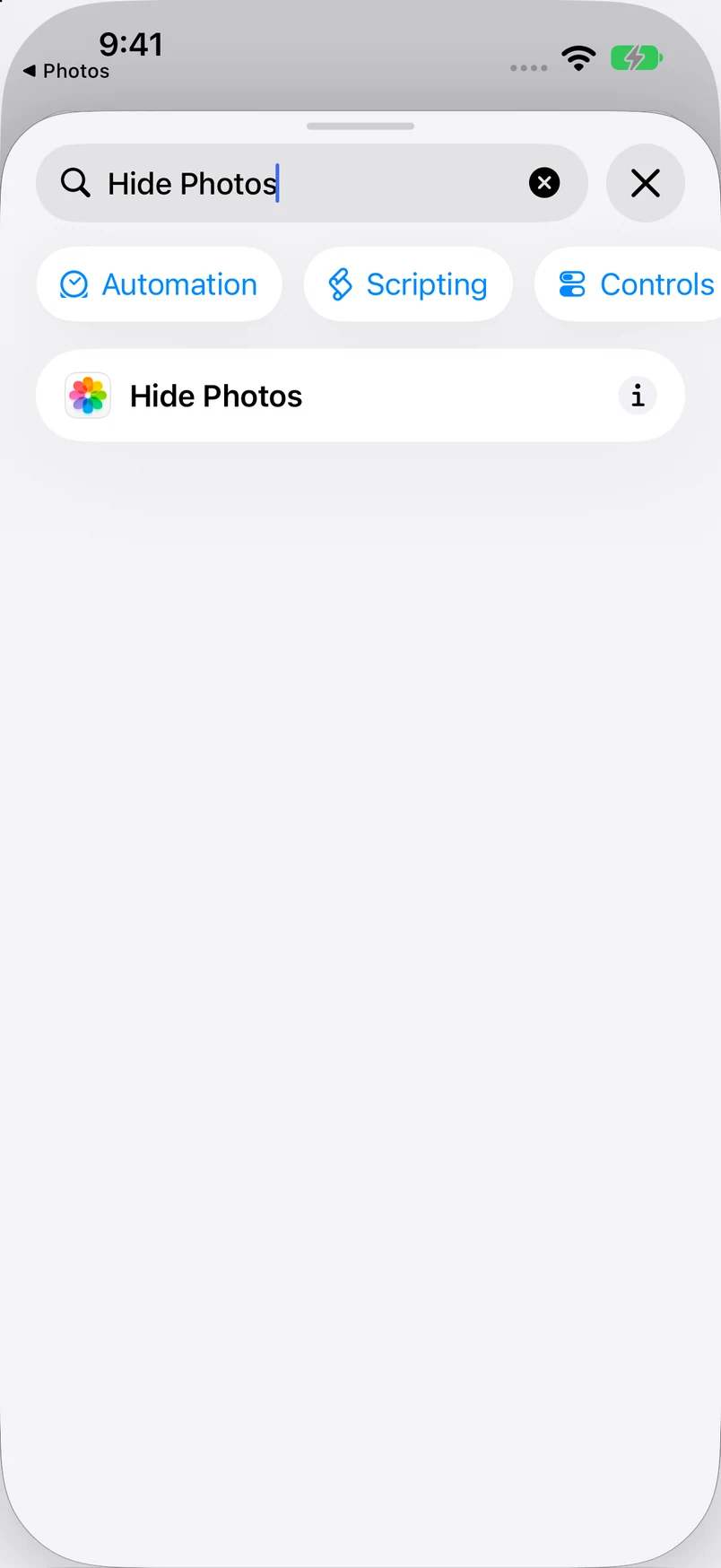
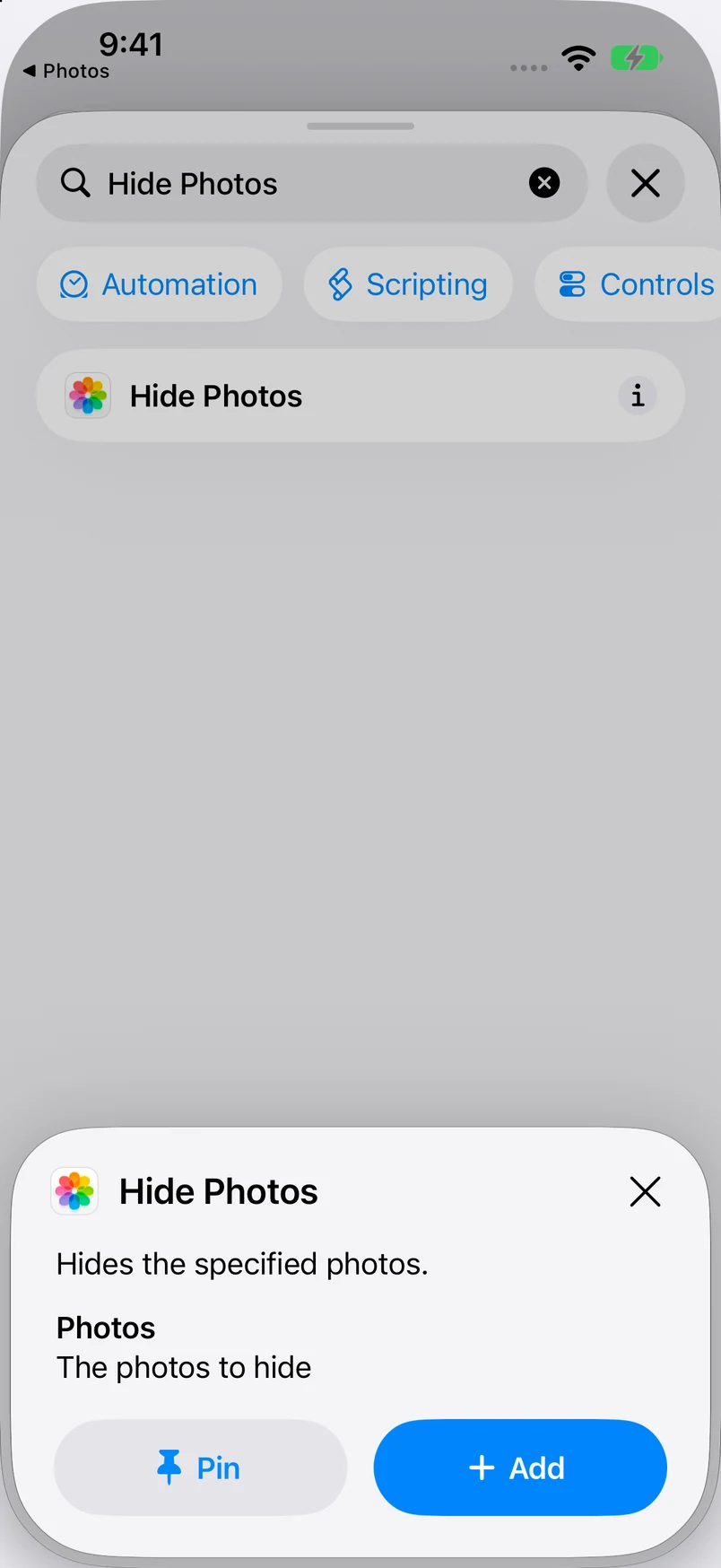
Our fresh QA capture found Hide Photos in the Shortcuts action search. Its information panel identifies photo input and describes hiding the specified photos. We inspected the catalog and information only: the action was not added or run, so these captures establish availability on that iOS 27 simulator rather than a completed workflow.
Fresh iOS 27 simulator screens show the Hide Photos catalog result and its information panel. No action was added or run. The screens establish the available action and described photo input, not a successful hide/unhide, a separate password or a Vault Max integration.
Actual Apple Shortcuts · QA simulator, October 24Find the action
Open original image: Find the actionRead the information
Open original image: Read the informationApple's custom-shortcut guide describes creating a shortcut, adding available actions and running it from the editor. Use the action catalog on your actual device. Names, availability and parameters can differ across system versions and installed apps.
Start with an ordinary image that contains no private information. If you are testing a launcher, check only that it opens the intended app and leaves its own authentication intact. If you are testing an image action, select one sample and note where the original exists before running anything.
After the run, open the destination independently. Look for the item there rather than treating a completion banner as proof. Then return to Photos and check whether the original is still in the main library, Hidden or another expected location. Do not add automatic deletion until you understand and can recover from the simpler workflow.
This article does not provide a tested automatic-hide recipe or claim that Vault Max exposes import, unlock or deletion actions to Shortcuts. A shortcut shown elsewhere should be judged against its actual editor and the result on your phone.
Grant permission for the experiment you are doing
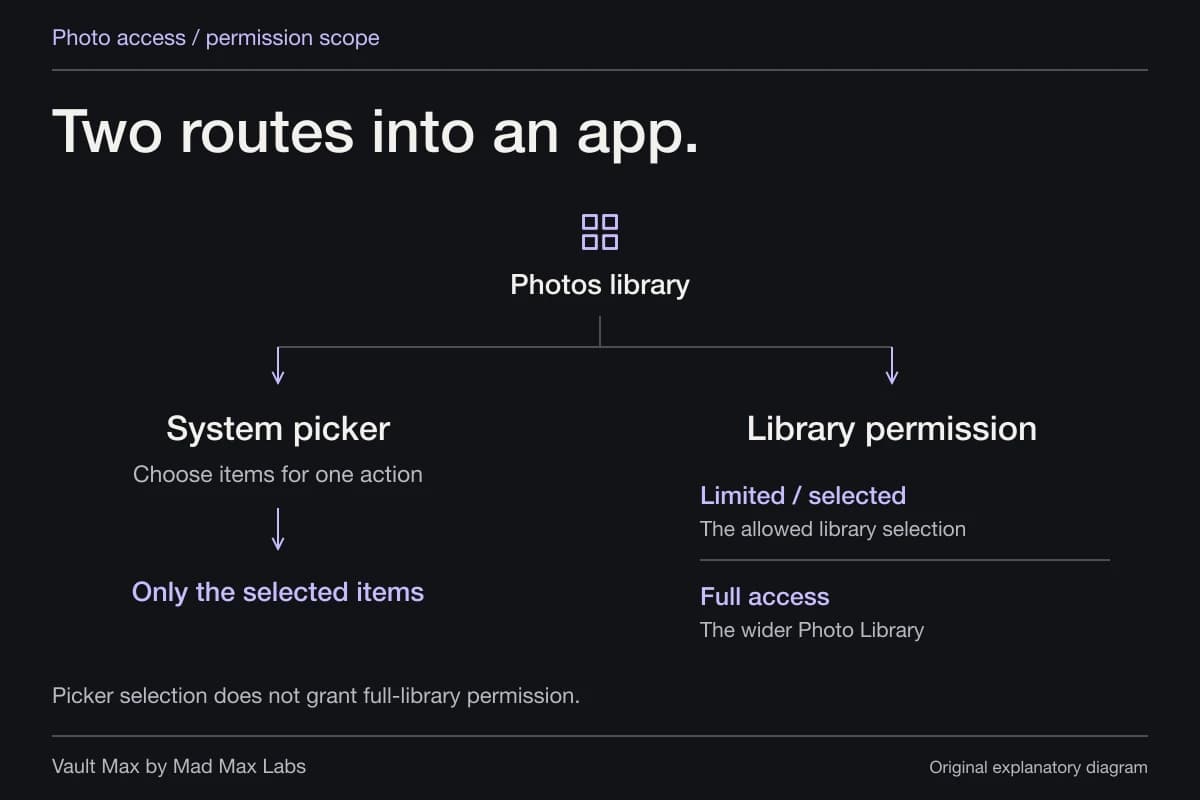
Apple's Shortcuts privacy guide documents Allow Once, Always Allow and Don't Allow when access is requested. Start with the scope you understand. A one-time harmless experiment does not require you to treat every later run as trusted.
To reconsider a previous decision, open the shortcut's Details and then Privacy. Remove the relevant permission or use Reset Privacy. Apple also warns that it cannot verify the authenticity or behavior of privately shared shortcuts. Review the actions even when the shortcut came from someone you recognize.
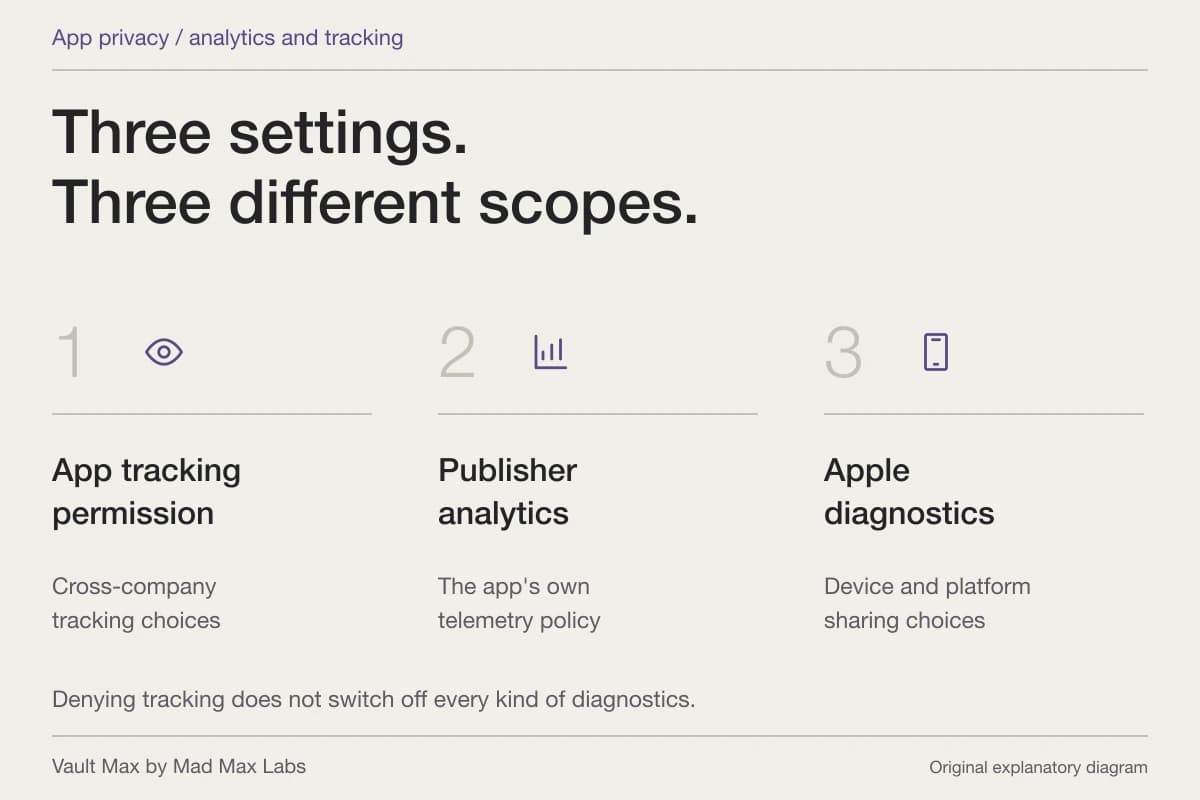
Permission establishes what a workflow may access. It does not establish what a saved destination encrypts, whether an export retained metadata or whether a recipient deleted an older copy. Keep those checks separate so a successful permission prompt does not become a larger privacy claim.
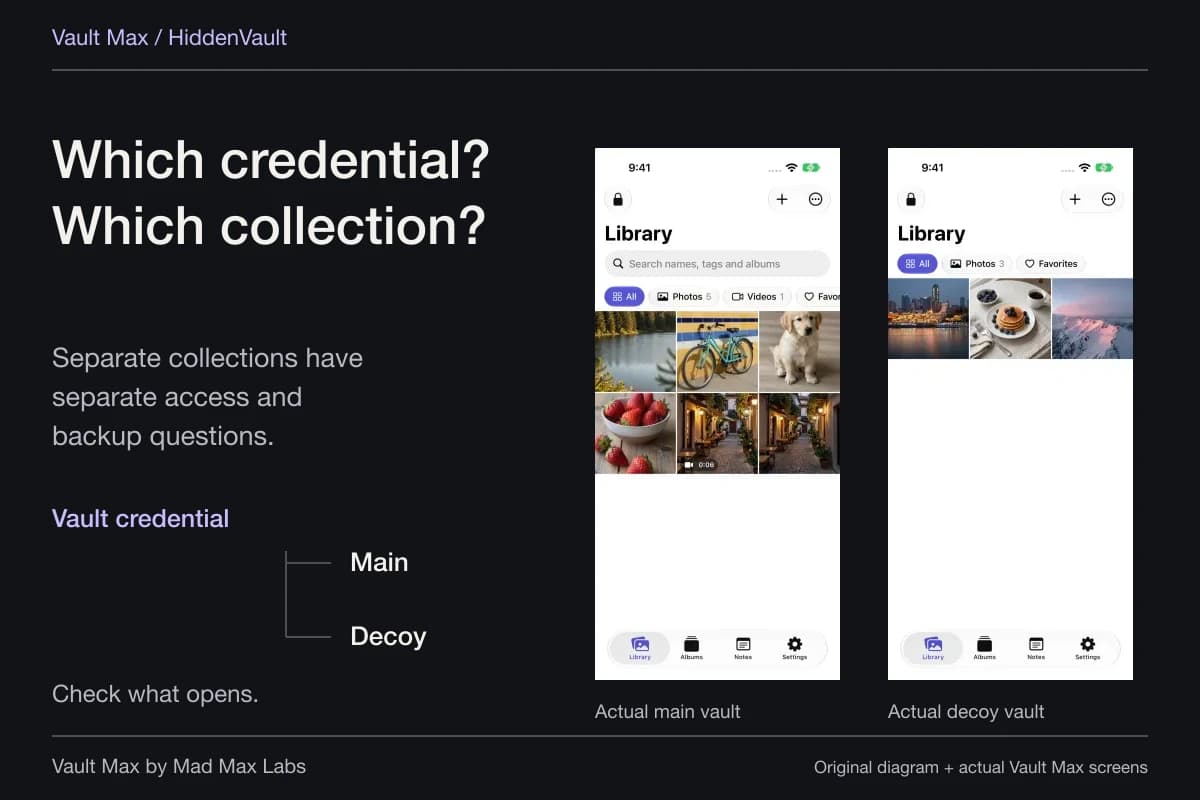
Use a deliberate import when the collection needs its own credential
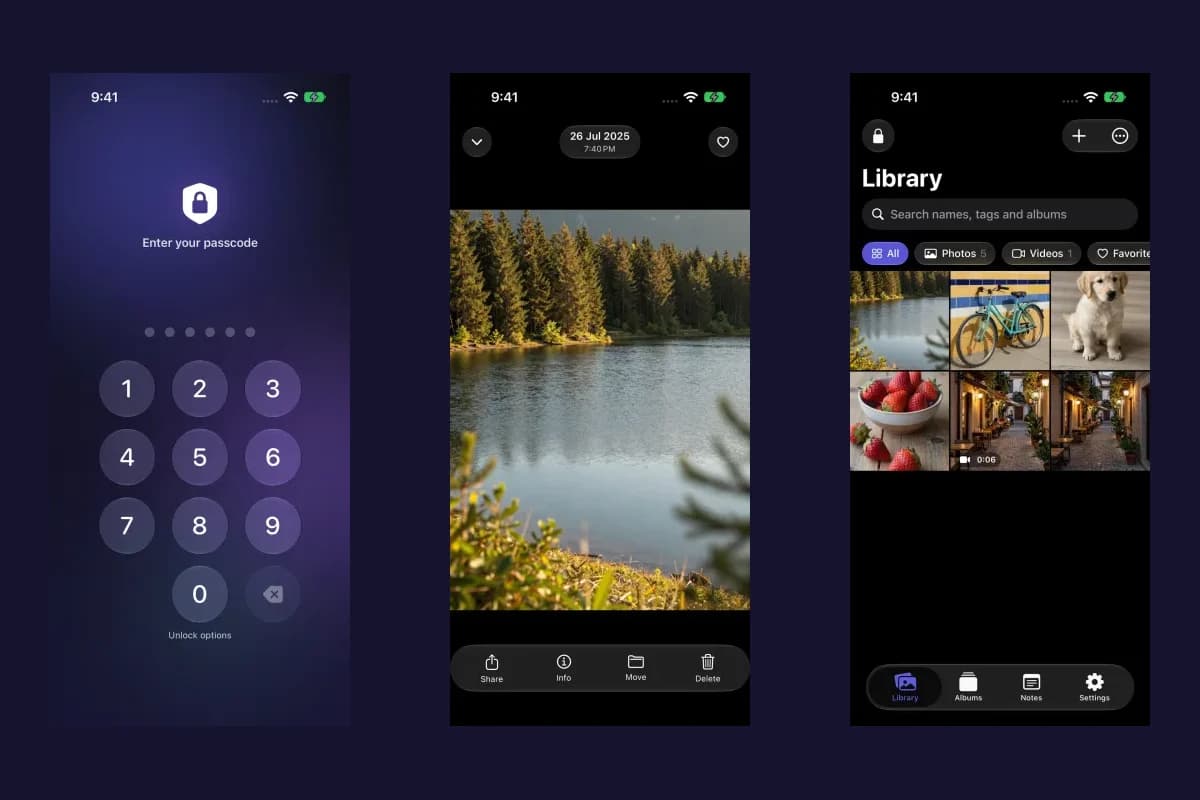
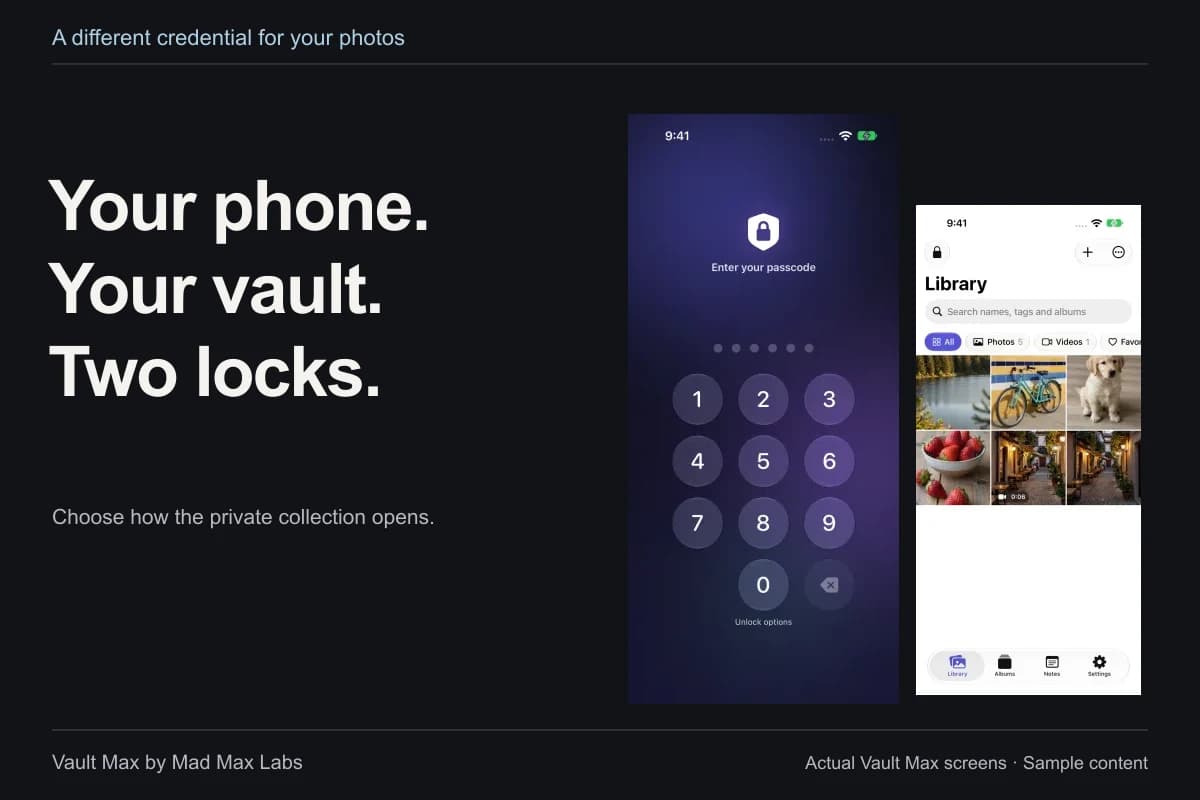
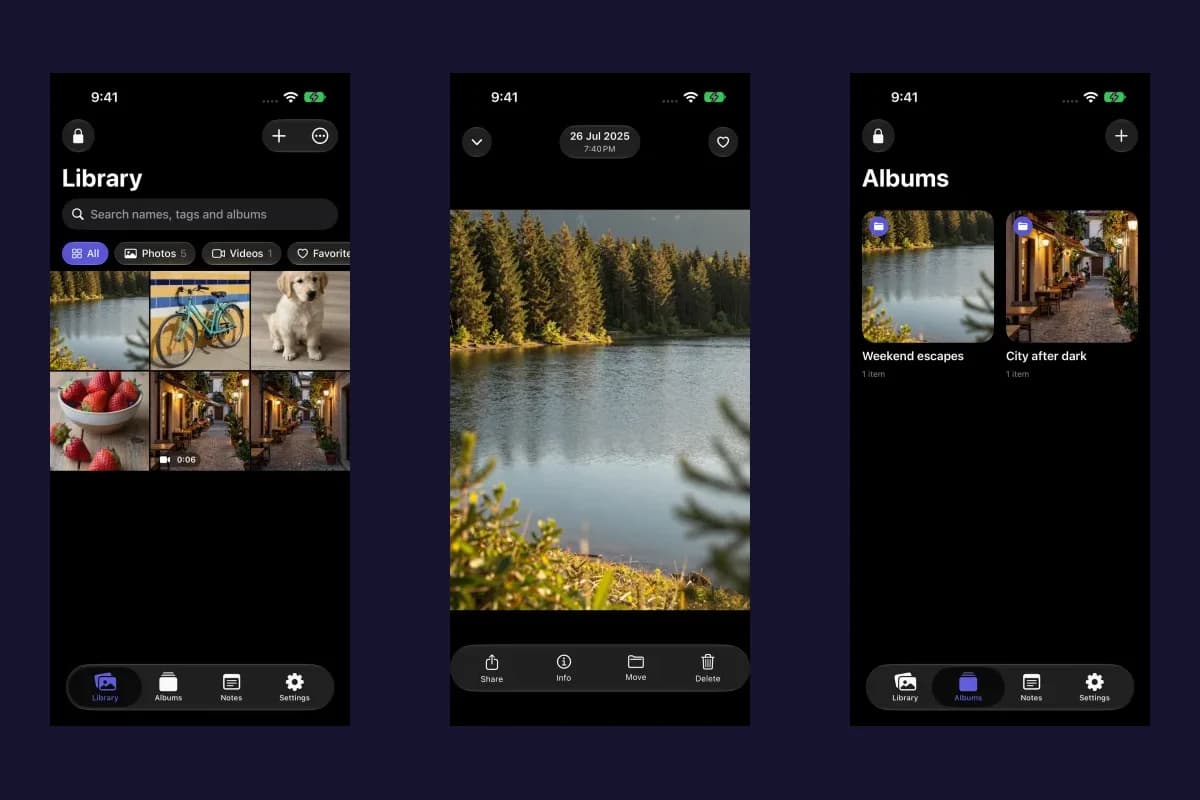
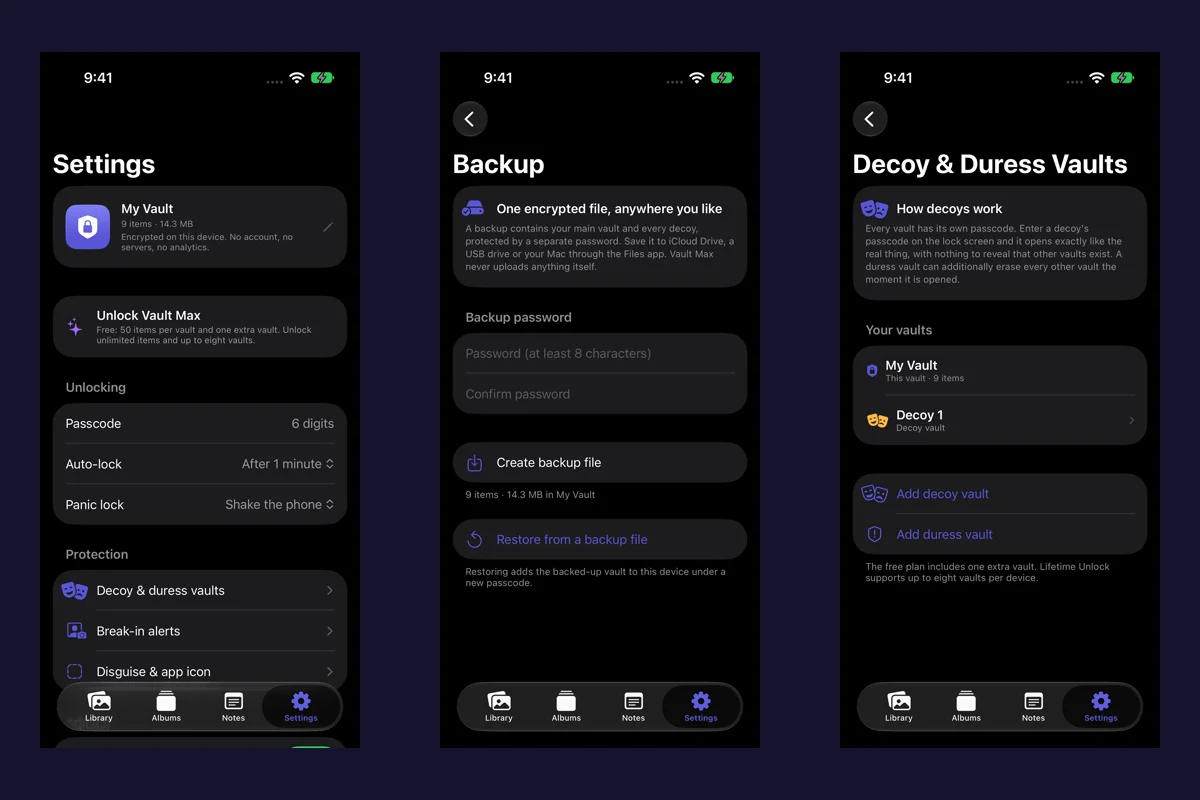
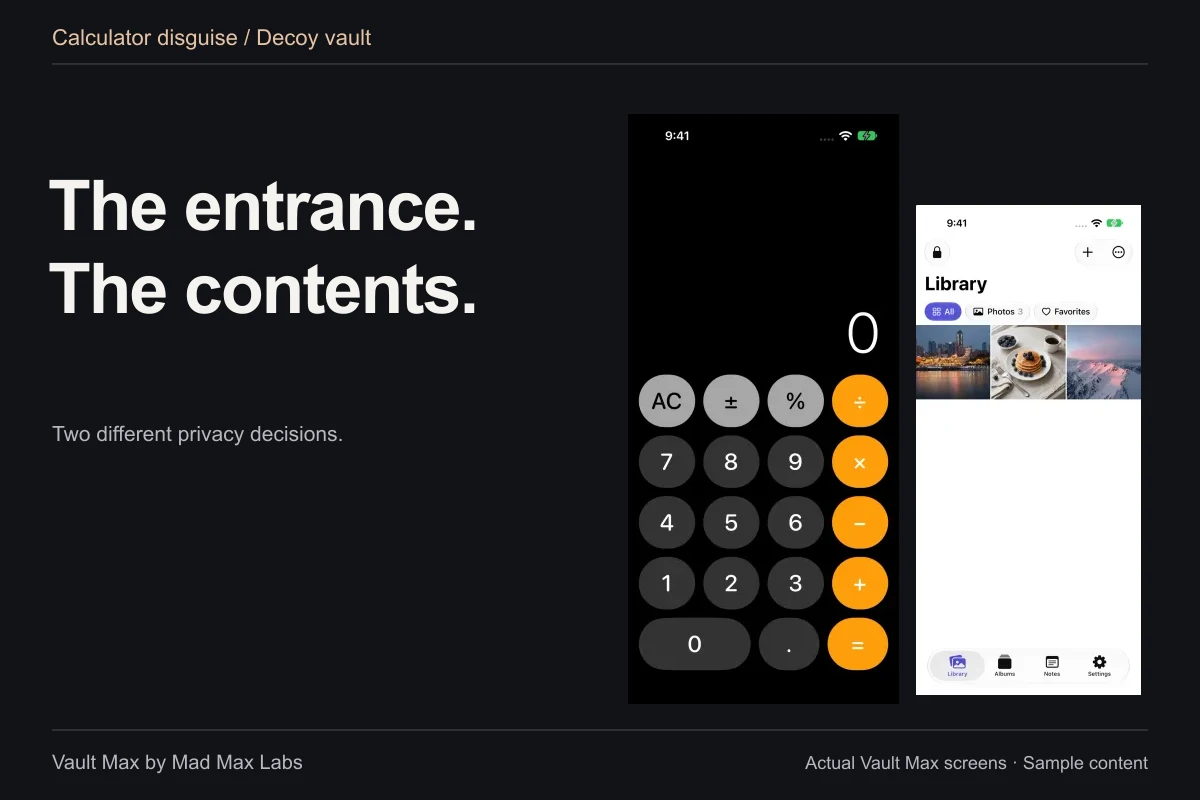
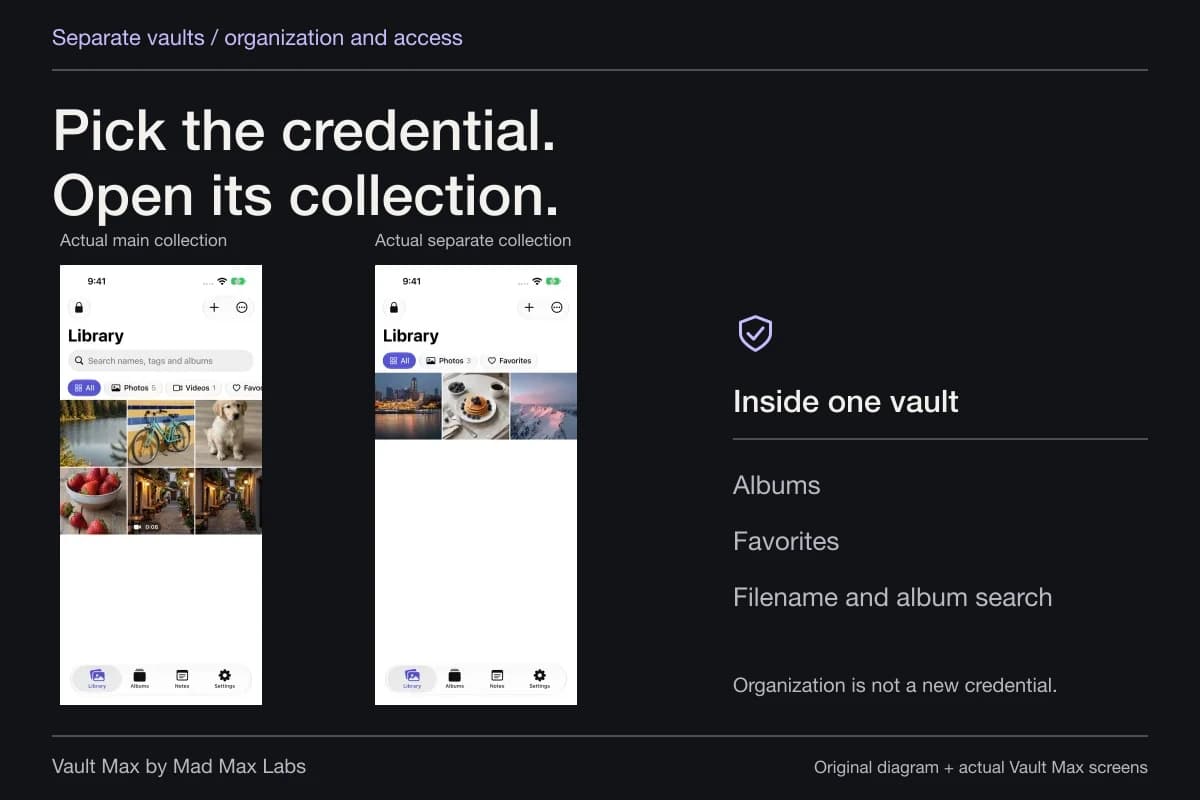
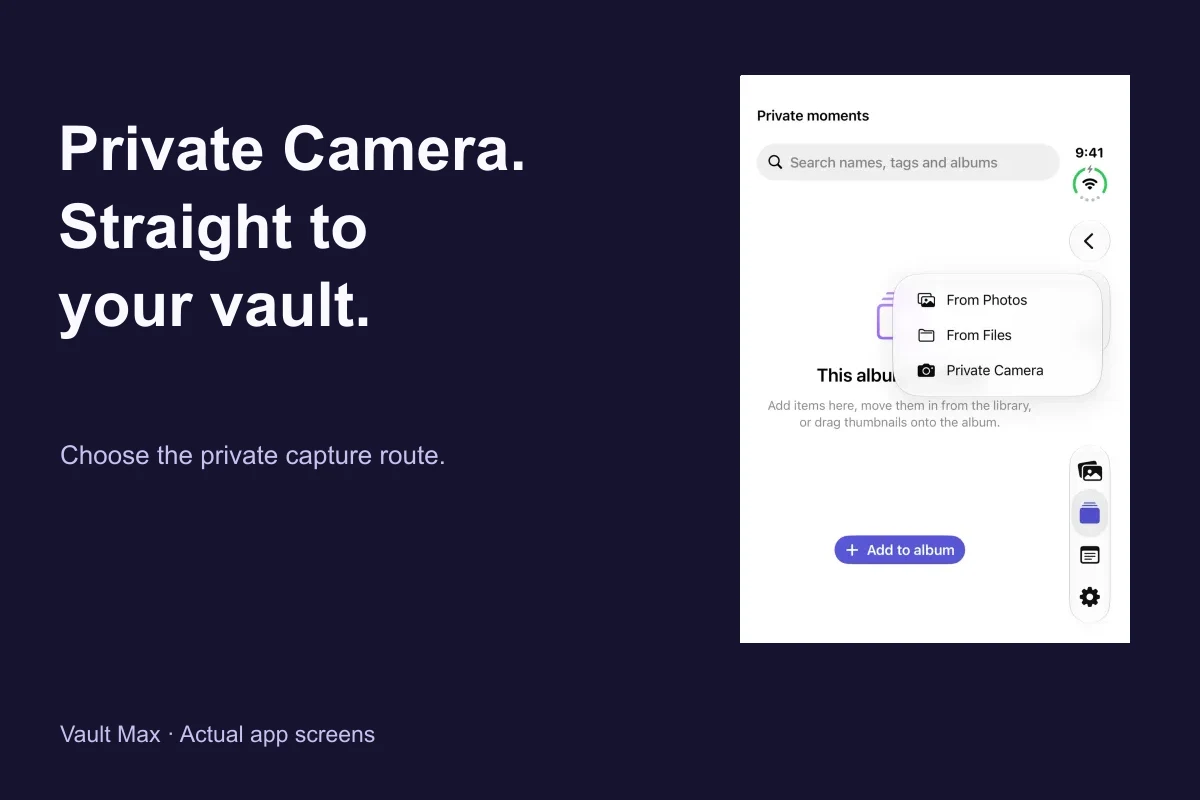
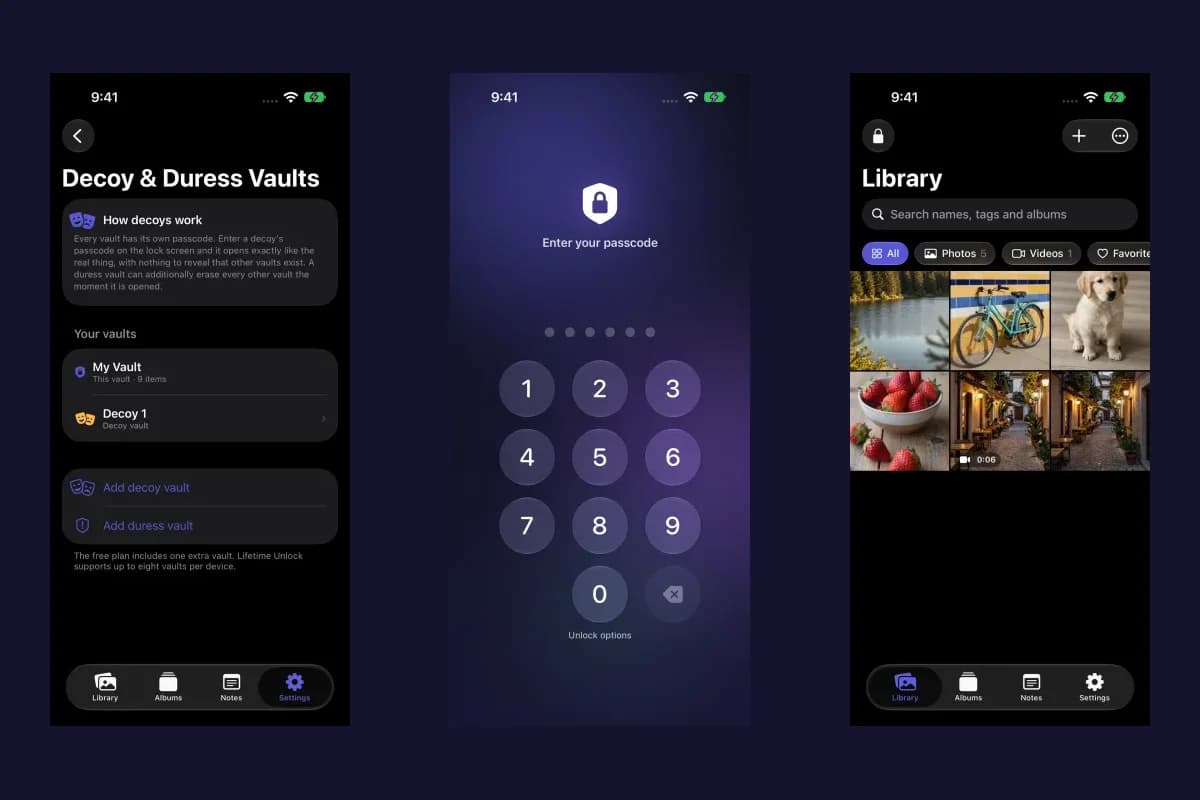
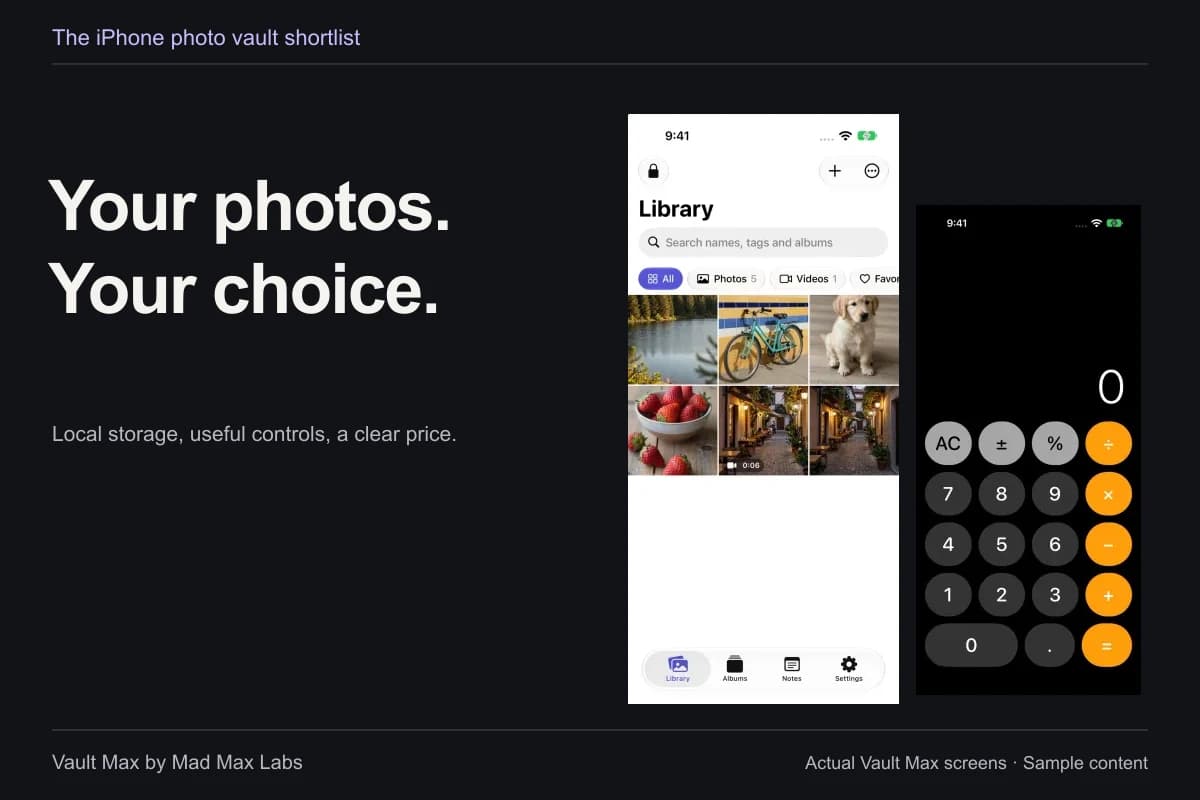
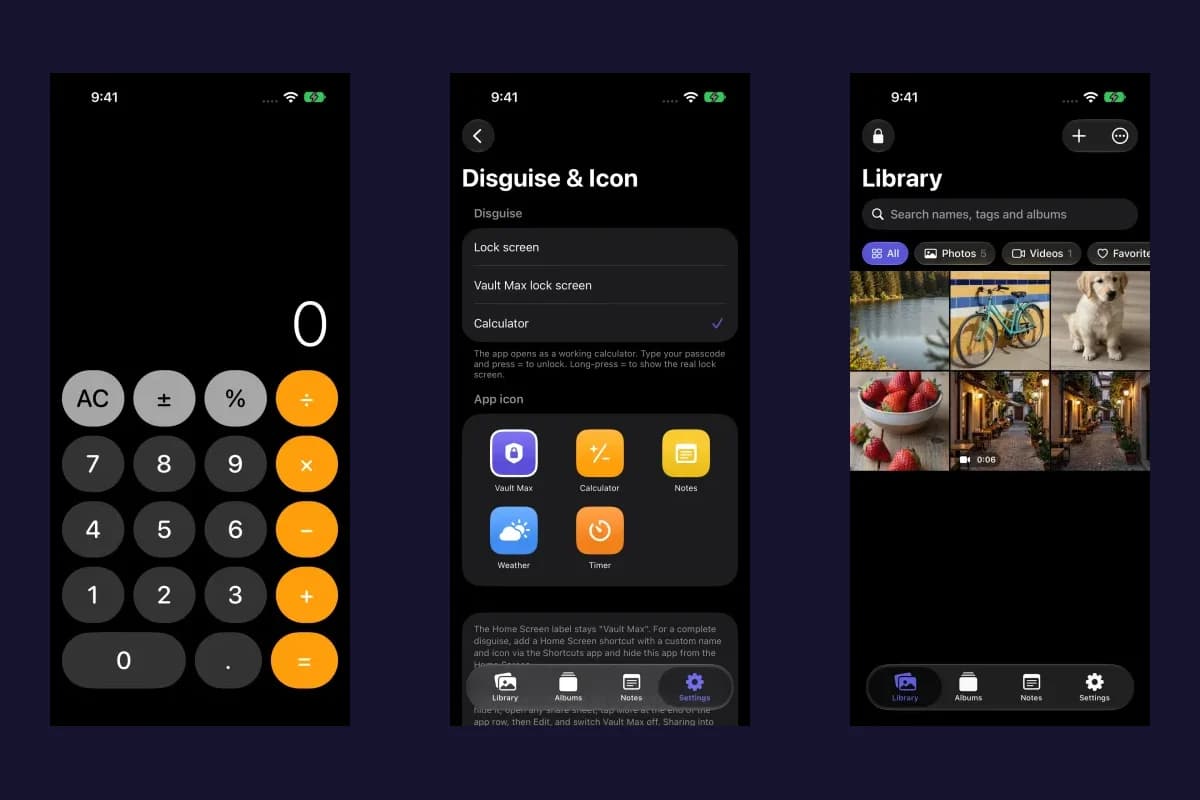
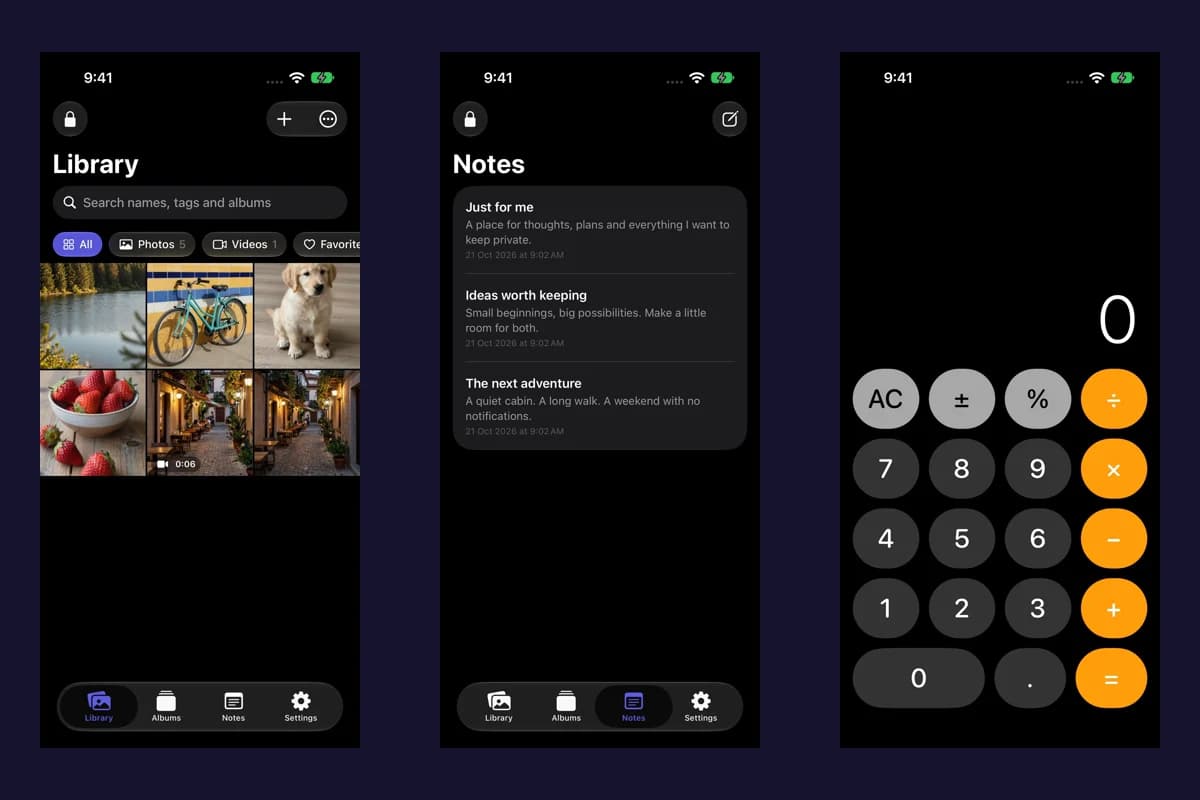
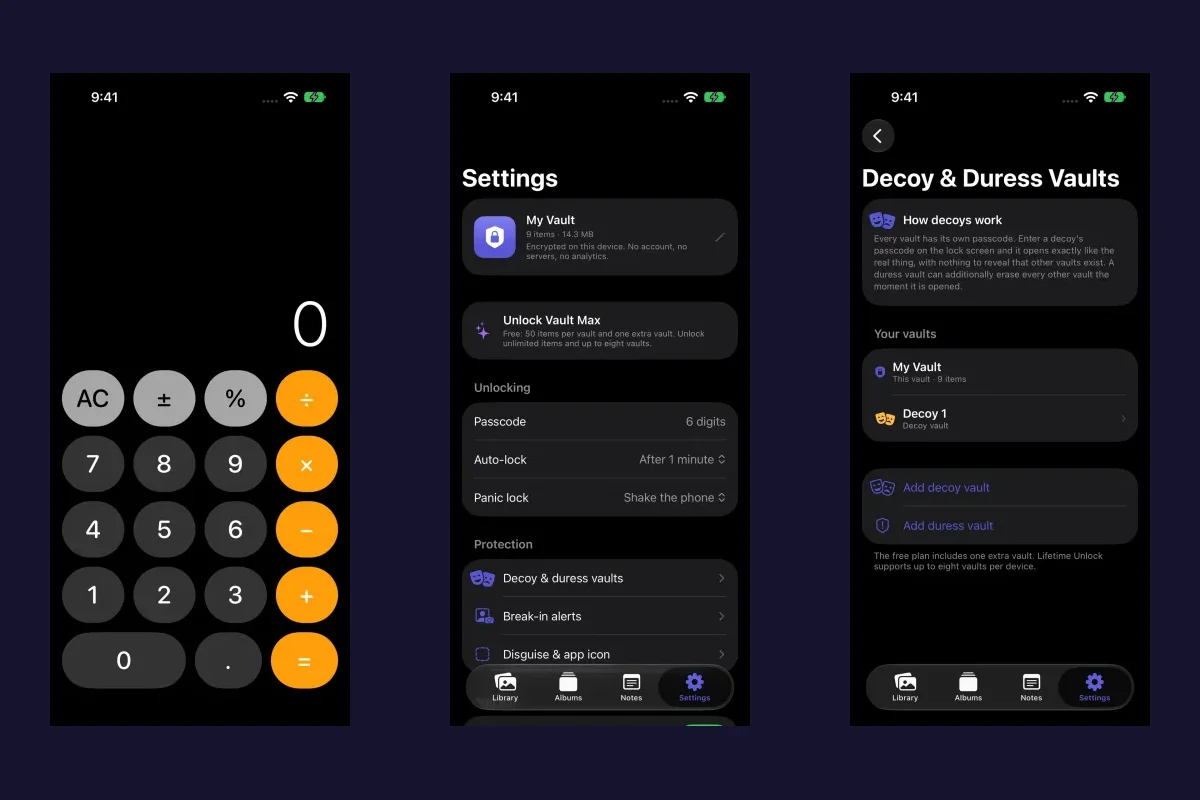
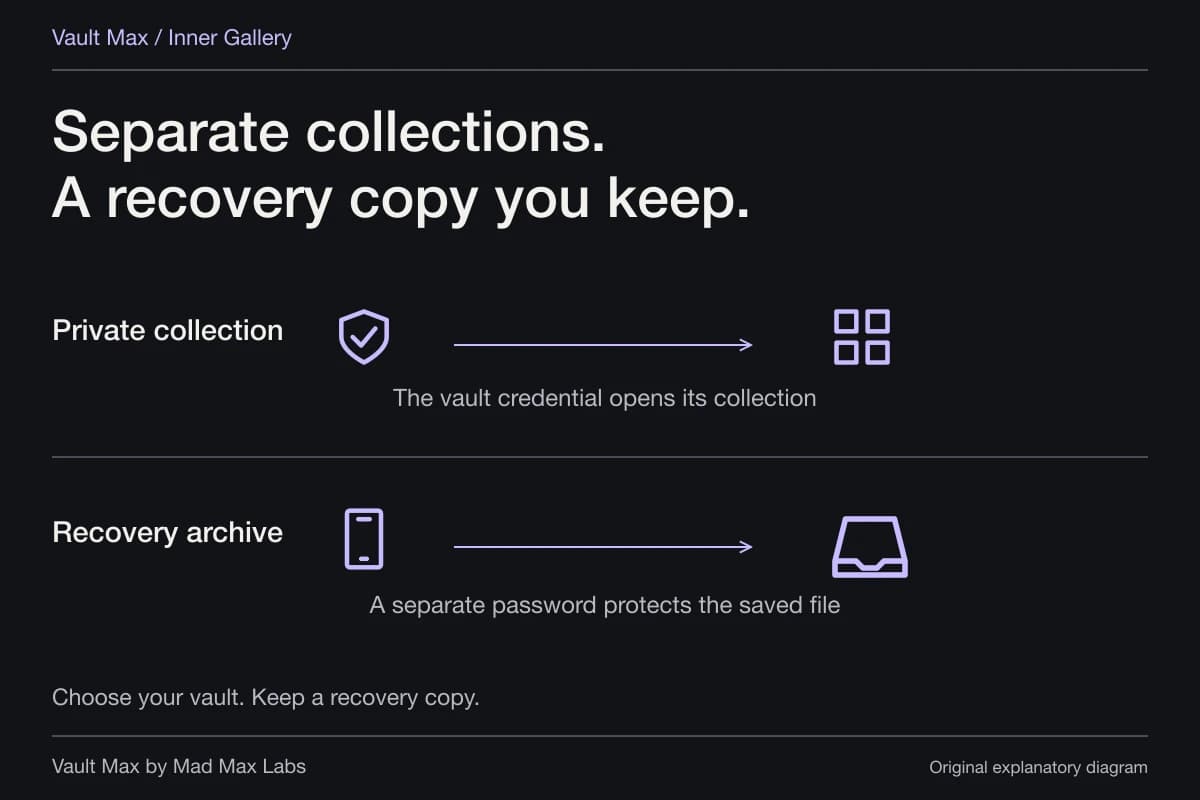
Vault Max offers a direct route for selected photos: open the intended vault, choose the Photos import, select the items and inspect the saved results. Mad Max Labs makes Vault Max. Its local encrypted media, files and notes belong to its own collection, with a vault credential you choose.
That is a useful fit when the decision is about the collection's access boundary. It does not turn a generic shortcut into a verified integration. Choose a small first import, open the full image and confirm you placed it in the intended vault before expanding the task.
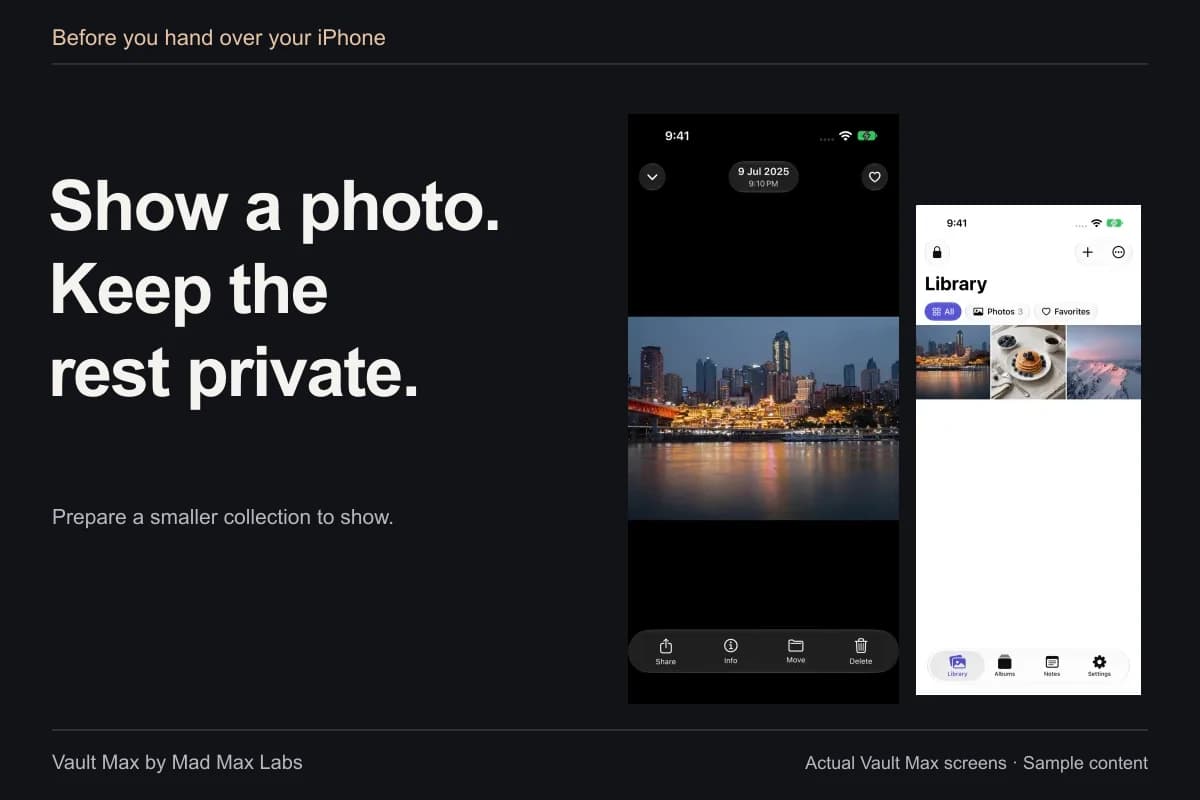
Vault Max with sample content. Use the controls to pause or replay.
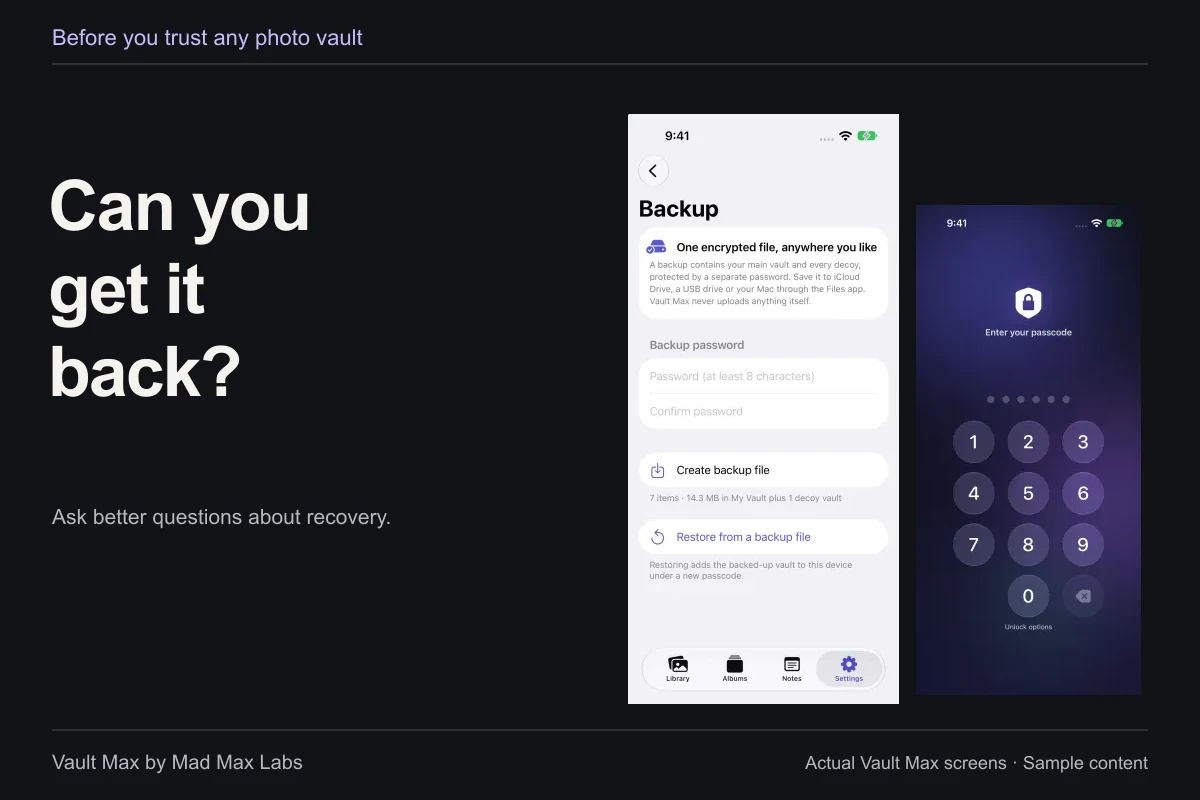
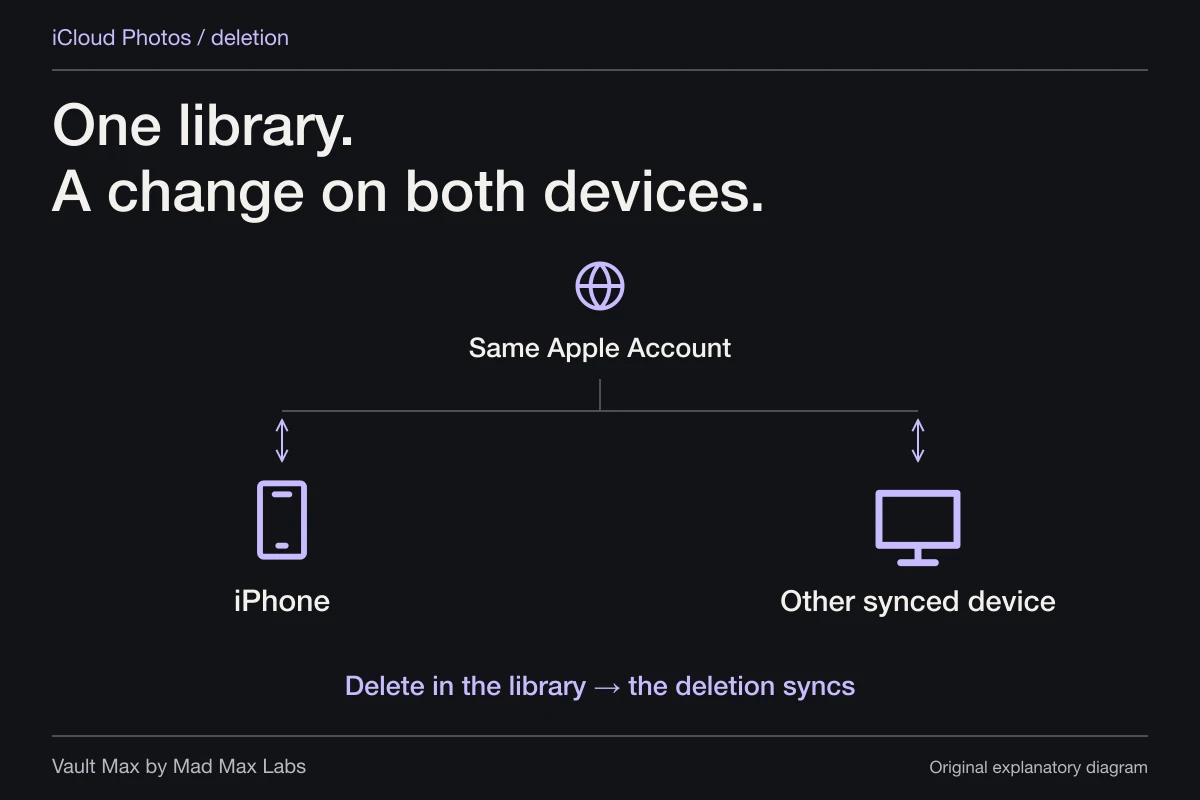
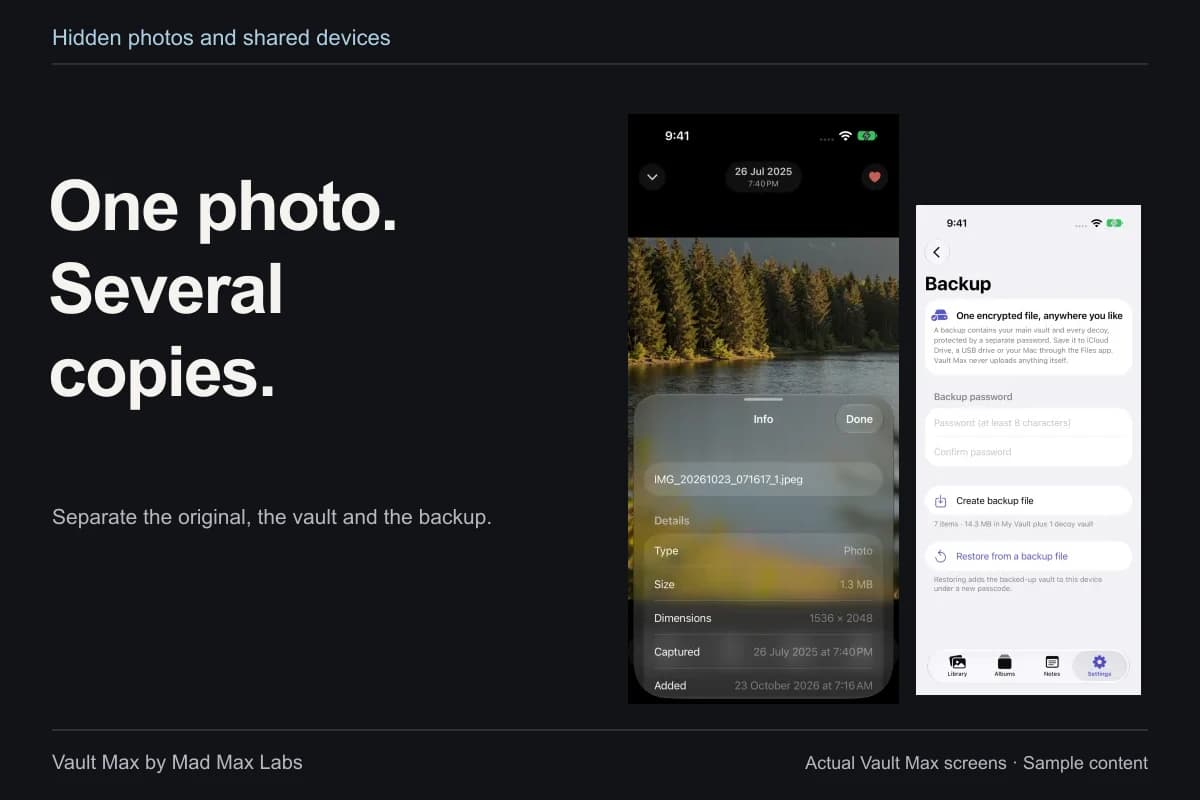
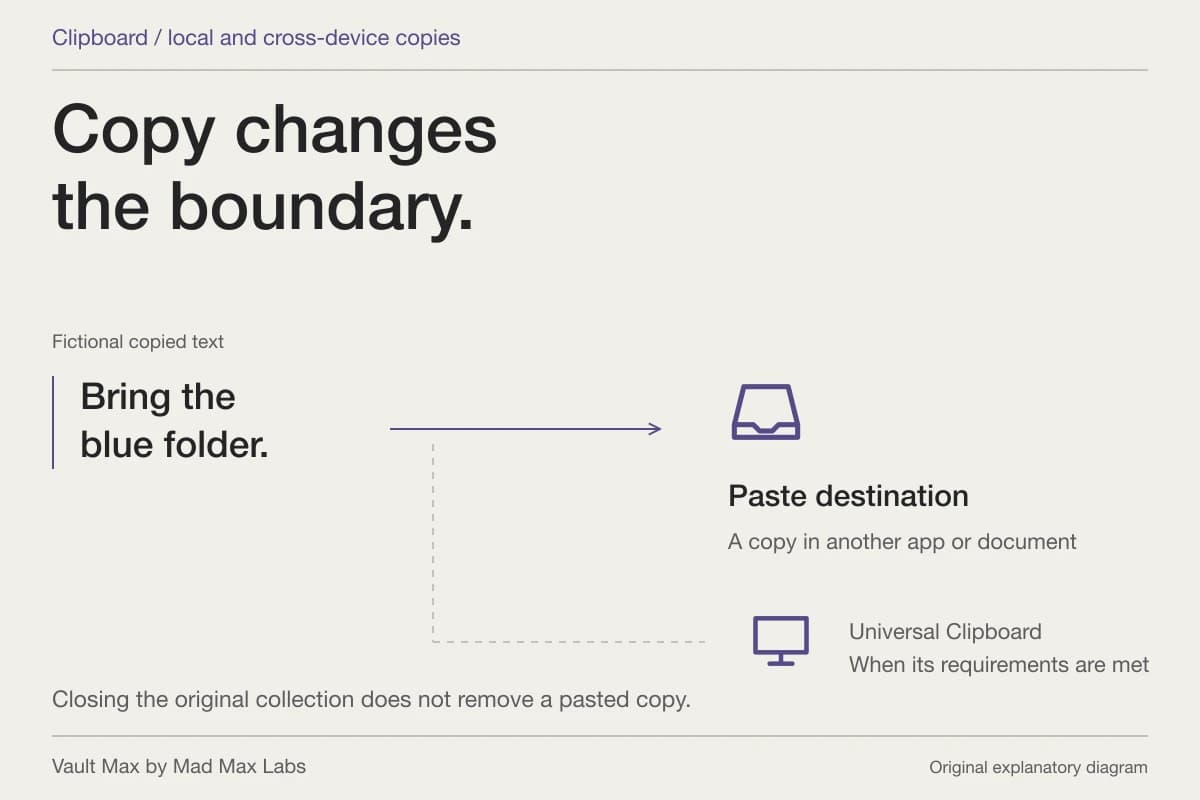
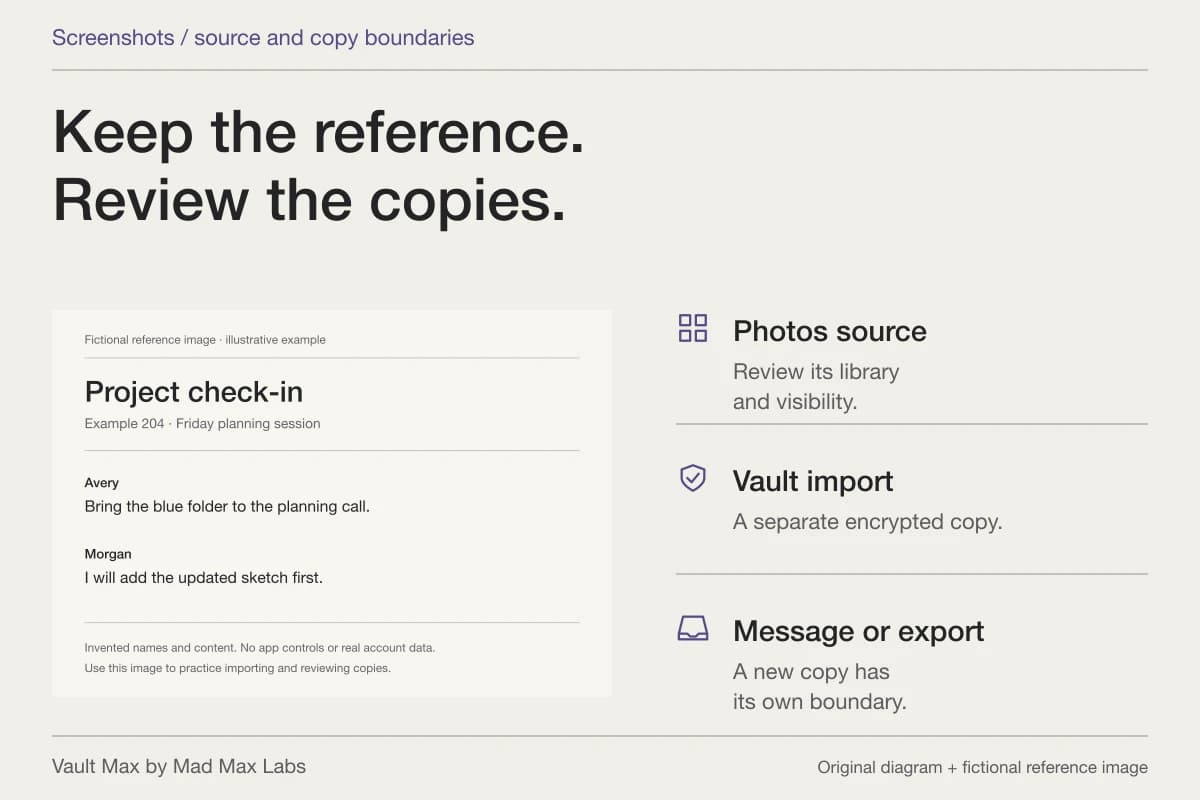
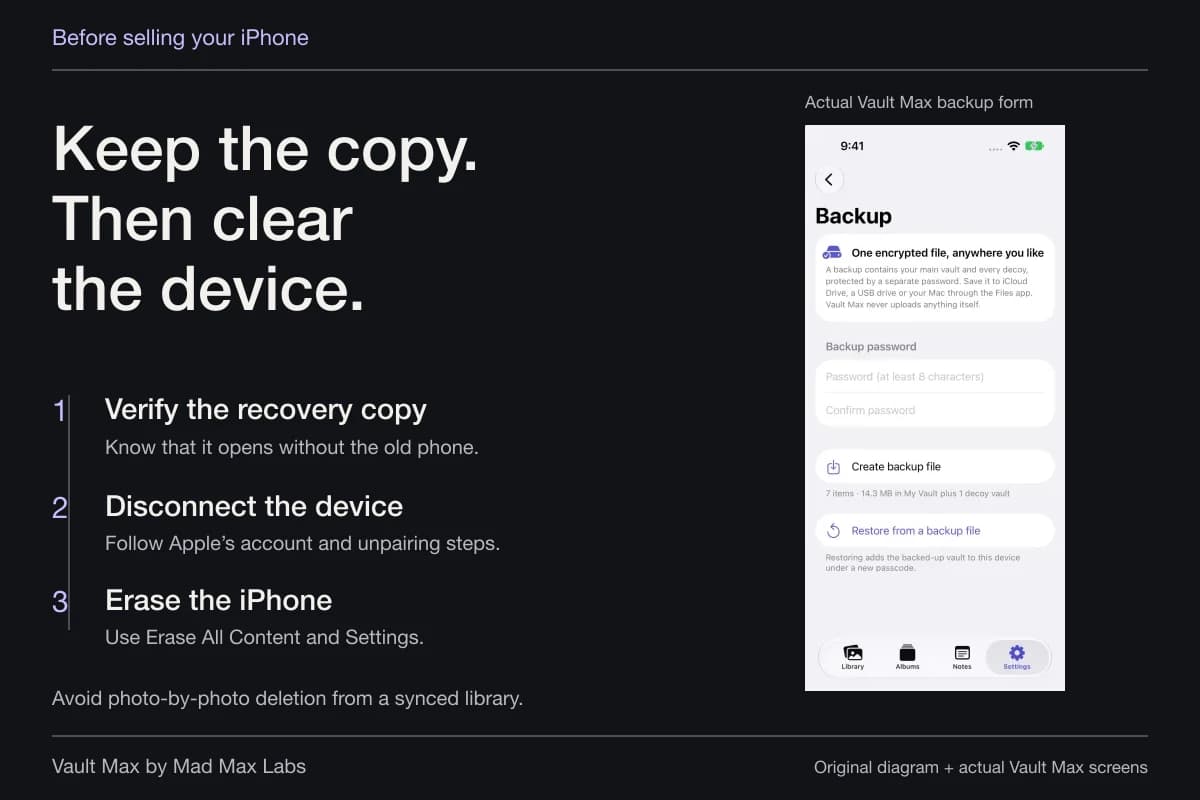
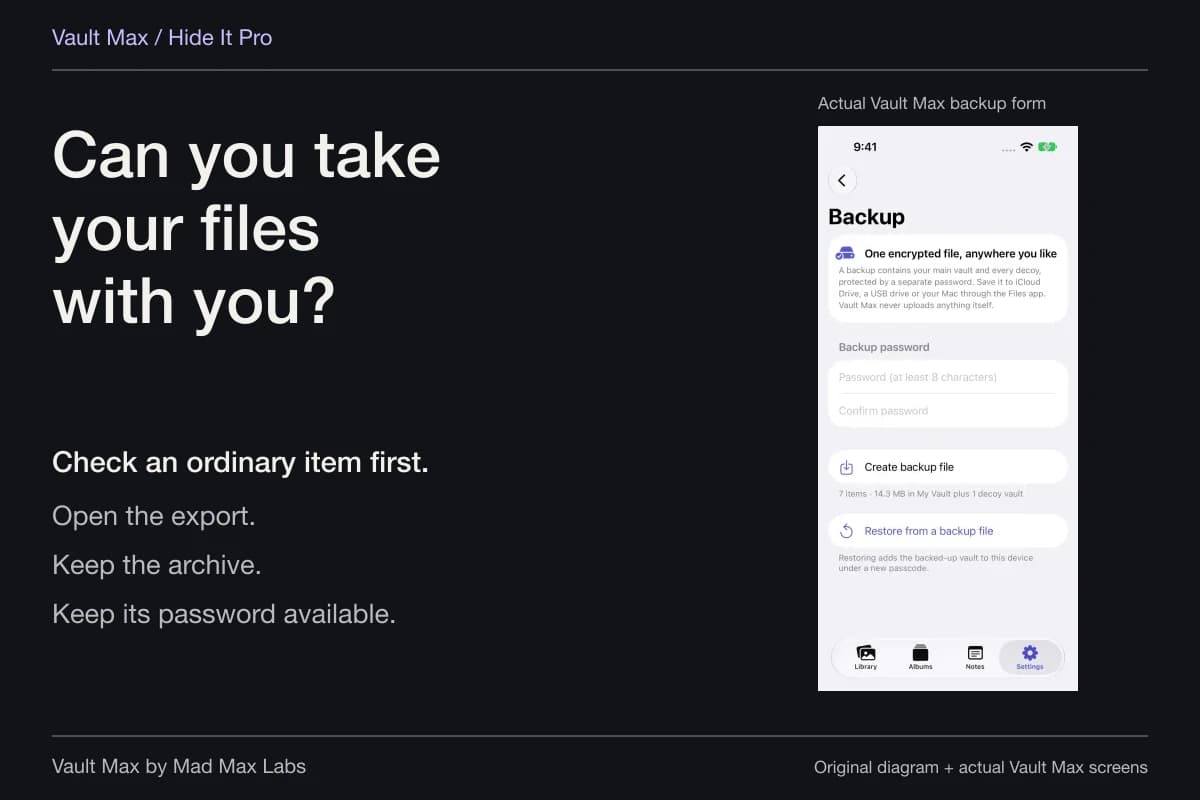
The Photos original remains a separate decision. If you later remove it, review iCloud Photos behavior and Recently Deleted first. The import guide and recovery checklist explain the checks to complete before making the vault copy your only working copy.
Diagnose the actual failed step
If nothing happened, return to the editor and inspect the input and first incomplete action. If an image appeared in the wrong place, check the chosen album, path or receiving app. If too many items were selected, narrow the retrieval step before running again. Avoid repeatedly executing an uncertain workflow with important photographs.
If a permission was denied, reconsider that single permission rather than enabling every advanced sharing option. If the proposed action is missing, consult the action catalog and the app's own support instead of assuming a similarly named command has the same behavior.
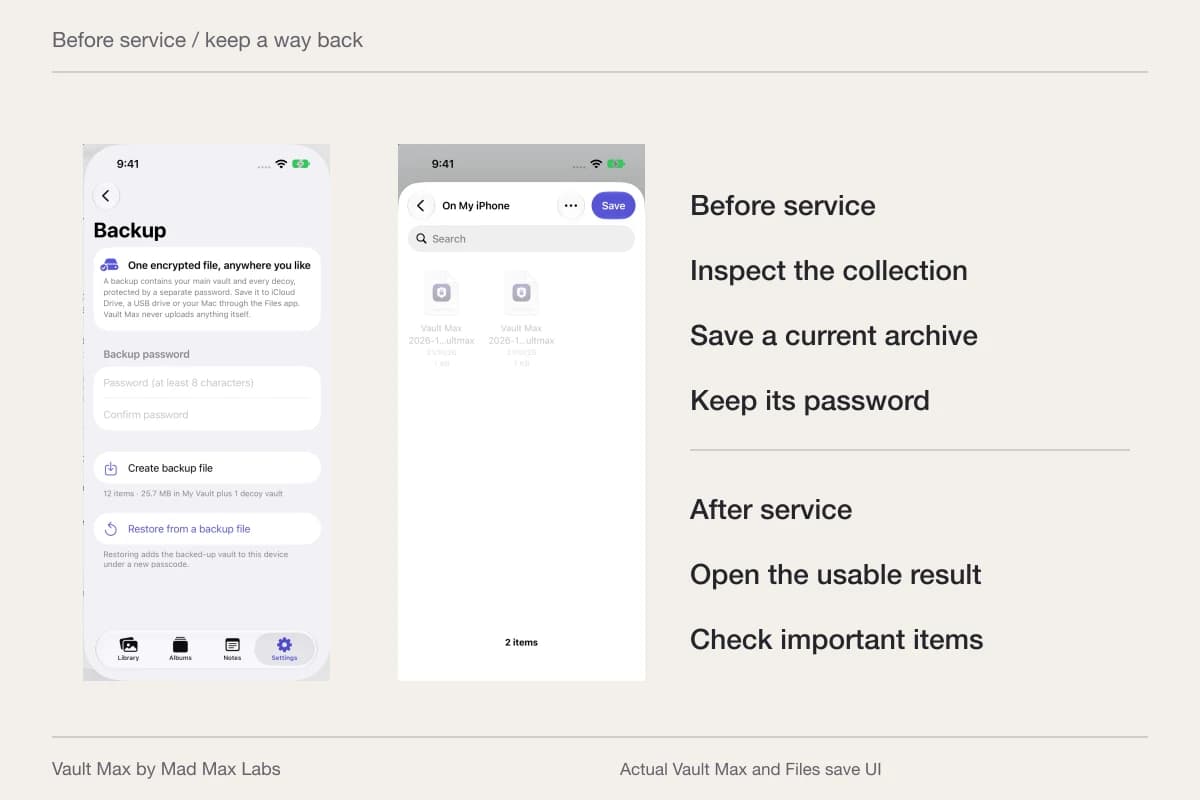
Keep the original and any usable backup during experimentation. A useful shortcut earns trust through a repeatable, inspectable result; removing steps is often the clearest way to reach one.
- Decide whether you need Hidden, a launcher or a separately credentialed collection.
- Inspect inputs, variables, destinations and any sending or deletion actions.
- Run the smallest experiment and grant only the access you understand.
- Open the saved item and check what happened to its original.
- Retain useful originals and backups before adding destructive cleanup.
Tap a box as you go. Checks reset when you leave this page.
Common questions
Can an iPhone shortcut give the Hidden album a new password?
The Hidden collection uses Apple's supported device authentication. Naming a shortcut Private or adding a prompt does not change the Hidden collection's credential. Use a separately credentialed collection if that is your goal.
Does this article supply a working hide-photos automation?
No. It explains how to inspect a proposed shortcut and verify its actual result. We have not established a tested automatic-hide workflow or a Vault Max Shortcuts integration. Apple's supported manual Hide route remains available.
Can I withdraw a shortcut's Photos permission?
Open that shortcut's editor, open Details, then Privacy. Apple documents removing individual access or using Reset Privacy. The Privacy tab is absent when that shortcut does not have access to your data.
Continue reading
More guides
Practical tips for your private library. Swipe or scroll to choose your next guide.
92 guides to explore