
Privacy in practice
Hide a person in Photos, or see them less: choose the right control
Separate People & Pets hiding, featured-photo suggestions and hidden photo files. Follow Apple's documented controls and troubleshoot a missing person carefully.
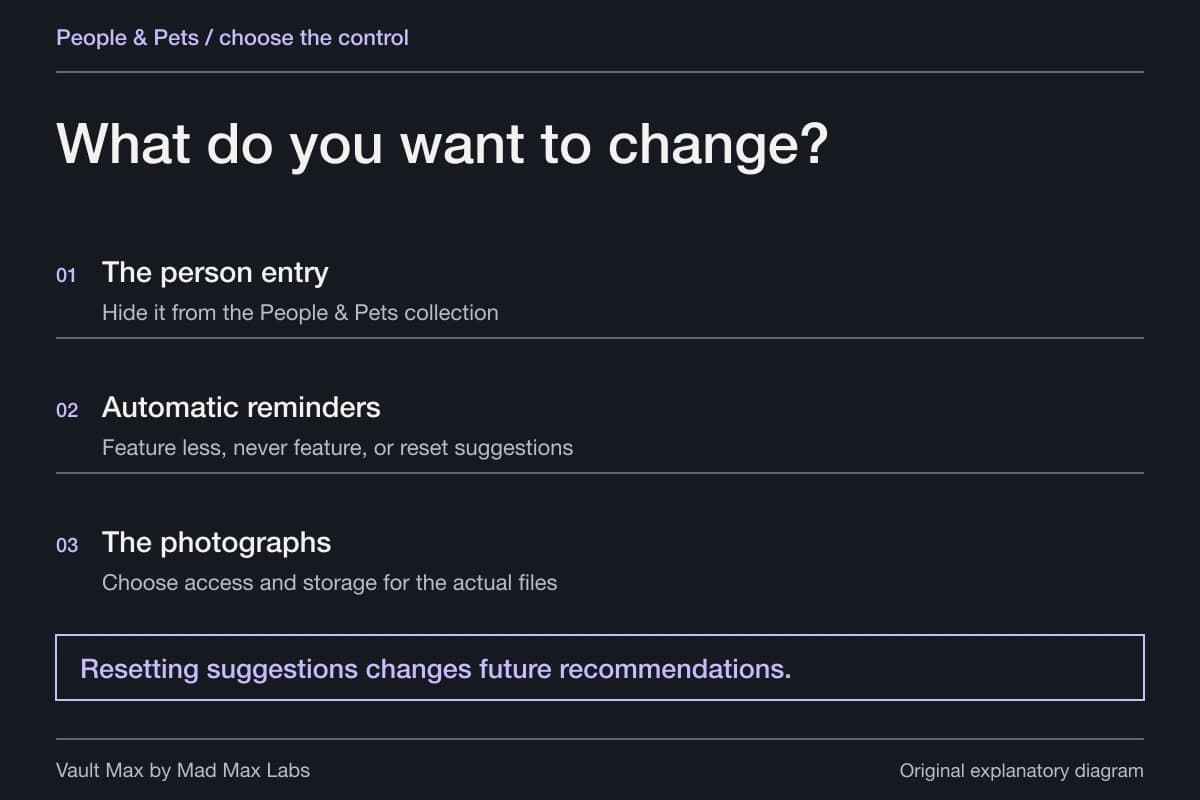
For fewer reminders of someone, change their featured-photo suggestions. To remove their People & Pets entry from view, use that entry's Hide control. To protect the photographs themselves, review the photo files separately. These controls answer different questions, even when they begin with the same face.
You might want to keep a family history without seeing a person in an unexpected Memory. You might instead be correcting a mistaken identity or looking for an entry you can no longer find. Start by naming that goal; it makes the next setting and the completion check much clearer.
Try the decision
Choose what you want Photos to stop showing
A face in People & Pets, a memory suggestion and a hidden photo are separate things. Pick the result you need.
Changes suggestions, not access
- Open a photo of the person. Open More, then Don’t Feature a Person.
- Choose the person if prompted. Select Feature This Person Less or Never Feature This Person, then confirm.
- Check future suggestions. Existing photos remain in the library and can still be found.
To feature someone again, Apple documents Reset People & Pets Suggestions in Photos settings. This resets suggestions; it is not a documented undo for Hide [name].
See someone less in memories: read the whole route, or follow one step at a time on your own phone.
Menu wording varies by iOS version. Follow the current Apple instructions linked in this guide if your screen differs.
A browser teaching example. These controls do not access your photos, change your settings, or save your choices.
Find the person and inspect one original photograph
Open Photos → Collections → People & Pets. Apple's People & Pets guide explains recognized faces, naming and the available entry controls. Before changing anything, open one ordinary picture you know contains the person. Notice whether your concern is the photograph, its label or where Photos surfaces it.
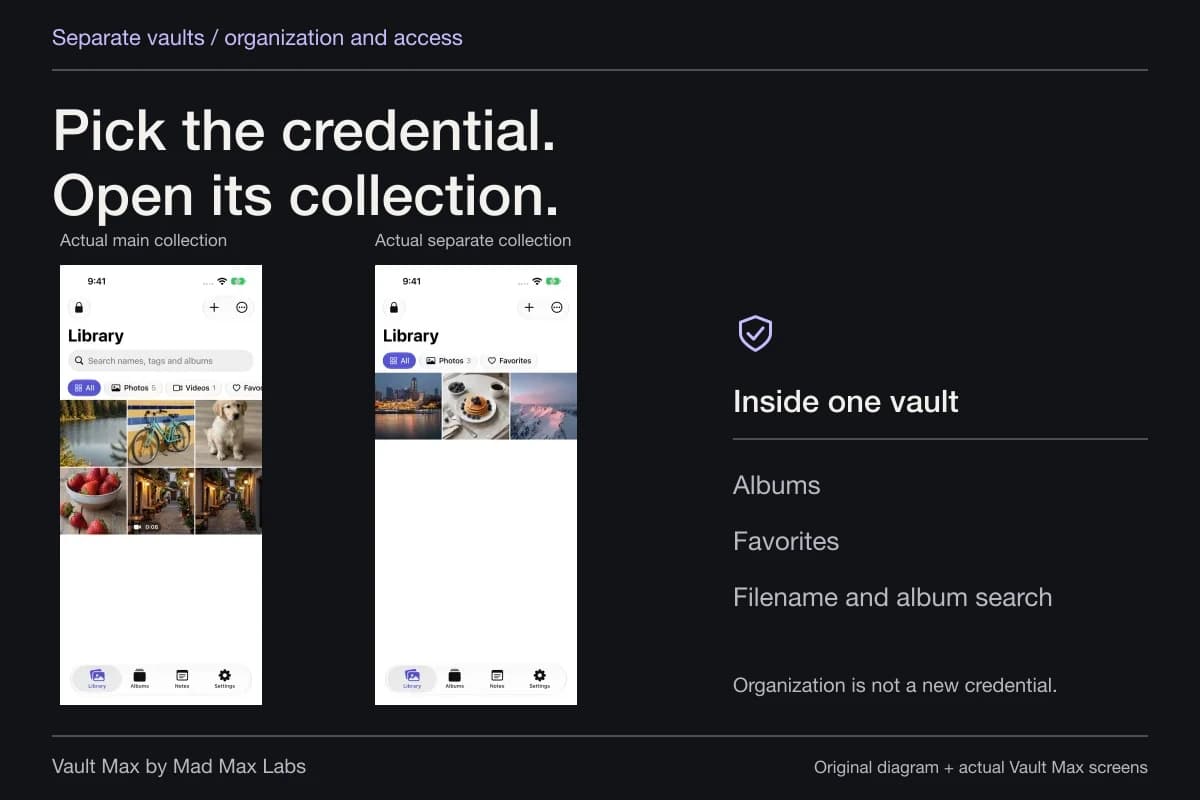
A person's entry is a convenient way to browse images associated with a face. It is not a separate private vault. A correction to that entry should not be mistaken for a new credential protecting the underlying library.
If the name is wrong, use the identity-correction controls rather than hiding the person to conceal a labeling mistake. Correcting the label helps future browsing without making it harder to understand which photo you are looking at. Keep a familiar sample in mind so you can revisit the same image after the change.
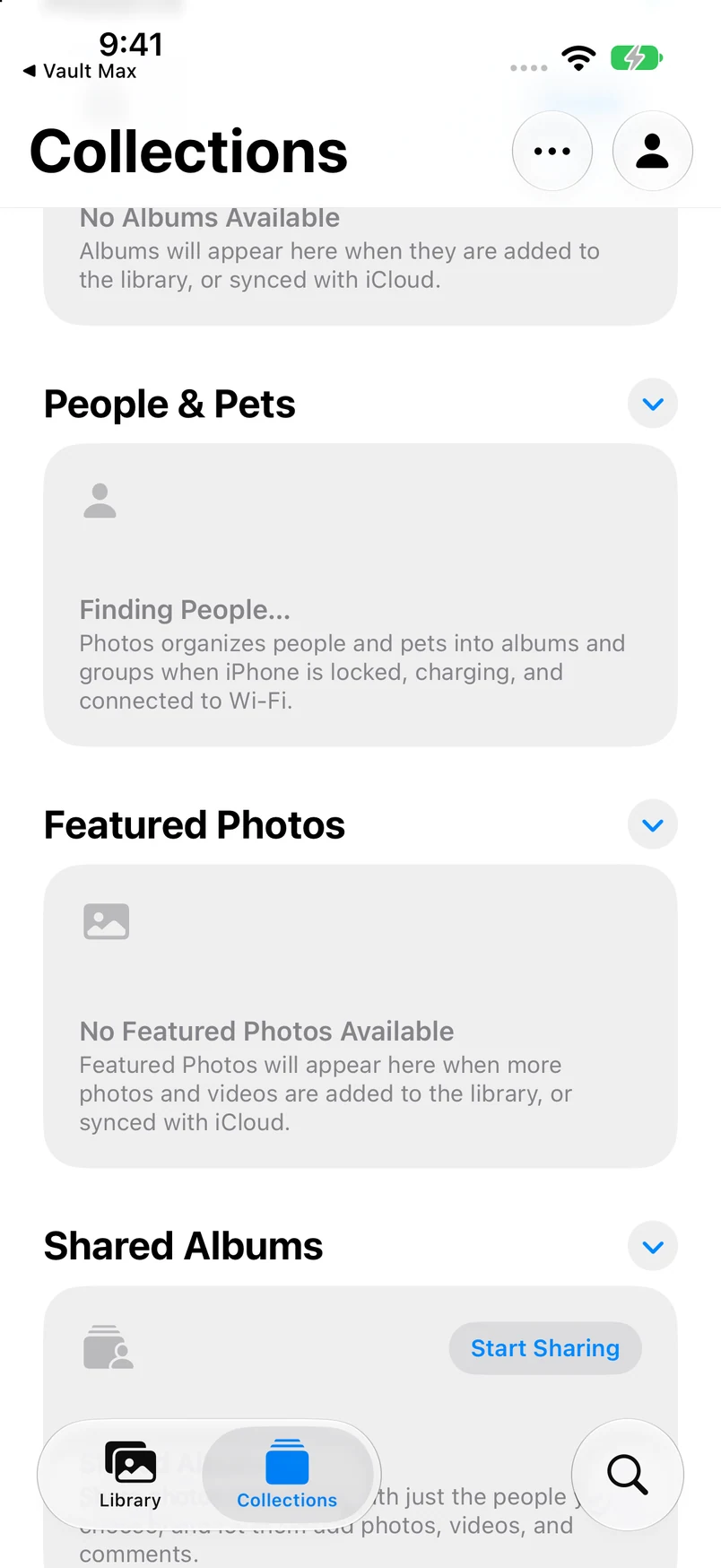
This fresh iOS 27 QA library still shows Finding People and no featured photos. It explains why an available feature is not the same as a completed recognition result. No person was hidden, shown or restored in this capture, and the scene does not demonstrate those operations.
Actual Apple Photos · QA simulator, October 24Recognition is still pending in this sample library
Open original image: Recognition is still pending in this sample libraryChoose fewer suggestions when reminders are the problem
Apple's featured-content guide documents opening a photo, choosing More → Don't Feature a Person, selecting the person when necessary and choosing Feature This Person Less or Never Feature This Person. Read the choice before confirming; fewer suggestions and no suggestions are different preferences.
This is useful when you want to retain the history but reduce uninvited reminders in Memories, featured photos and widgets. You can still make a deliberate decision to look for the original image later. That keeps the task focused on presentation rather than making an irreversible cleanup decision while a memory is upsetting.
To feature people again, Apple documents Collections → account button → Reset People & Pets Suggestions. Consider the scope of a reset before using it: a reset of suggestions is broader than changing the caption on one image. Check the current Photos version selector if the account menu looks different.
Use Hide for the People & Pets entry
In the People & Pets collection, touch and hold the key photo and choose Hide [name] when that is the available control. Apple also documents Don't Feature [name] in that menu. Read which operation you are choosing instead of treating the two labels as interchangeable.
Afterward, return to the collection and inspect its appearance. Then find the original sample photograph by date or another known location. Those are two separate completion checks: the entry's visibility and the continued location of the photograph.
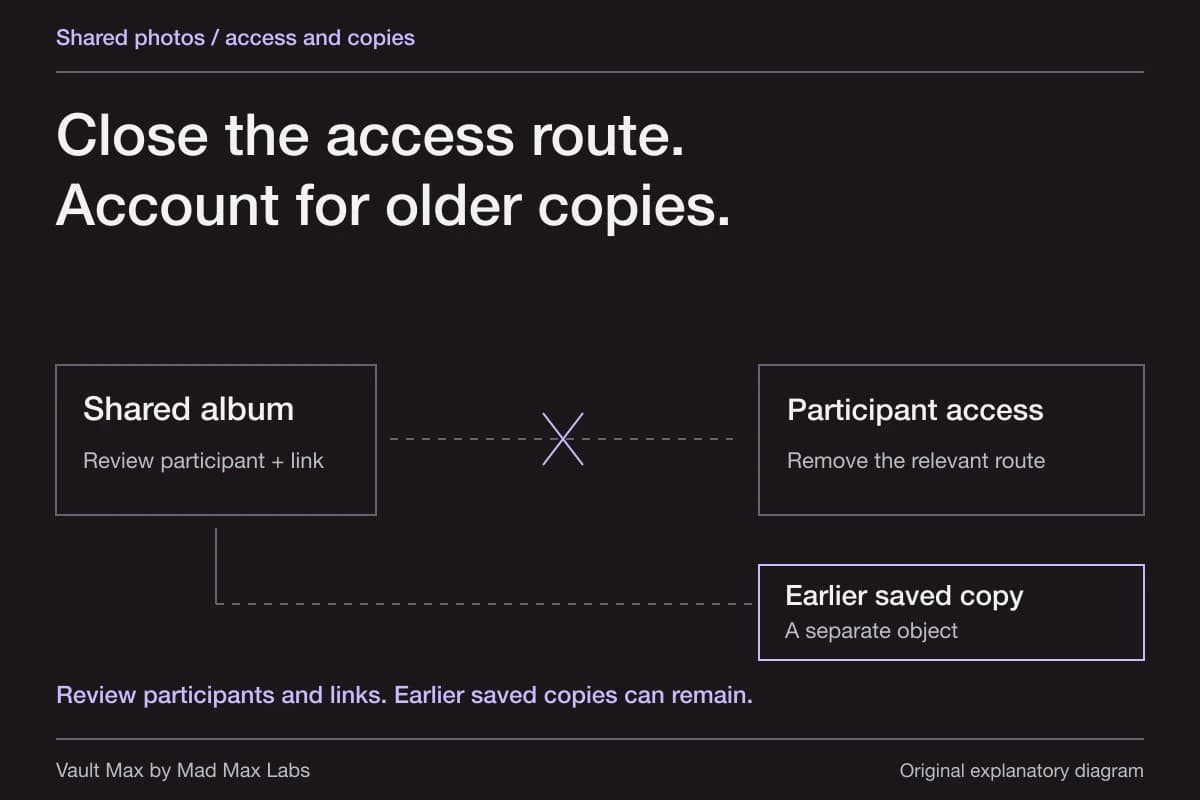
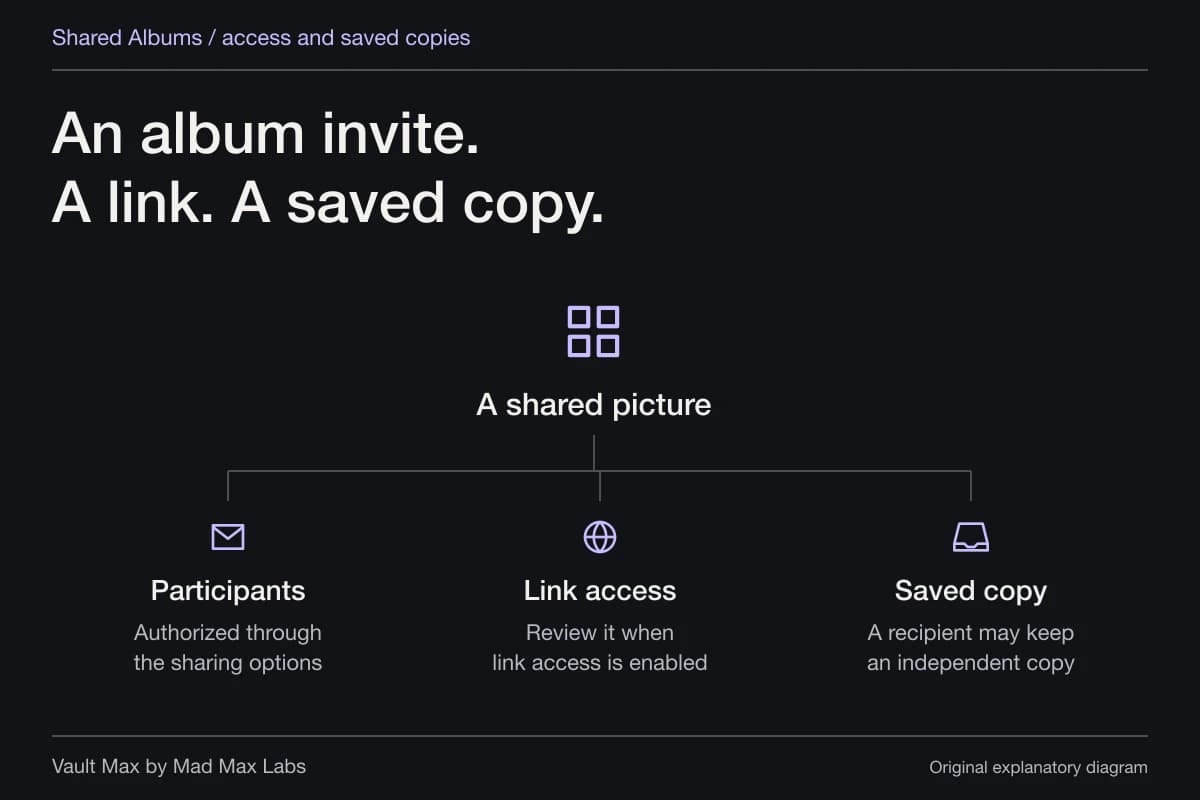
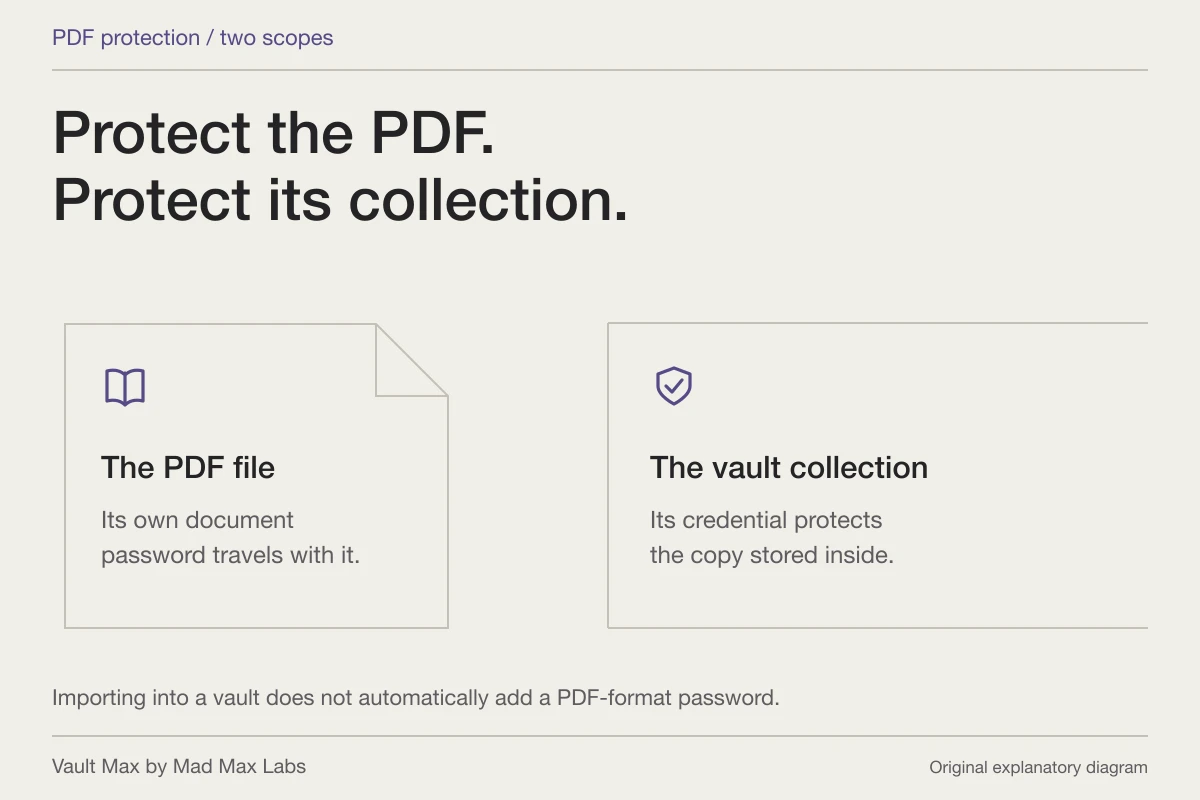
This guide does not claim that hiding a person revokes another person's access, removes pictures from a Shared Album or gives all matching files a separate password. If your actual concern is someone else's access, move to the former-partner sharing guide and inspect the sharing arrangement directly.
If you want to show someone again, identify what was changed
Begin with the control you remember using. If you chose Never Feature This Person, the documented suggestions reset is relevant. If you hid an individual photo file, use that photo's Unhide command in the Hidden collection. Those are supported routes for different objects.
If you hid the person's People & Pets entry, avoid assuming that the suggestions reset restores it. The Apple guide reviewed for this article does not explicitly document that undo path, and we have not completed a hide-and-restore test on an isolated sample library. We therefore do not provide a guaranteed restoration sequence for that state.
Apple documents Add People at the bottom of People & Pets to reveal more faces when a person you want to name is absent. You can inspect that documented view while troubleshooting a missing entry. Its existence does not establish that every previously hidden person will reappear there. Preserve the underlying pictures and consult Apple's version-specific help if the entry remains absent.
| What you changed | Documented next place | What to verify |
|---|---|---|
| Featured suggestions | Collections → account → Reset People & Pets Suggestions | Whether future presentation matches your preference |
| An individual hidden photo | Hidden collection → open item → More → Unhide | The same photo returns to library browsing |
| An absent recognized face | People & Pets → Add People | Whether the face is offered; do not assume hidden-entry restoration |
| A hidden person entry | Current version-specific Apple guidance | An explicit supported undo route before making a restoration claim |
Protect selected pictures when the files need a different boundary
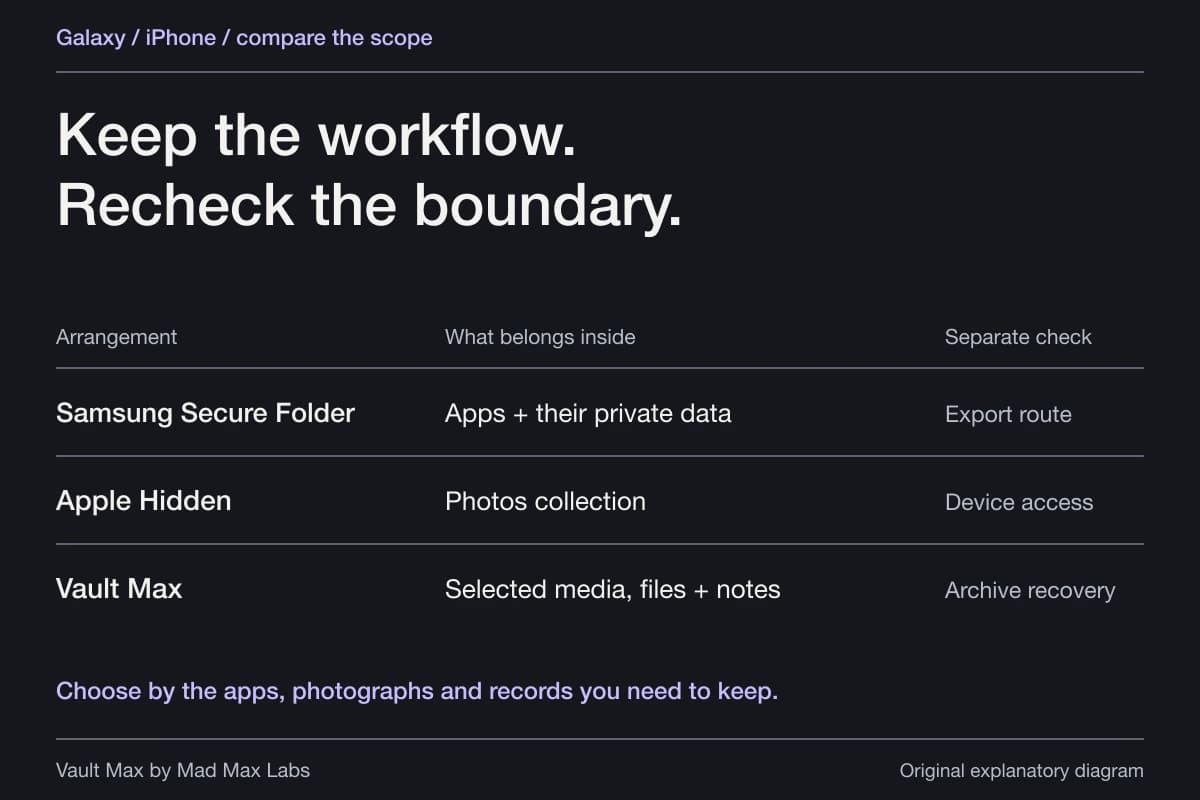
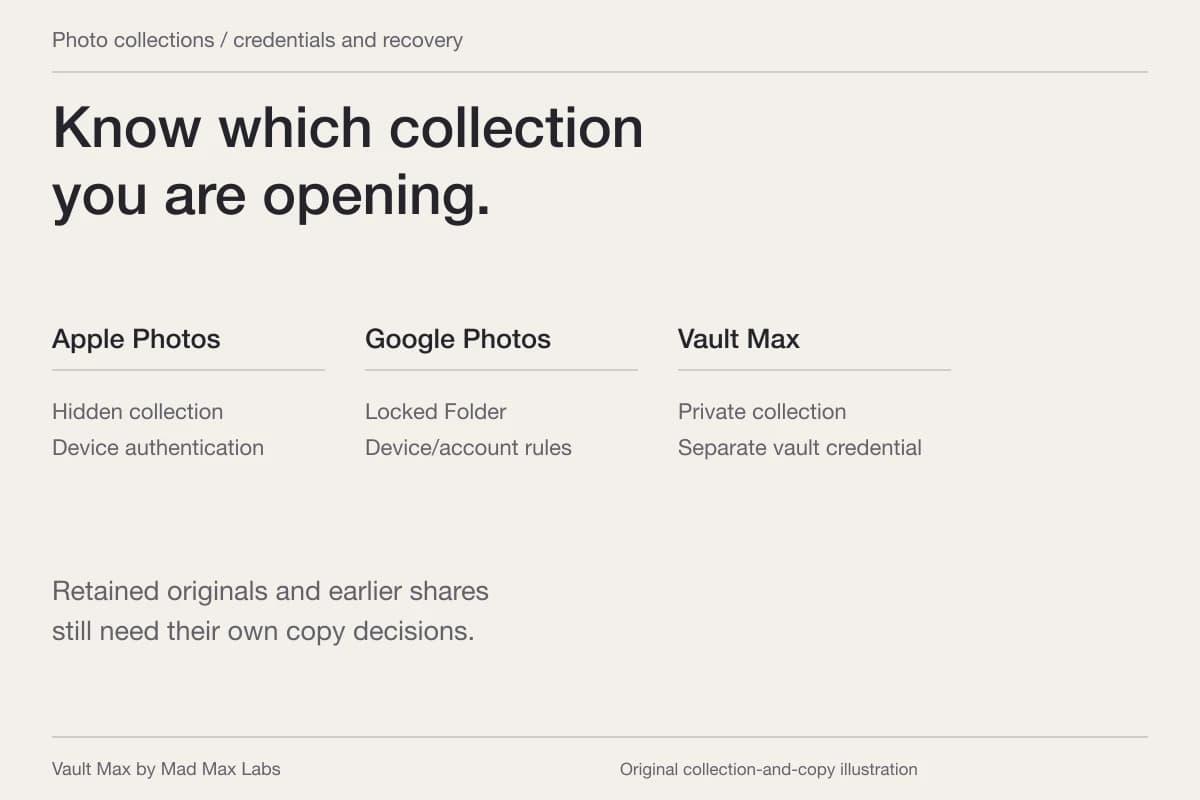
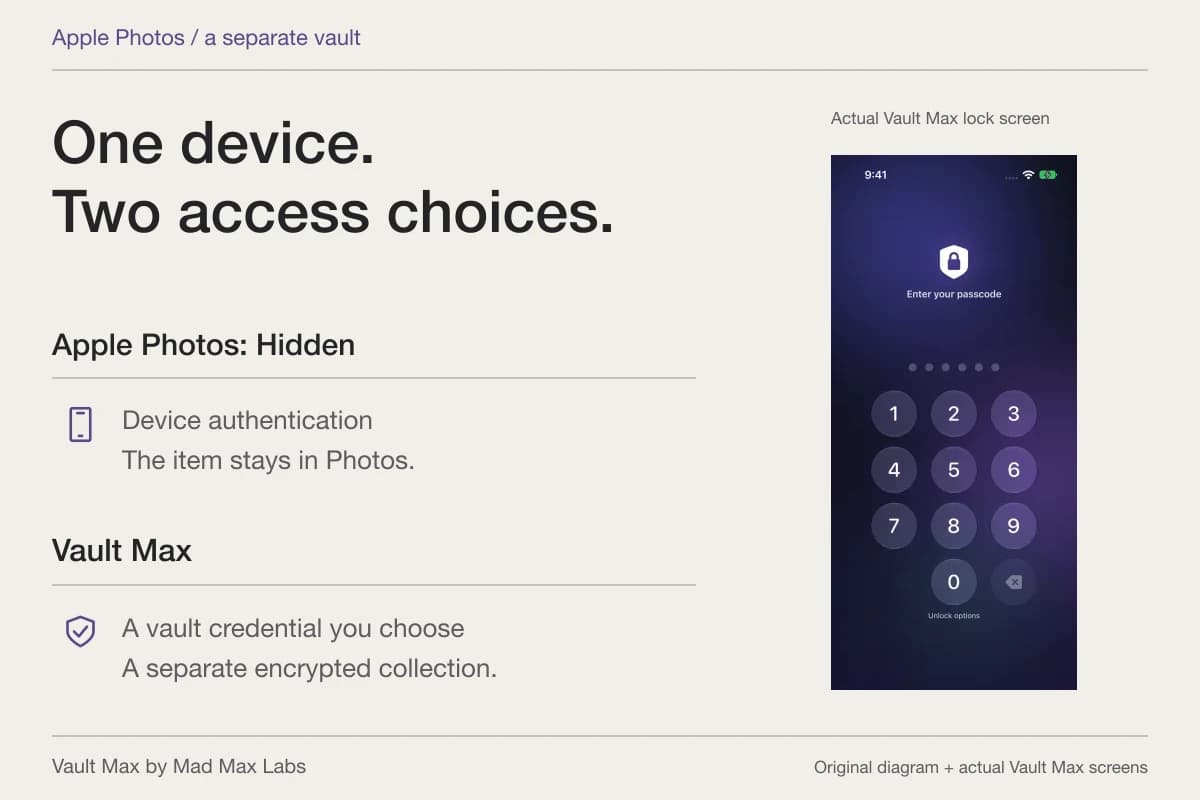
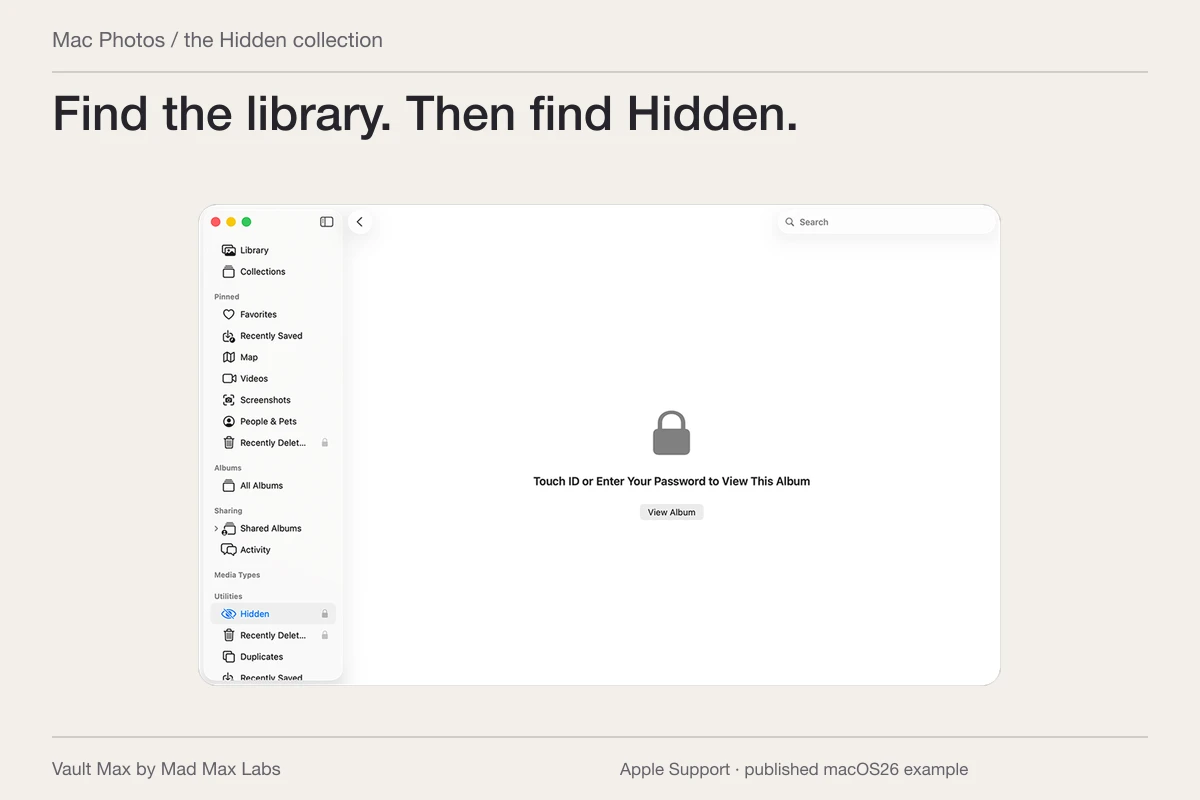
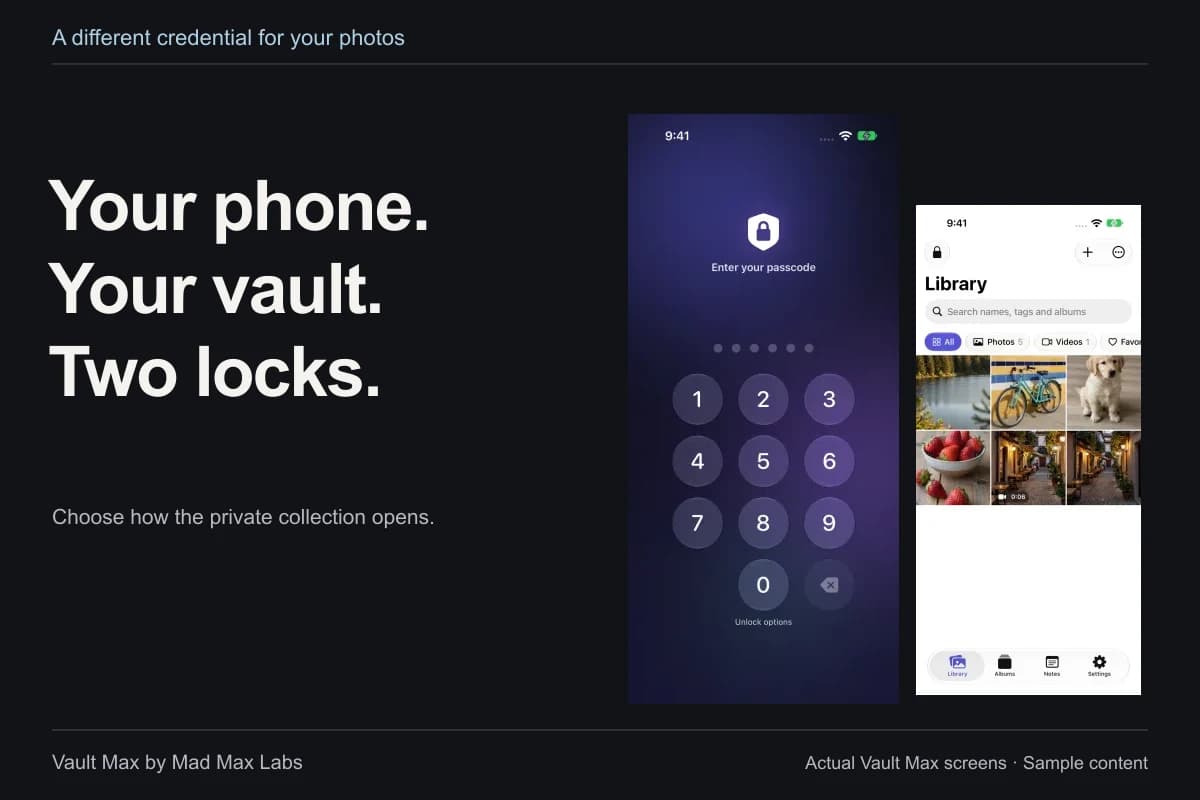
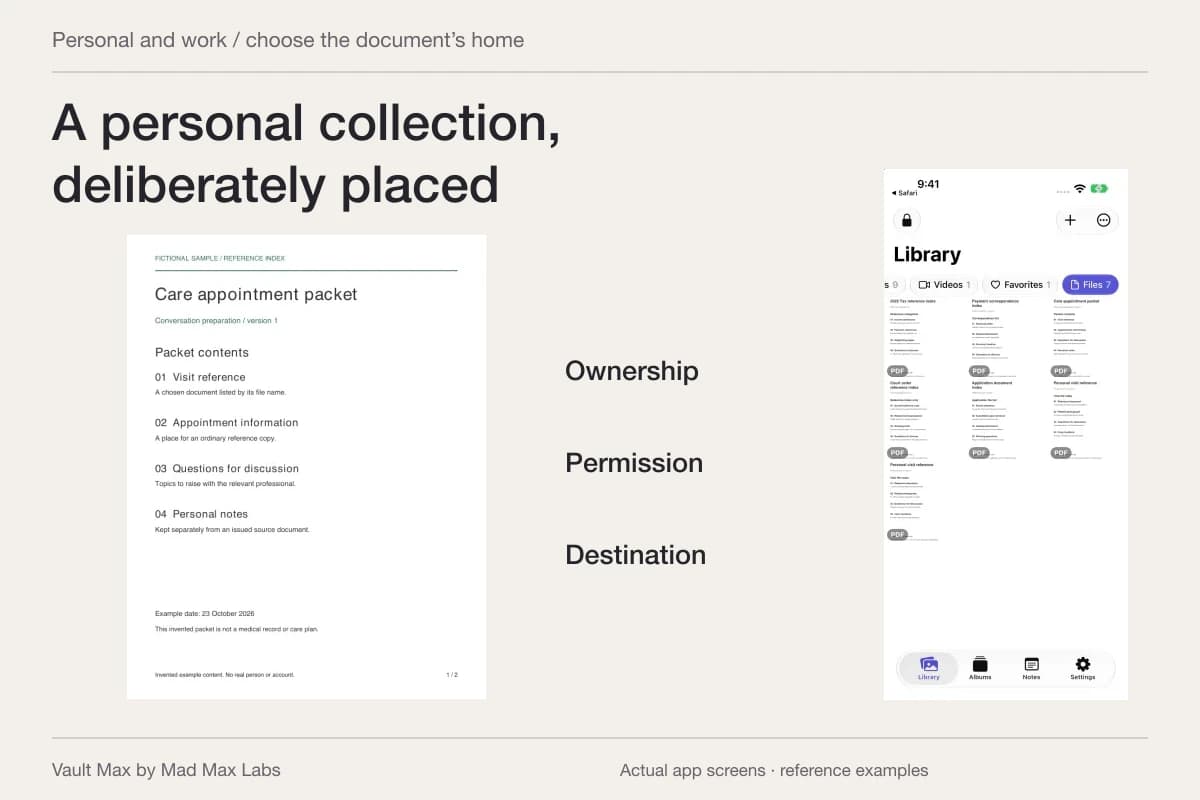
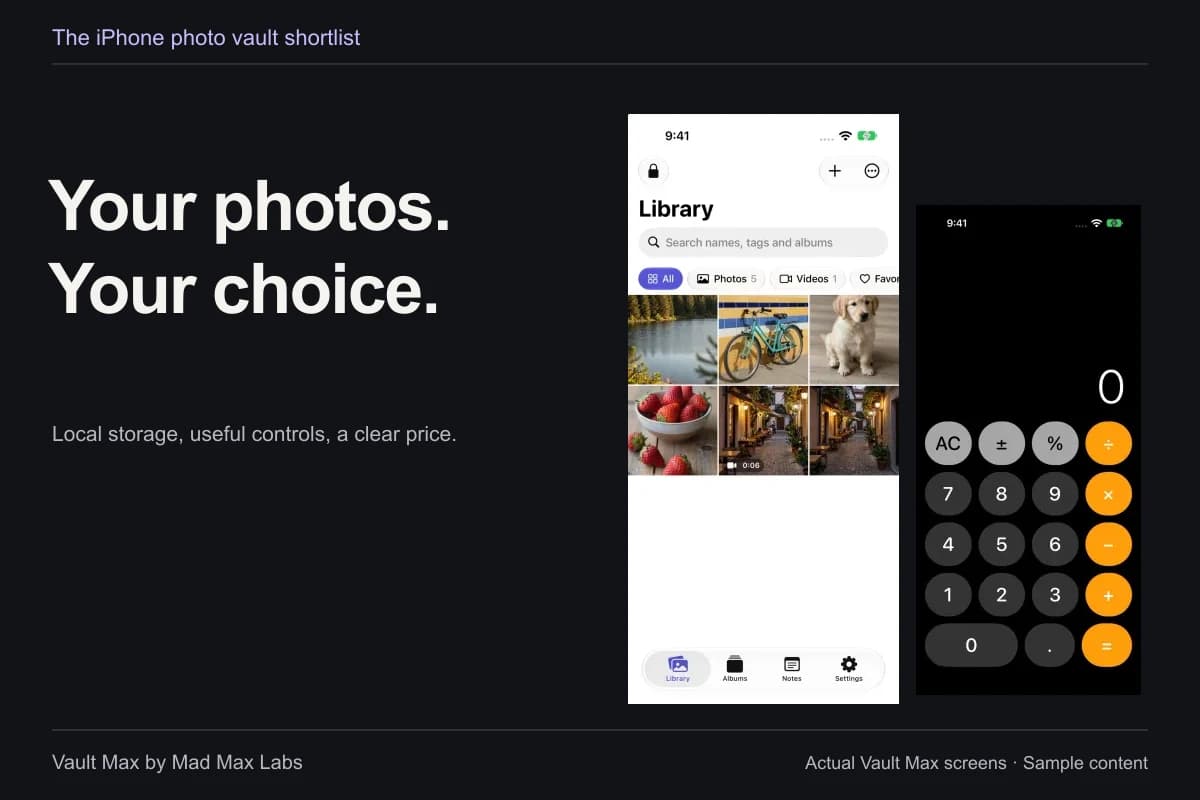
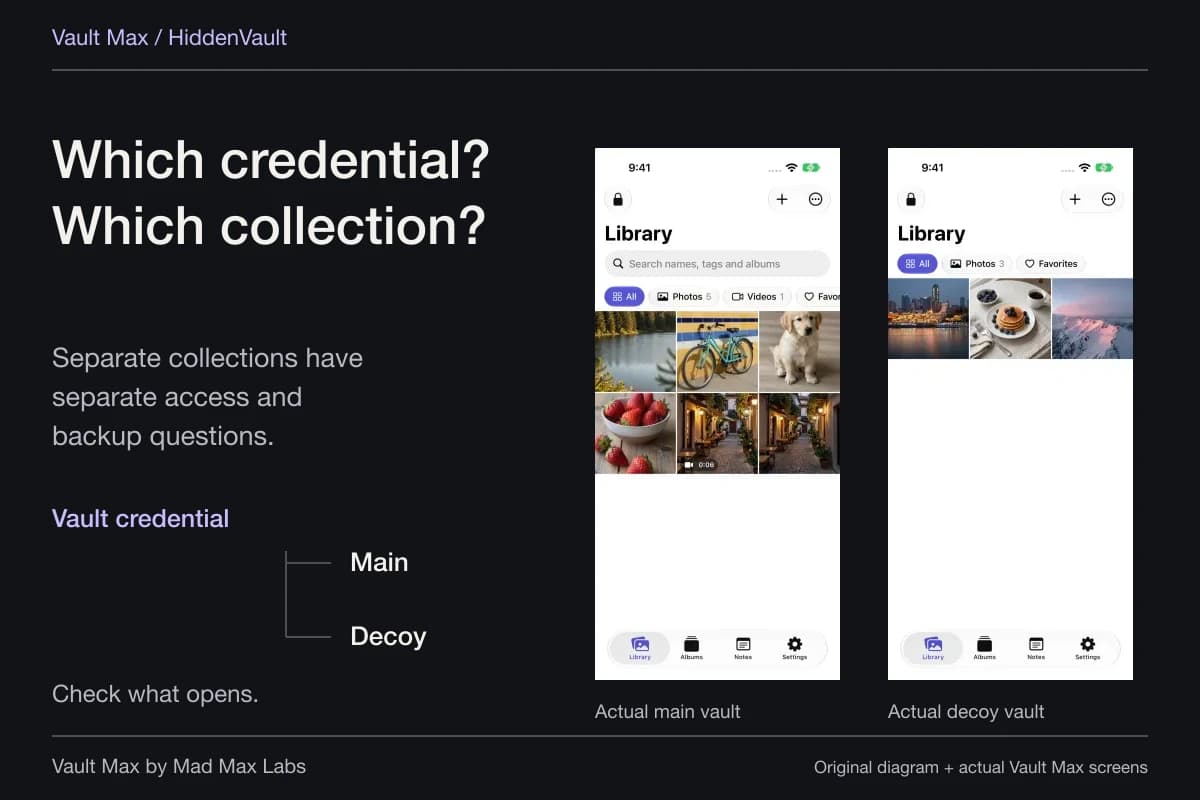
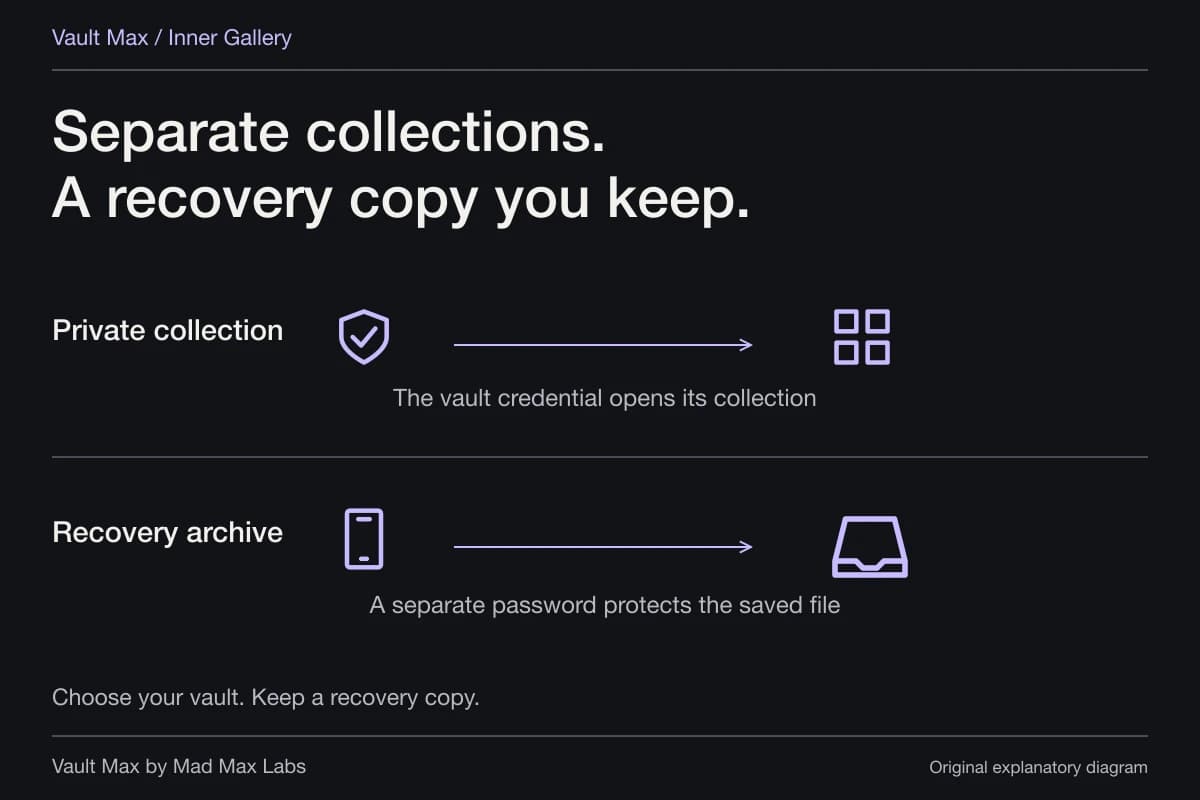
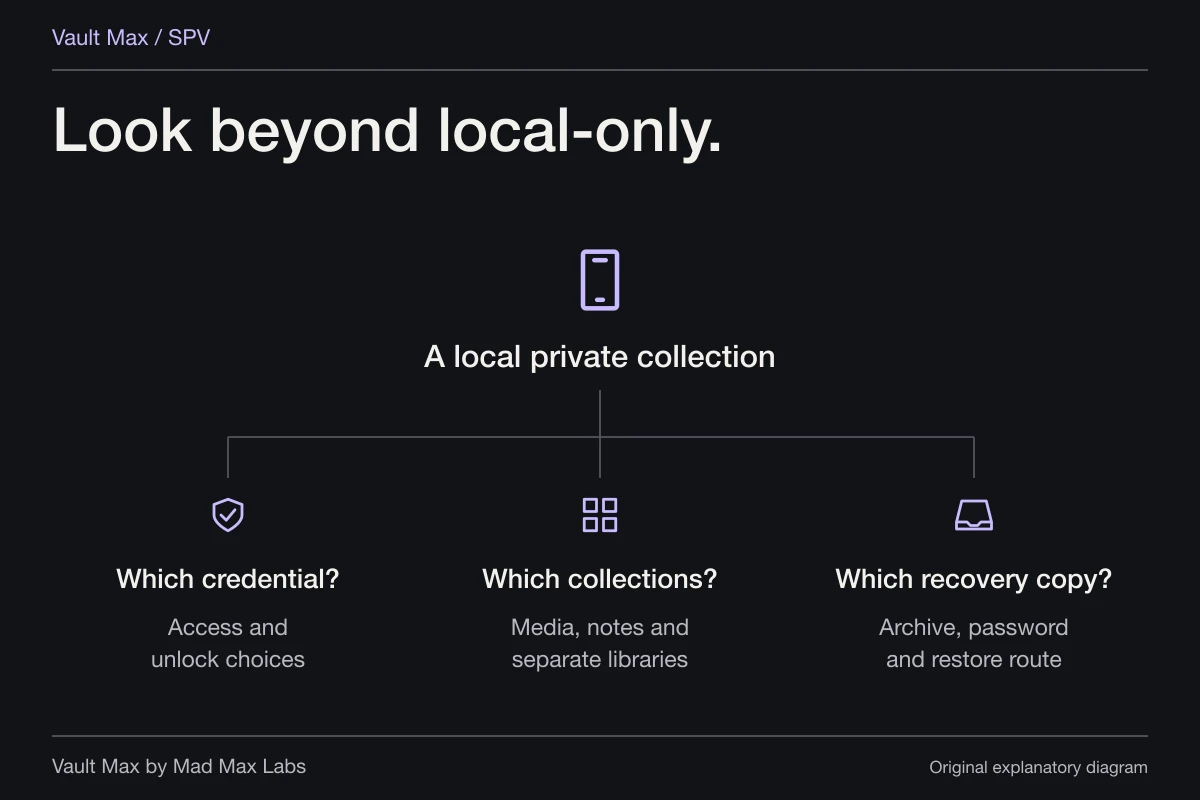
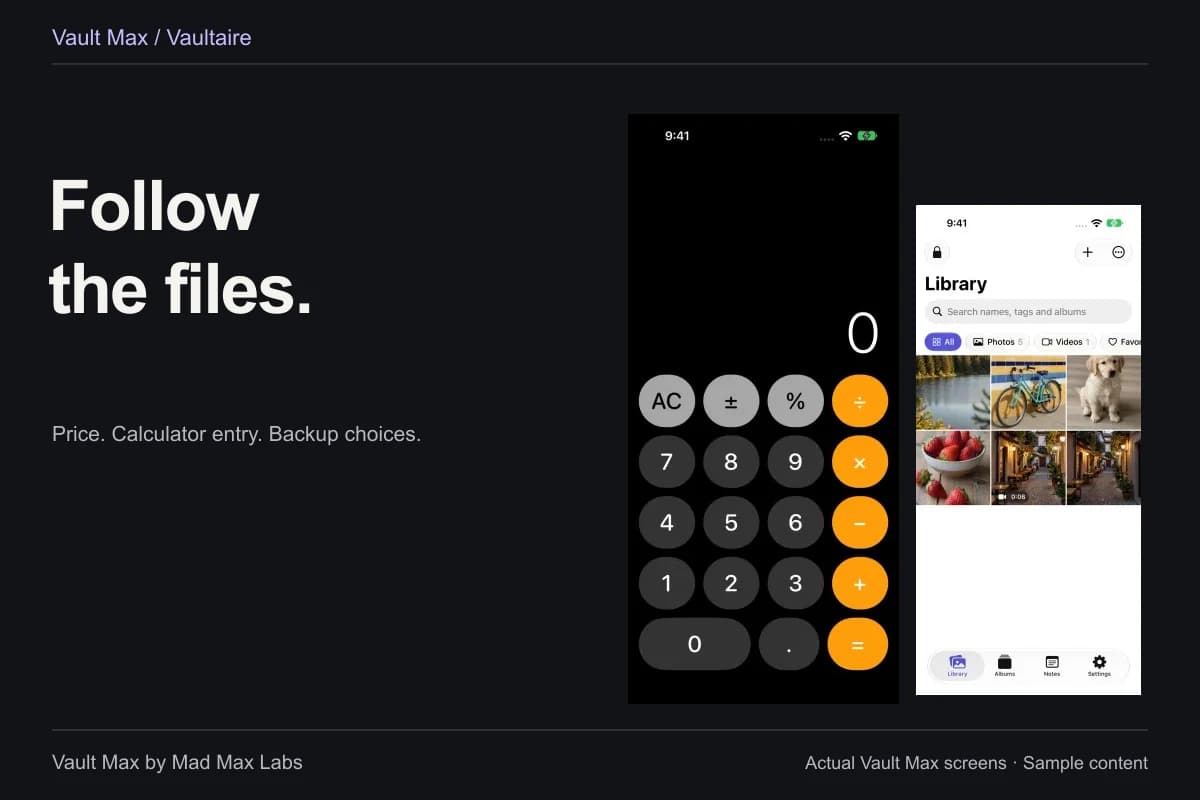
If the task is to keep certain photographs away from ordinary library access, use the Hidden-photo guide or consider a private collection with its own credential. Apple's photo-hide instructions explain the Hidden collection and its device authentication.
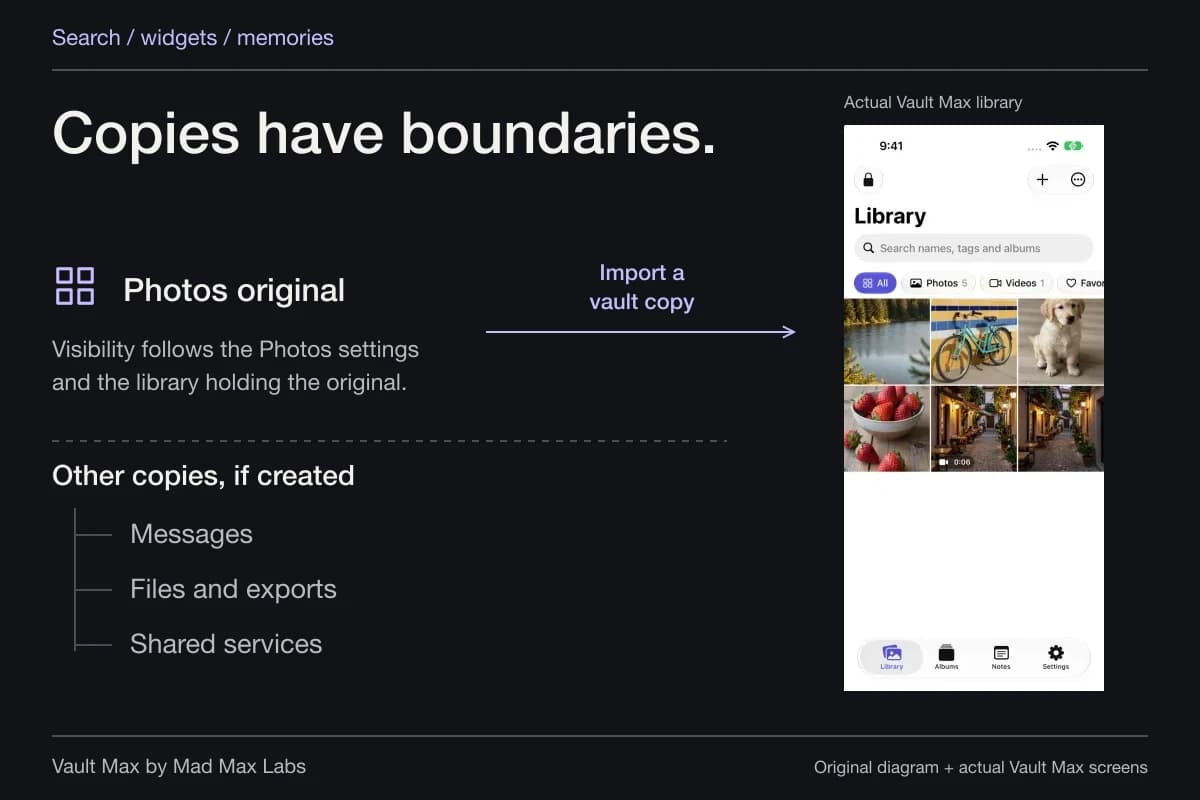
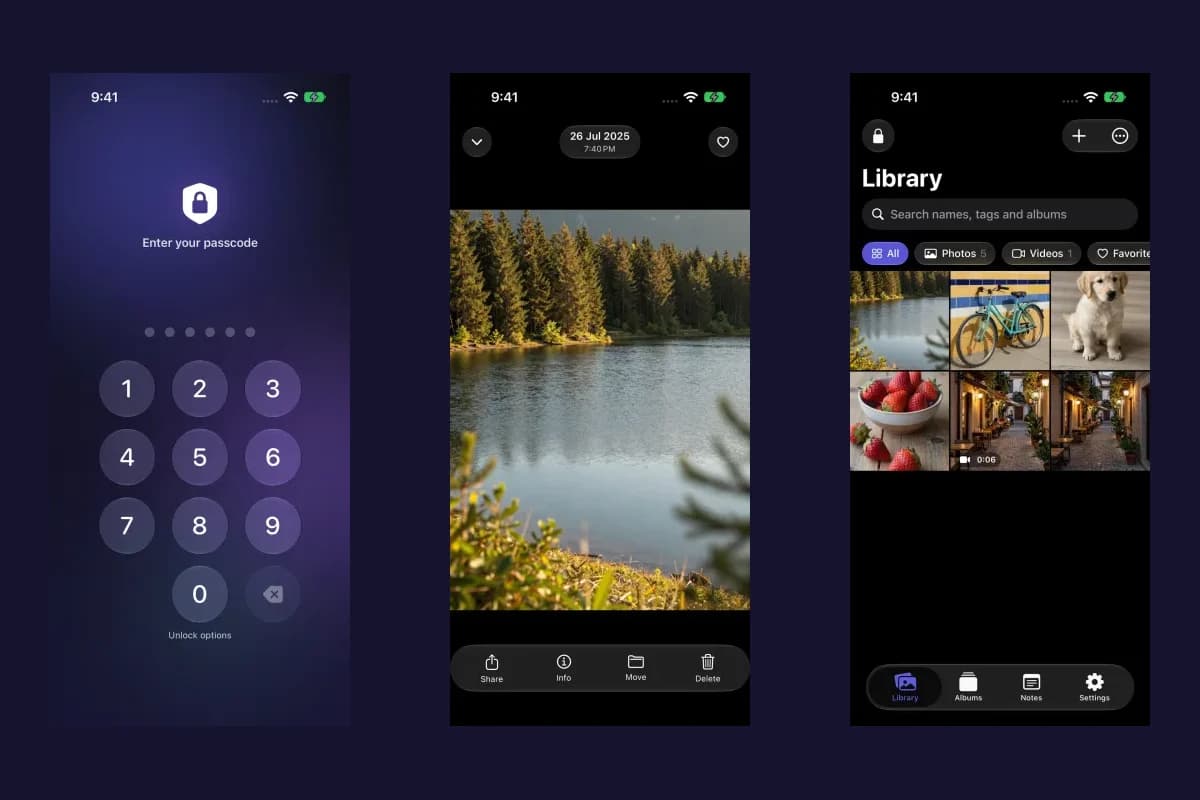
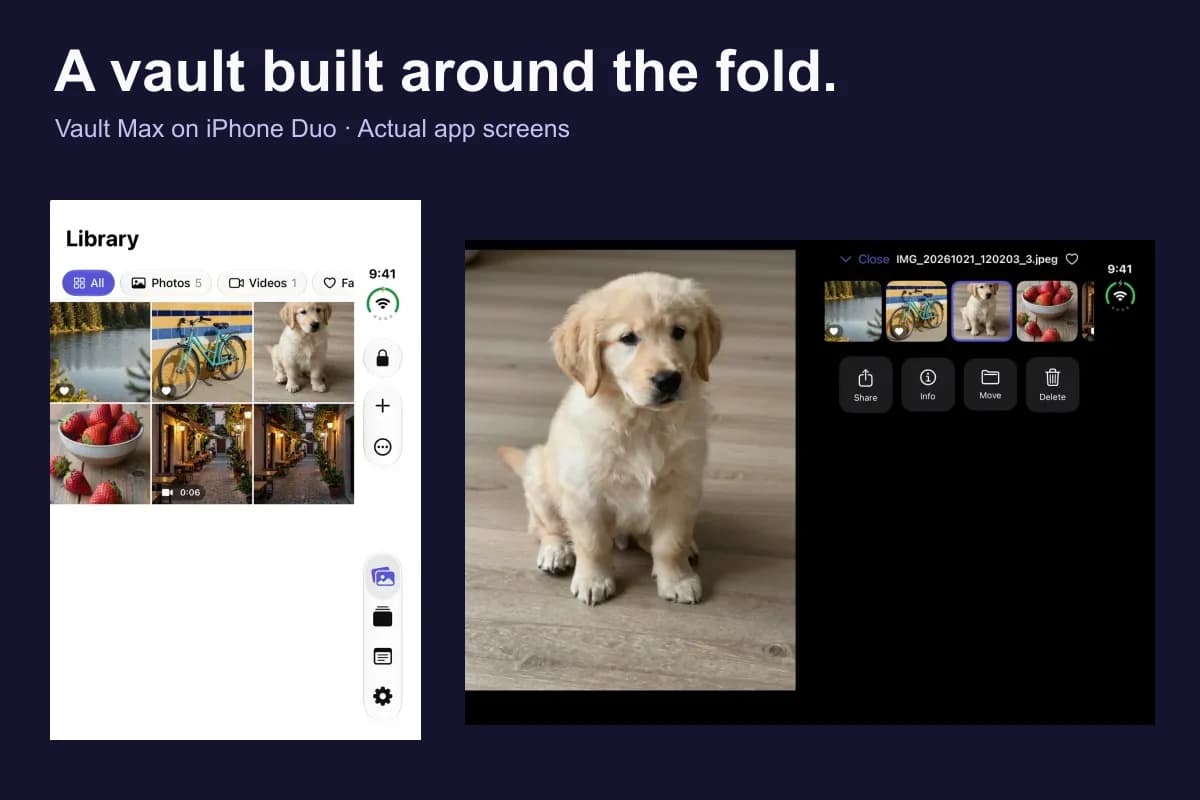
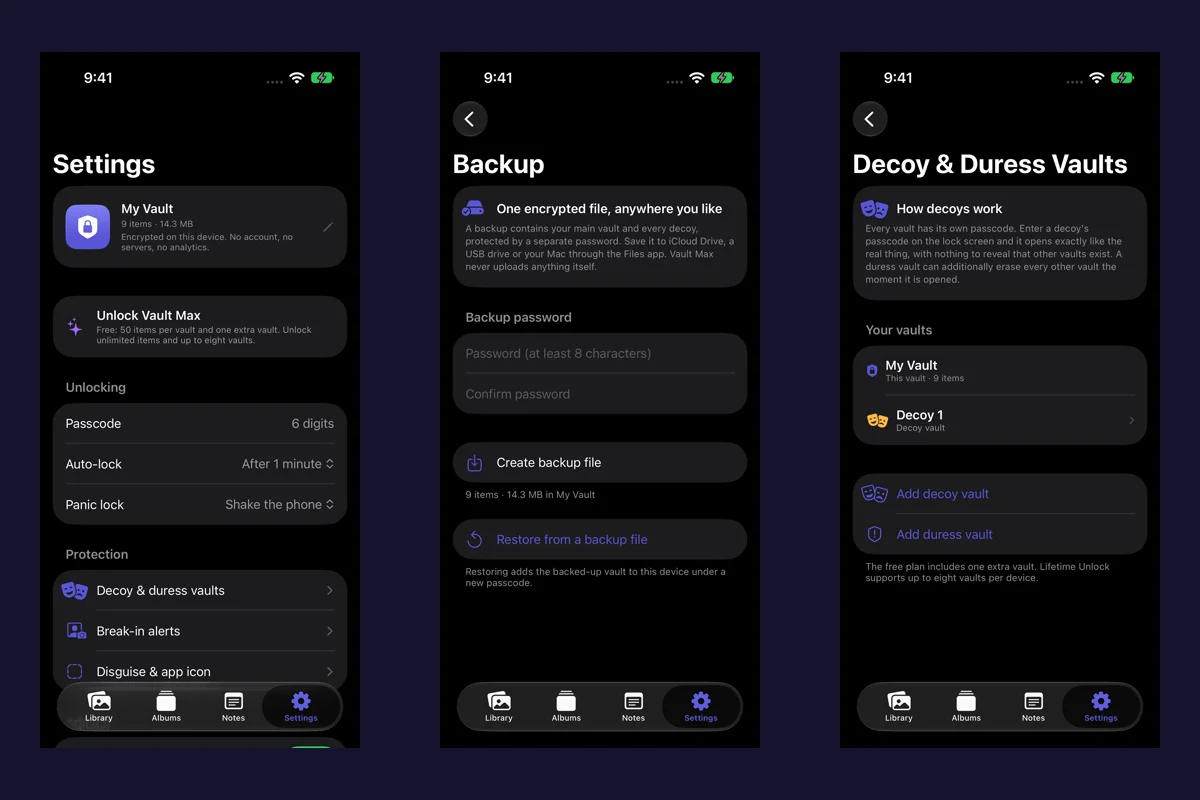
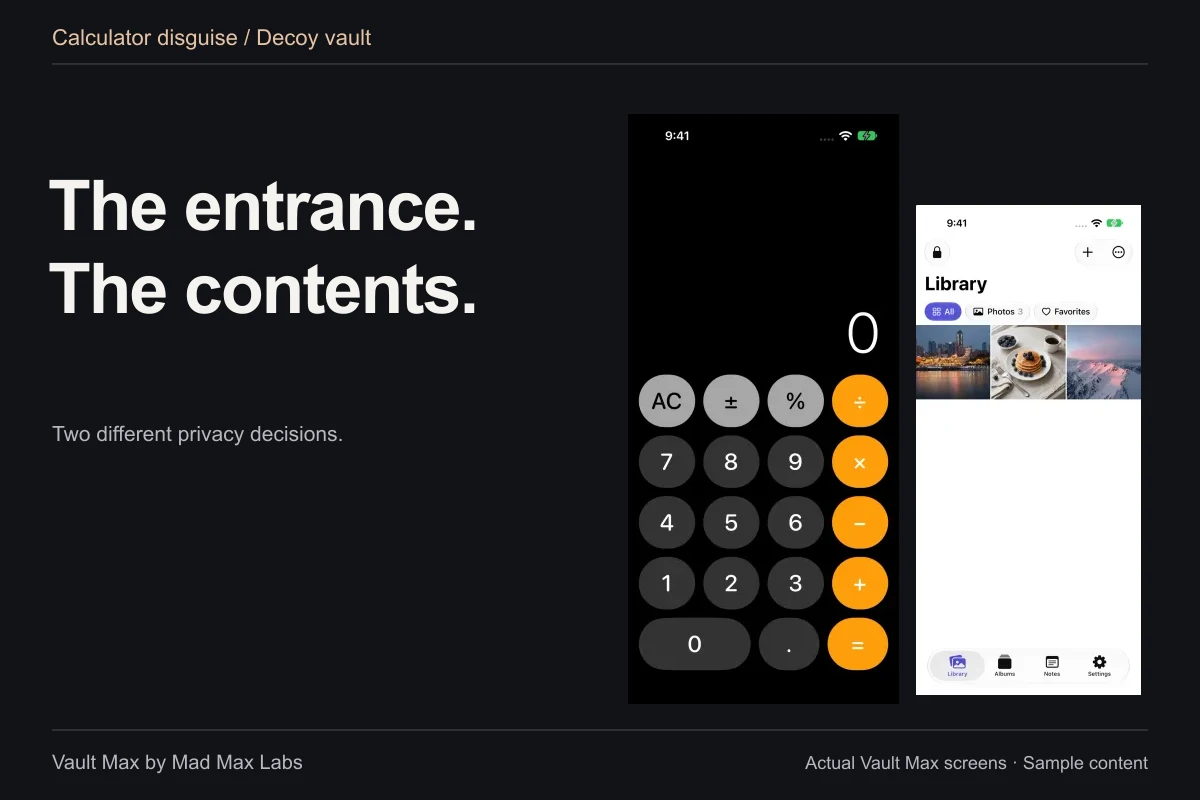
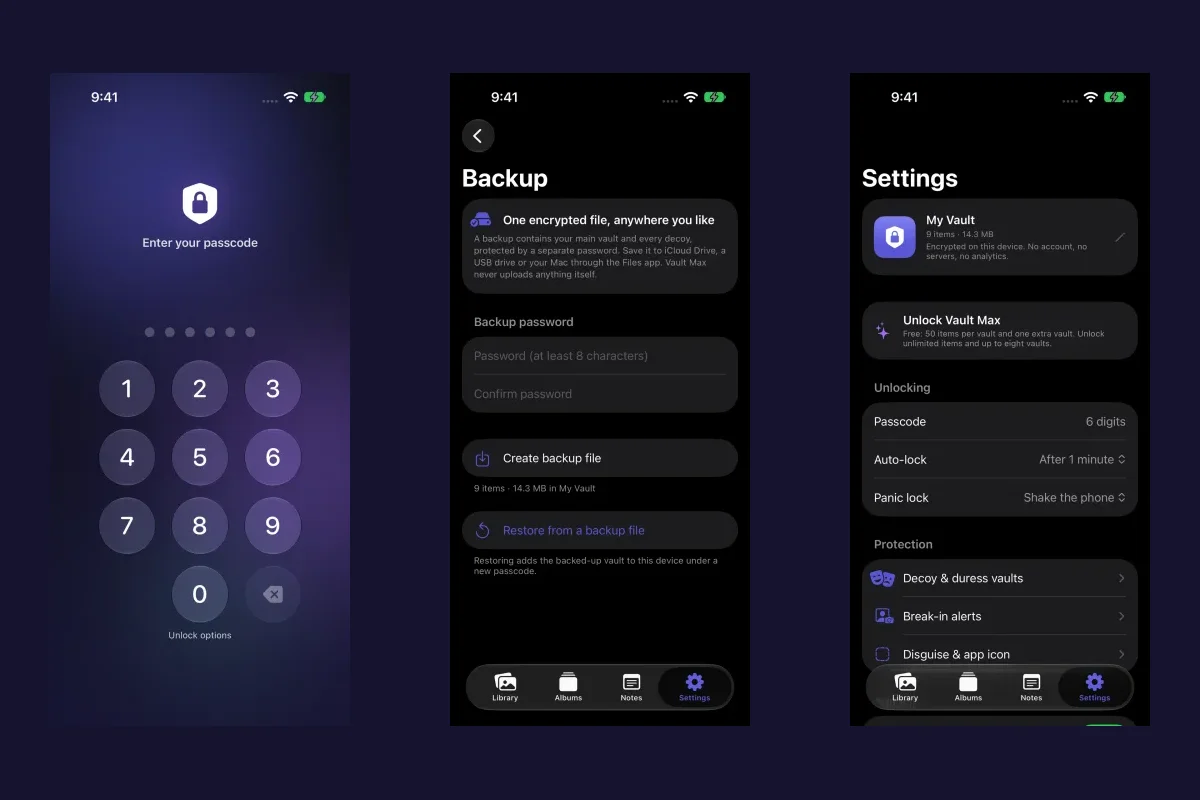
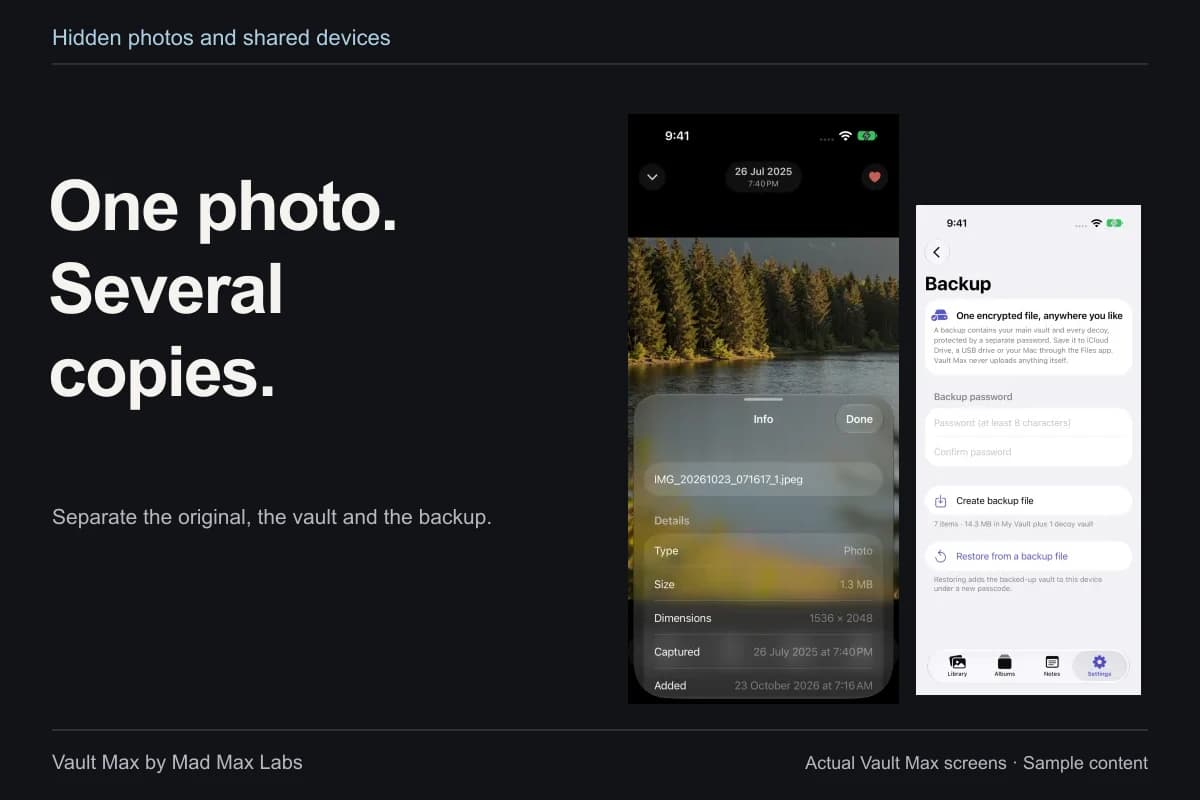
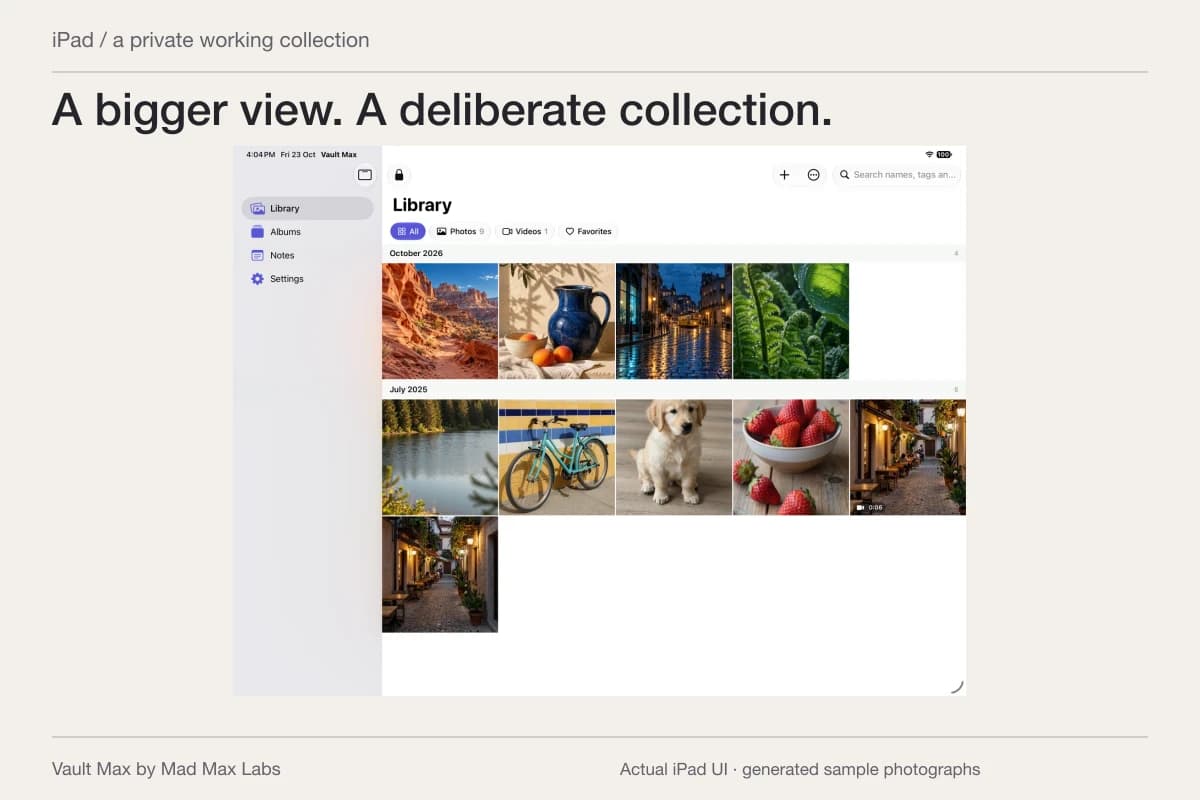
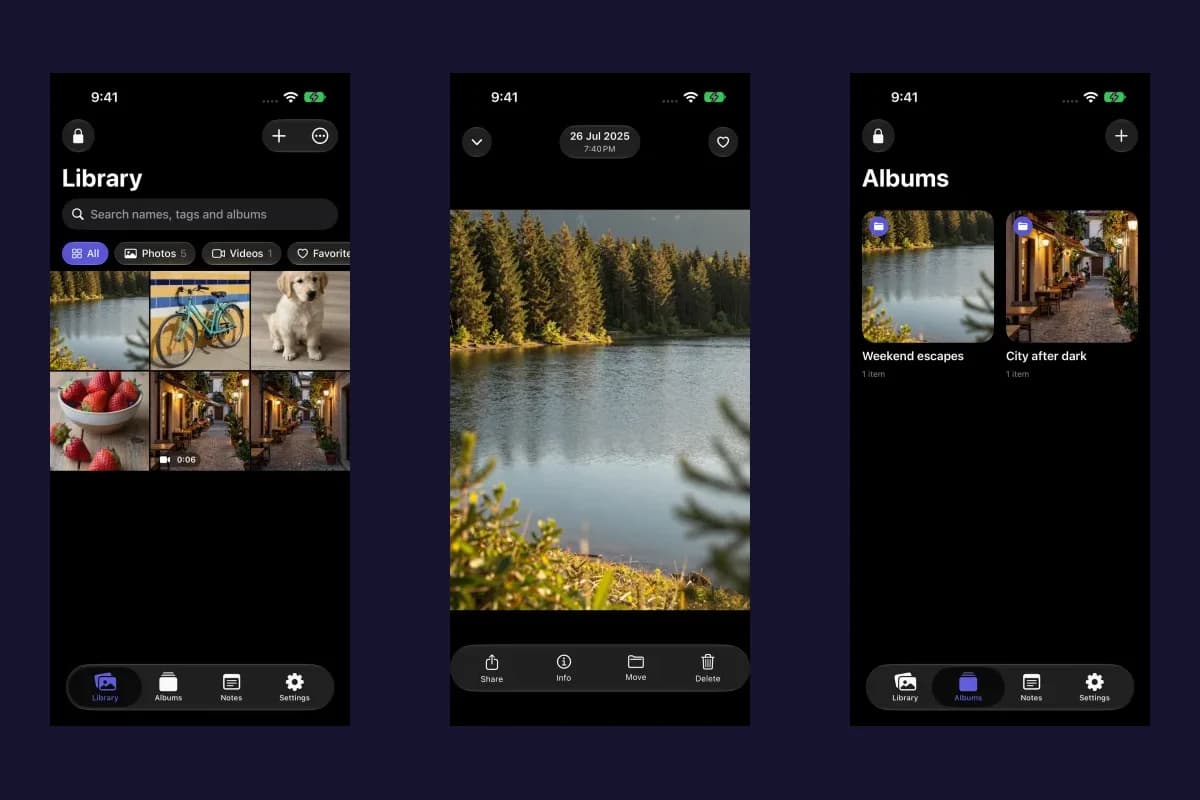
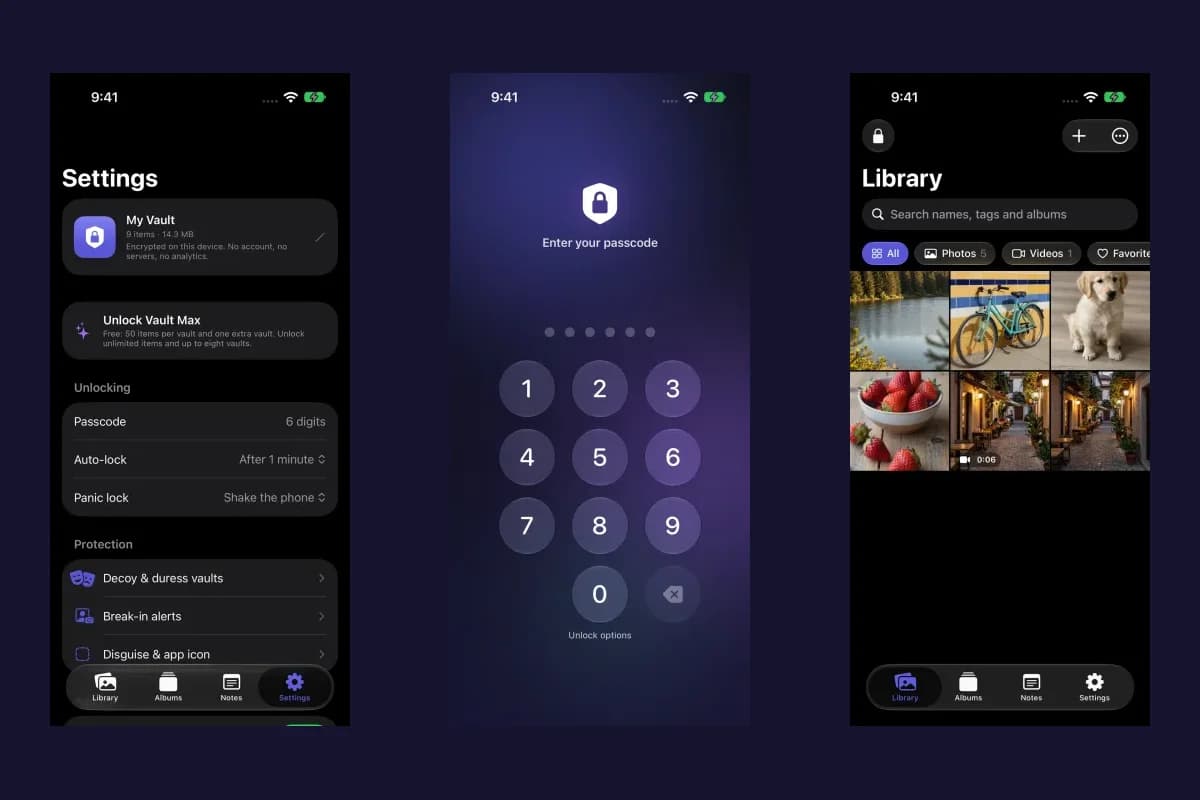
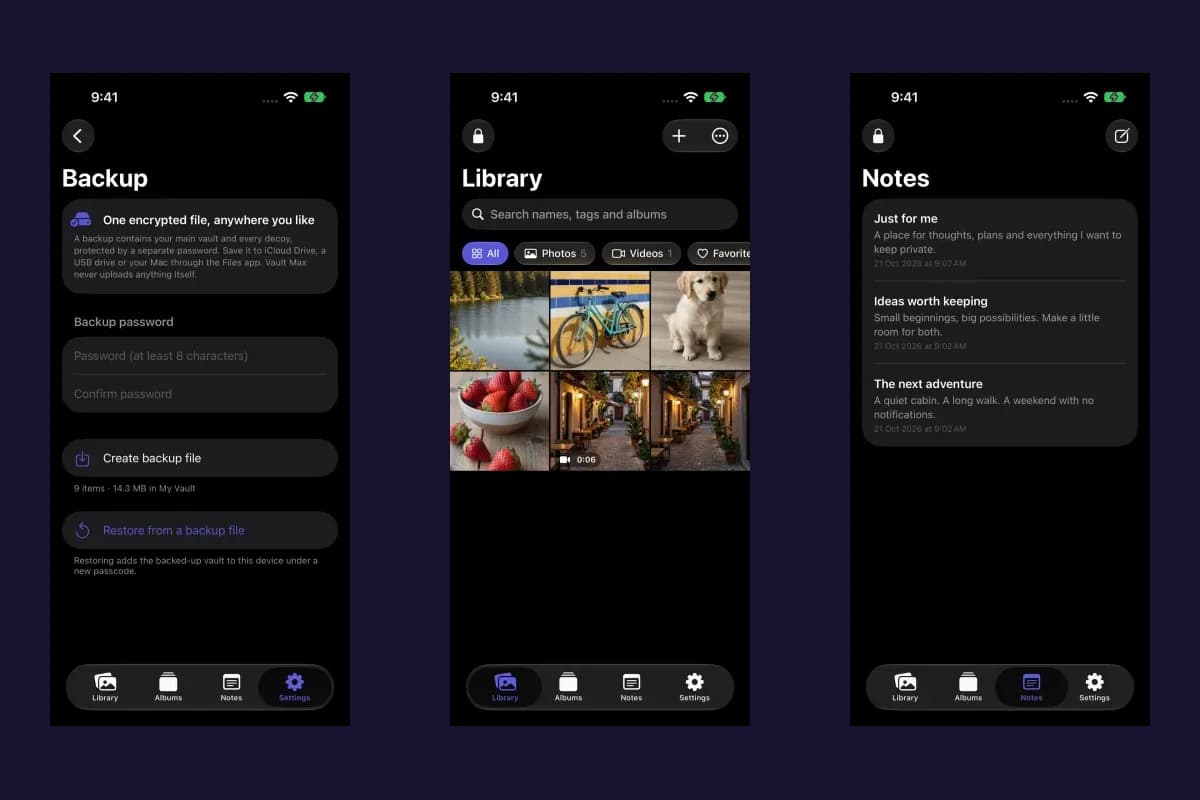
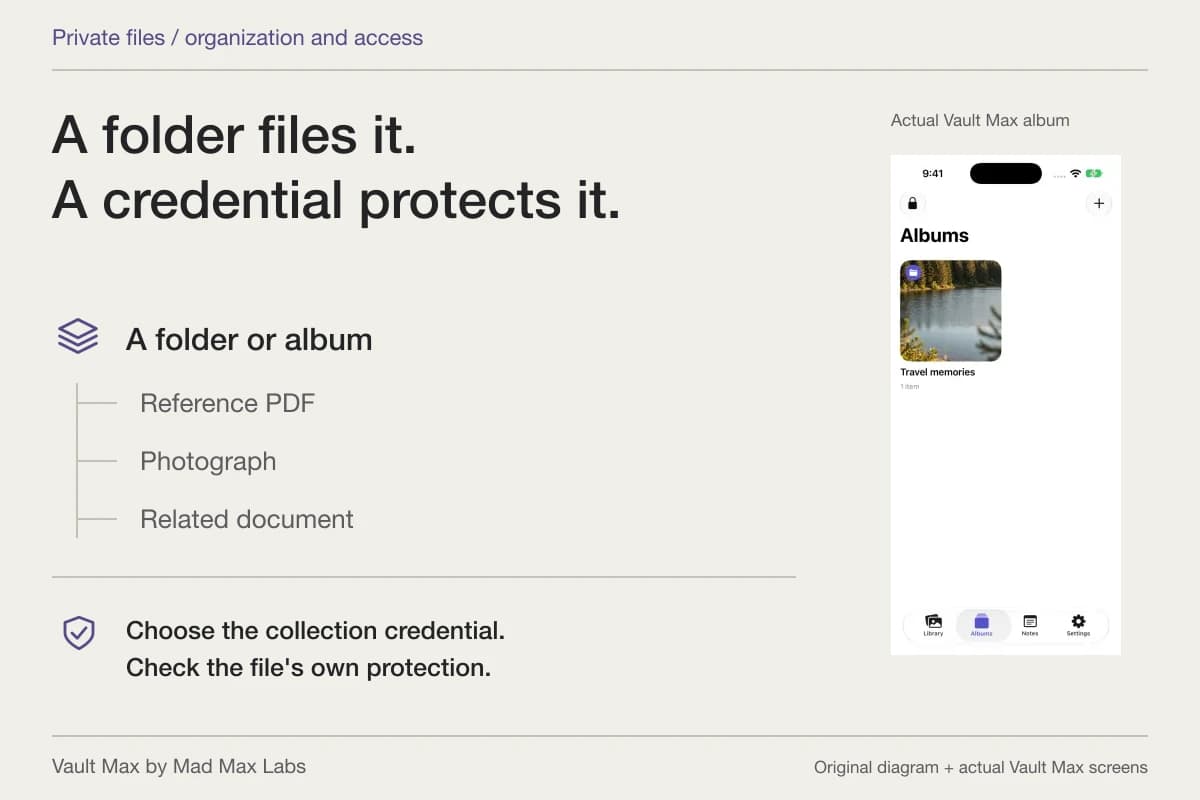
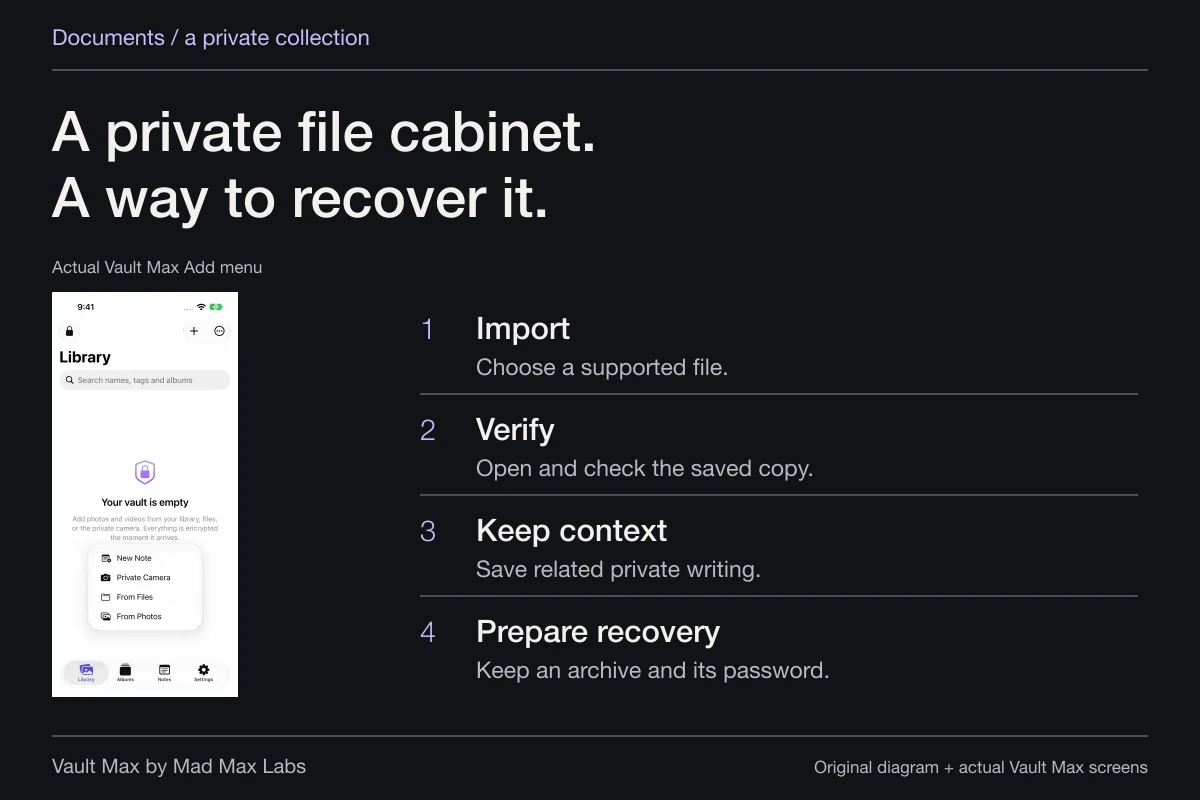
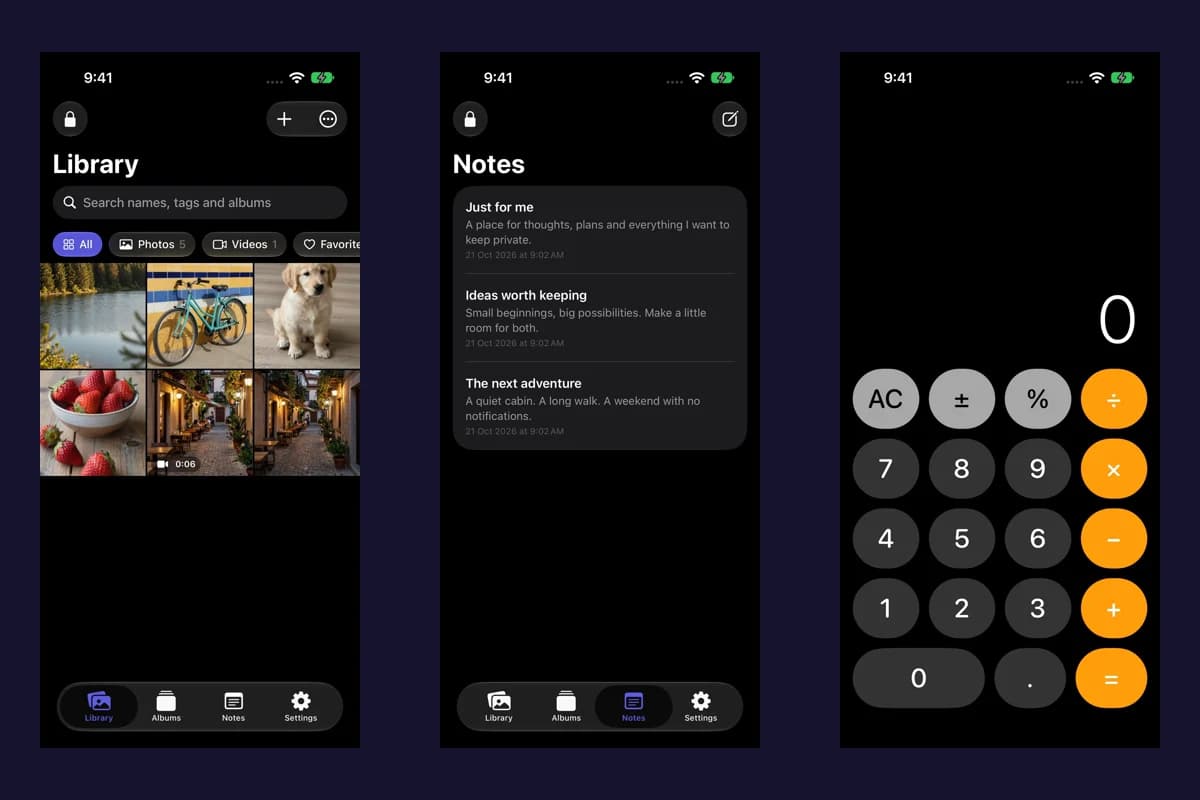
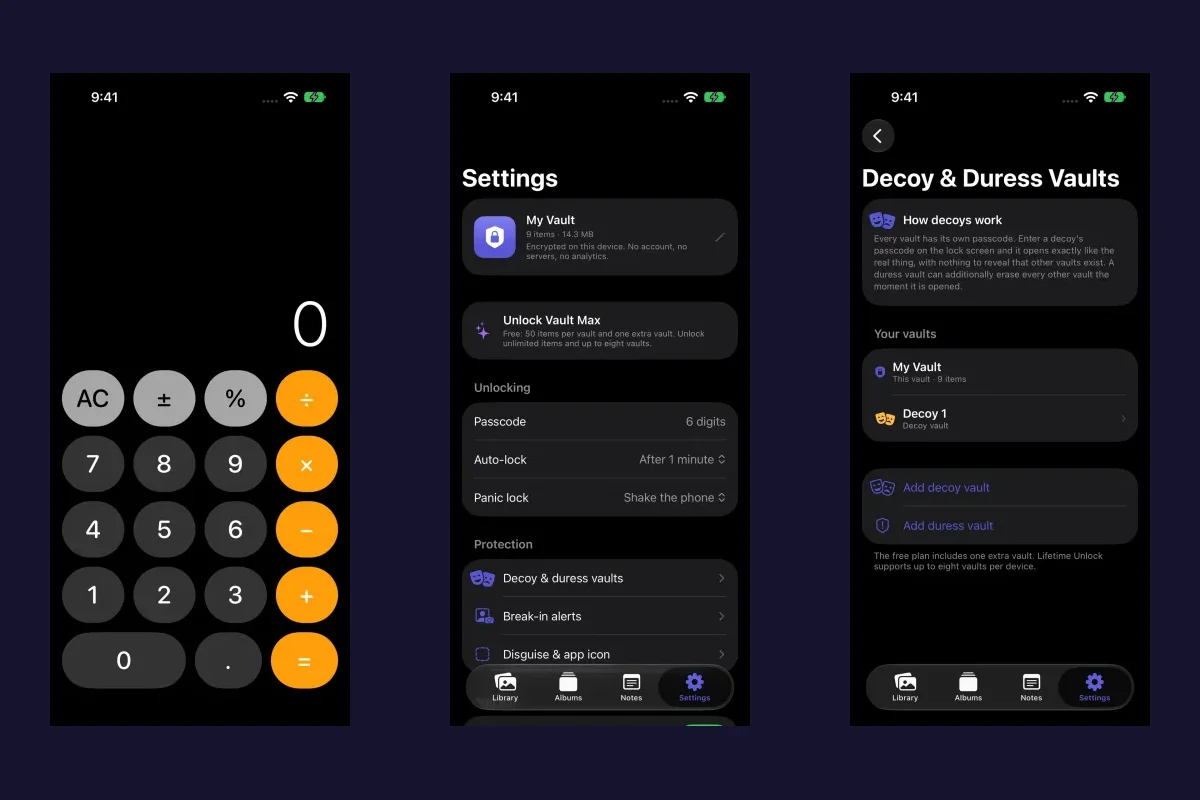
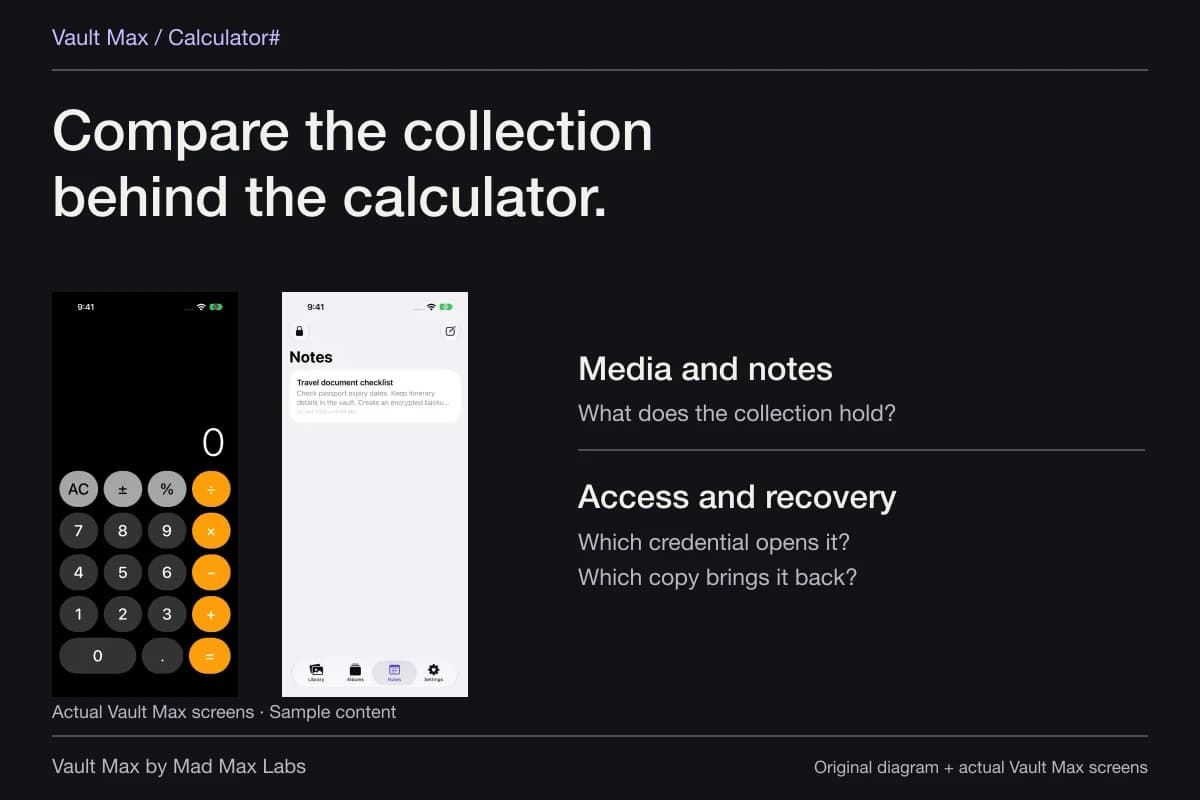
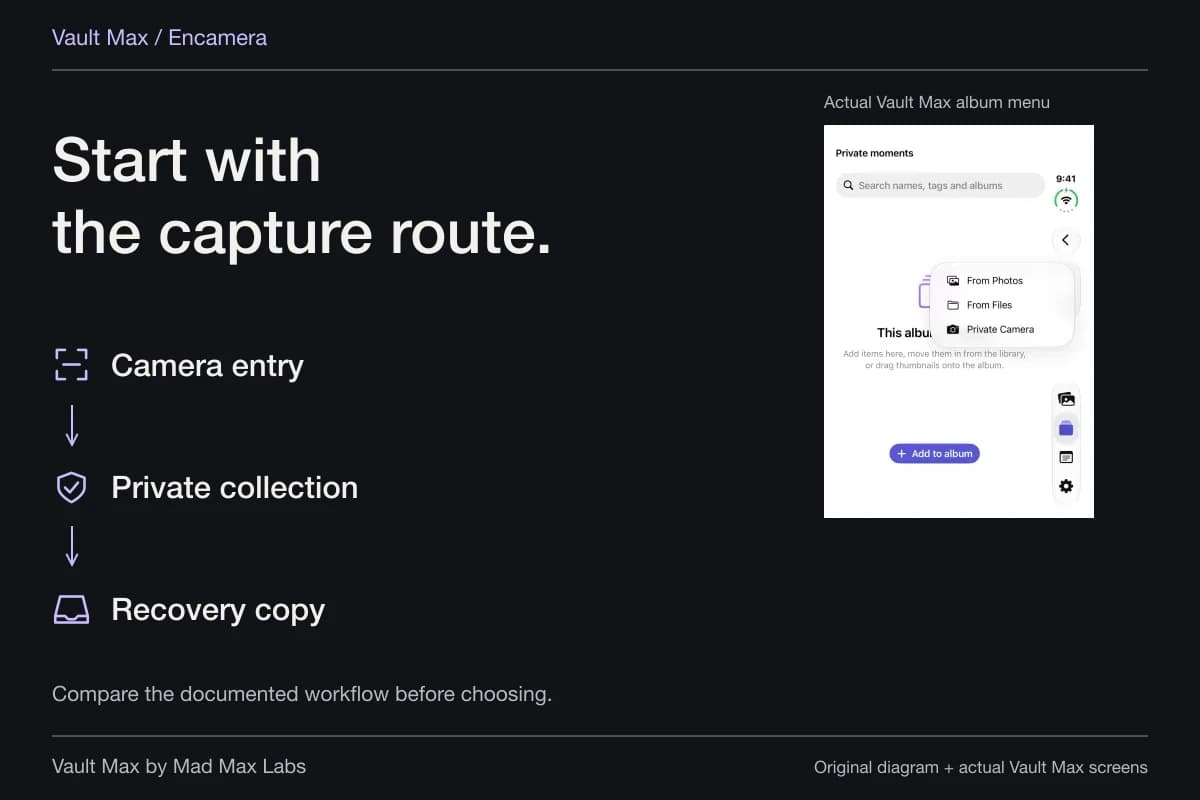
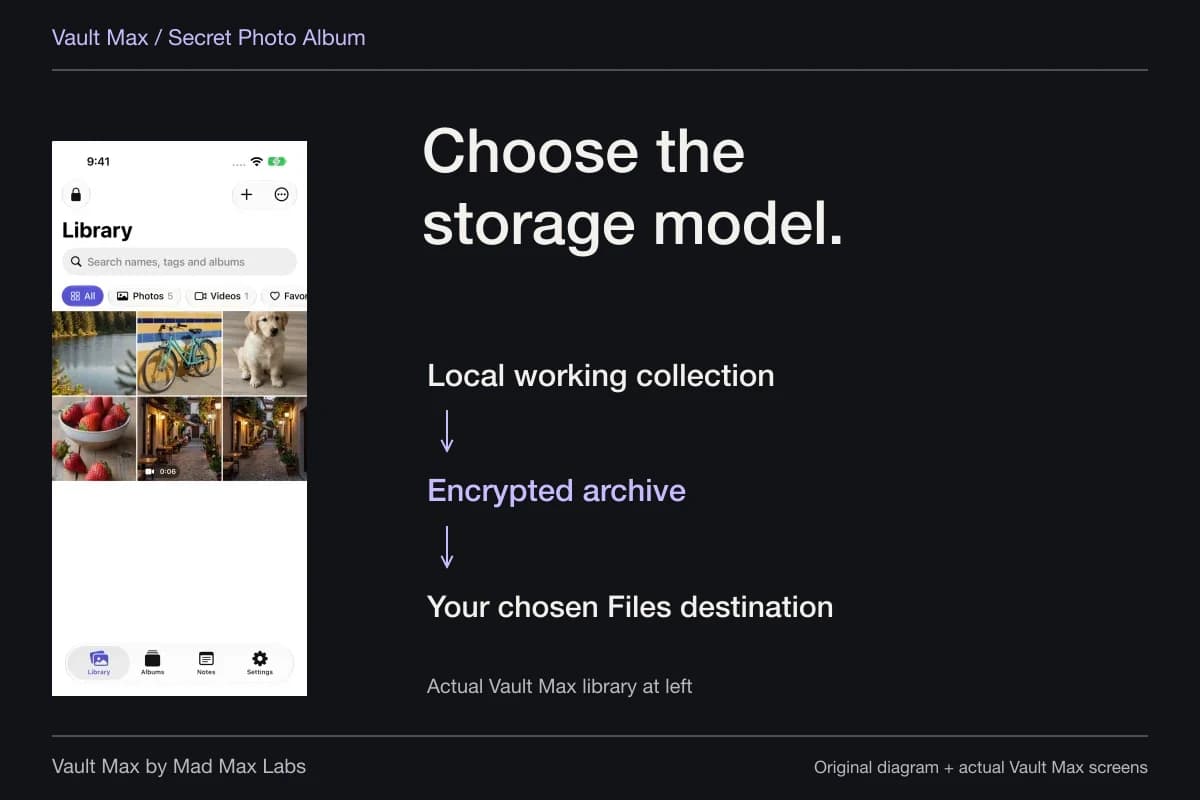
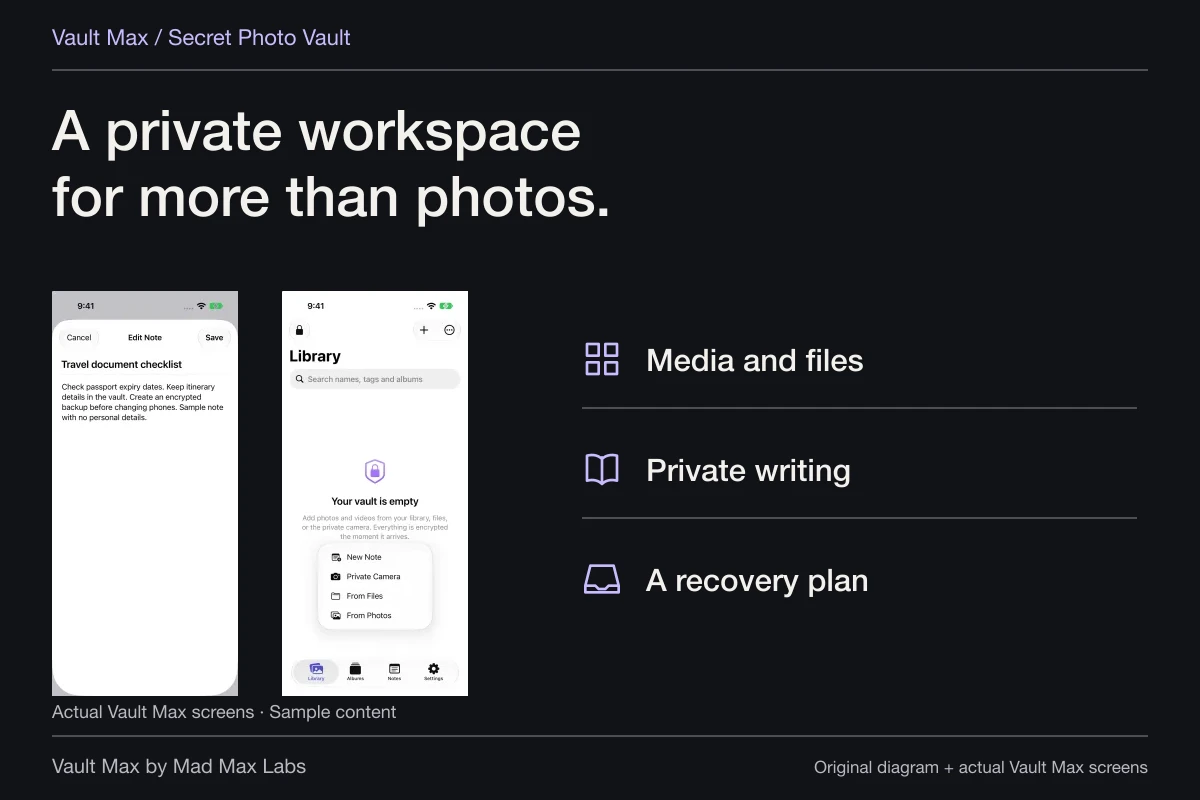
Vault Max can hold selected photographs, files and encrypted notes locally. It does not replace Apple's face recognition or automatically classify a person. Mad Max Labs makes Vault Max; the useful distinction is that you deliberately choose the content and the credential protecting the collection.
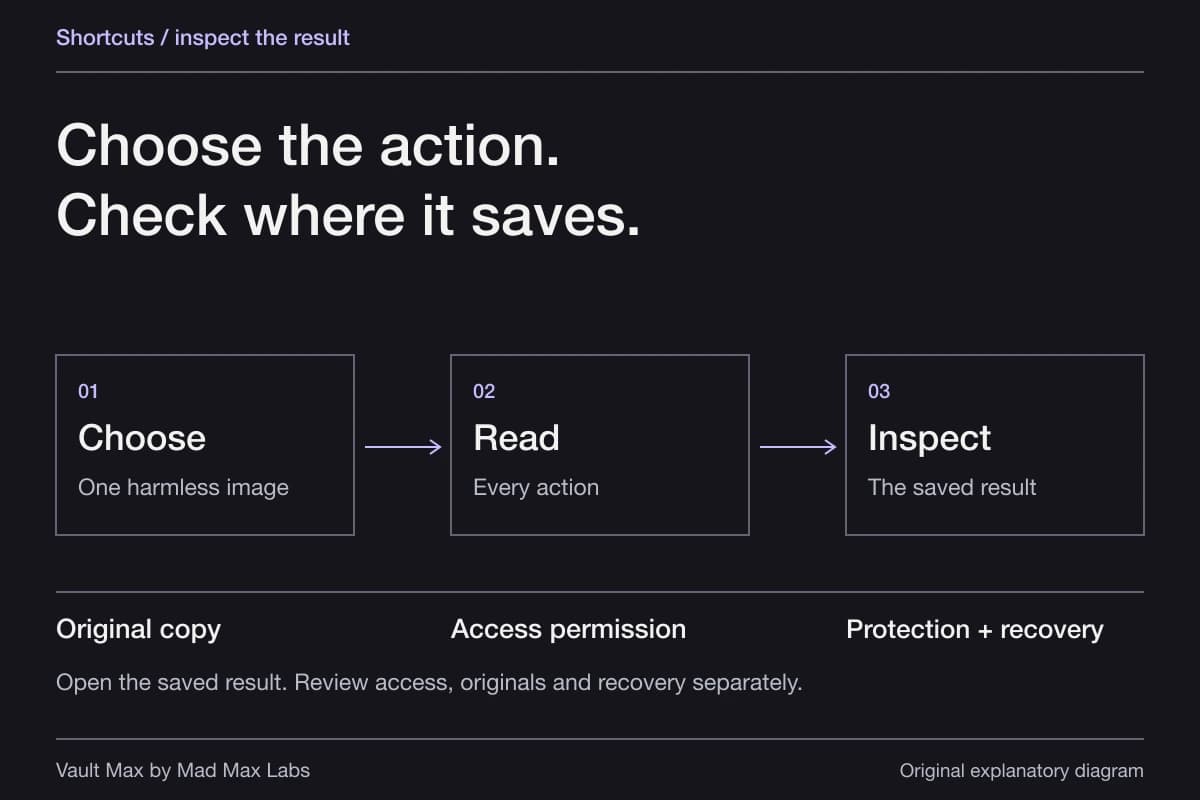
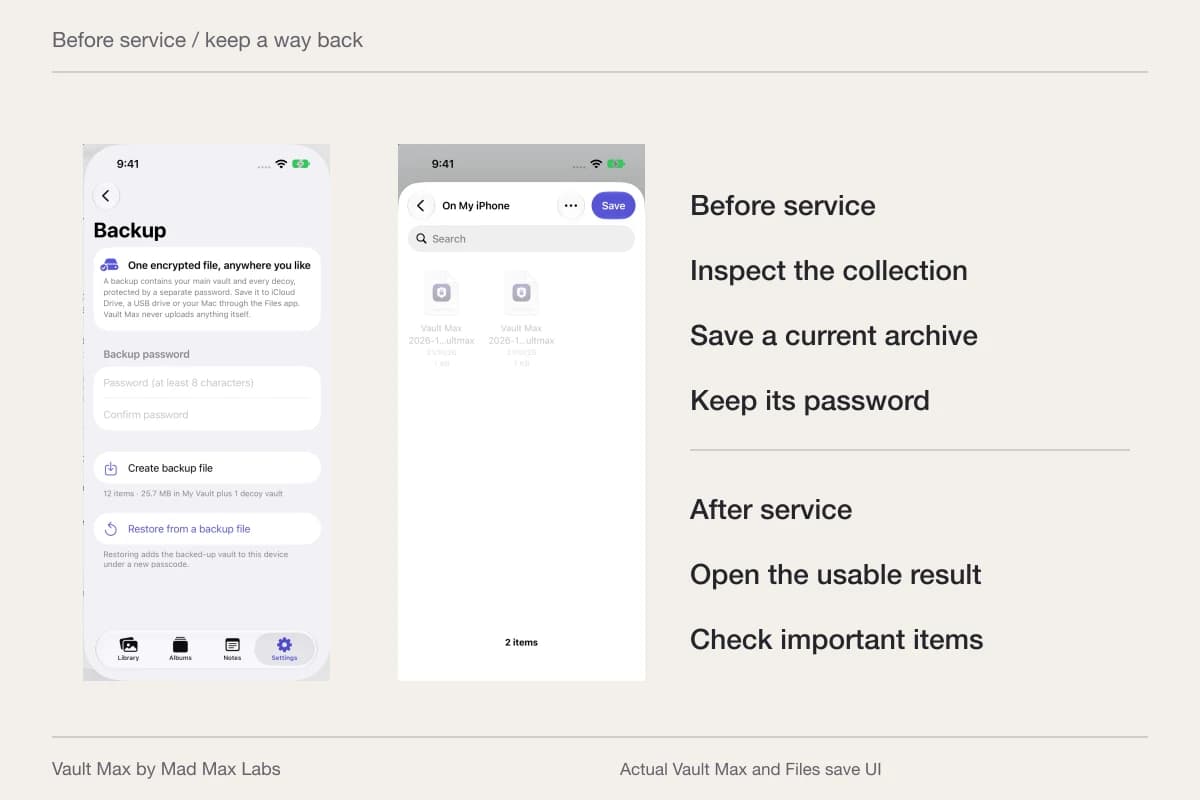
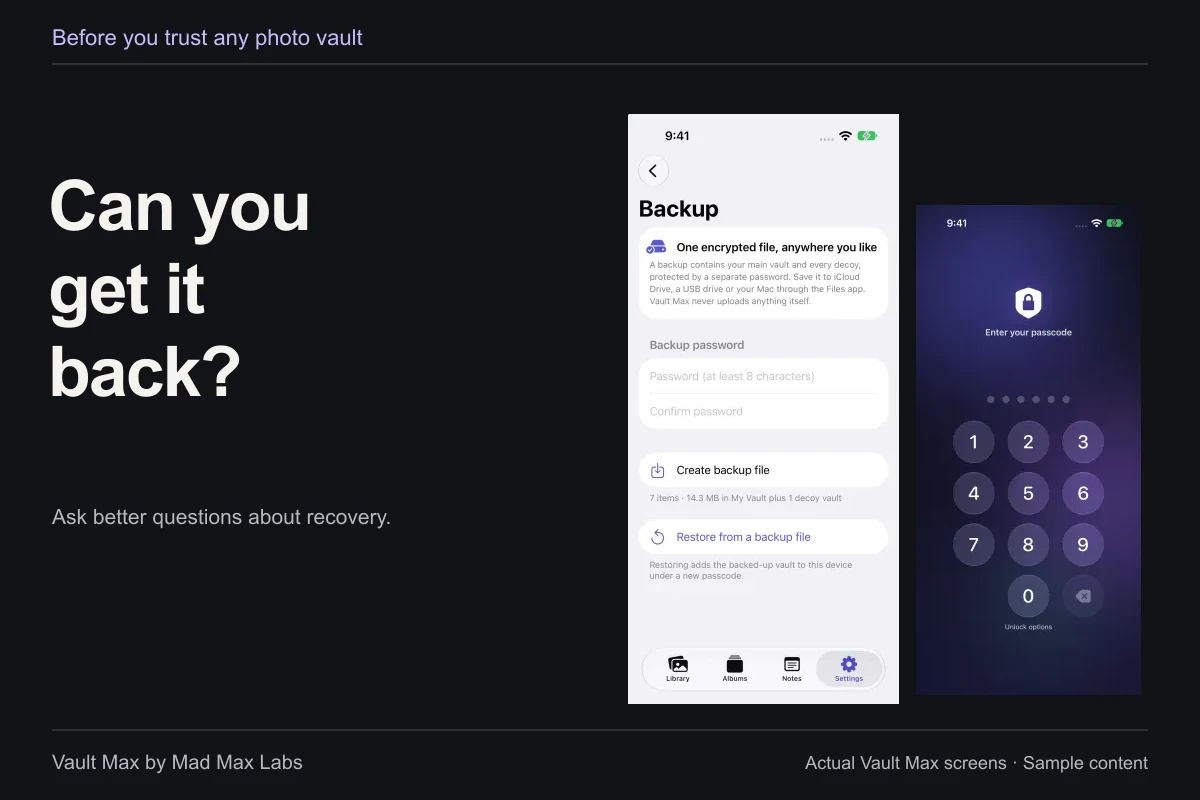
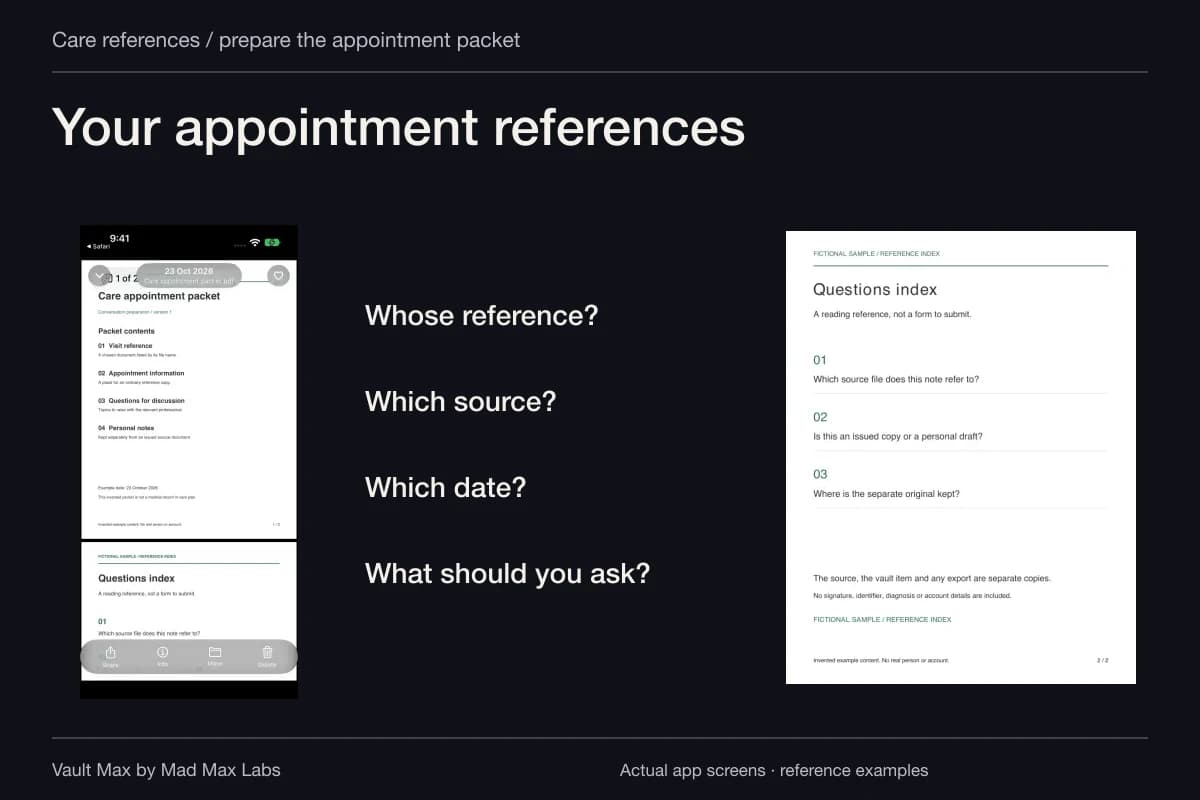
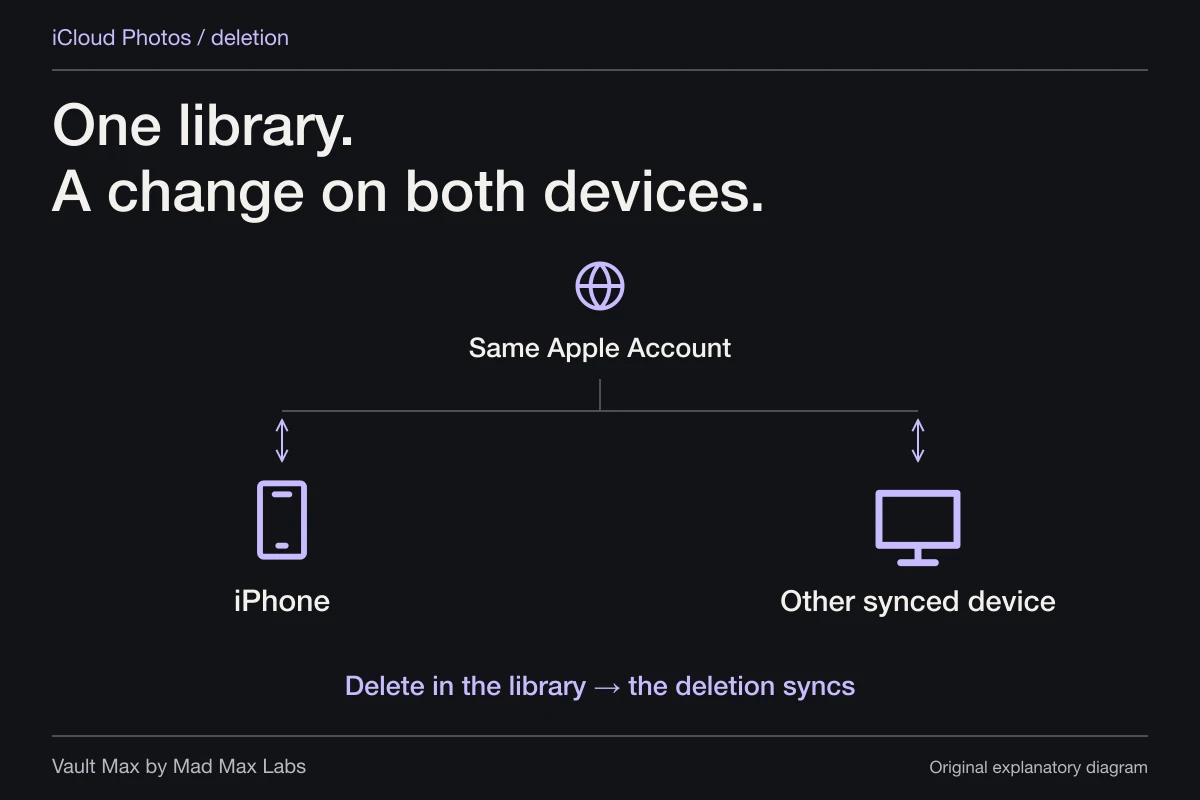
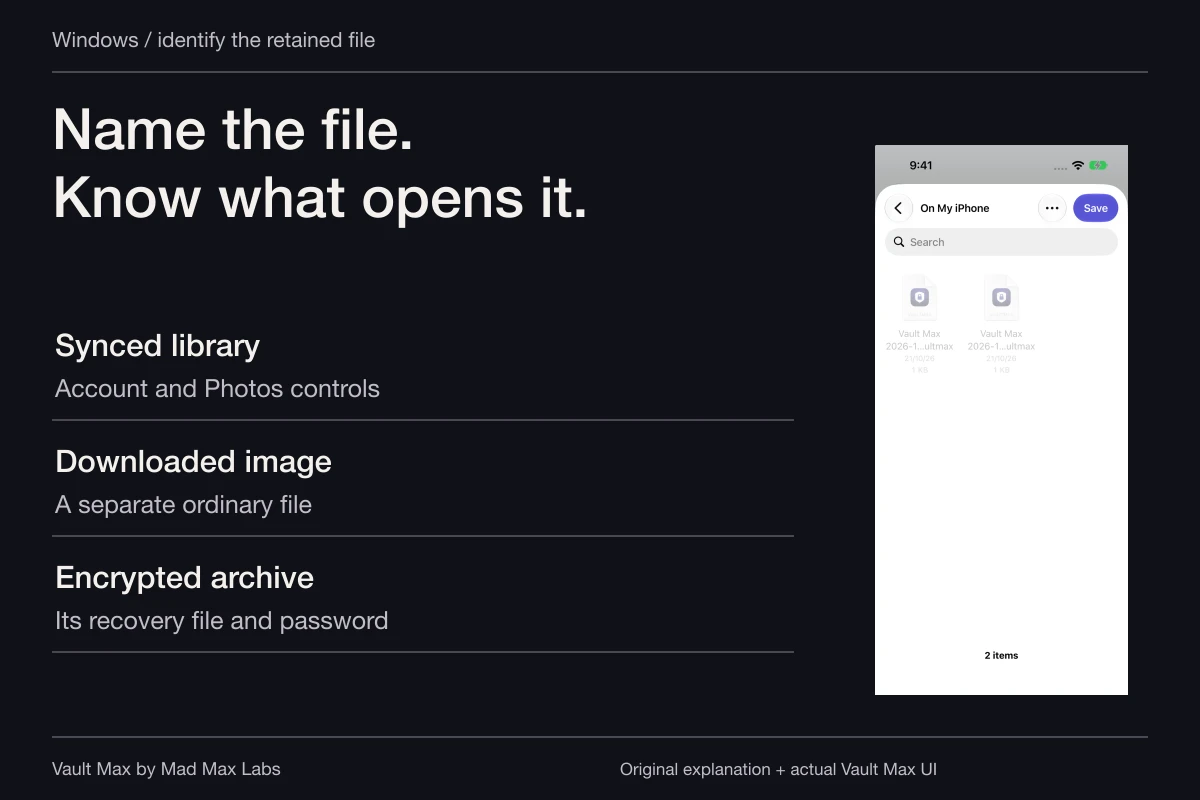
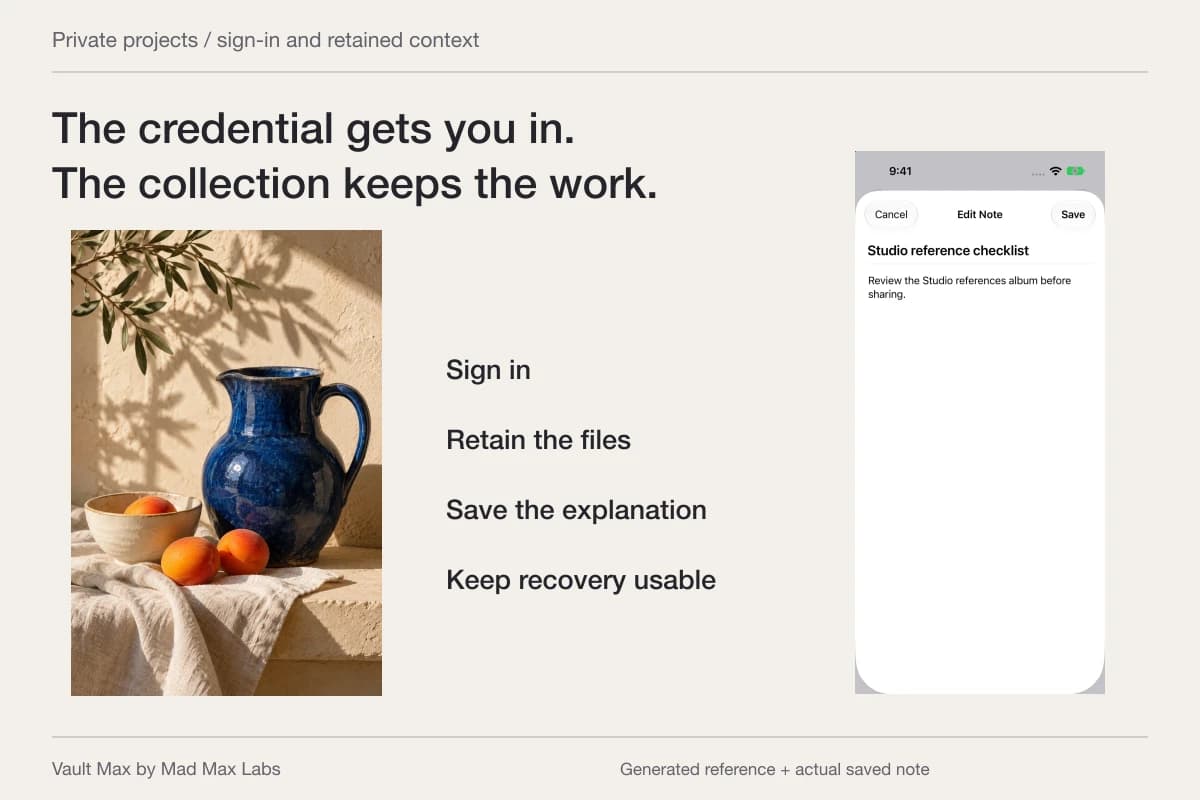
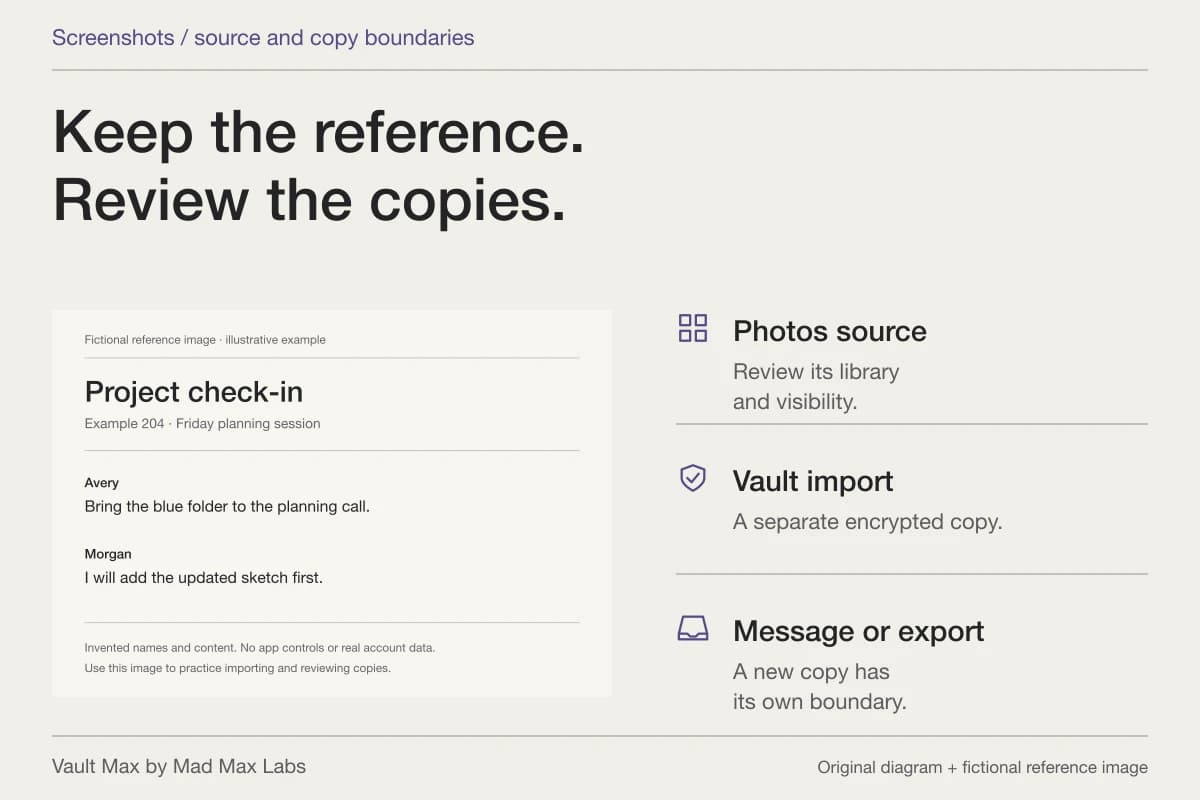
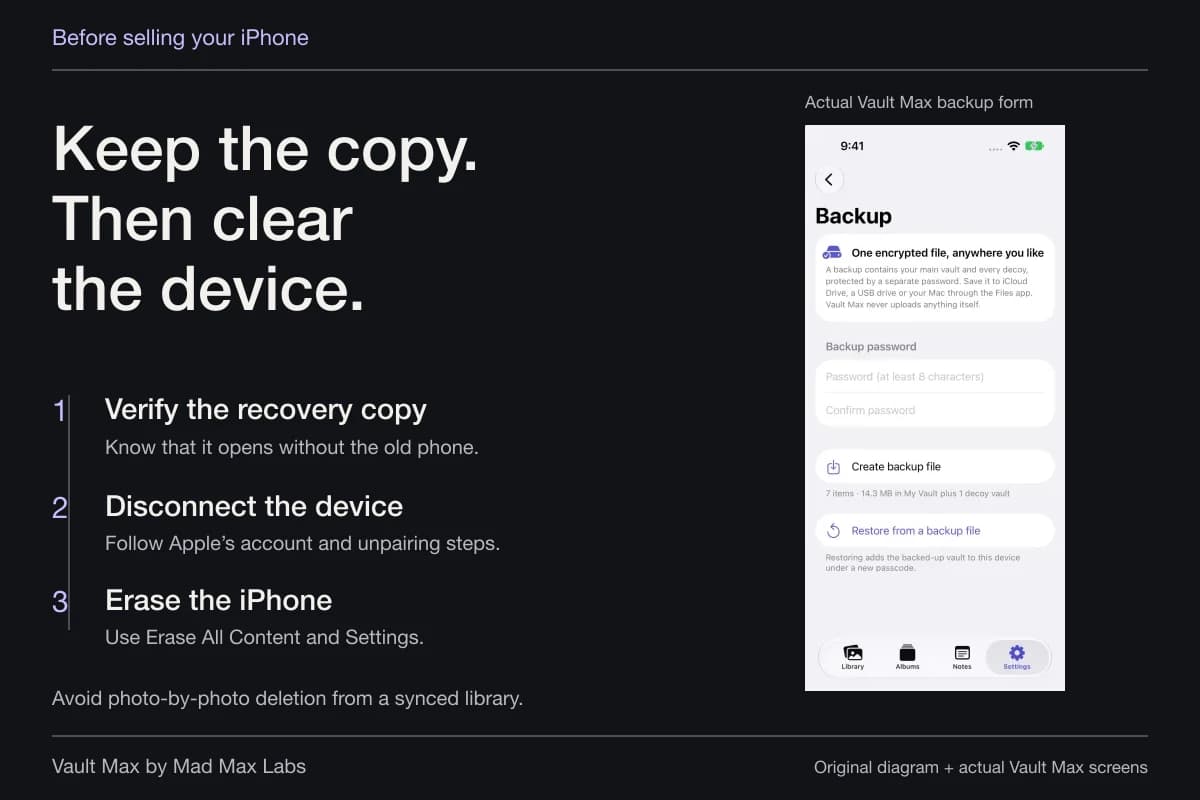
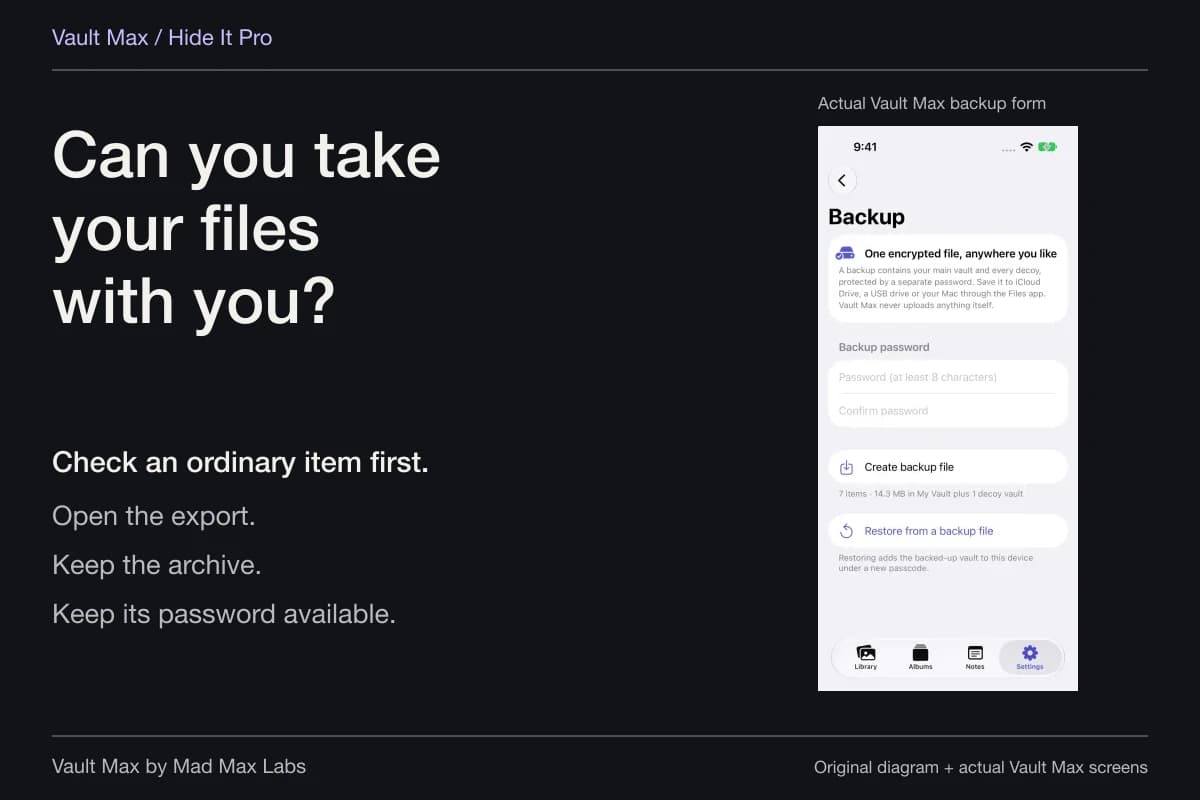
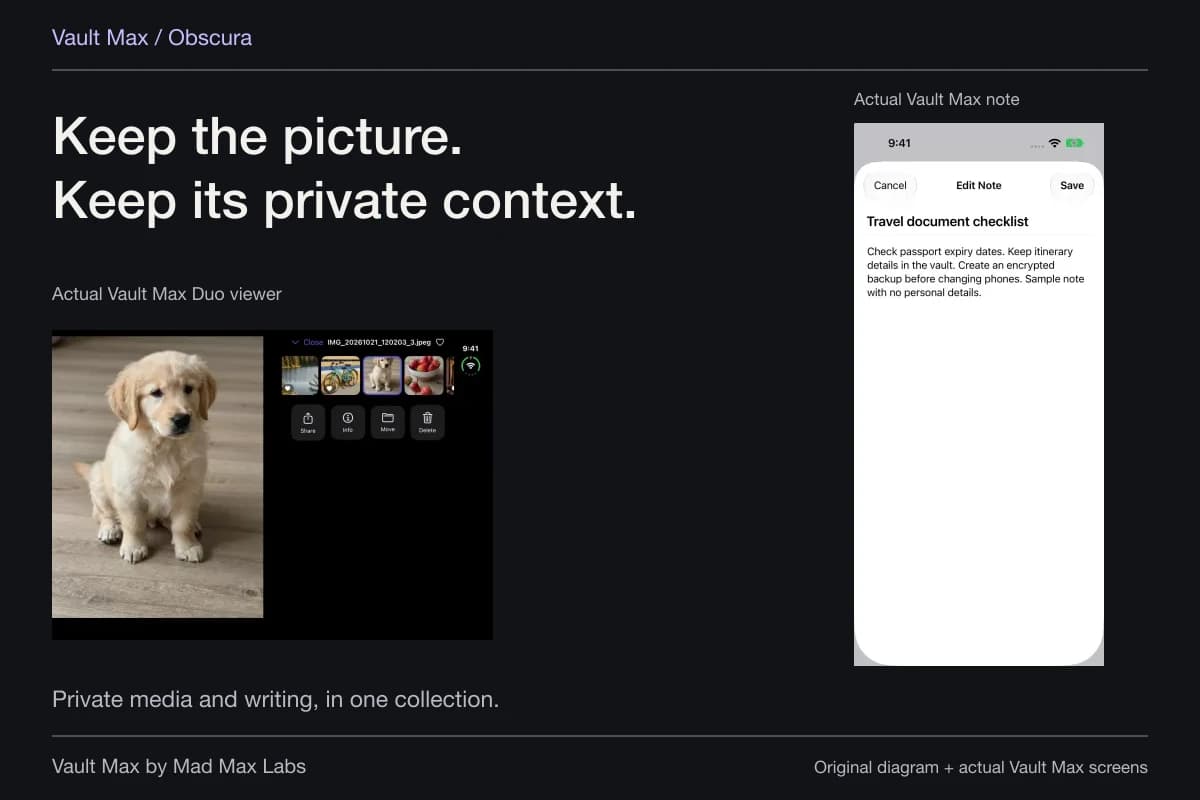
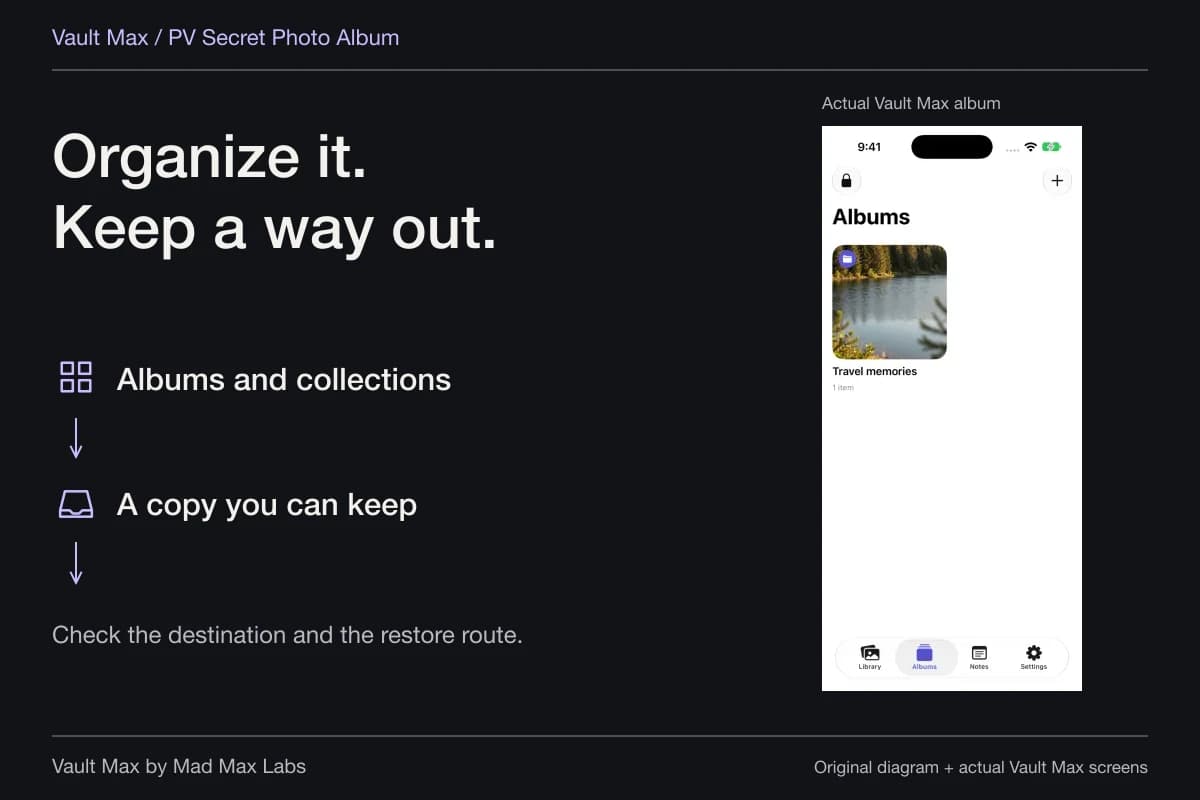
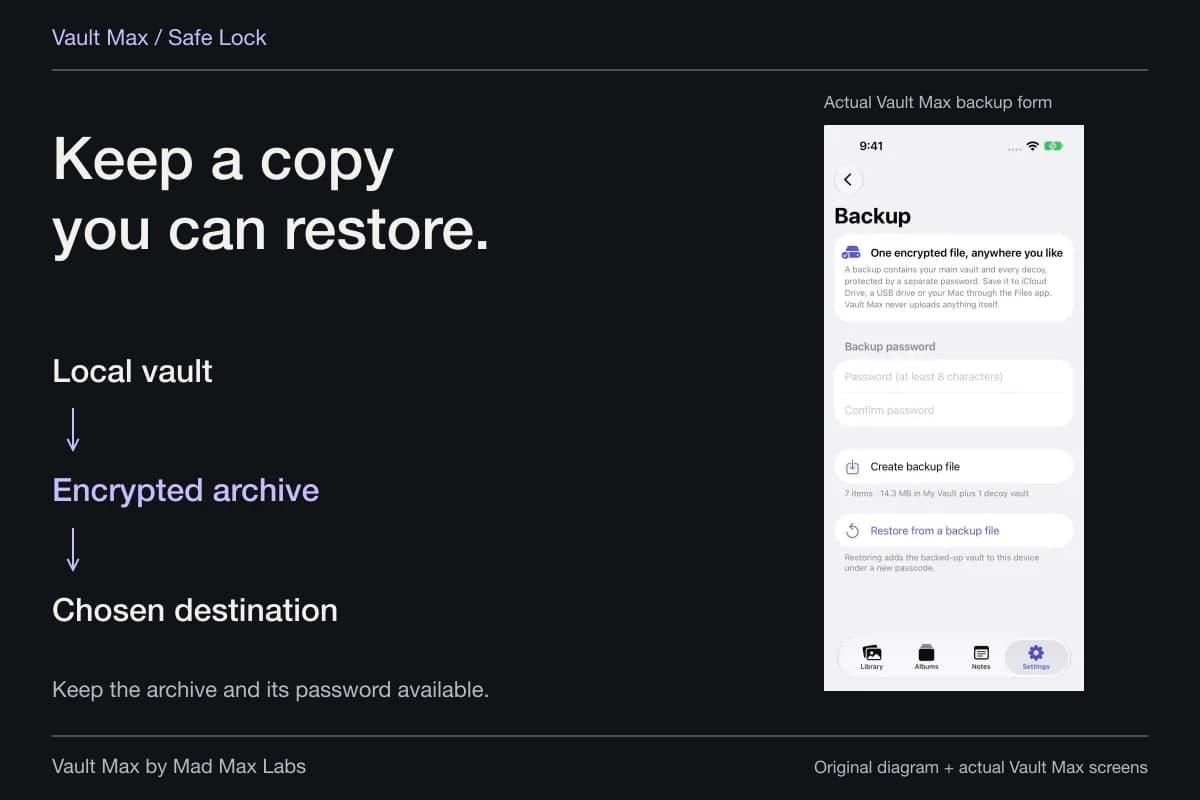
For a keepsake, you might retain the photograph and add a private note explaining its context, then organize it into an album you choose to open intentionally. Inspect the imported image first. Before removing a source, prepare a recovery archive and review the effect of deletion on any synced Photos library.
Finish with the outcome you intended
Return to the place that was bothering you. For a People & Pets entry, check the collection. For a hidden picture, check the item and the Hidden album. For featured suggestions, inspect the selected setting and give normal use time to reveal whether presentation fits your preference; one quiet screen does not prove every future Memory has been tested.
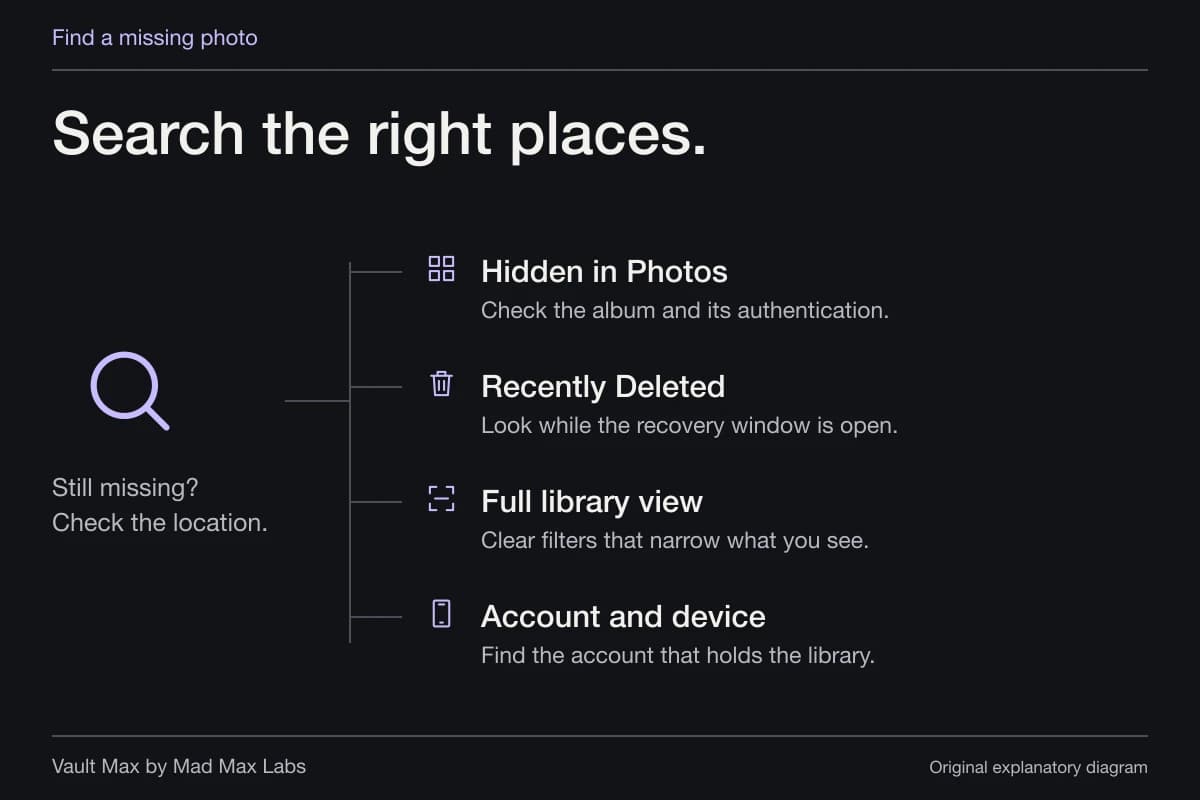
If a photograph seems missing altogether, stop making visibility changes and follow the missing-photo search. A hidden entry, an account mismatch and an accidentally deleted file need different troubleshooting. Keeping the known original intact gives you a stable reference while you work out which problem you have.
- Choose fewer reminders, a hidden entry, a corrected identity or protected photo files.
- Find a sample by date before changing the entry or suggestions.
- Distinguish Hide from Don't Feature and individual-photo Hide.
- Reset suggestions only for suggestions; do not assume a hidden entry was restored.
- Review Shared Albums and other libraries when the concern is another person's access.
Tap a box as you go. Checks reset when you leave this page.
Common questions
Does hiding someone in People & Pets delete their photographs?
Treat hiding a person entry, changing suggestions and deleting photo files as separate operations. Check the underlying photograph independently; hiding the person's entry is not a documented instruction to delete every picture containing them.
How do I undo Never Feature This Person?
Apple documents Collections, the account button, then Reset People & Pets Suggestions to feature people again. This resets suggestions; it is not established here as the restoration route for a hidden People & Pets entry.
Can this guide guarantee how to unhide a hidden People & Pets entry?
No. Apple's reviewed guide documents Hide and Add People, but does not explicitly establish a hidden-entry undo route. We have not verified a hide-and-restore fixture. Use the documented suggestions reset only for the suggestions setting, and preserve original photos while troubleshooting.
Continue reading
More guides
Practical tips for your private library. Swipe or scroll to choose your next guide.







92 guides to explore